> ## Documentation Index
> Fetch the complete documentation index at: https://docs.pensiv.so/llms.txt
> Use this file to discover all available pages before exploring further.
# Managing billing
> Where you change your plan, where you swap in new card details, and how to recover when a payment fails.
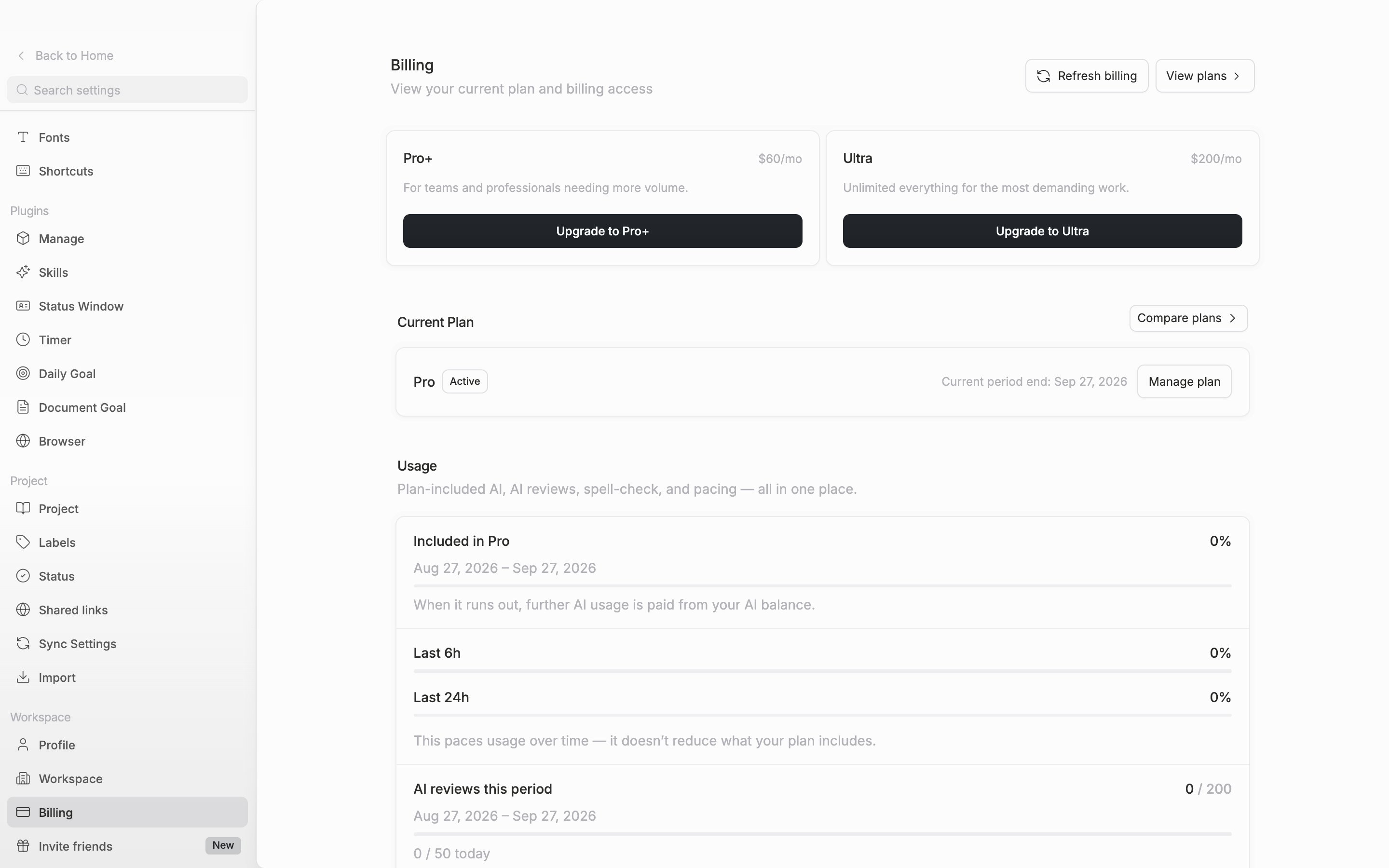
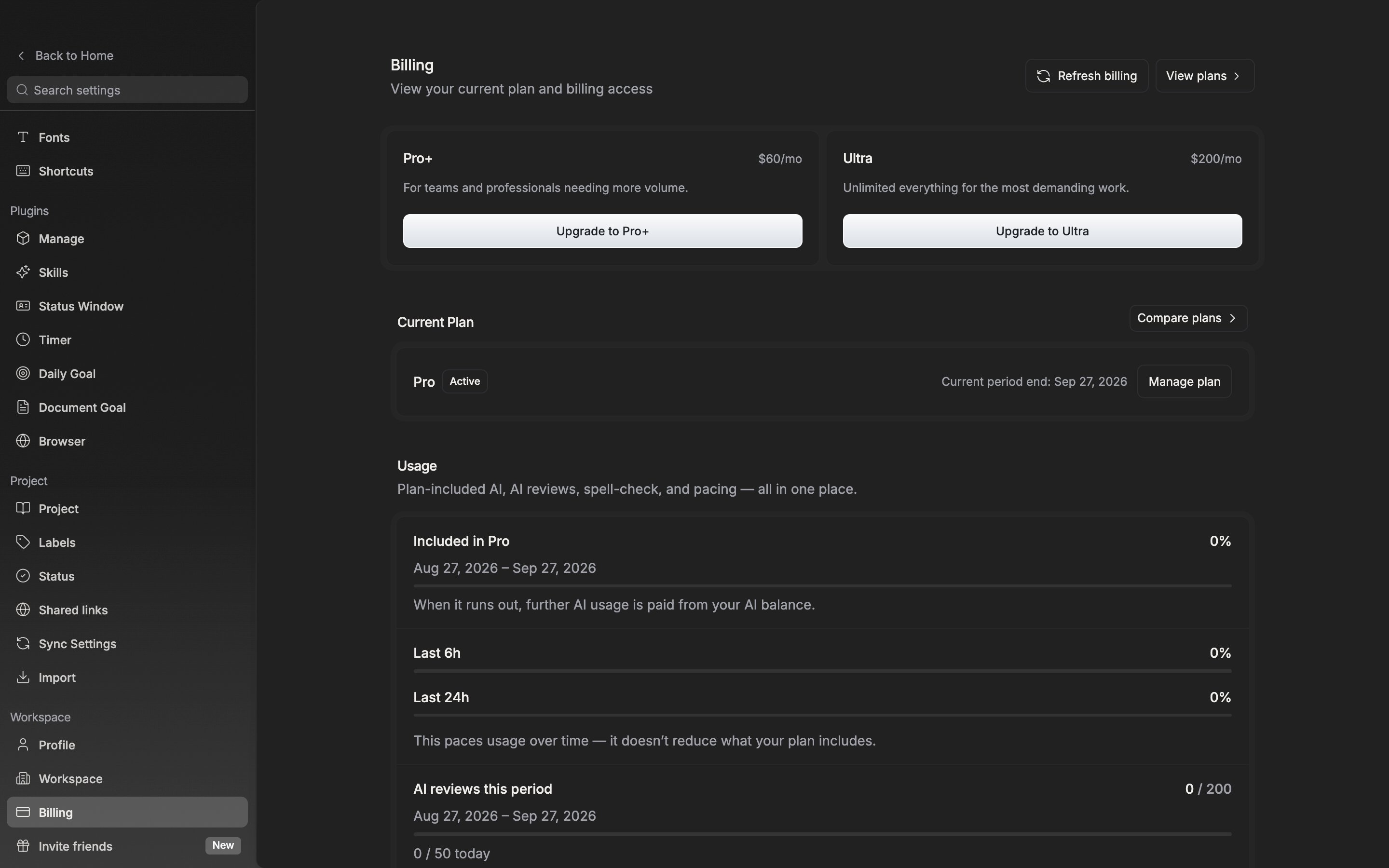
Open **Settings** and pick **Billing** in the **Workspace** group on the left.
The **Current Plan** card at the top carries the name of the plan you are on and a status badge. The badge takes the status as it is — **Active**, **Free trial**, **Canceling**, **Payment failed** — and on a free plan it holds only **Current plan**. On the right sits the **Current period end** date, or, if you have scheduled a cancellation, the date it cancels.
## Changing your plan
Above the card, the paid plans higher than your current one are laid out one card each. Click the upgrade button on the card you want and a checkout window opens in your default browser. When you finish paying, you are returned to the app and the plan information refreshes on its own.
If you are already on a paid subscription, the same button leads to the billing portal. It is not a new purchase but the place where you swap the current subscription, so it is prorated for the remaining period. **Manage plan** at the right of the card goes to the same page.
To set the limits side by side and choose, click **Compare plans**. You can move between **Monthly** and **Annual** to check the figures, and go straight through with the button on each column, such as **Choose Pro**.
If a cancellation is scheduled, the button changes to **Keep subscription**. Click it to undo the schedule and renewal continues after the period ends.
The plan name, the status, and the next renewal date are gathered on one card.
## Payment method
Card details and past invoices are handled on the billing page, not inside the app. Click **Manage plan** and a browser opens where you can change the card or view your payment history.
## When a payment fails
If the card charge does not go through, a **Payment failed** notice attaches below the current plan card. Features still work as usual at that point, because the subscription stays alive while the retry runs. So apart from this notice there is no visible signal. If the retry fails in the end, the subscription is cut off.
Click **Update payment** and the billing portal opens. The outstanding invoice and the card replacement are both there.
If you finished paying in the browser and the screen has not moved, click **Refresh billing** at the top right.