> ## Documentation Index
> Fetch the complete documentation index at: https://docs.pensiv.so/llms.txt
> Use this file to discover all available pages before exploring further.
# Connecting your project to outside AI apps with MCP
> How to get the server URL from the MCP tab in settings and connect apps like Claude, ChatGPT, and Cursor to your pensiv workspace.
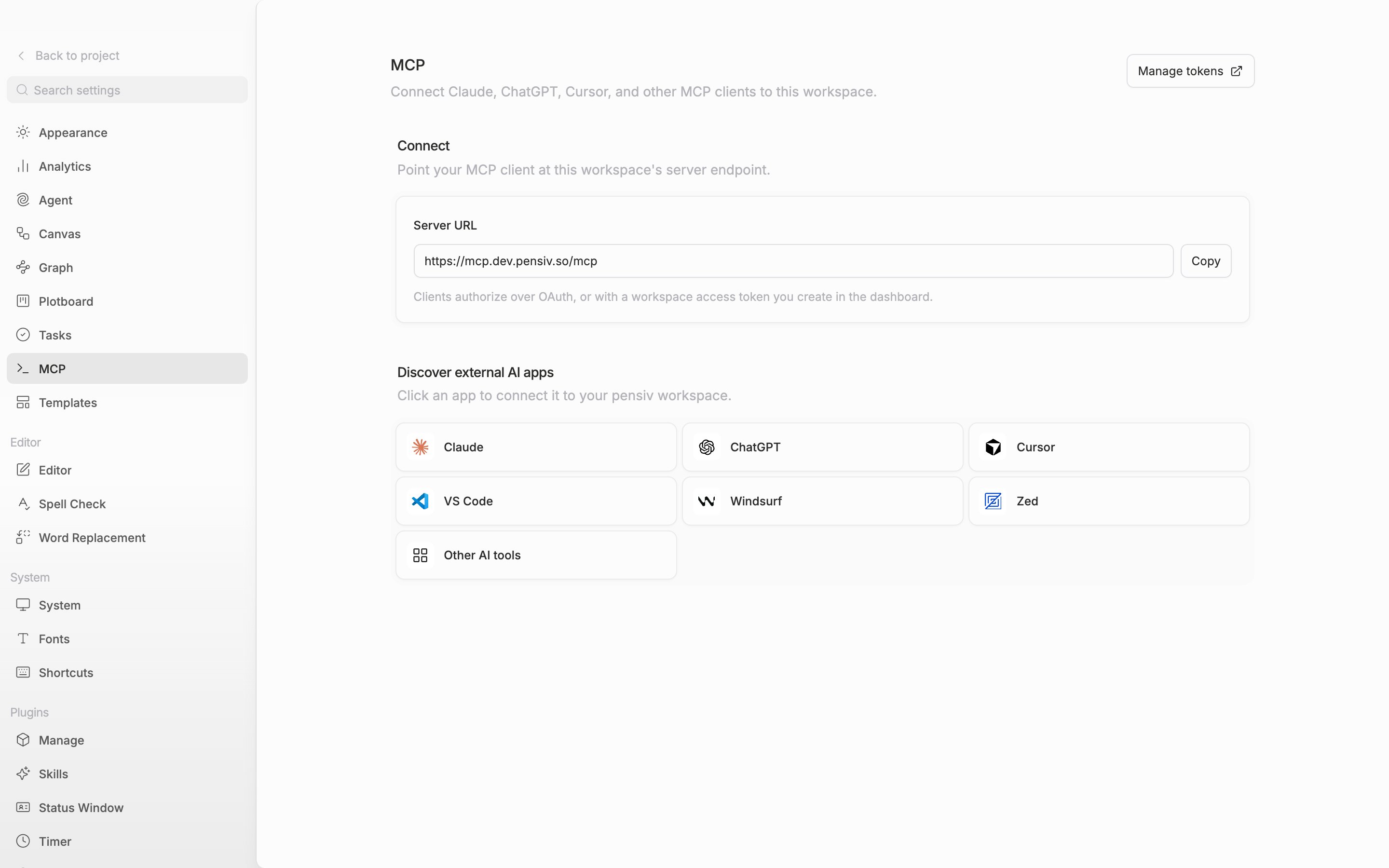
MCP is the channel that lets you keep your manuscripts and character sheets in pensiv while opening that project from the AI app you already use. Open settings and go to the **MCP** tab in the "General" group. The tab description is "Connect Claude, ChatGPT, Cursor, and other MCP clients to this workspace."
This tab is the setting that pulls outside AI apps toward the workspace. The other direction — attaching an external MCP server to the agent inside the app — is not in Settings → Agent.
It is available from the Pro plan up. On a plan below that, a "Pro plan required" badge is attached beside the title and the copy button and the app tiles are locked.
## Copying the server URL
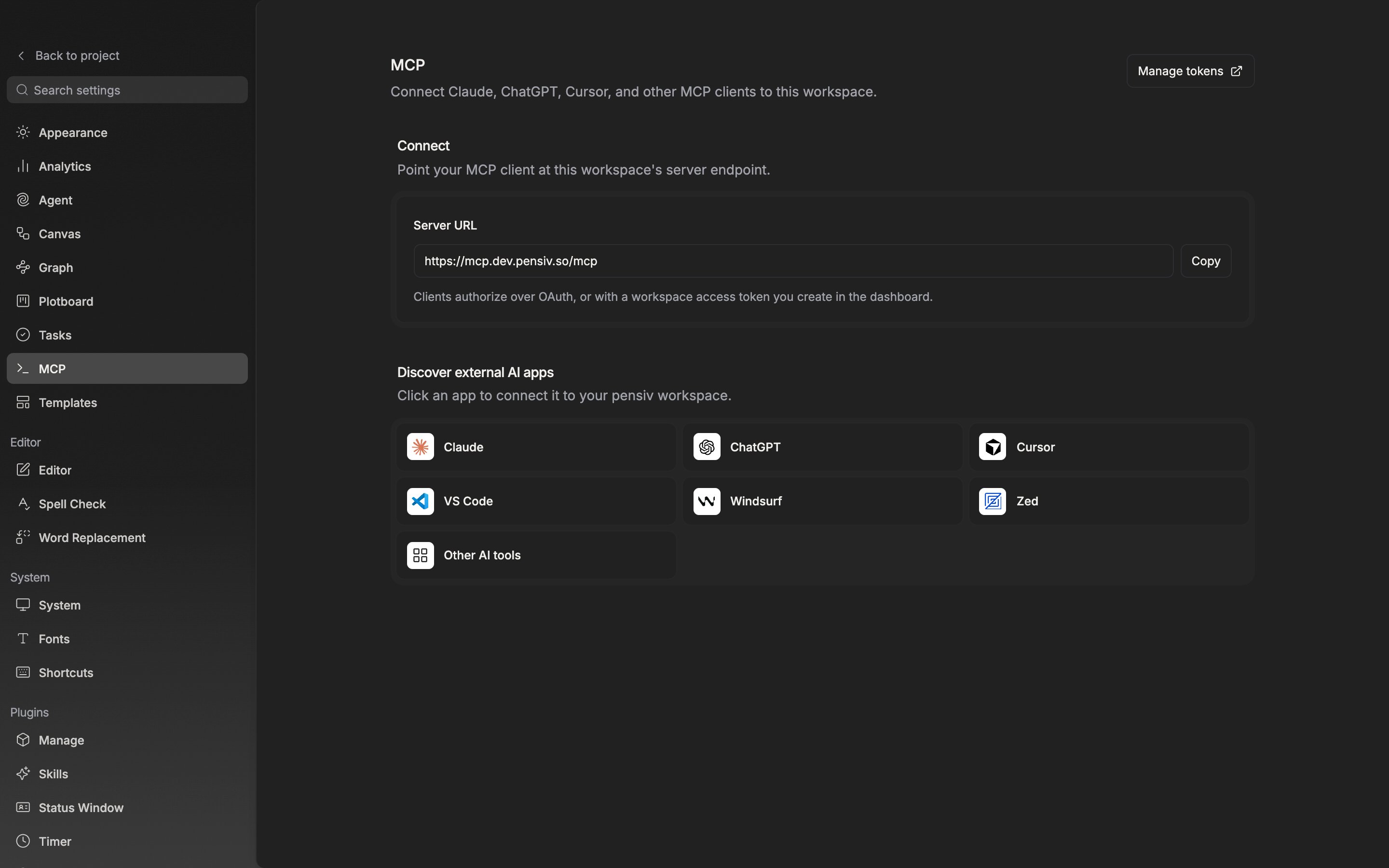
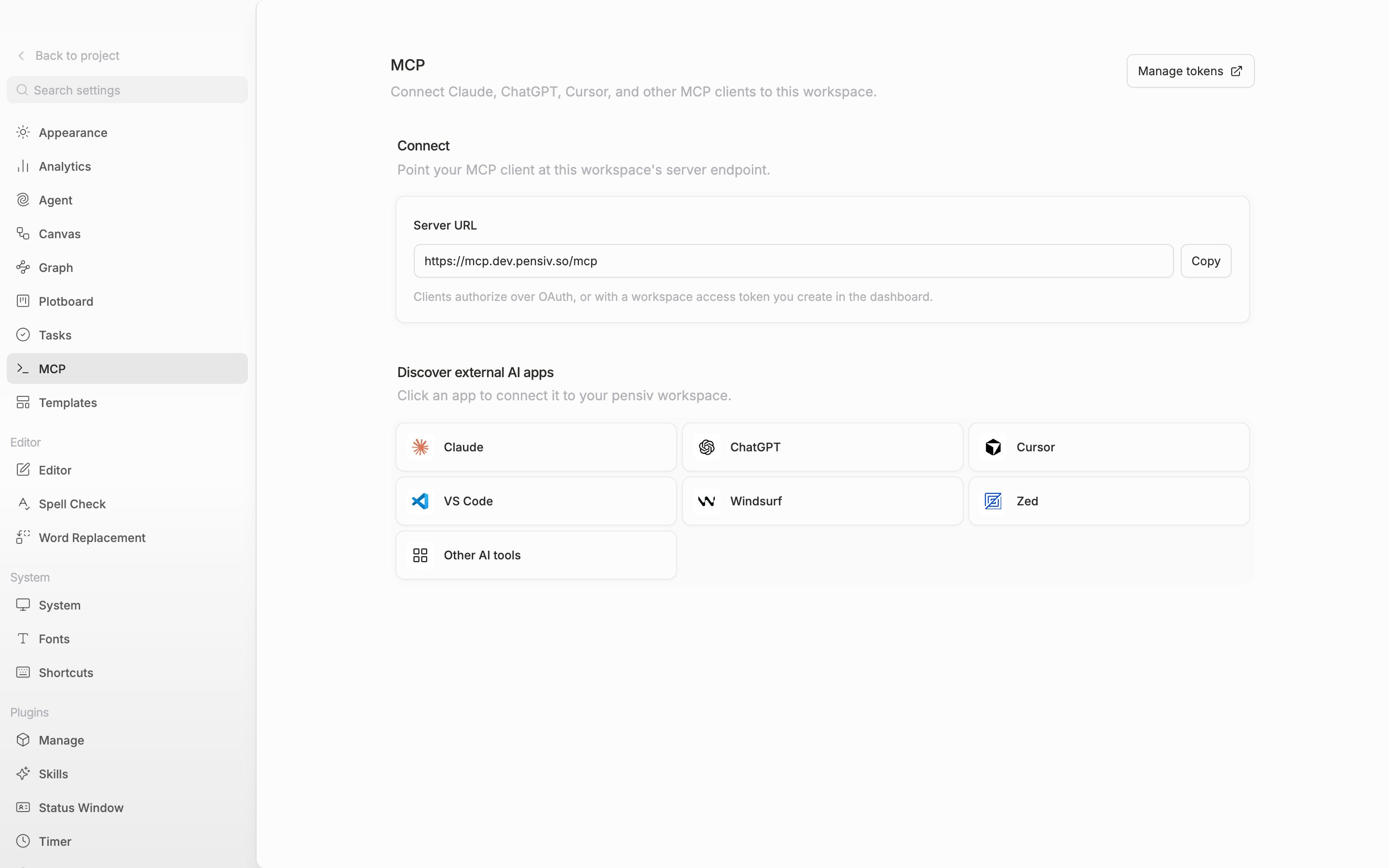
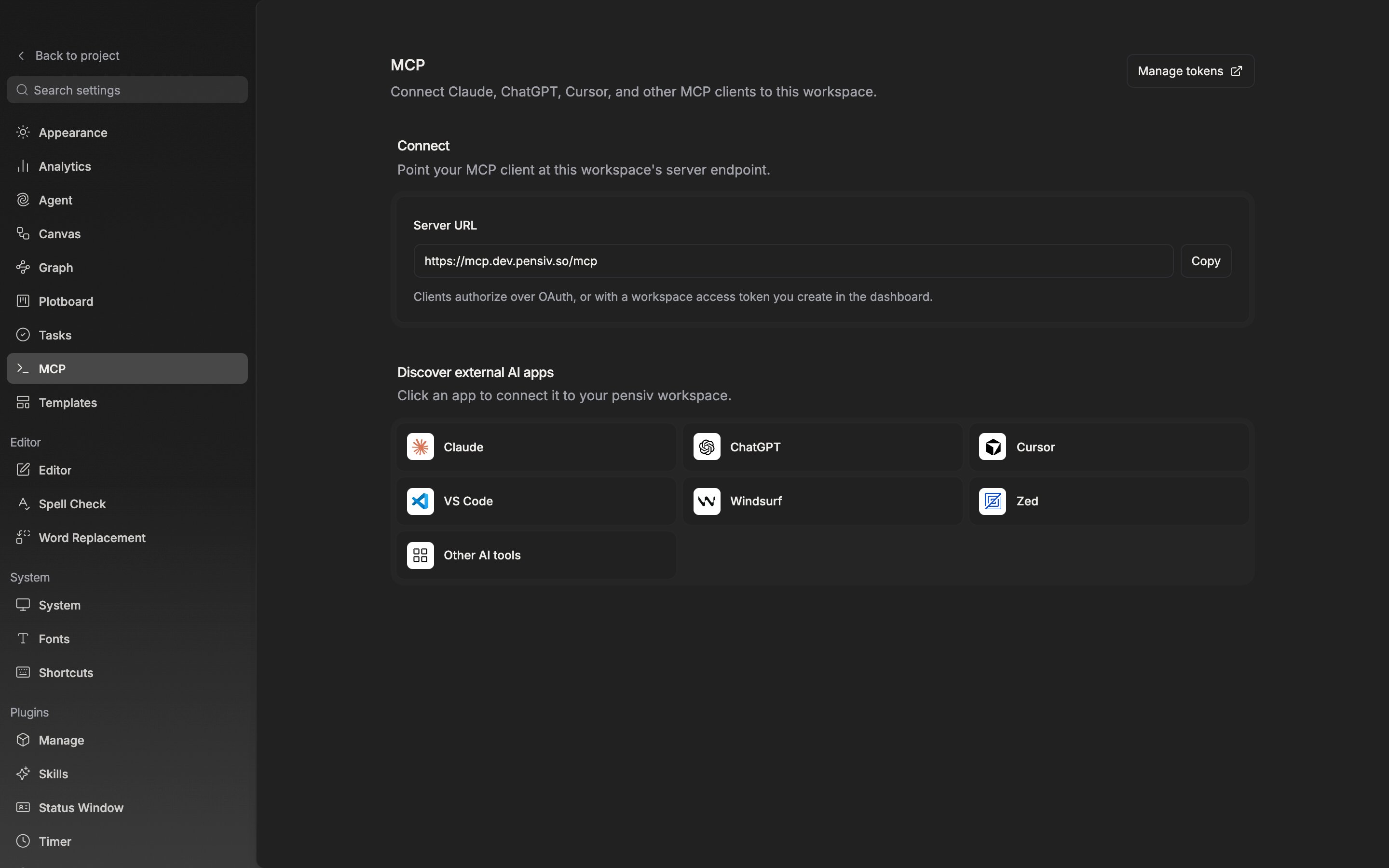
The "Server URL" field in the "Connect" section already holds the workspace address. Press "Copy" at the right and the button changes to "Copied" for a moment.
Below the field is the note "Clients authorize over OAuth, or with a workspace access token you create in the dashboard." If you need a token, press "Manage tokens" at the top right and issue one from the dashboard.
The server URL and the Manage tokens button sit in one place.
## Attaching directly from an app tile
"Discover external AI apps" has tiles for Claude, ChatGPT, Cursor, VS Code, Windsurf, Zed, and "Other AI tools". Each tile behaves differently.
* **Cursor, VS Code** — press the tile and that app opens with the server registered.
* **Claude, ChatGPT** — the server URL is copied and the connector settings screen opens in the browser. Paste it there to connect.
* **Windsurf, Zed** — a config in that app's format is copied, and at the same time the browser opens that app's MCP setup documentation. **Other AI tools** — a generic config is only copied and nothing opens. After pasting it, replace the token slot with a value issued from the dashboard.
Press the tile for the app you use and the connection starts.