> ## Documentation Index
> Fetch the complete documentation index at: https://docs.pensiv.so/llms.txt
> Use this file to discover all available pages before exploring further.
# What the agent can do
> What the agent can read and change inside a project, the three modes, how to hand it context, the approval flow, and model limits.
You open the agent with the **Agent** button at the top right of the project screen. It is a button that appears only when a project is open, so the project list screen does not have it. Press it and a chat panel attaches to the right.
It is less a conversation partner than something that **works directly inside the project**. It creates, edits, and deletes documents, sheets, plotboards, plot cards, canvases, and folders, and it also handles the relationships between files along with labels and statuses. It searches the web when needed.
## Three modes
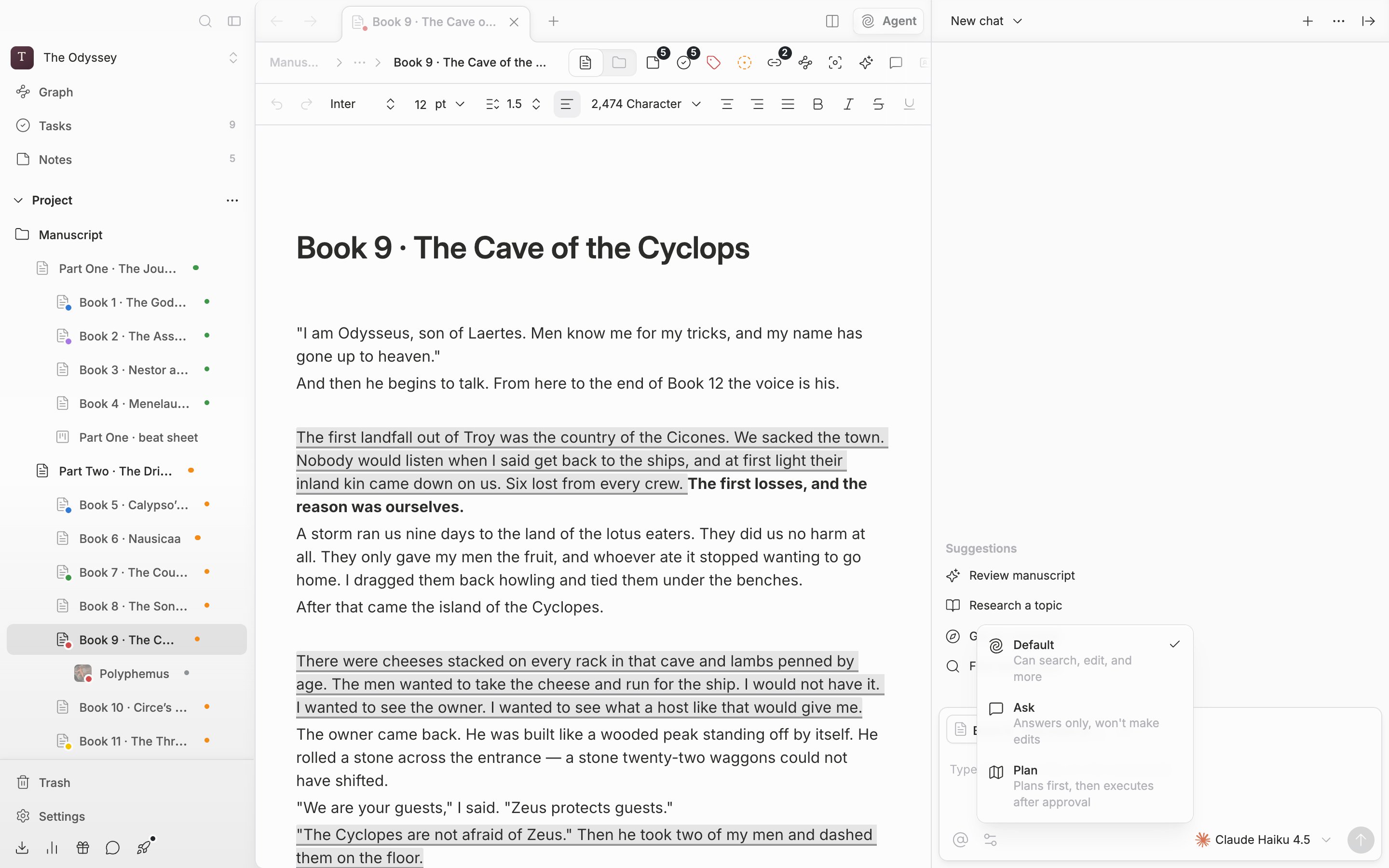
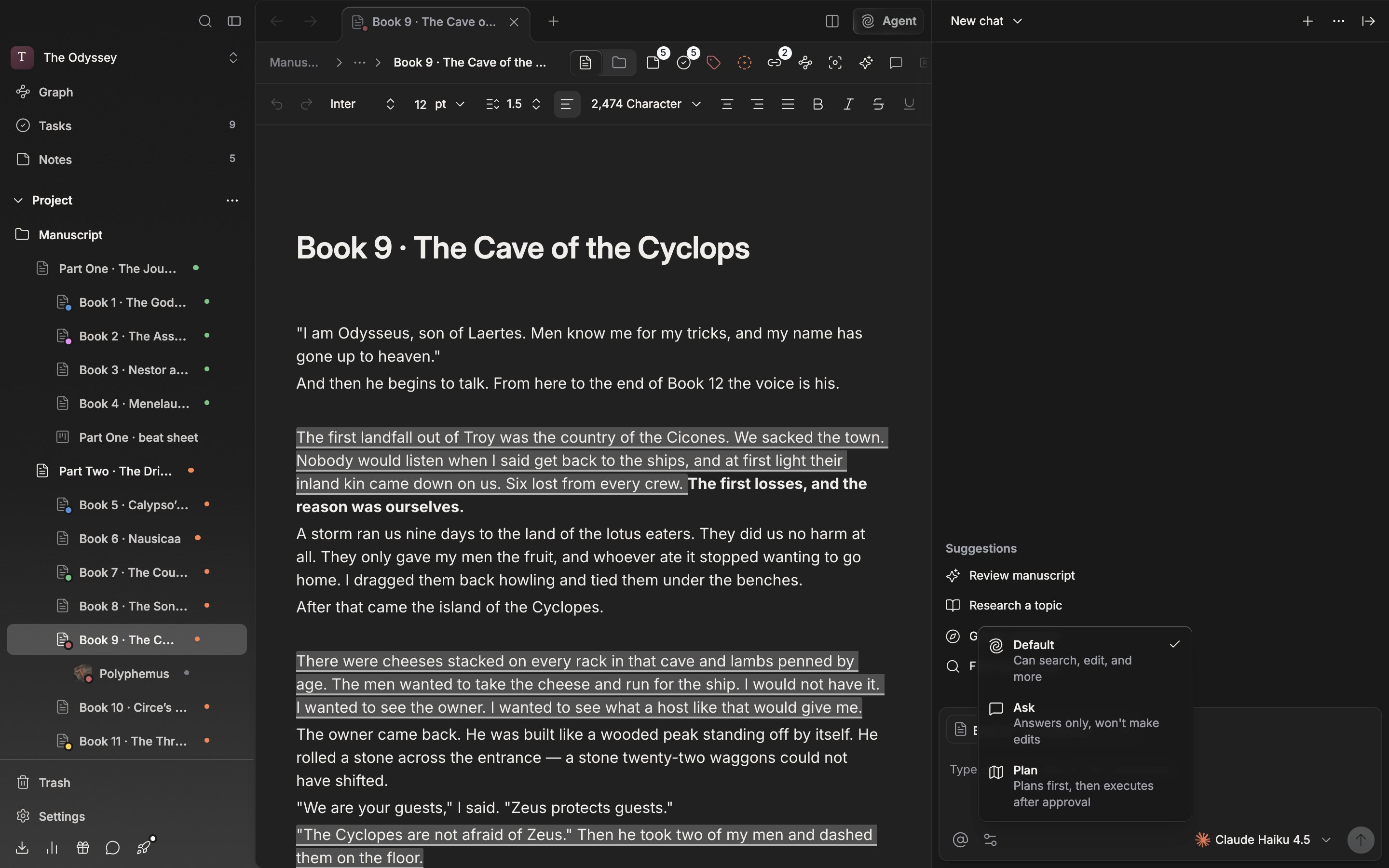
You pick one from the gear button (**Mode**) at the left of the composer.
| Mode | Description |
| ----------- | ----------------------------------------- |
| **Default** | Can search, edit, and more |
| **Ask** | Answers only, won't make edits |
| **Plan** | Plans first, then executes after approval |
When you pick a mode other than Default, the name is attached to the button as **Ask mode**, so you can see at a glance which mode you are in.
The three modes. What the agent touches depends on the mode you pick.
## Handing it the manuscript
It is written right in the composer: **Type @ to add a file, or / for commands**.
Type `@` and this project's files appear. You can pick folders too. They expand into the files inside them when you send. The `@` button on the left (**Add context**) opens the same list.
Type `/` and commands appear. **New chat · Clear chat · Compact conversation · Usage & credits** deal with the conversation itself. **Deep research · Review · Humanize · Copyedit · Proofread** are manuscript work. Picking one of the last five embeds a fragment in the composer, so write what it should apply to after it.
## It asks before it changes anything
Right before it creates, edits, or deletes a file, an approval card appears. Press one of the four rows — **Accept once · Allow for this session · Always allow · Reject** — and it is settled on the spot. Actions you set to **Always allow** are not asked about again. When several approvals pile up, step through them one at a time or cut them off all at once with **Reject all**.
## Models and credits
You change the model at the right of the composer. Premium models carry a lock and say **Available on Pro and above**. Light models work regardless of plan. Whichever model you use, every run draws down your **AI balance**.
An empty conversation lays out four rows under the name **Suggestions**: Review manuscript, Research a topic, Get an overview, and Find documents. Pressing one fills that sentence into the composer, so edit the rest.