> ## Documentation Index
> Fetch the complete documentation index at: https://docs.pensiv.so/llms.txt
> Use this file to discover all available pages before exploring further.

# Usage and credits

> How to open the usage card in chat to check your plan, what is left, and your AI balance, and how to read the warning banner and the blocked notices.

Have it review the whole of chapter 3, or tidy up character sheets all at once, and credits drop noticeably. To keep from being blocked right before a deadline, it is better to look at what is left in advance.

## Opening the card

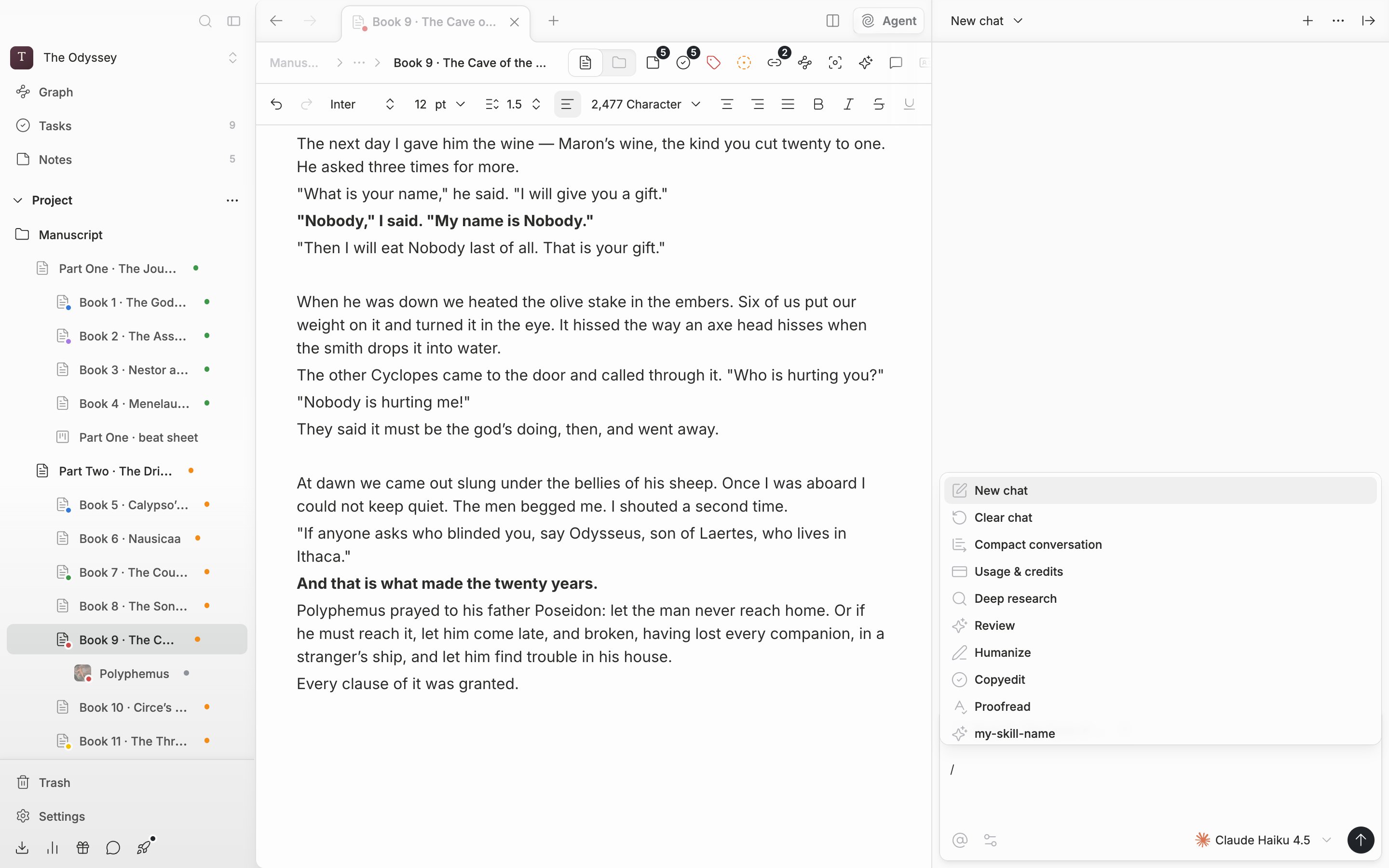
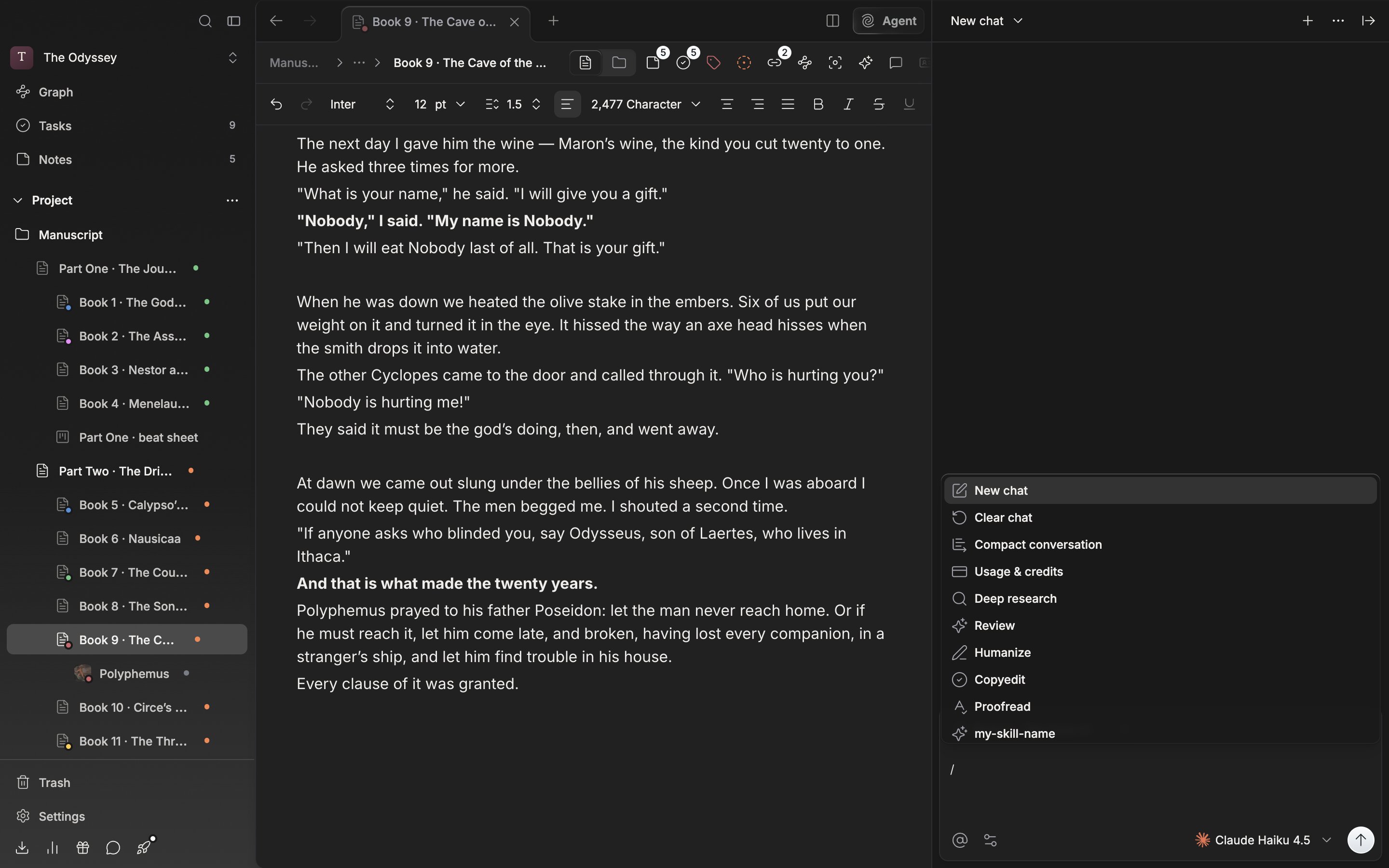
Type `/` in the chat composer and the command list appears. Pick **Usage & credits** and a card attaches right above the composer. Typing `credits`, `usage`, or `billing` also matches. The card fetches its values again each time you open it, so "Loading usage…" shows for a moment.

<div className="app-window block dark:hidden">
  <img src="https://mintcdn.com/raumlabsinc/ObXQRDSsIBKX7SbO/images/en/agent/usage--01.png?fit=max&auto=format&n=ObXQRDSsIBKX7SbO&q=85&s=8c3ab26e2c2b8662bf0fd0f4069ffa78" alt="“/” has been typed in the agent chat composer, opening the slash command list, with the “Usage & credits” item visible." width="2880" height="1800" data-path="images/en/agent/usage--01.png" />
</div>

<div className="app-window hidden dark:block">
  <img src="https://mintcdn.com/raumlabsinc/ObXQRDSsIBKX7SbO/images/en/agent/usage--01-dark.png?fit=max&auto=format&n=ObXQRDSsIBKX7SbO&q=85&s=23062071ade544fdbdaca54f8ef61ca4" alt="“/” has been typed in the agent chat composer, opening the slash command list, with the “Usage & credits” item visible." width="2880" height="1800" data-path="images/en/agent/usage--01-dark.png" />
</div>

<p className="app-caption">Type nothing but a slash in the composer and the command that calls up the usage card appears.</p>

## What the card says

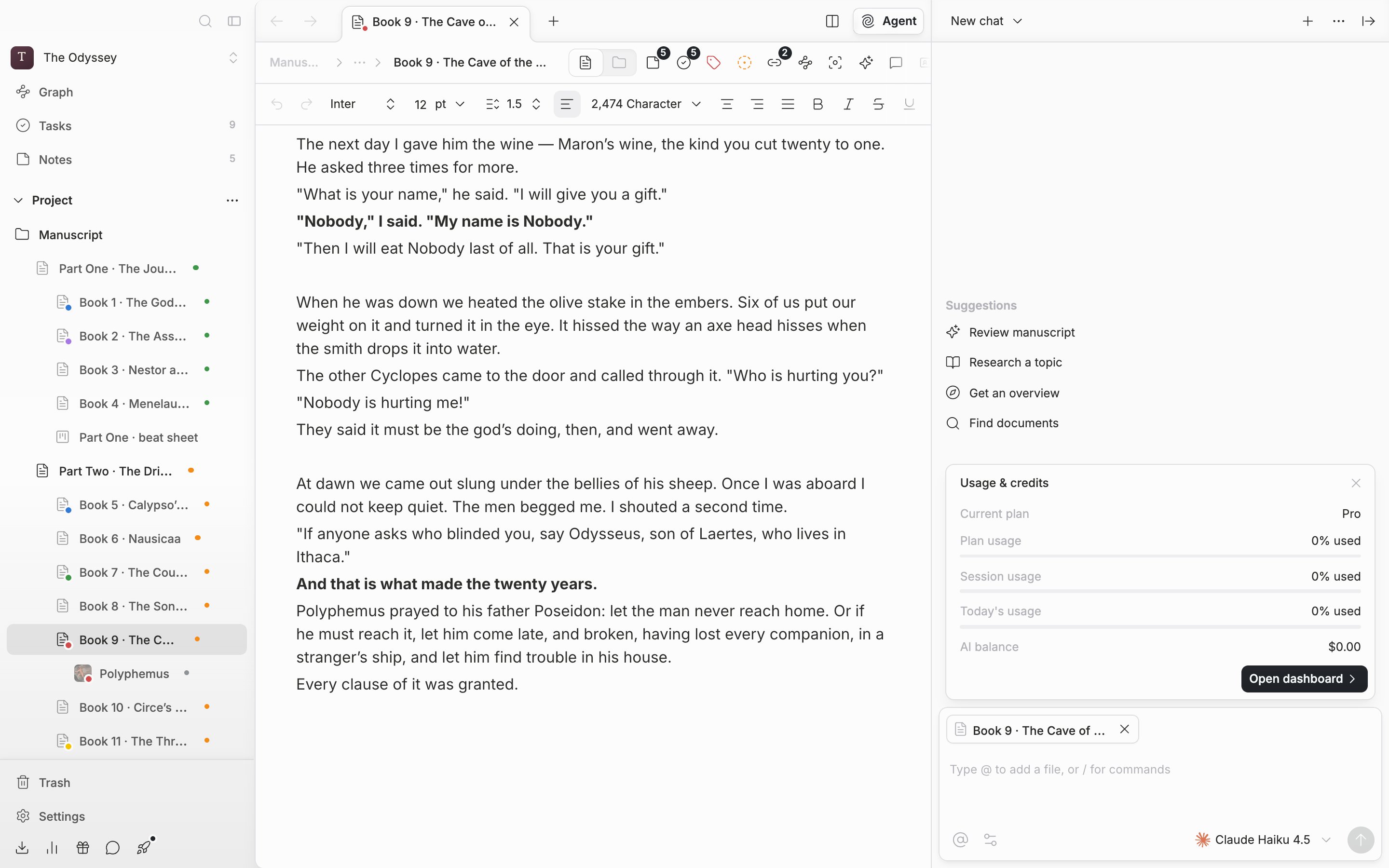
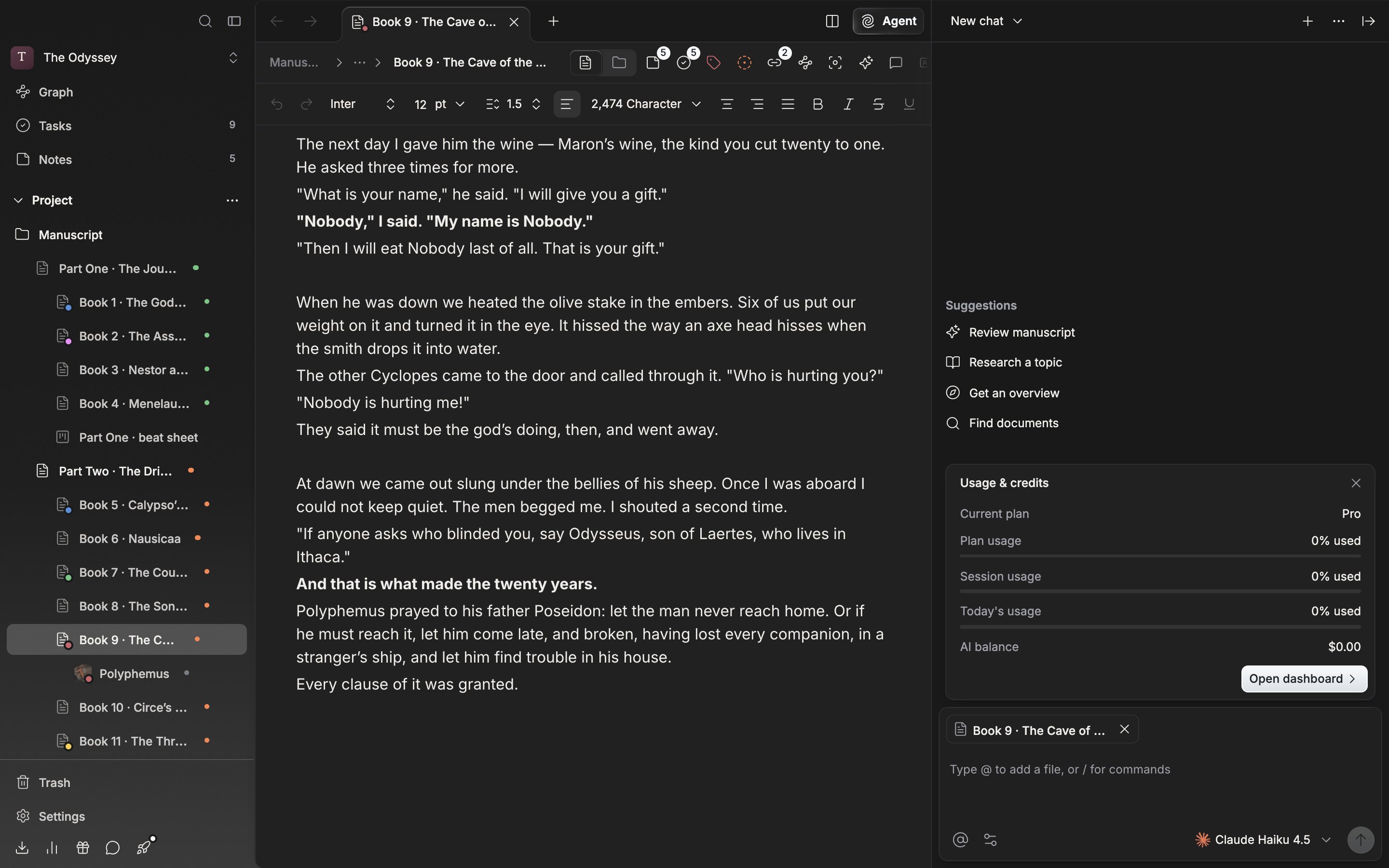
* **Current plan** — the plan applied to the workspace. If it is not a paid plan, it reads "Free".
* **Plan usage** — shows how much of the allowance included in the plan you have used, as "42% used". On a plan with no included allowance, only **No included usage** appears, with no bar.
* **Session usage**, **Today's usage** — bars that hold you back from burning through a short stretch. Beside them it says when they lift, as in "resets in 12 minutes". Depending on the plan they may not appear at all.
* **AI balance** — the prepaid balance you topped up in advance, shown in US dollars.

The bar turns orange past 70% and red from 90%. Press **Open dashboard** and the usage page opens in the browser.
<div className="app-window block dark:hidden">
  <img src="https://mintcdn.com/raumlabsinc/WQIpN21D_2L4wB76/images/en/agent/usage--02.png?fit=max&auto=format&n=WQIpN21D_2L4wB76&q=85&s=dd81c789de841ee5cd4a0c3bca1541ea" alt="The “Usage & credits” card is laid out above the composer. The current plan, the plan usage bar, the AI balance, and the “Open dashboard” button are all visible." width="2880" height="1800" data-path="images/en/agent/usage--02.png" />
</div>

<div className="app-window hidden dark:block">
  <img src="https://mintcdn.com/raumlabsinc/WQIpN21D_2L4wB76/images/en/agent/usage--02-dark.png?fit=max&auto=format&n=WQIpN21D_2L4wB76&q=85&s=2fdaf63bc687ba90819479951d5c38f8" alt="The “Usage & credits” card is laid out above the composer. The current plan, the plan usage bar, the AI balance, and the “Open dashboard” button are all visible." width="2880" height="1800" data-path="images/en/agent/usage--02-dark.png" />
</div>

<p className="app-caption">One card gathers the plan and the balance left.</p>

## The banner that tells you ahead of time

Once you pass 75% of a limit, a banner is attached above the composer. It says which side is full, the percentage, and how long is left until it recovers, and it leads to **View usage**. Dismiss it and it comes back once you pass 90%. On a day when you are running a long manuscript through in one go, break off your work at the point where the banner appears.

## When you are blocked

* **Out of credits** — the balance is empty. You can pick a **Buy credits** amount straight from the notice card.
* **Monthly spend limit reached** — a limit you set yourself, so topping up does not release it. Press **Adjust limit** and raise it in the dashboard.
* **Taking a short breather** — this is when you have used a lot in a short time. It says how long to wait, as in "Ready again in 8 minutes".

The first time you pick a premium model, a notice appears once saying it "uses credits noticeably faster than the light models".

## Viewing it in settings

Open **Agent** in settings and scroll down to **Plan & billing**, and there is a **Manage plan** button. Press it and you go to the billing screen.
