> ## Documentation Index
> Fetch the complete documentation index at: https://docs.pensiv.so/llms.txt
> Use this file to discover all available pages before exploring further.

# Review settings

> How to set the target audience, what to critique, and how direct feedback is before running AI Review, and where those settings are kept.

Even with the same manuscript, what comes back changes depending on who reads it and with what eye. Before you press **Generate review**, you set those conditions at the top of the panel.

## Document and audience

**Format** has only **Web novel** for now, and the select box does not respond.

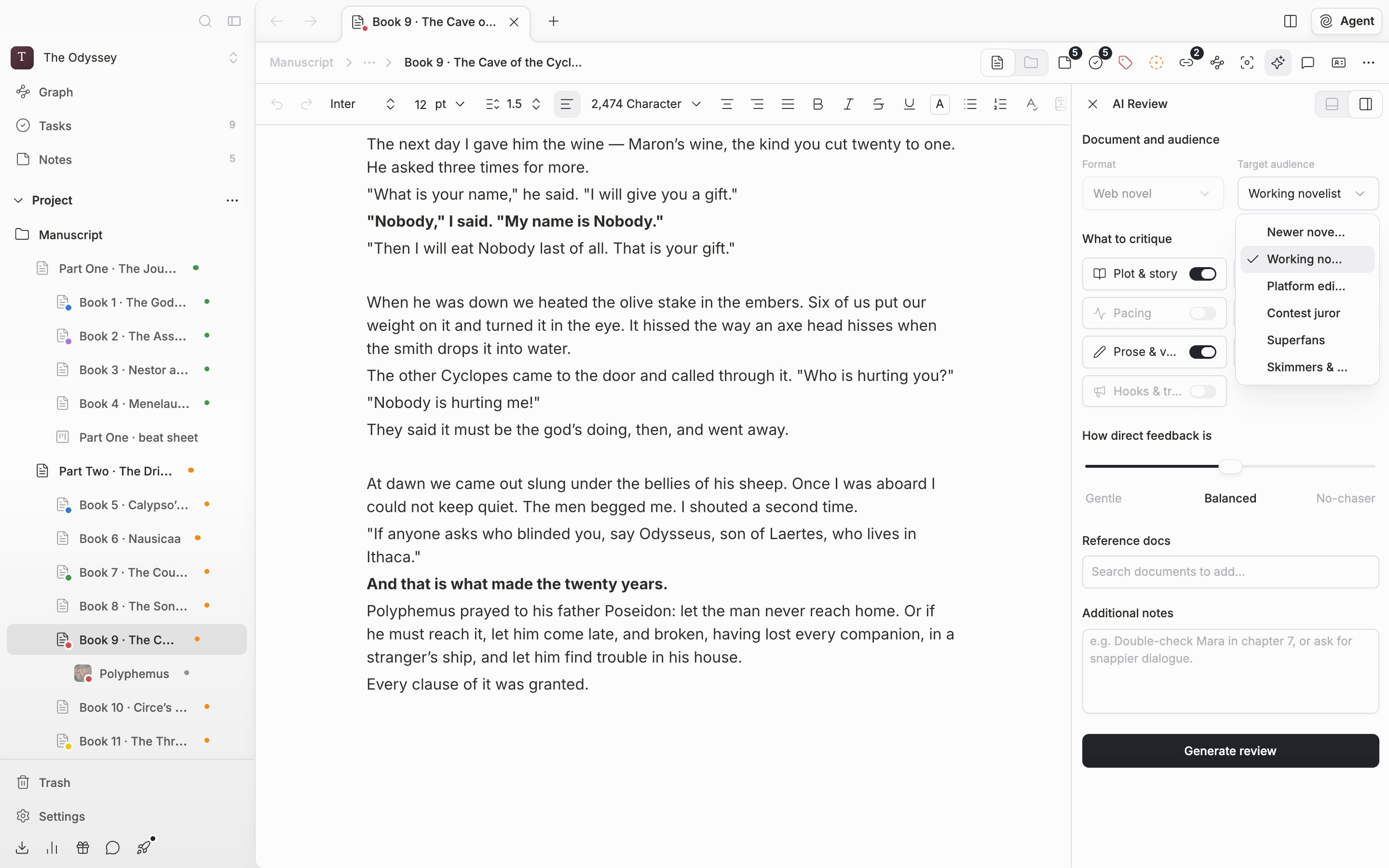
**Target audience** is one of six. **Newer novelist** puts encouragement first and points out the next place to fix; **Working novelist** takes in the context of the episodes before and after as well. **Platform editor mindset** reads for retention and packaging, **Contest juror** with an eye that weighs originality against completeness. If you are curious about reader reaction, choose between **Superfans**, who track payoffs on foreshadowing and lore detail, and **Skimmers & newcomers**, who came in without knowing the earlier episodes. The starting value is **Working novelist**.

<div className="app-window block dark:hidden">
  <img src="https://mintcdn.com/raumlabsinc/WQIpN21D_2L4wB76/images/en/ai-review/settings--01.png?fit=max&auto=format&n=WQIpN21D_2L4wB76&q=85&s=57017a4581fcc06e6f256026ab4ecc49" alt="The top of the settings screen in the AI Review panel on the right. Under “Document and audience”, the disabled Format box holds “Web novel”, and the Target audience select beside it is open with six items expanded." width="2880" height="1800" data-path="images/en/ai-review/settings--01.png" />
</div>

<div className="app-window hidden dark:block">
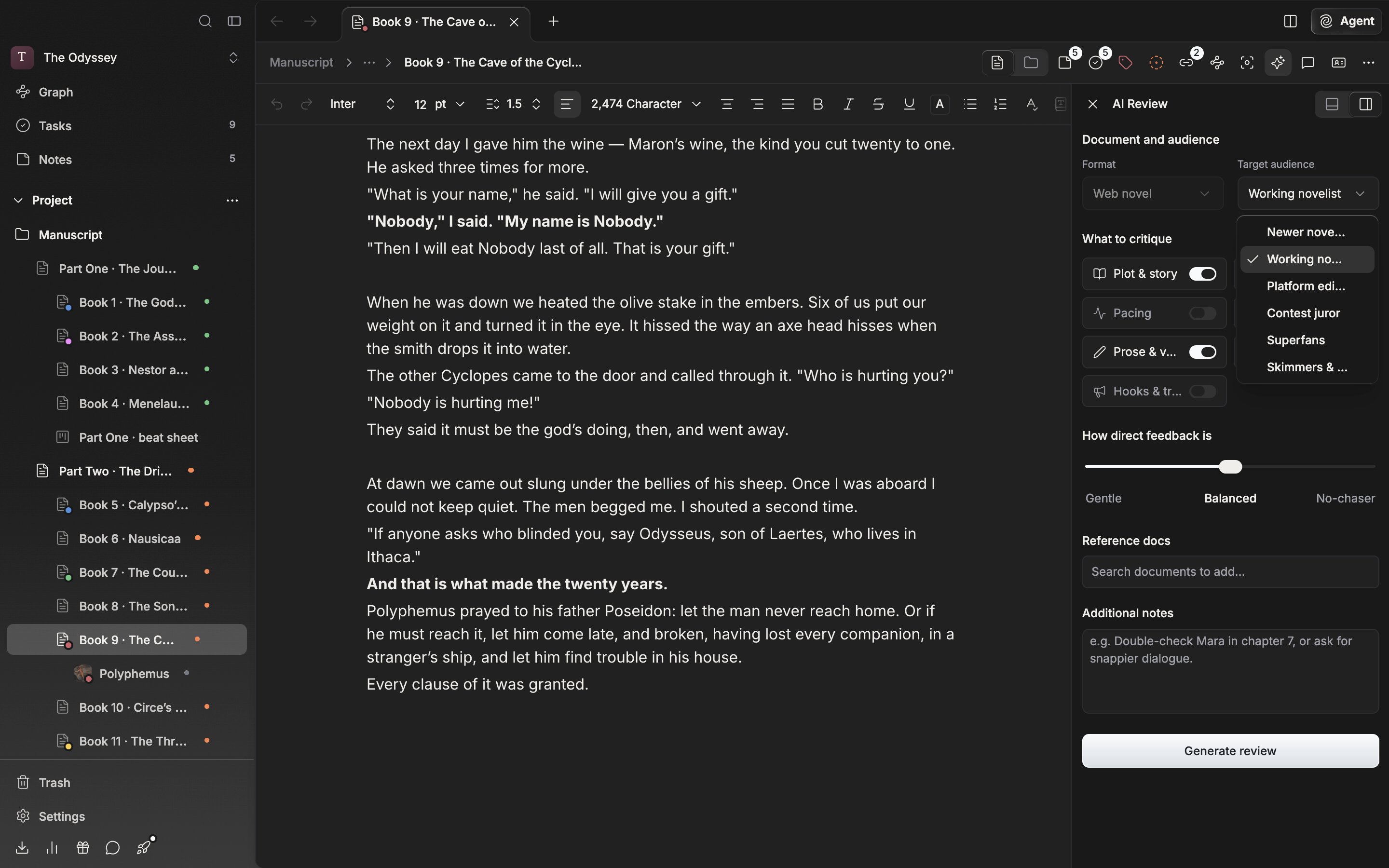
  <img src="https://mintcdn.com/raumlabsinc/WQIpN21D_2L4wB76/images/en/ai-review/settings--01-dark.png?fit=max&auto=format&n=WQIpN21D_2L4wB76&q=85&s=11cb9aa75ed92318b07ac086a590f917" alt="The top of the settings screen in the AI Review panel on the right. Under “Document and audience”, the disabled Format box holds “Web novel”, and the Target audience select beside it is open with six items expanded." width="2880" height="1800" data-path="images/en/ai-review/settings--01-dark.png" />
</div>

<p className="app-caption">Format is fixed to Web novel; you only choose the reading position.</p>

## What to critique

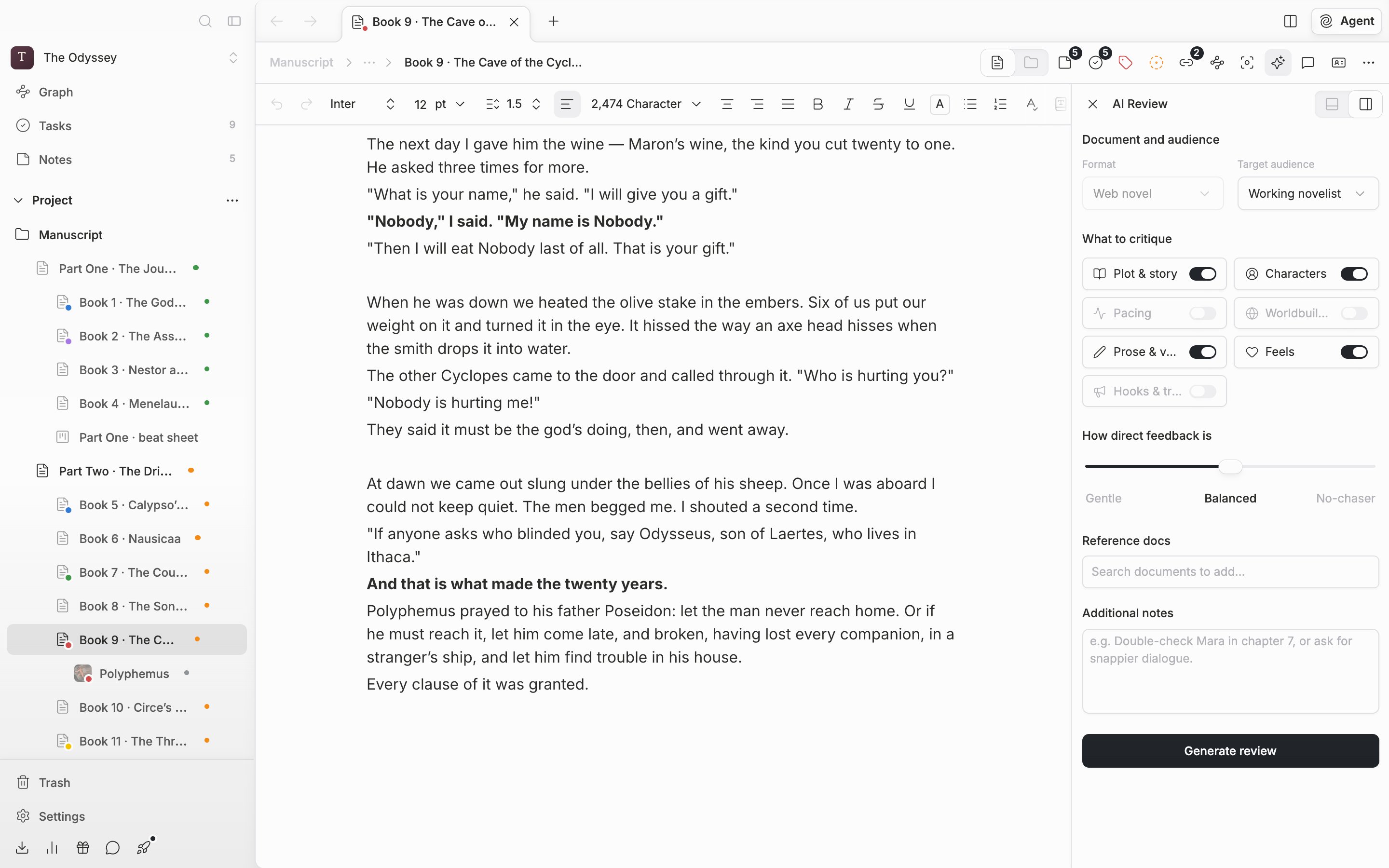
You switch seven axes on and off: **Plot & story**, **Characters**, **Pacing**, **Worldbuilding**, **Prose & voice**, **Feels**, **Hooks & traction**. Four are on at the start: **Plot & story**, **Characters**, **Pacing**, and **Prose & voice**.

Each axis you leave on gets its own score out of 5. Turn on three or more and the scores are drawn as a radar chart; turn on only one or two and they are drawn as bars.

You cannot turn them all off, so the switch on the last one will not go down. For an episode where you are only working on dialogue, leave just **Characters** and **Prose & voice**. The comments gather there as well.

## How direct feedback is

**How direct feedback is** is a three-stop slider. From the left: **Gentle**, **Balanced**, **No-chaser**. You can drag the handle or press the name below it. The starting value is **Balanced**.

**Gentle** brings out the good points first and puts the weak spots gently. **No-chaser** is closer to an editor's voice that does not go around the subject. Use one on the day you have just finished a first draft and need some energy, and the other on the day right before a deadline when you want to know only what to fix, fast.
<div className="app-window block dark:hidden">
  <img src="https://mintcdn.com/raumlabsinc/WQIpN21D_2L4wB76/images/en/ai-review/settings--02.png?fit=max&auto=format&n=WQIpN21D_2L4wB76&q=85&s=c156247507c84722ec98fa87bf18a427" alt="The lower part of the same settings screen. Four of the seven switches under “What to critique” are on, and below them the “How direct feedback is” slider handle sits in the middle on “Balanced”." width="2880" height="1800" data-path="images/en/ai-review/settings--02.png" />
</div>

<div className="app-window hidden dark:block">
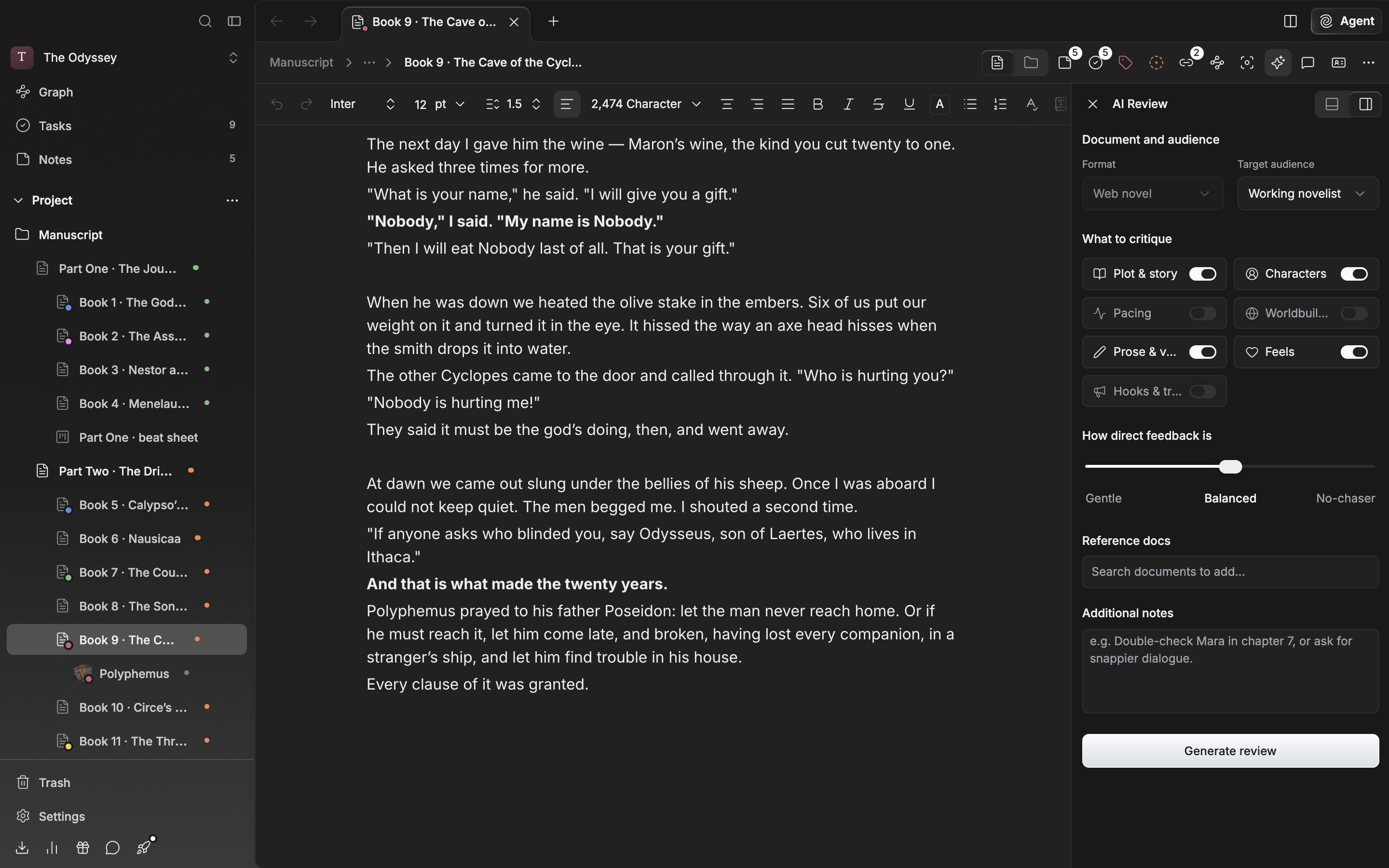
  <img src="https://mintcdn.com/raumlabsinc/WQIpN21D_2L4wB76/images/en/ai-review/settings--02-dark.png?fit=max&auto=format&n=WQIpN21D_2L4wB76&q=85&s=31ce64d26879e44c46fe4ca94b6e2c70" alt="The lower part of the same settings screen. Four of the seven switches under “What to critique” are on, and below them the “How direct feedback is” slider handle sits in the middle on “Balanced”." width="2880" height="1800" data-path="images/en/ai-review/settings--02-dark.png" />
</div>

<p className="app-caption">The axes to turn on and the tone are set together here.</p>

## Where the changed values are kept

All three are saved to your account settings. Open the panel on another document and the values you last set come up as they were.

To change the conditions after a review has come out, you have to go back to the settings screen with the arrow at the top left of the panel. **Run again** below the review is a button that runs it once more with the current settings as they are. When you go back with the arrow, the **Additional notes** you wrote are cleared. If you are about to write the same thing again, press the icon button attached to the right of that heading. Its tooltip is **Restore last notes**.
