> ## Documentation Index
> Fetch the complete documentation index at: https://docs.pensiv.so/llms.txt
> Use this file to discover all available pages before exploring further.

# Starting from a template

> How to pick a saved template and stamp out a file from it, and how to manage the order and the names in the template list in settings.

Some files you make again in the same shape every time — a character sheet format, a set of episode folders. Save one as a template and from then on you only pick its name from a menu.

## Where templates gather

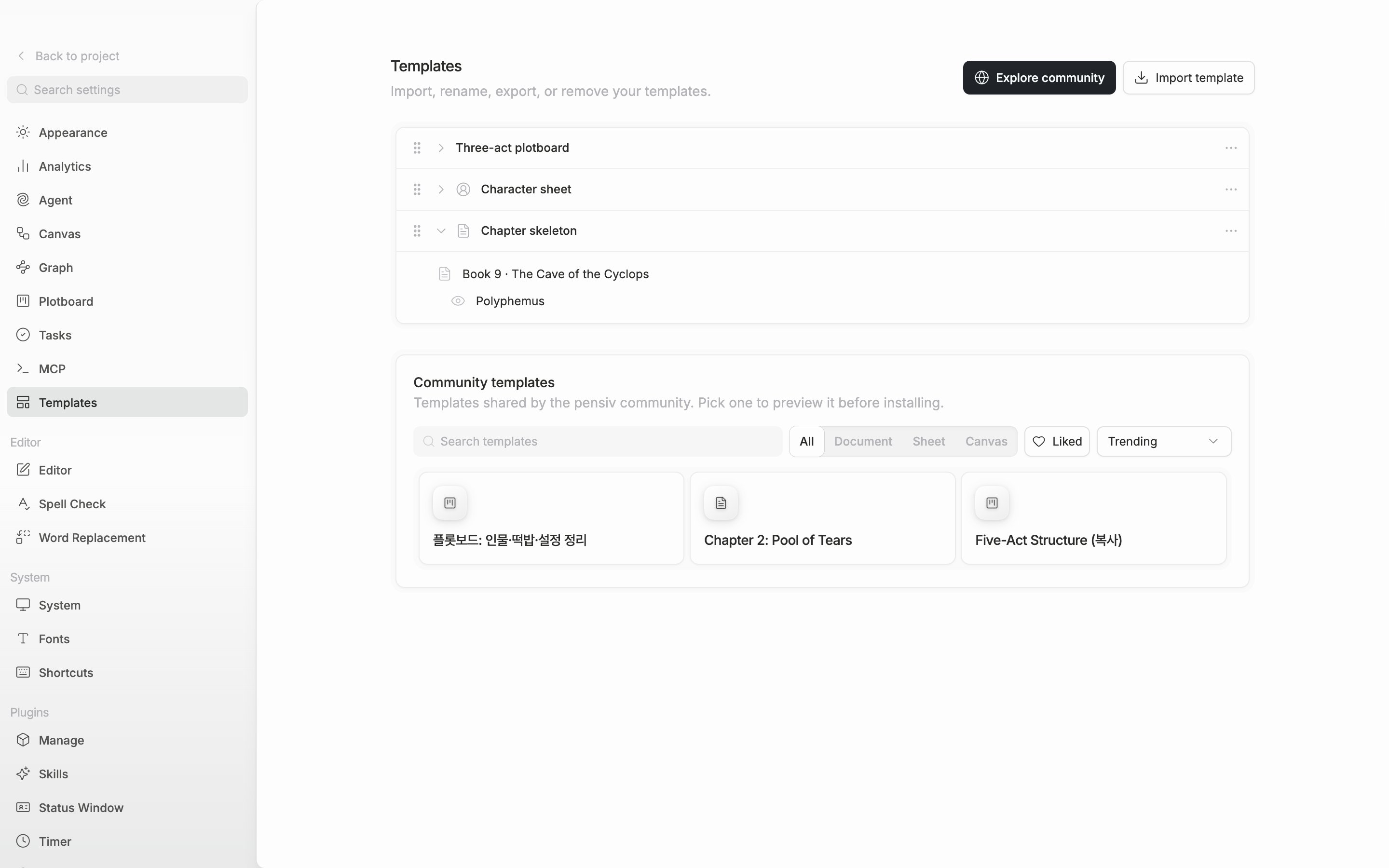
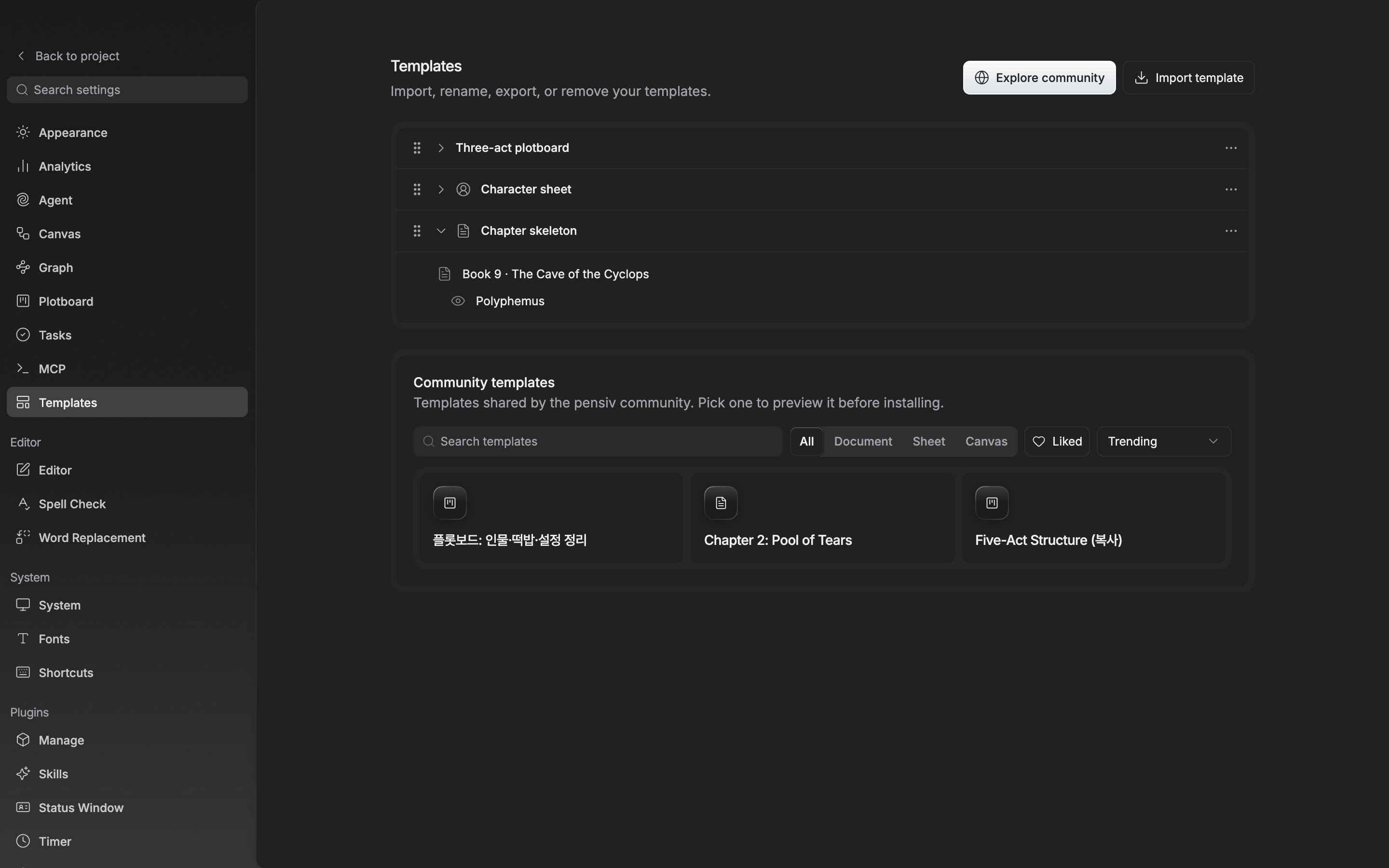
The **Templates** tab in the **General** group of settings. Templates saved to your account stack up one row at a time. At first there is only the line **Save a file as a template or import one to get started.** No default templates are installed in advance.

Press the arrow at the left of a row and the files inside that template unfold as a tree. If you saved the child files with it, that structure shows as it is. Drag the handle on the left to change the order, and that order carries into the create menu.

The ⋯ button at the right of a row has **Rename template** · **Export to file** · **Publish to Community** · **Delete template**.

The list belongs to your account, not to a project. Open a different project and the same templates are still there.

<div className="app-window block dark:hidden">
  <img src="https://mintcdn.com/raumlabsinc/JcYuBBCW81V1OYpG/images/en/extend/templates--01.png?fit=max&auto=format&n=JcYuBBCW81V1OYpG&q=85&s=53d09df81c1b76a31e2d4c8fb8c59578" alt="The Templates tab. One of three saved template rows is unfolded with its arrow to show the tree of included files, and the “Explore community” and “Import template” buttons at the right of the header are in frame." width="2880" height="1800" data-path="images/en/extend/templates--01.png" />
</div>

<div className="app-window hidden dark:block">
  <img src="https://mintcdn.com/raumlabsinc/JcYuBBCW81V1OYpG/images/en/extend/templates--01-dark.png?fit=max&auto=format&n=JcYuBBCW81V1OYpG&q=85&s=2cc300d02a382e33b5a6699f2ae42bbe" alt="The Templates tab. One of three saved template rows is unfolded with its arrow to show the tree of included files, and the “Explore community” and “Import template” buttons at the right of the header are in frame." width="2880" height="1800" data-path="images/en/extend/templates--01-dark.png" />
</div>

<p className="app-caption">Expand a template row to see what is inside it.</p>

## Creating files from a template

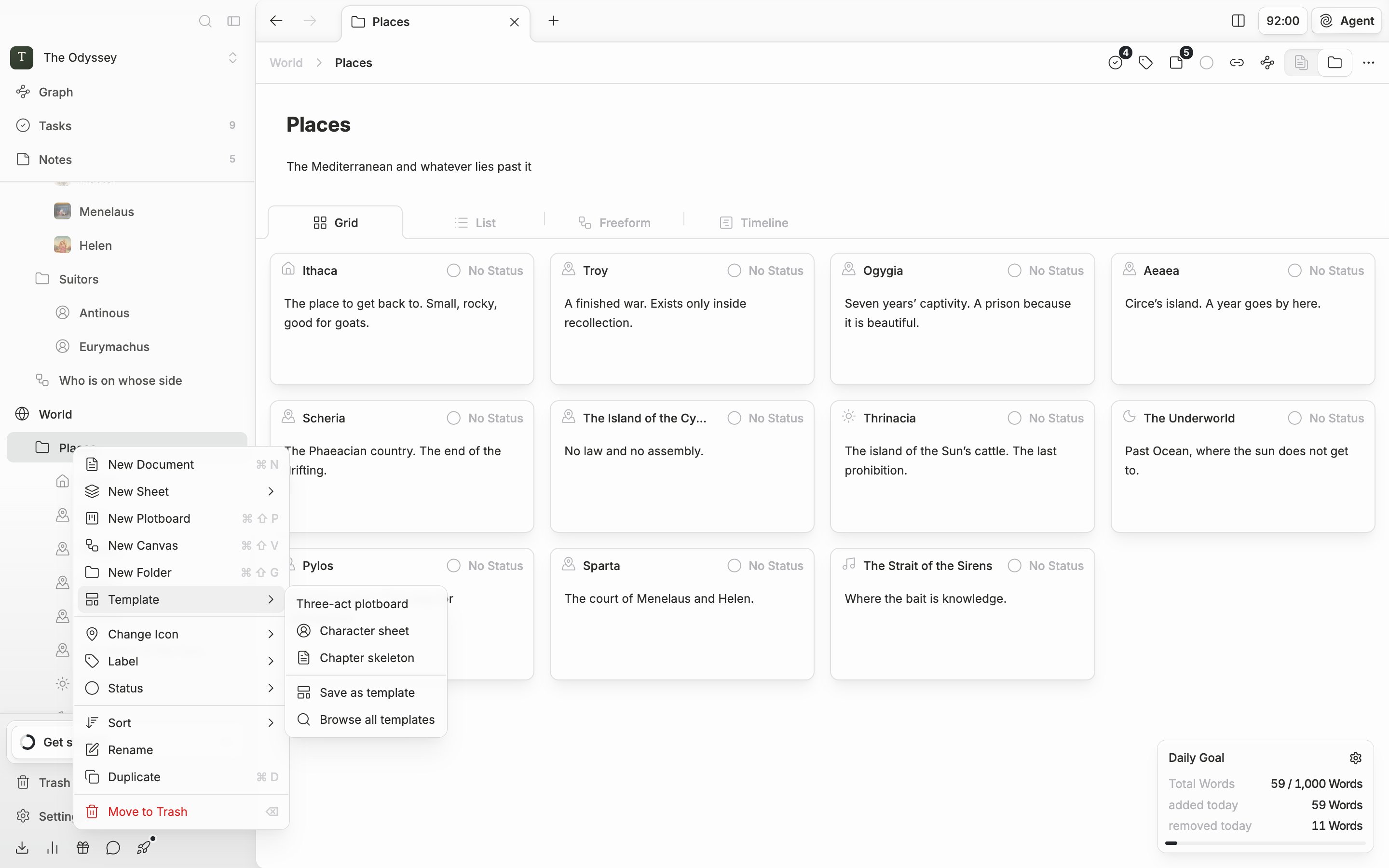
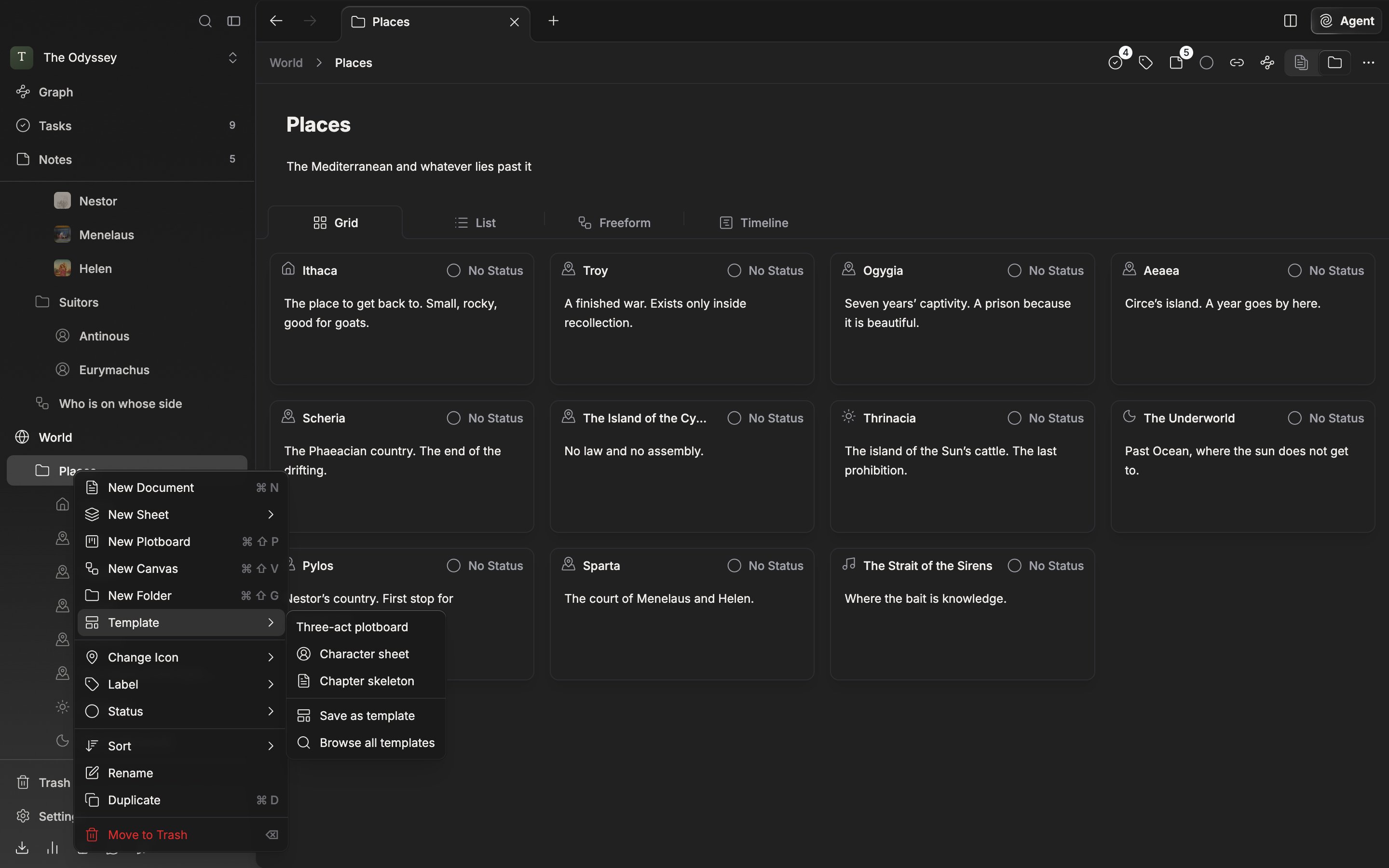
Right-click a folder or a file in the sidebar, or press its ⋯ button, and under the create entries there is a **Template** submenu. Pick a name there and the file is created in that spot and opens right away.

Pick it from the ⋯ button on a section heading or on the project name row and it goes to the top of the project instead of inside a folder. If you picked it from a section heading, it goes into that section.

If you bundled several files into one template, they are created side by side. A template that carries child files brings back the contents of the folder in one go.

**Browse all templates** at the bottom of the submenu opens the Templates tab in settings. If you opened the menu from a folder or a file, **Save as template** sits above it as well.
<div className="app-window block dark:hidden">
  <img src="https://mintcdn.com/raumlabsinc/JcYuBBCW81V1OYpG/images/en/extend/templates--02.png?fit=max&auto=format&n=JcYuBBCW81V1OYpG&q=85&s=b3e45b55592afe88297aa528c74b18a1" alt="The “Template” submenu is unfolded in the right-click menu of a folder in the left sidebar, showing the names of saved templates with “Save as template” and “Browse all templates” at the bottom." width="2880" height="1800" data-path="images/en/extend/templates--02.png" />
</div>

<div className="app-window hidden dark:block">
  <img src="https://mintcdn.com/raumlabsinc/JcYuBBCW81V1OYpG/images/en/extend/templates--02-dark.png?fit=max&auto=format&n=JcYuBBCW81V1OYpG&q=85&s=04297a7b7b01911e8ef64628ed03707e" alt="The “Template” submenu is unfolded in the right-click menu of a folder in the left sidebar, showing the names of saved templates with “Save as template” and “Browse all templates” at the bottom." width="2880" height="1800" data-path="images/en/extend/templates--02-dark.png" />
</div>

<p className="app-caption">Pick the template right where the file will be created.</p>

## Importing and the community

Use **Import template** at the top right of the tab to pick a `.pnsv-template` file. It does not go straight in — a preview notification comes up first. Check the name and a line like **Document · +3 files**, then press **Install** to put it in the list.

**Explore community** opens the pensiv community templates page in your default browser. To stay inside the app, use **Community templates** further down the tab. You can narrow it with **All** · **Document** · **Sheet** · **Canvas** and search it. Press one to look at it in detail, and installing it leads to the same preview notification as importing a file.
