> ## Documentation Index
> Fetch the complete documentation index at: https://docs.pensiv.so/llms.txt
> Use this file to discover all available pages before exploring further.
# The command palette
> Cmd/Ctrl + K alone finds files, makes them, and changes settings. The rule the list is divided by, how to narrow a search, and the preview.
Press `Cmd/Ctrl + K` with a project open and the command palette appears. One input field covers finding files, making them, and changing settings. The shortcut binds only inside a project, so it does nothing on the home screen.
## When you have typed nothing
The empty palette is divided into a few blocks. At the top, **Recently used** carries up to four rows you have picked often from this palette.
Below that come **Suggestions · Navigate · General** in that order. **Suggestions** holds the things tied to the file you are looking at, so it appears only while a file is open. Rows that carry the file name, such as **Set Label for "Chapter 1 draft"** and **Open Notes for "Chapter 1 draft"**, come up alongside fixed-name rows such as **Move To...**, **Duplicate**, and **Move to Trash**. **Navigate** holds **Go to Project Home**, **Go to Graph View**, **Go to Tasks**, and **Go to Notes**. **General** holds **Settings**, the theme you are not using at the moment (**Light Mode** or **Dark Mode**), **System Theme**, **Show getting-started checklist**, **Open Log Folder**, and **Hanja Conversion**. Only the row for the theme you are using drops out; the other theme rows stay.
## Once you start typing
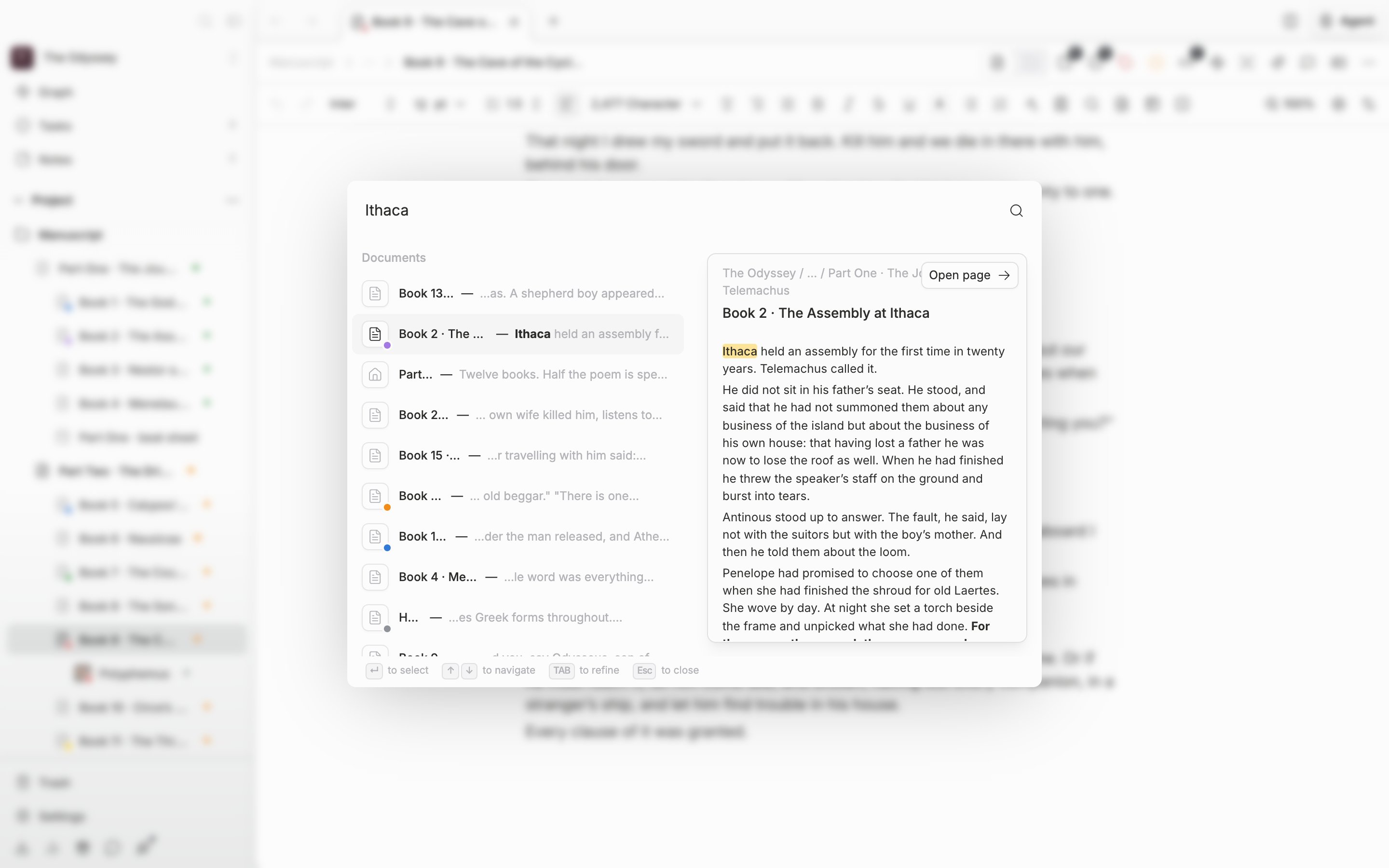
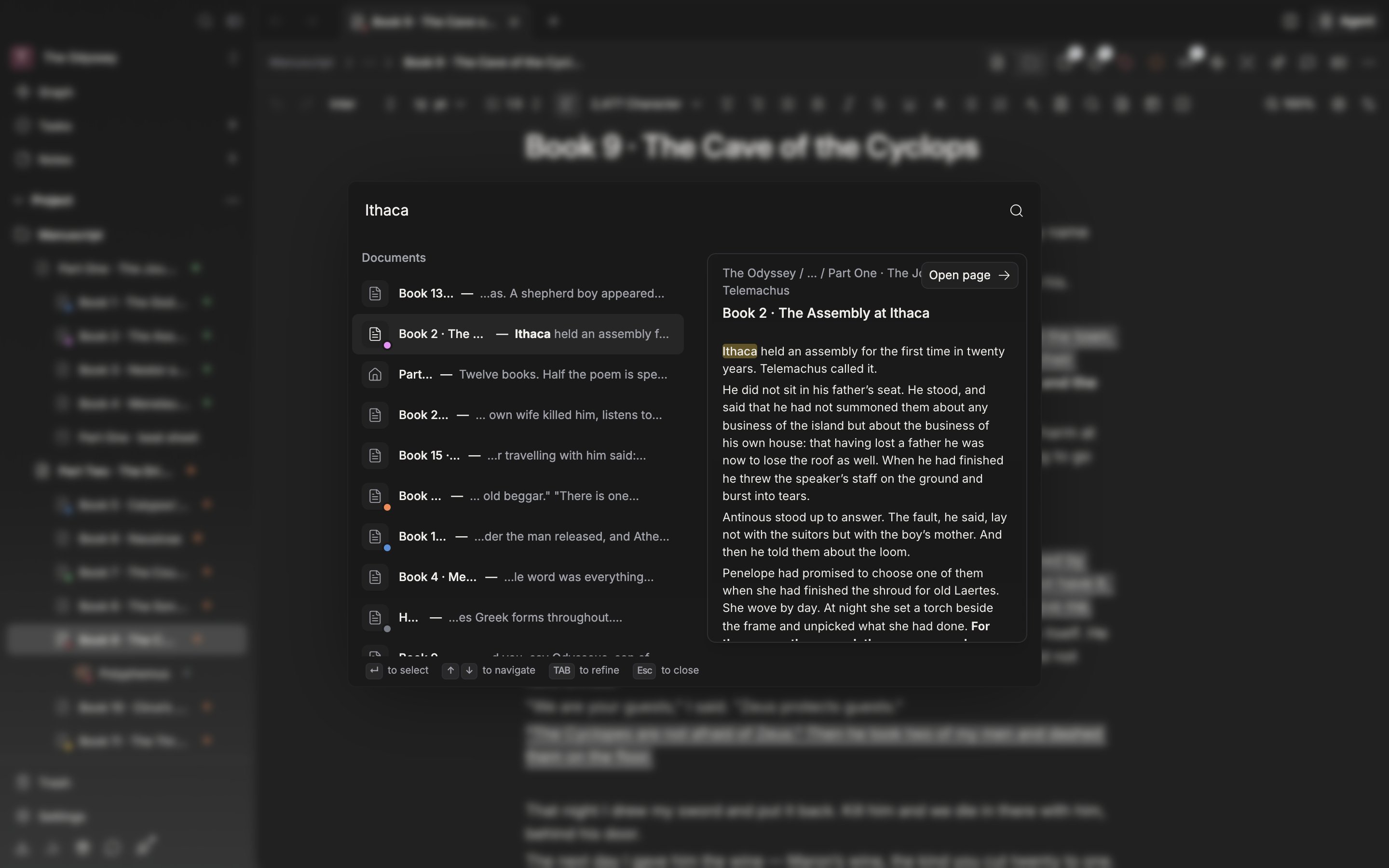
**Results** shows files whose titles match right away. The search that digs into body text arrives a beat later and attaches to the bottom of the list in per-type groups such as **Documents**, **Sheets**, and **Plot Cards**.
**Create** rises to the top only when you say to create something. Type `create draft` and five rows appear, from **Create 'draft' as Document** through sheet, plotboard, canvas, and folder. Point at a type, as in `new document draft`, and only that one row is left. When you type a bare word, the create rows drop below the search results.
The **Settings** group catches values too, so typing `dark` produces a row that applies on the spot. If you are writing in Korean, **Convert '…' to Hanja** always tags along as well.
## Narrowing and previewing
Press `Tab` and what you have typed hardens into a chip in the input field, and what you type next is searched only within it. Clear the chips all at once with `Esc`, or one at a time with `Backspace` in an empty input field.
Put the cursor on a document, sheet, task, note, or plot card row in the per-type groups below and its contents preview on the right. **Open page** takes you straight in. It does not appear when the window is narrow.
Pick a row in a per-type group and its contents preview on the right.
The hint line under the palette tells you which keys are live at that moment. `Enter` to select, `↑` `↓` to navigate, `Tab` to refine, `Esc` to close.