> ## Documentation Index
> Fetch the complete documentation index at: https://docs.pensiv.so/llms.txt
> Use this file to discover all available pages before exploring further.
# Exporting documents
> How to take several documents out as HWP, DOCX, EPUB, TXT, or Markdown — merged into one file or packaged separately, with titles included.
When you are preparing a manuscript for submission or need to open it in another program, you take documents out as files. pensiv exports several documents at once.
## Opening the dialog
Select several documents in the sidebar or on a folder screen and an export button appears in the row above. To take a whole folder out, press the more button in the folder screen header and pick Export documents; every document in that folder becomes the target.
Export handles documents only. Even if sheets or canvases are mixed into what you picked, only documents go in. If there is not a single document, the button does not appear at all, and on the folder side it tells you "No documents in this folder to export".
## Format and mode
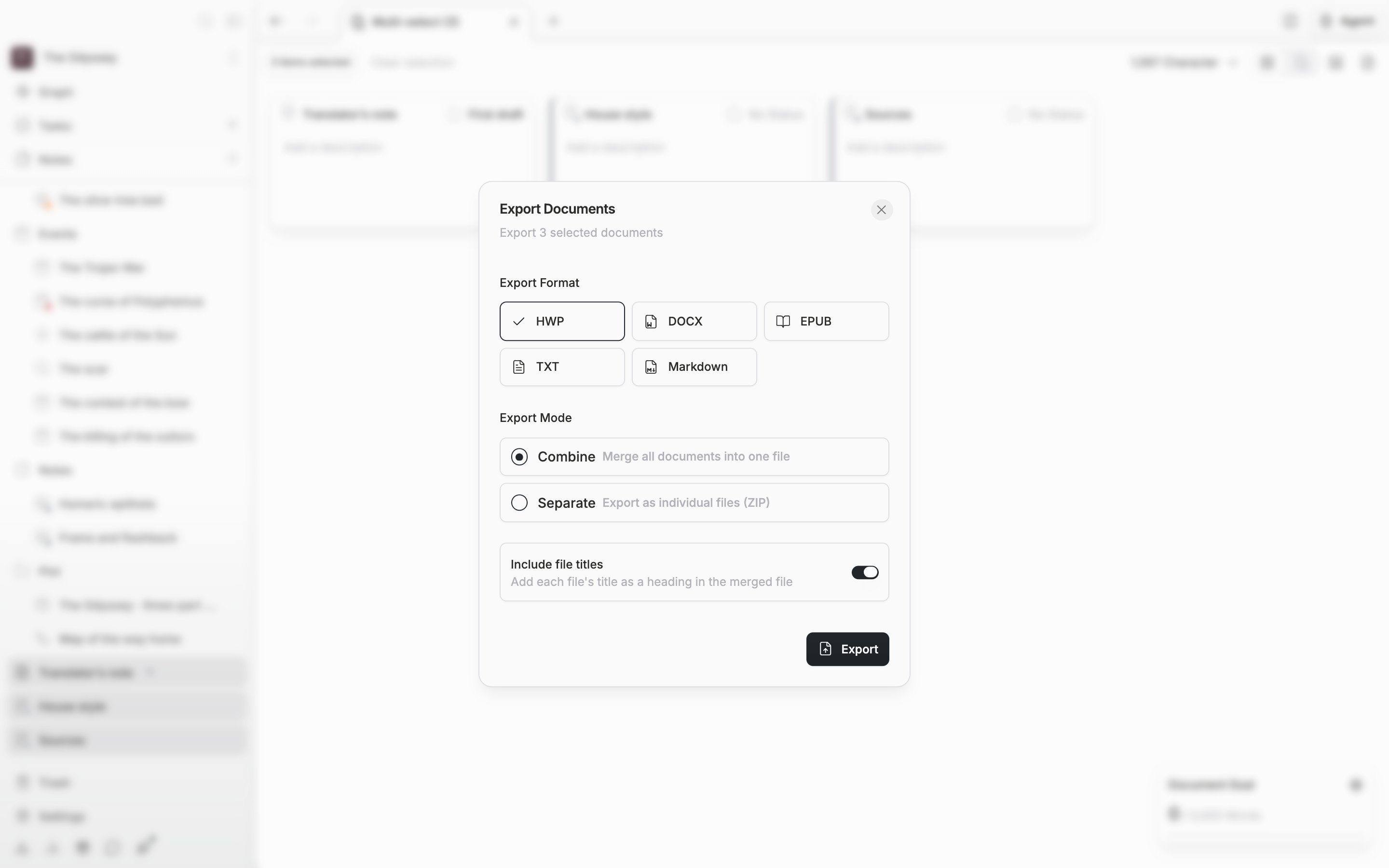
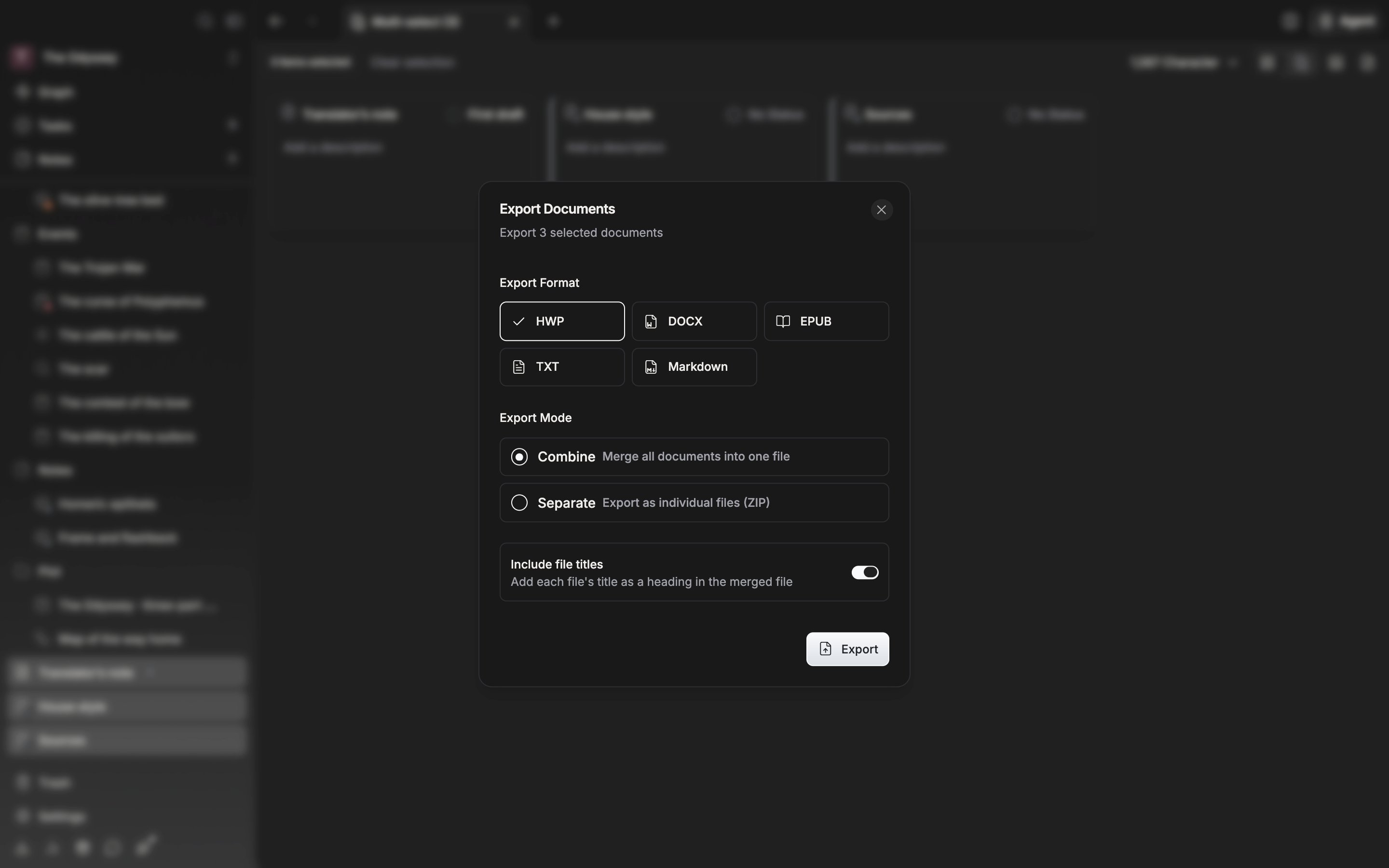
Under "Export Format" in the "Export Documents" dialog, pick one of HWP, DOCX, EPUB, TXT, and Markdown. "Export Mode" below it has two settings. Combine joins the documents you picked end to end into a single file. Separate makes one file per document and packages them into a ZIP. The merged file's name is built from the document titles, and when the name grows long the project name is used instead.
The dialog where you pick the format and the mode.
## Putting titles in
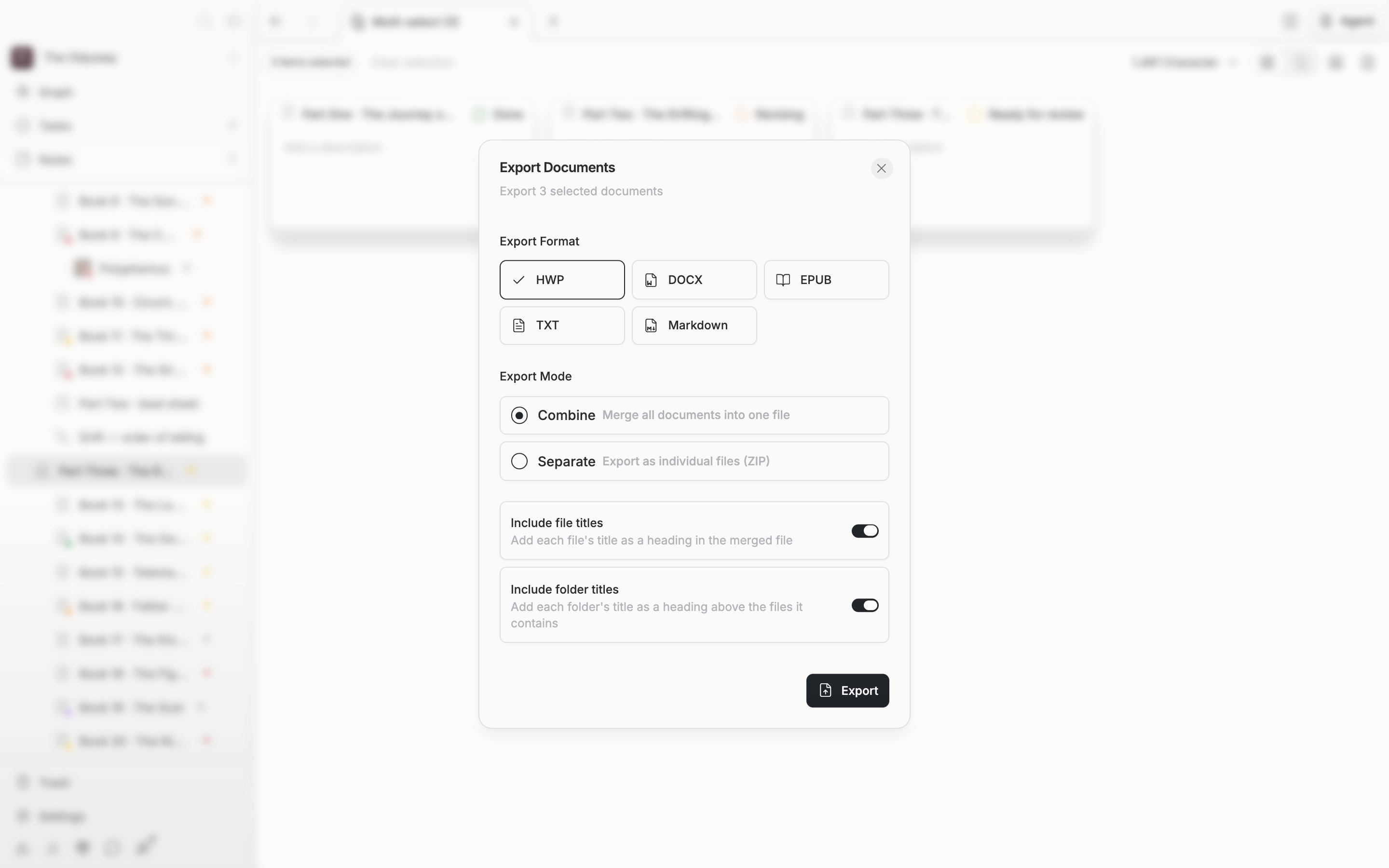
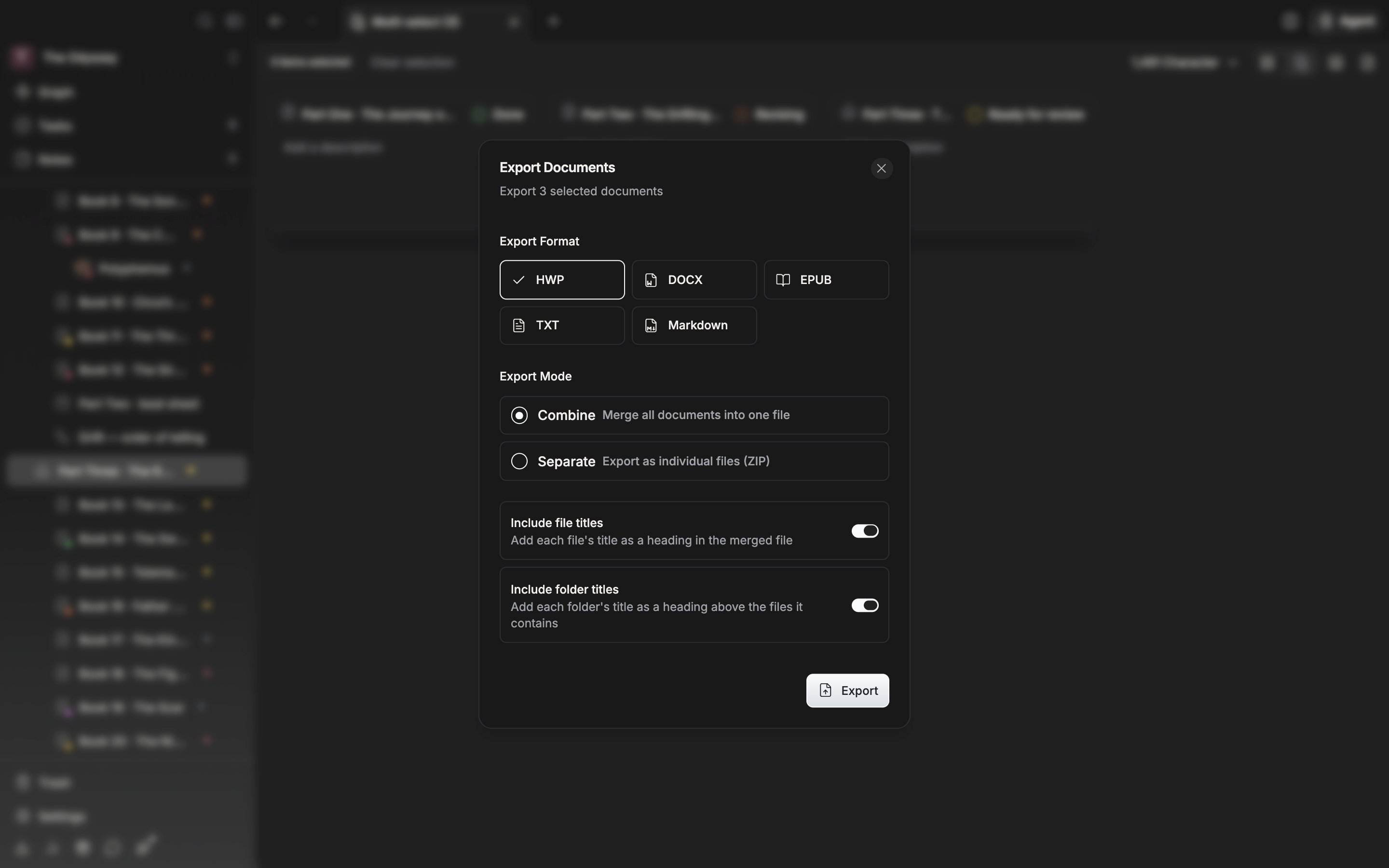
Pick Combine and the "Include file titles" switch appears. Leave it on and each document's title goes in as a heading paragraph above the body. It is on by default. If some of the documents you picked sit inside a parent item, "Include folder titles" appears alongside it. Turn that on and the folder title attaches above the documents inside it as a heading one level up. Neither switch is visible in the Separate mode.
Press the export button at the bottom and the conversion starts. When it finishes, "Export completed successfully" appears.
The title switches appear only when you combine.
The order things are merged in follows the order shown in the file tree, not the order you picked them. To change it, drag the documents in the sidebar.