> ## Documentation Index
> Fetch the complete documentation index at: https://docs.pensiv.so/llms.txt
> Use this file to discover all available pages before exploring further.

# Bringing in an existing manuscript

> How to move DOCX, EPUB, TXT, MD, HWP, and RTF files, along with folders, Scrivener projects, and Notion exports, into a project.

If you have a manuscript written in another program, you can bring it over whole. The import screen is inside the project settings.

## Opening the screen

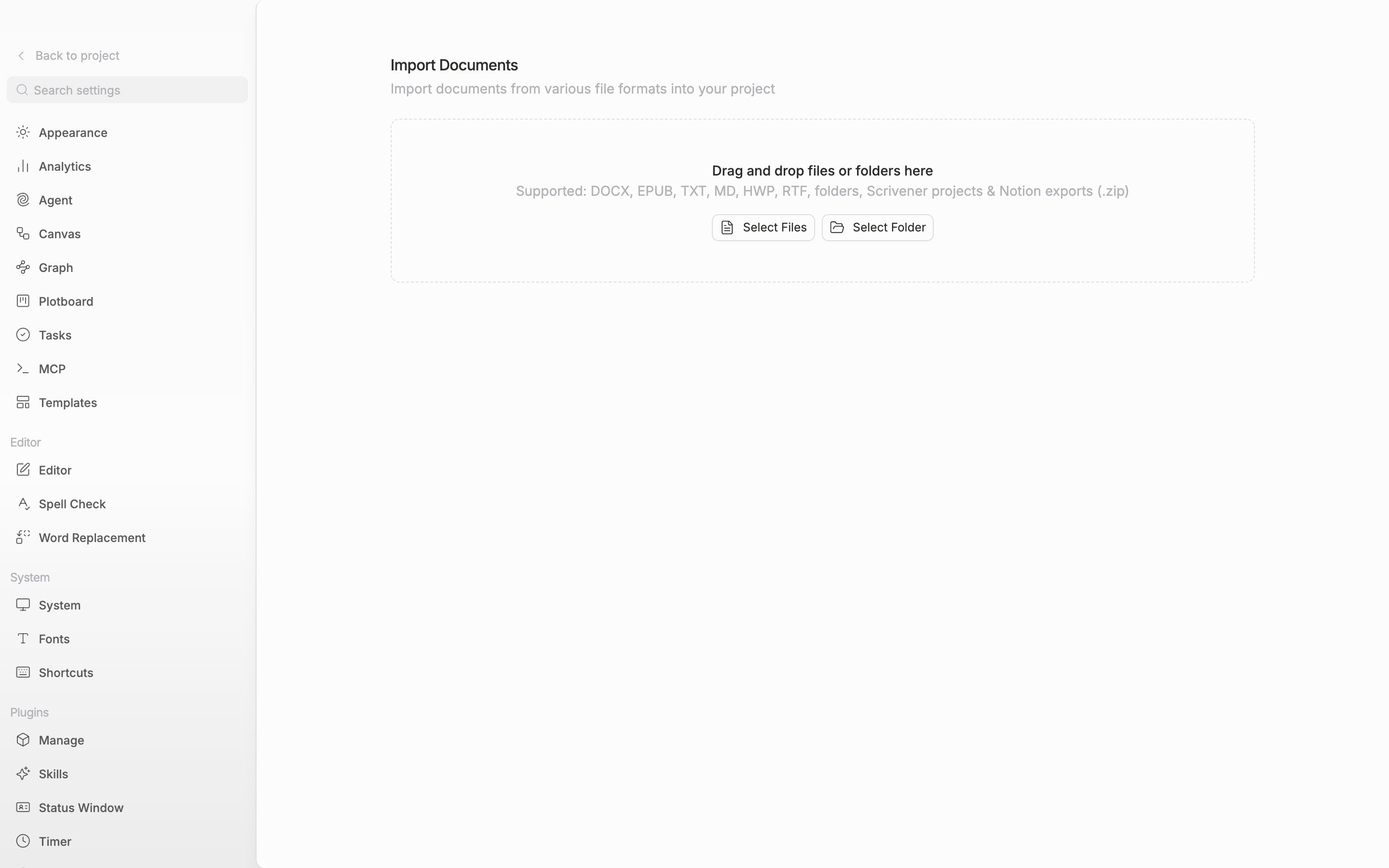
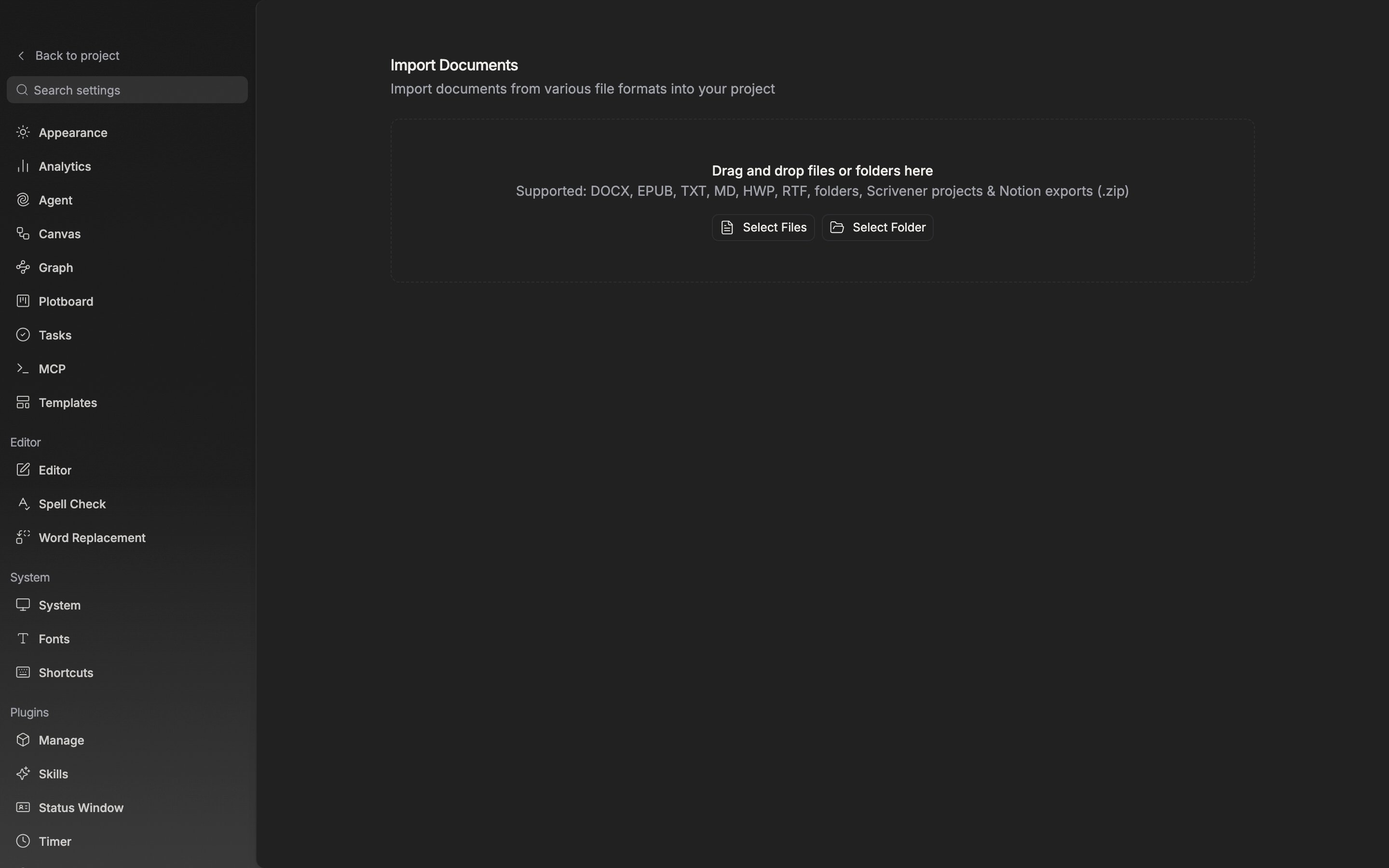
A row of small icon buttons sits at the very bottom of the sidebar. Put the cursor on the one shaped like a downward arrow and a tooltip reads Import. Press it and the Import Documents screen opens. If you opened settings first, picking Import from the Project group in the list on the left takes you to the same place.

<div className="app-window block dark:hidden">
  <img src="https://mintcdn.com/raumlabsinc/WQIpN21D_2L4wB76/images/en/project/import--01.png?fit=max&auto=format&n=WQIpN21D_2L4wB76&q=85&s=f6a0a753378cab2f94b0a3ba42fce1b5" alt="The Import Documents screen is open, and the dashed box in the middle shows the prompt, the supported-formats line, and the Select Files and Select Folder buttons. Nothing has been imported yet." width="2880" height="1800" data-path="images/en/project/import--01.png" />
</div>

<div className="app-window hidden dark:block">
  <img src="https://mintcdn.com/raumlabsinc/WQIpN21D_2L4wB76/images/en/project/import--01-dark.png?fit=max&auto=format&n=WQIpN21D_2L4wB76&q=85&s=e0675e074e8c4ab551bda118ebf1306d" alt="The Import Documents screen is open, and the dashed box in the middle shows the prompt, the supported-formats line, and the Select Files and Select Folder buttons. Nothing has been imported yet." width="2880" height="1800" data-path="images/en/project/import--01-dark.png" />
</div>

<p className="app-caption">The Import Documents screen inside settings. This is where you drop a manuscript.</p>

## Putting files in

The dashed box reads "Drag and drop files or folders here", and the line right below it is what it accepts.

> Supported: DOCX, EPUB, TXT, MD, HWP, RTF, folders, Scrivener projects & Notion exports (.zip)

Instead of dragging, you can pick with the Select Files or Select Folder button. Put several files in at once and they attach side by side at the outermost level of the tree. Put a folder in and the stepped structure inside it is rebuilt as folders. A format that is not on the list raises an Unsupported file type notice, and only that file drops out.

For Scrivener you have to put in the whole .scriv folder, not the single .scrivx file. The procedure is written up separately in [Moving over from Scrivener](/en/start/from-scrivener). For Notion, put the downloaded export .zip in as it is, without unpacking it.

## Checking on progress

The moment you put something in, a card appears below. Folders and documents spread out as a tree, and on the right you see the number of documents imported successfully and the total number of documents. Failed documents are not counted in that number, so if errors are mixed in the two numbers will not match even when everything is done. Overall progress is shown by the thin progress bar at the bottom of the card. A row being converted carries a progress bar, and a finished row carries an open button. A row with a red exclamation mark can be pressed to retry that document on its own. The X at the right edge of the card only clears the card from the list; documents already brought in stay as they are.

<Note>
  EPUB reads only one body file out of the book. To bring chapters in split apart, you are better off with per-chapter exported files or DOCX. Markdown likewise carries over only headings, bold, italic, links, and code as formatting.
</Note>
