> ## Documentation Index
> Fetch the complete documentation index at: https://docs.pensiv.so/llms.txt
> Use this file to discover all available pages before exploring further.
# Sorting with labels and statuses
> A label marks a kind, a status marks how far along something is. How to edit the lists in settings and attach them to files.
Labels and statuses are managed separately for each project. A label divides things by kind, and a status shows how far the manuscript has come. One file carries one label and one status.
A newly made project comes with six labels (Red, Orange, Yellow, Green, Blue, Purple) and five statuses (To Do, First Draft, Revised Draft, Final Draft, Completed). A label whose name is just a color name means its meaning is not settled yet, so rename it to something that fits the project before you use it.
## Editing the lists
Open settings with Cmd(Ctrl)+, and the "Project" group holds the "Labels" and "Status" tabs.
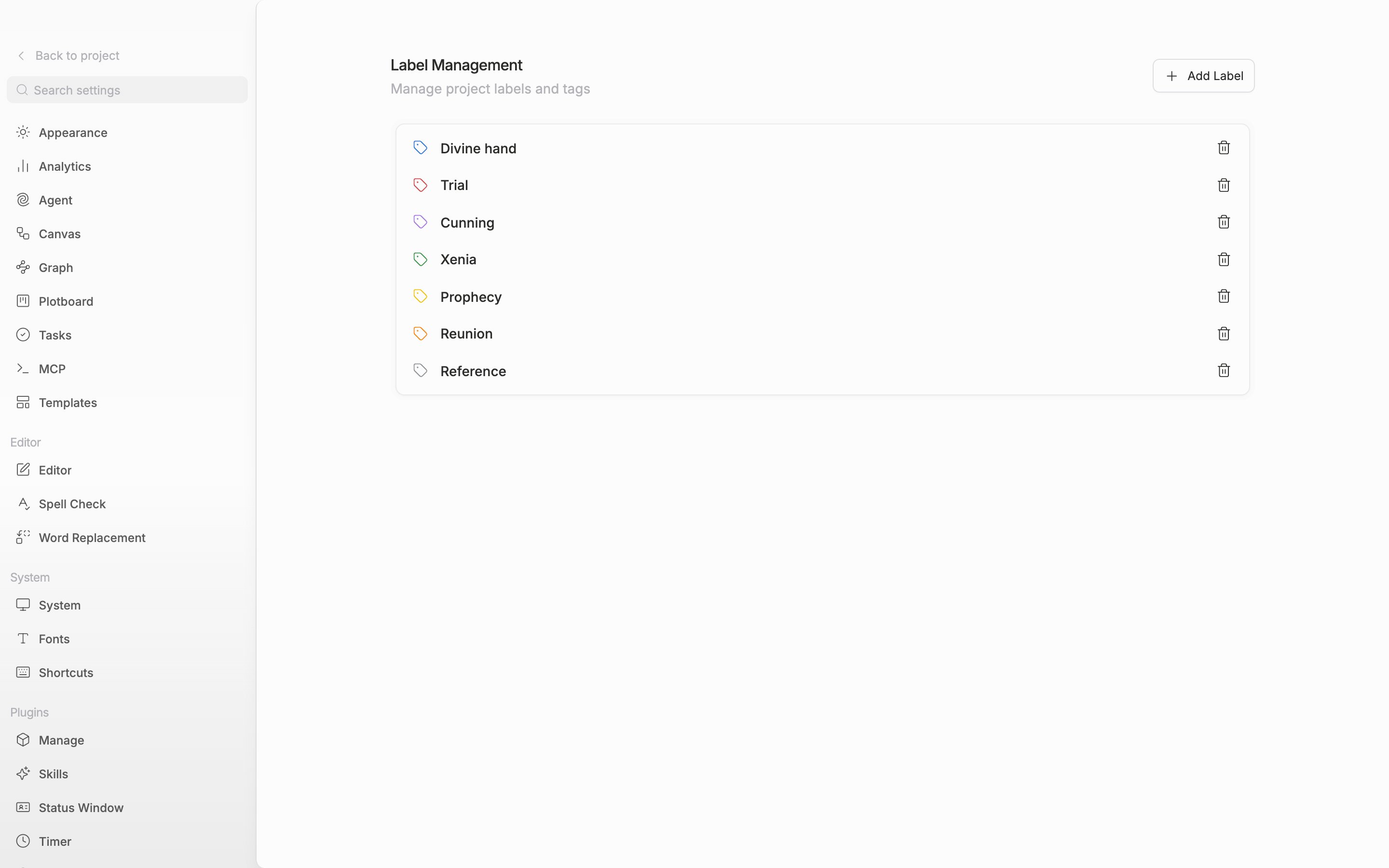
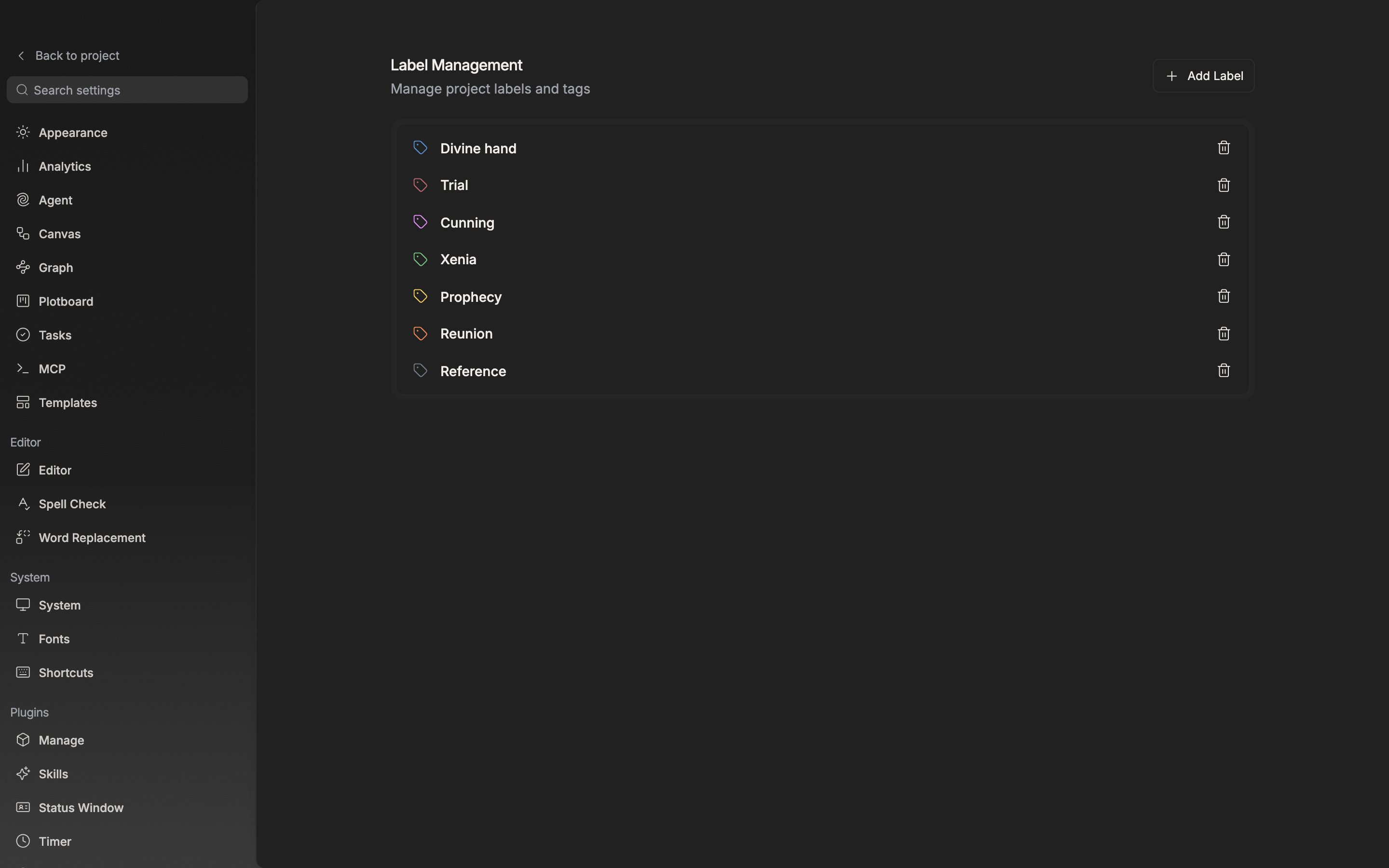
Press "Add Label" at the top right and an empty row appears at the top of the list. Write a name and press Enter to make it. Leave it empty and step away and nothing is made. Press the name to edit it, and press the icon on the left to pick a color. For a status you pick a circle shape out of five as well as a color. The order you set by dragging rows is the order they come in when you attach them to a file.
In the Labels tab you edit names and colors and drag rows to set the order.
## Attaching them to files
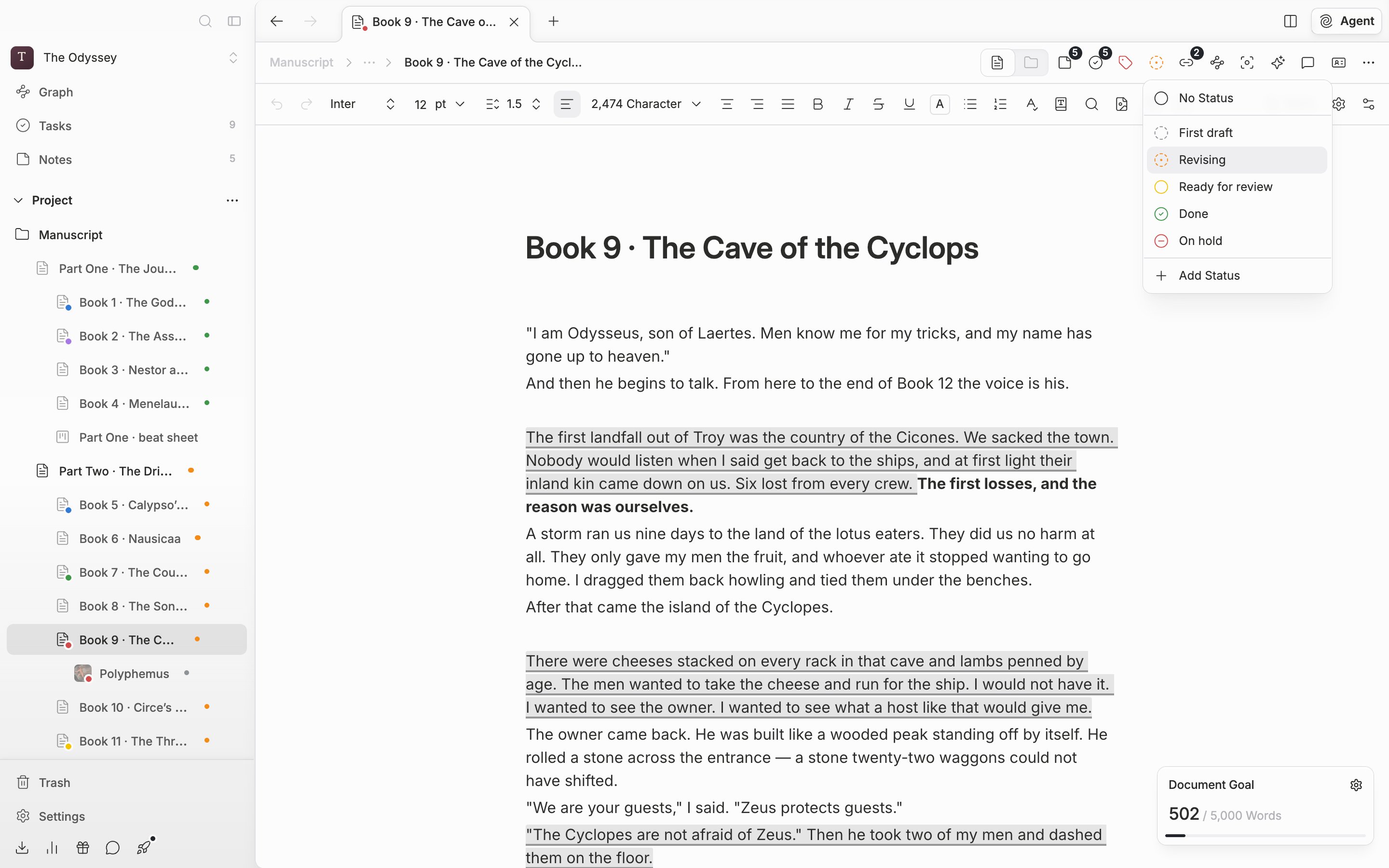
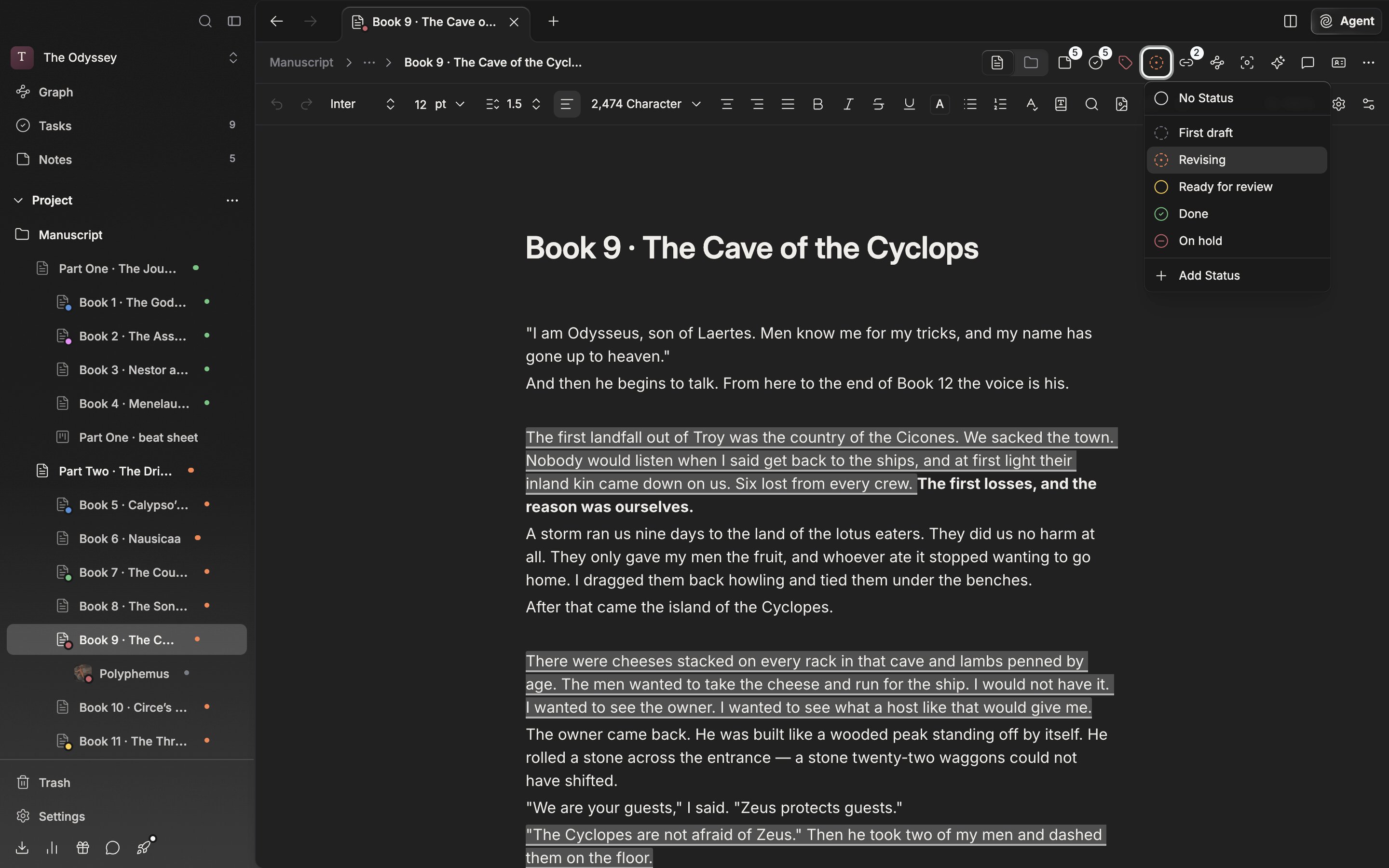
Document, sheet, plotboard, canvas, and folder headers carry the label (tag shape) and status (circle shape) buttons from the start. You can also right-click a file in the sidebar and go to the "Label" and "Status" submenus. Right-click with several files selected and it attaches to all of them at once. To take one off, pick "No Label" or "No Status".
The command palette has `Set Label for ""` and `Set Status for ""`, carrying the name of the file you have open. Here, typing a name that is not on the list brings up `Create "" label`, which attaches to that file the moment it is made. Neither of these two commands comes up for folders.
The circle button in the header changes the status. The label button is in the same place.
## Where they show up once attached
In the sidebar tree the status shows through as a small dot after the name, and the label as a dot at the corner of the icon. A folder's Timeline view makes one row per label.
Delete a label or a status and it comes off the files carrying it. The files themselves stay.