> ## Documentation Index
> Fetch the complete documentation index at: https://docs.pensiv.so/llms.txt
> Use this file to discover all available pages before exploring further.

# Narrowing the sidebar with a filter

> Keep only files matching a title, type, sheet category, section, label, or status in the sidebar tree. How conditions combine and what a filter blocks.

As a project grows, you end up scrolling a long way through the tree to find the file you want. Apply a filter and only the files that match your conditions stay in the tree. You might look at location sheets only, or gather just the manuscripts in draft status.

## Opening the filter

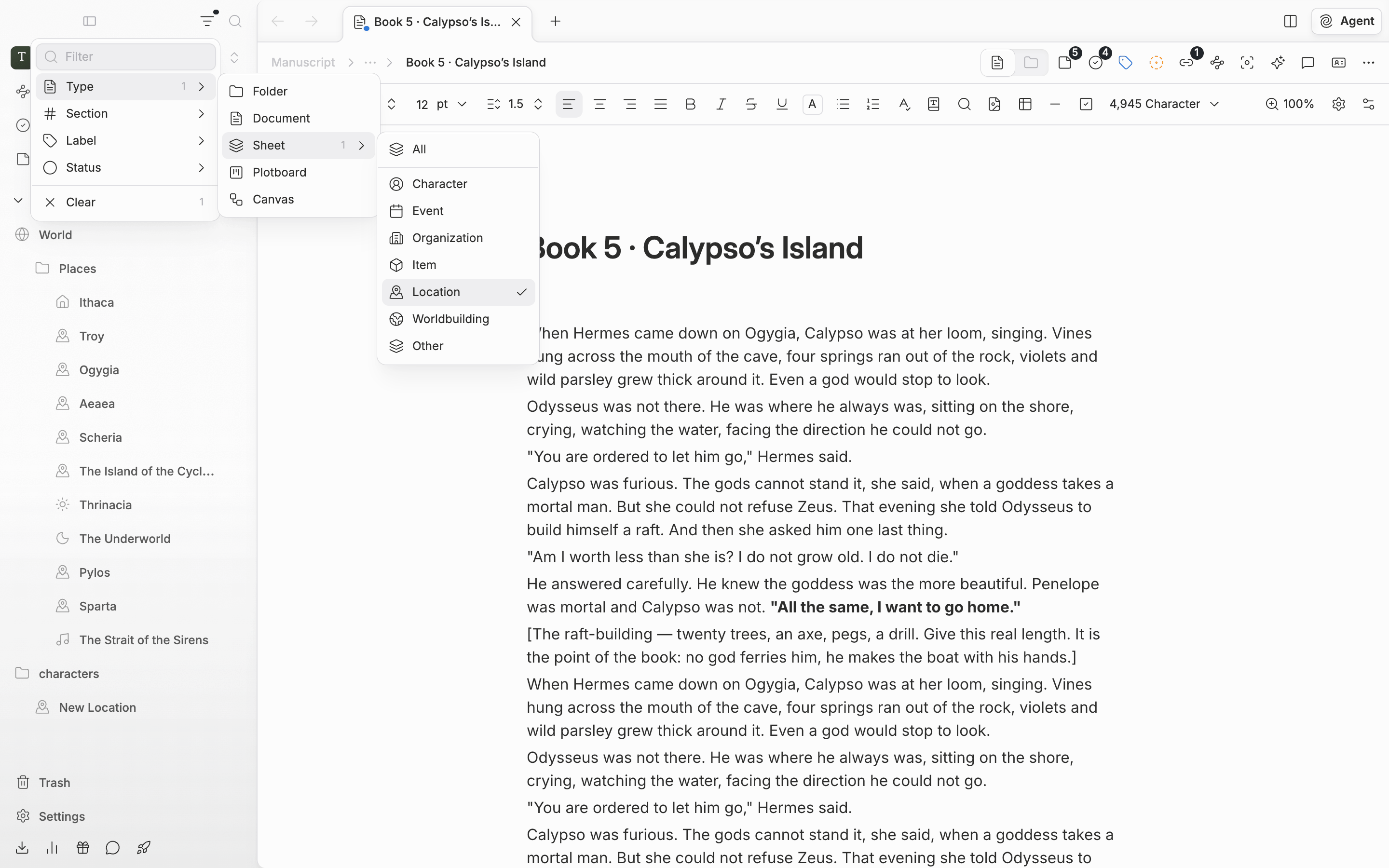
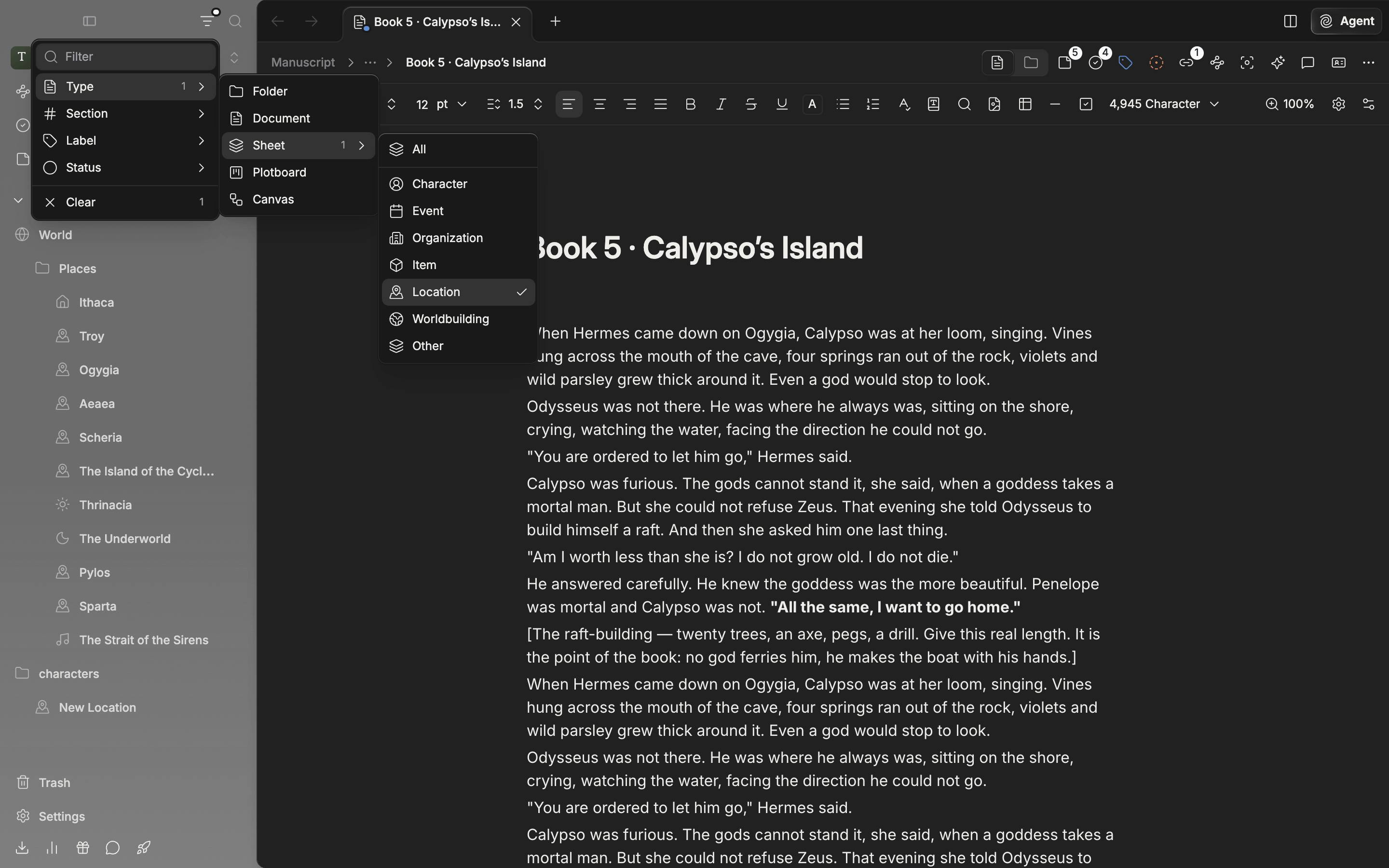
There are two icons at the top right of the sidebar. The funnel is **Filter** and the magnifying glass is **Search**. Press the funnel and a menu opens with the cursor already in the input field at the top.

Picking an item in the menu does not close it. Pick several conditions one after another, and when you are done, click outside or press Esc to close it. The filter stays applied after the menu closes.

<div className="app-window block dark:hidden">
  <img src="https://mintcdn.com/raumlabsinc/2fLvqUWsmhW5hjTp/images/en/project/sidebar-filter--01.png?fit=max&auto=format&n=2fLvqUWsmhW5hjTp&q=85&s=5c17f0d7120f6b124e9bb3d92f30bd48" alt="The filter menu opened from the funnel icon at the top of the sidebar. The Type ▸ Sheet submenu is open and Location is checked." width="2880" height="1800" data-path="images/en/project/sidebar-filter--01.png" />
</div>

<div className="app-window hidden dark:block">
  <img src="https://mintcdn.com/raumlabsinc/2fLvqUWsmhW5hjTp/images/en/project/sidebar-filter--01-dark.png?fit=max&auto=format&n=2fLvqUWsmhW5hjTp&q=85&s=56b4f8b65c6f5995f13e1aa787889bc4" alt="The filter menu opened from the funnel icon at the top of the sidebar. The Type ▸ Sheet submenu is open and Location is checked." width="2880" height="1800" data-path="images/en/project/sidebar-filter--01-dark.png" />
</div>

<p className="app-caption">The filter menu. Go one level further from Type into Sheet to pick by category.</p>

## What you can filter by

* The input field — keeps only files whose title contains what you typed. Case doesn't matter. It does not look at body text, and section names or the project name don't match either. The X at the right of the field clears only the text.
* **Type** — pick from **Folder**, **Document**, **Sheet**, **Plotboard**, and **Canvas**. **Sheet** goes one level deeper, where you pick **All** or **Character**, **Event**, **Organization**, **Item**, **Location**, **Worldbuilding**, or **Other**. Picking **All** clears the category checks, and picking any category clears **All**.
* **Section** — the Project section comes first, followed by the sections you made, in sidebar order. A file inside a folder follows the section its outermost ancestor is in. If you have not made any sections of your own, this row does not appear.
* **Label**, **Status** — the labels and statuses registered in the project appear in the order set in settings. If the list is empty, the row does not appear.

The small number at the right of each row is how many you picked under that criterion.

## Picking several

Pick several within one criterion and files matching any one of them stay. Pick two labels and files carrying either label show.

Apply several criteria and only files matching all of them stay. Pick one label and one status and only files carrying both that label and that status show. While you filter by label or status, files with no label or status at all drop out.

Type and sheet category count as one criterion. Pick **Document** and **Character** together and documents and character sheets both stay.

## Reading the filtered tree

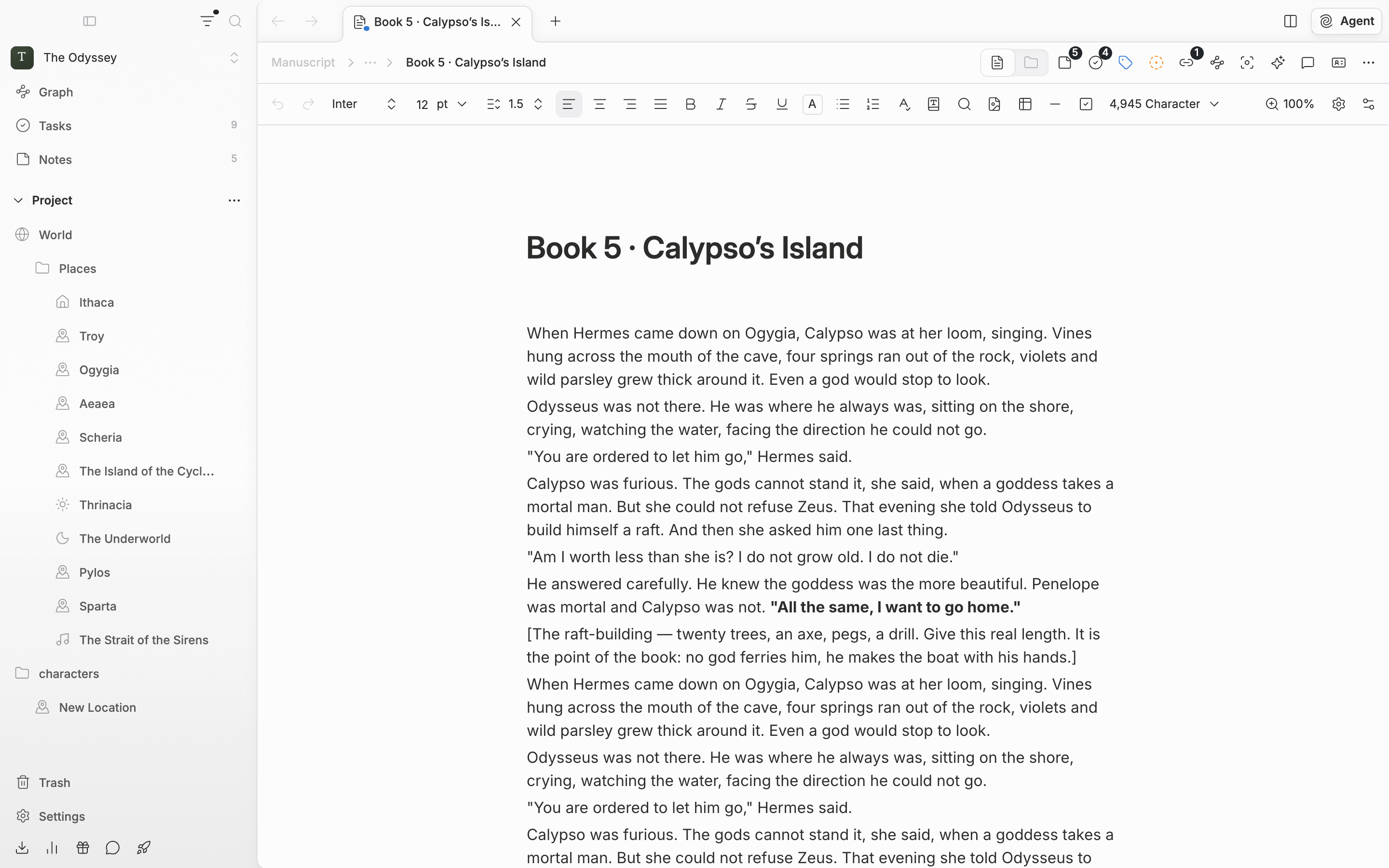
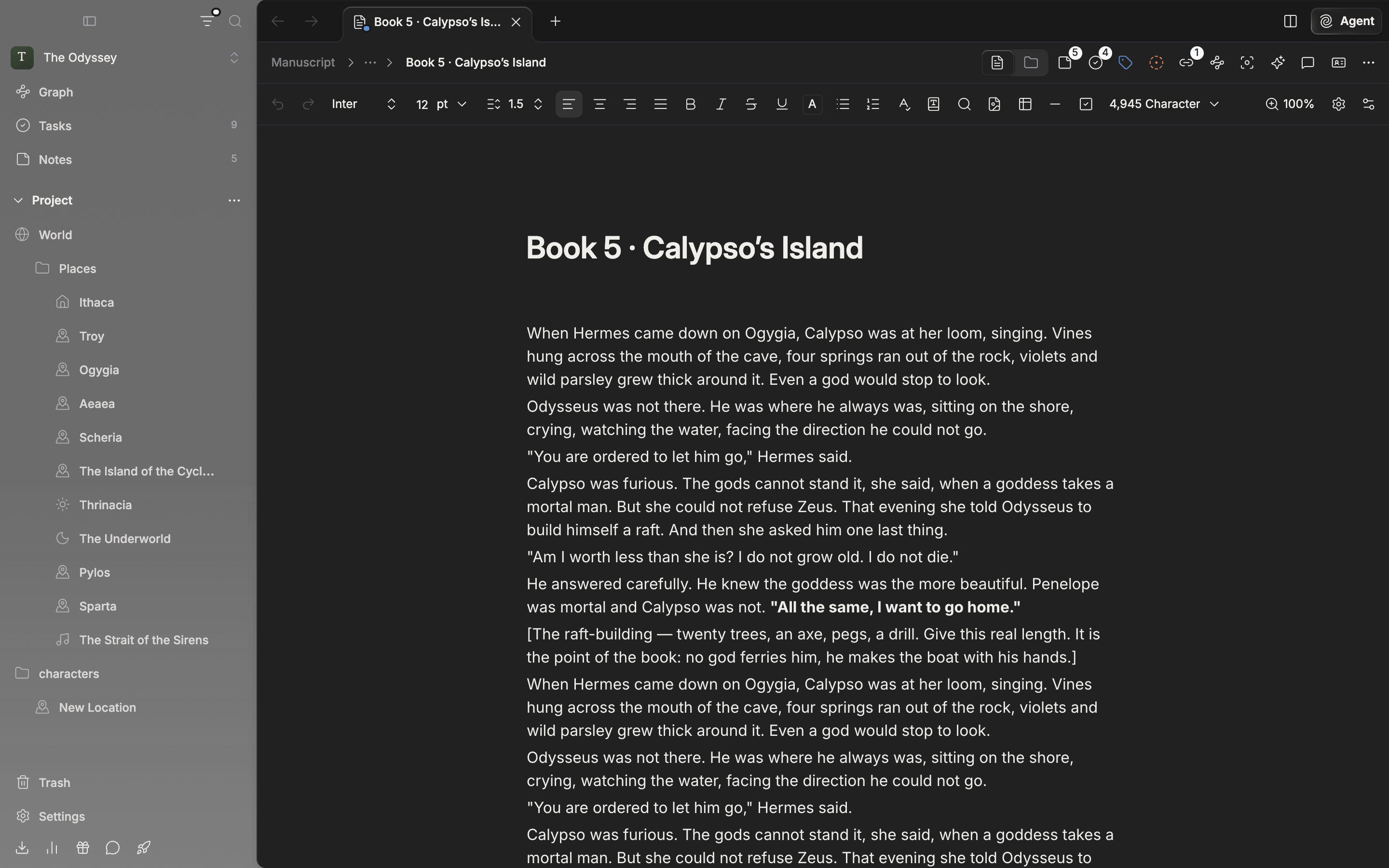
If a matching file is inside a folder, that folder stays as a signpost and expands on its own. Even when the folder itself does not match, it still shows you the way to the file inside. It is different when the folder itself also matches. Then it keeps its collapsed state as it was, so you have to expand it yourself to see the results inside.

Collapsed sections also show expanded while a filter is on. A section with no matching file disappears entirely. If no file matches at all, **No results found** and a **Clear** button appear where the tree was.

While a filter is applied, a small dot sits at the top right of the funnel icon. Once the menu is closed, that dot is the only sign, so if the tree seems to be showing fewer files than it should, check for the dot first.
<div className="app-window block dark:hidden">
  <img src="https://mintcdn.com/raumlabsinc/2fLvqUWsmhW5hjTp/images/en/project/sidebar-filter--02.png?fit=max&auto=format&n=2fLvqUWsmhW5hjTp&q=85&s=cee7208f59ea64ecbc5ed08d4ea29bf0" alt="The sidebar filtered by Type ▸ Sheet ▸ Location. Only the location sheets and the folders holding them remain, with a dot at the top right of the funnel icon." width="2880" height="1800" data-path="images/en/project/sidebar-filter--02.png" />
</div>

<div className="app-window hidden dark:block">
  <img src="https://mintcdn.com/raumlabsinc/2fLvqUWsmhW5hjTp/images/en/project/sidebar-filter--02-dark.png?fit=max&auto=format&n=2fLvqUWsmhW5hjTp&q=85&s=34053edede05c39f20868cdeb4e0540e" alt="The sidebar filtered by Type ▸ Sheet ▸ Location. Only the location sheets and the folders holding them remain, with a dot at the top right of the funnel icon." width="2880" height="1800" data-path="images/en/project/sidebar-filter--02-dark.png" />
</div>

<p className="app-caption">The tree with only location sheets left. A dot appears on the funnel icon while a filter is on.</p>

## Turning the filter off

When at least one condition is applied, **Clear** appears at the bottom of the menu. The number at its right is the total count of conditions applied right now. Press it and they are all released at once, and you are back to the original tree.

A filter changes only what you see. It touches none of the file order, folder structure, or collapsed state, so once you clear it the tree is exactly as it was before you applied the filter.

<Warning>
  While a filter is applied, all drag and drop in the tree stops. That covers reordering, moving into a folder or section, dropping into the trash, dragging to open in a split view or tab, and adding to the agent as context. This keeps the order from quietly shifting among files you can't see. If you need to move something, clear the filter first.
</Warning>

## What is remembered

Filters are remembered separately for each project and each device. Go back and forth between projects and each keeps the filter you set, and it holds after you quit and relaunch the app. It does not sync to your account, so another device follows its own filter.

## How it differs from search

A filter only narrows the sidebar tree by title and properties. To find sentences in body text, open [search](/en/project/search) with the magnifying glass icon or Cmd(Ctrl)+Shift+F. The filter has no shortcut of its own.


This documentation is built and hosted on [Mintlify](https://mintlify.com), a developer documentation platform.