> ## Documentation Index
> Fetch the complete documentation index at: https://docs.pensiv.so/llms.txt
> Use this file to discover all available pages before exploring further.
# Splitting the screen into panes
> How to split one screen left and right or top and bottom to lay two files side by side, swap the panes' places, or pull one out of the window.
Keeping a character sheet up beside the manuscript cuts down on going back and forth between screens. pensiv splits one screen into several panes, each holding a different file.
## Splitting to open
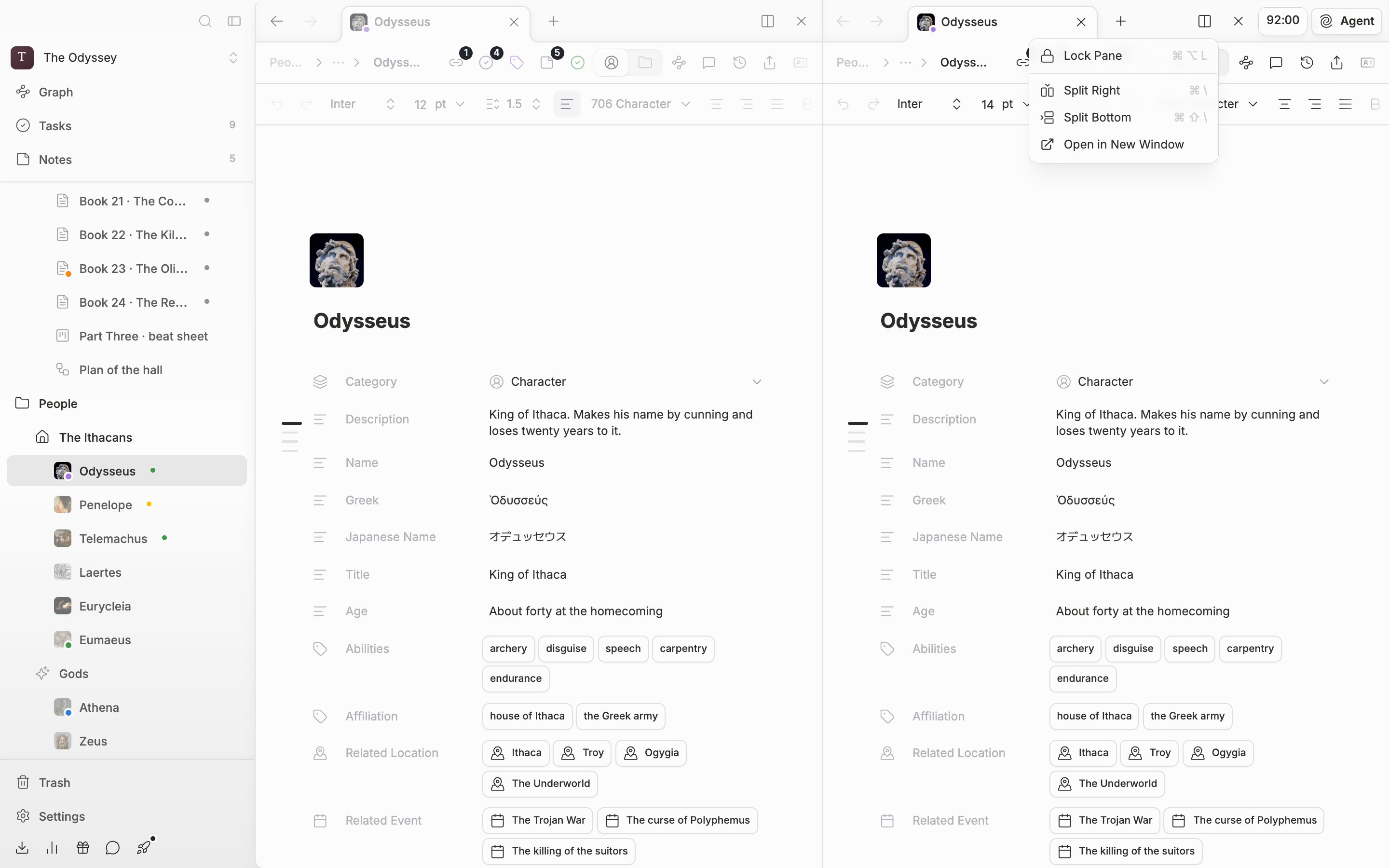
Press the Split View button at the right of the tab bar and Split Right and Split Bottom come up. The file you are looking at opens once more in the new pane as it is. The shortcuts are `Ctrl + \` and `Ctrl + Shift + \`, and on a Mac you use ⌘ where Ctrl is. Right-clicking a file in the sidebar shows the same two entries.
To split with a different file, drag a file from the sidebar onto the left, right, top, or bottom edge of a pane. A preview rises at the edge nearest the cursor. It splits in that direction the moment you let go. To fold a pane away, press Close Split View at the right end of the tab bar.
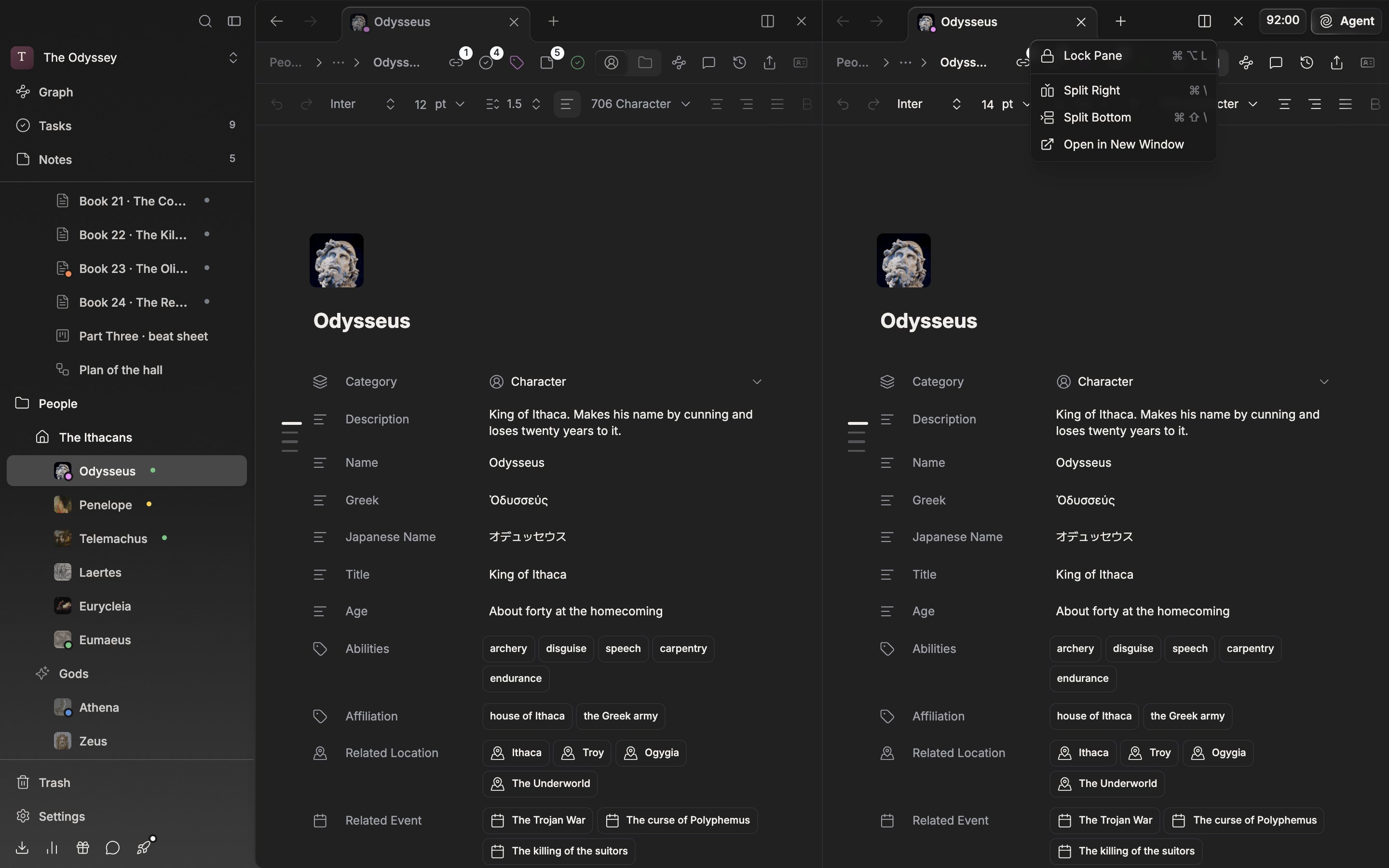
The Split View menu. It splits the current pane to the right or downward.
## Moving between panes
Press `Ctrl + Alt + arrow key` and you move to the pane in that direction. Within one pane, the tabs are picked with `Ctrl + 1` through `Ctrl + 9`.
## Swapping places
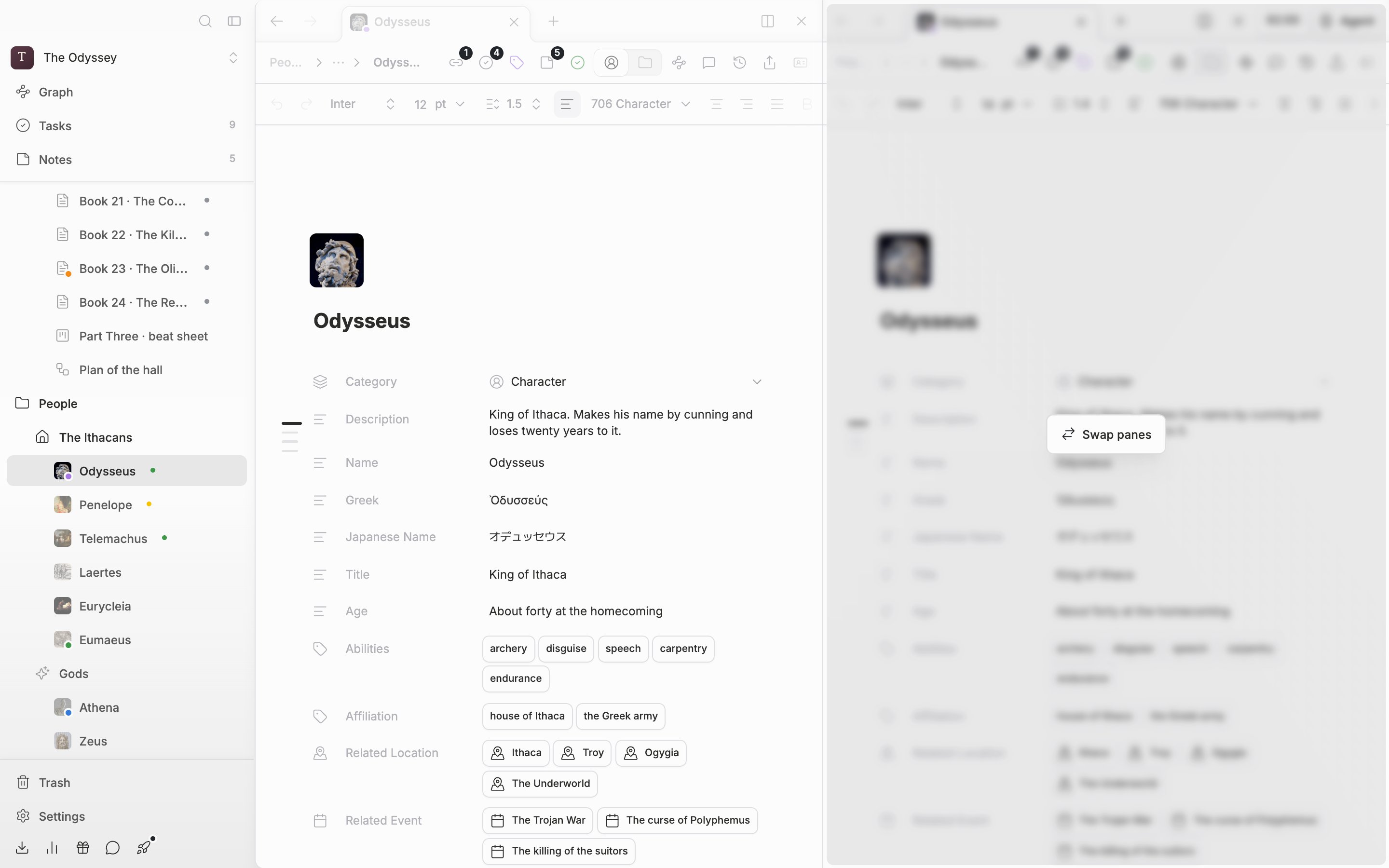
You can drag the tab bar only when there are two or more panes. Grab the tab bar and carry it over another pane and a Swap panes card comes up; let go and the contents of the two panes trade places whole.
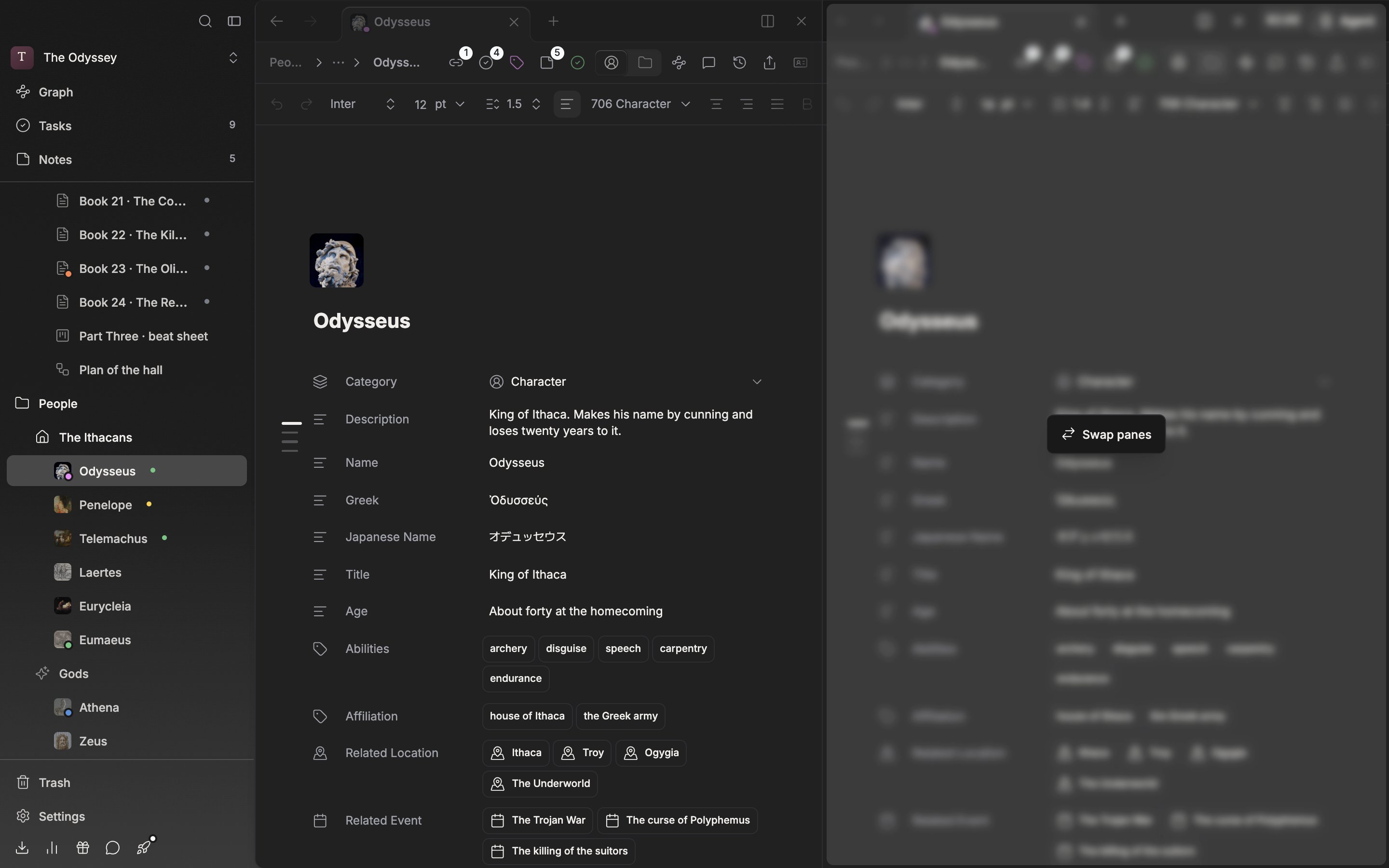
Drag the tab bar to swap the two panes' places.
## Lock Pane and a new window
Turn on Lock Pane in the same menu and a line is drawn across the top of the pane. A locked pane does not take in newly opened files; another pane that is not locked receives them instead. If they are all locked, one more pane is made. The shortcut is `Ctrl + Alt + L`. It is useful when you want to hold the manuscript in one place and change only the reference material.
Pick Open in New Window and that file moves out into a window of its own. With two screens you can spread the manuscript on one and the reference material on the other.
**Within the same window**, when you open the same document in two panes, you write only in the one the cursor is in, and the other is read-only and follows the content in real time.
**Across two windows** it is different. The content follows both ways in real time, but both sides can be edited, so do not type in the same place at the same time. If they overlap, whichever saved last is what remains.