> ## Documentation Index
> Fetch the complete documentation index at: https://docs.pensiv.so/llms.txt
> Use this file to discover all available pages before exploring further.

# Opening several files with tabs

> How to keep several files up in one pane and move between them. Opening a new tab, changing the order, and bringing back a tab you closed by mistake.

Breaking off from the manuscript to check a character sheet and coming back happens several times a day. Keep tabs open and that round trip takes one click.

## Opening a tab

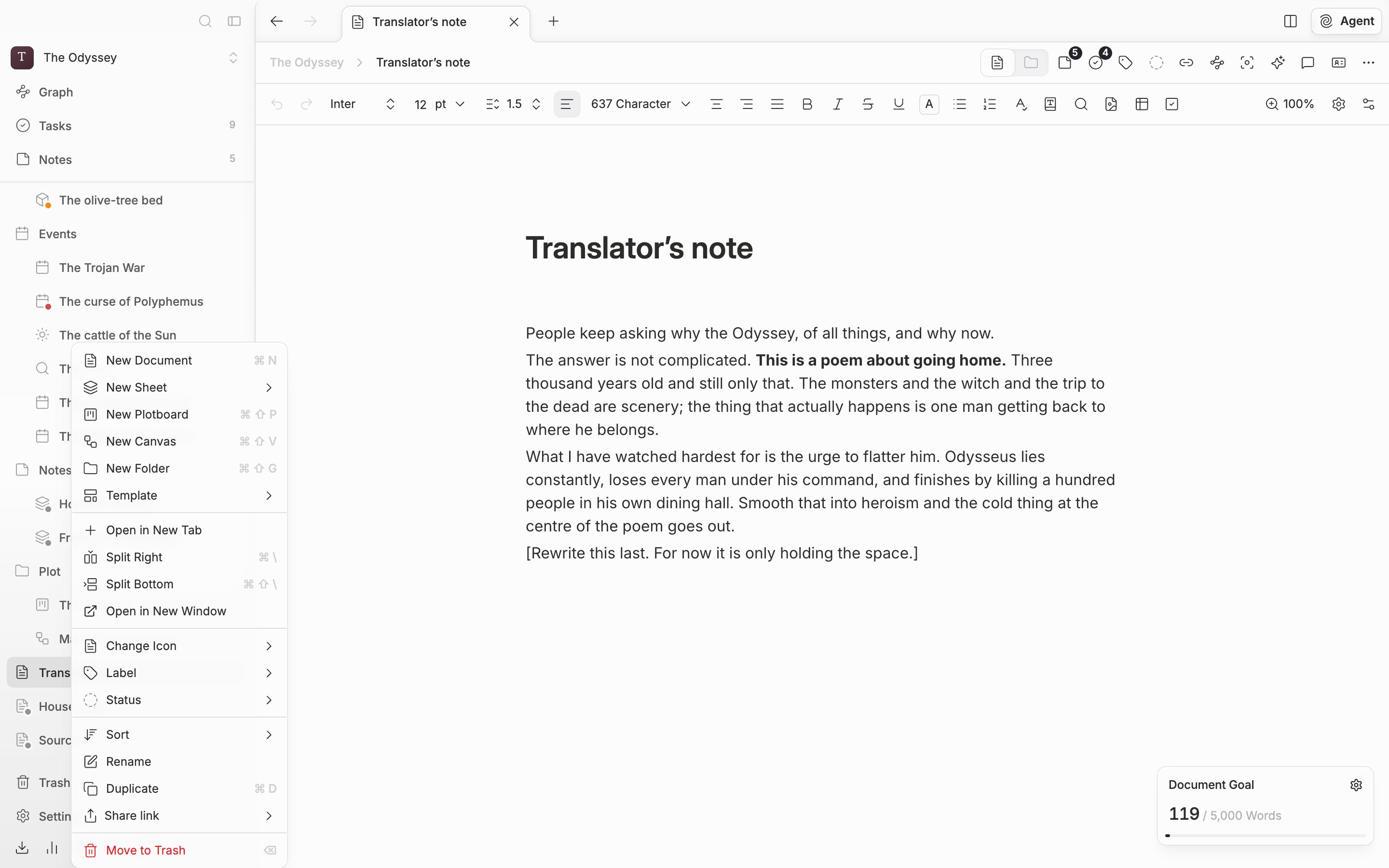
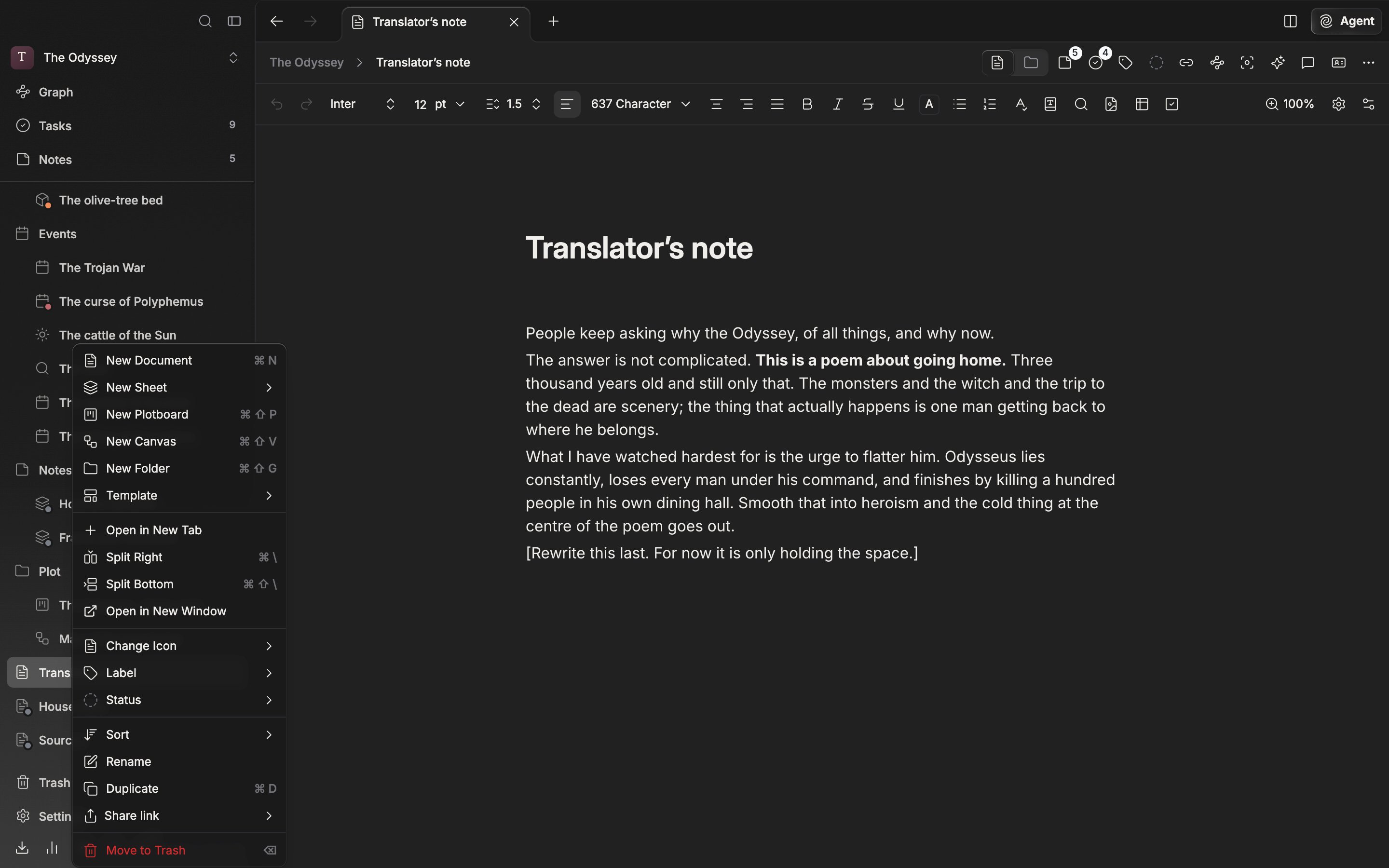
Press a file in the sidebar plainly and **the contents of the tab you are looking at change to that file.** The tabs do not grow in number. To leave what you were looking at in place, press the file with the middle mouse button, or right-click and pick **Open in New Tab**. Both come to the same thing. If that file is already open in this pane, no new tab is made and you move to the tab that was already there.

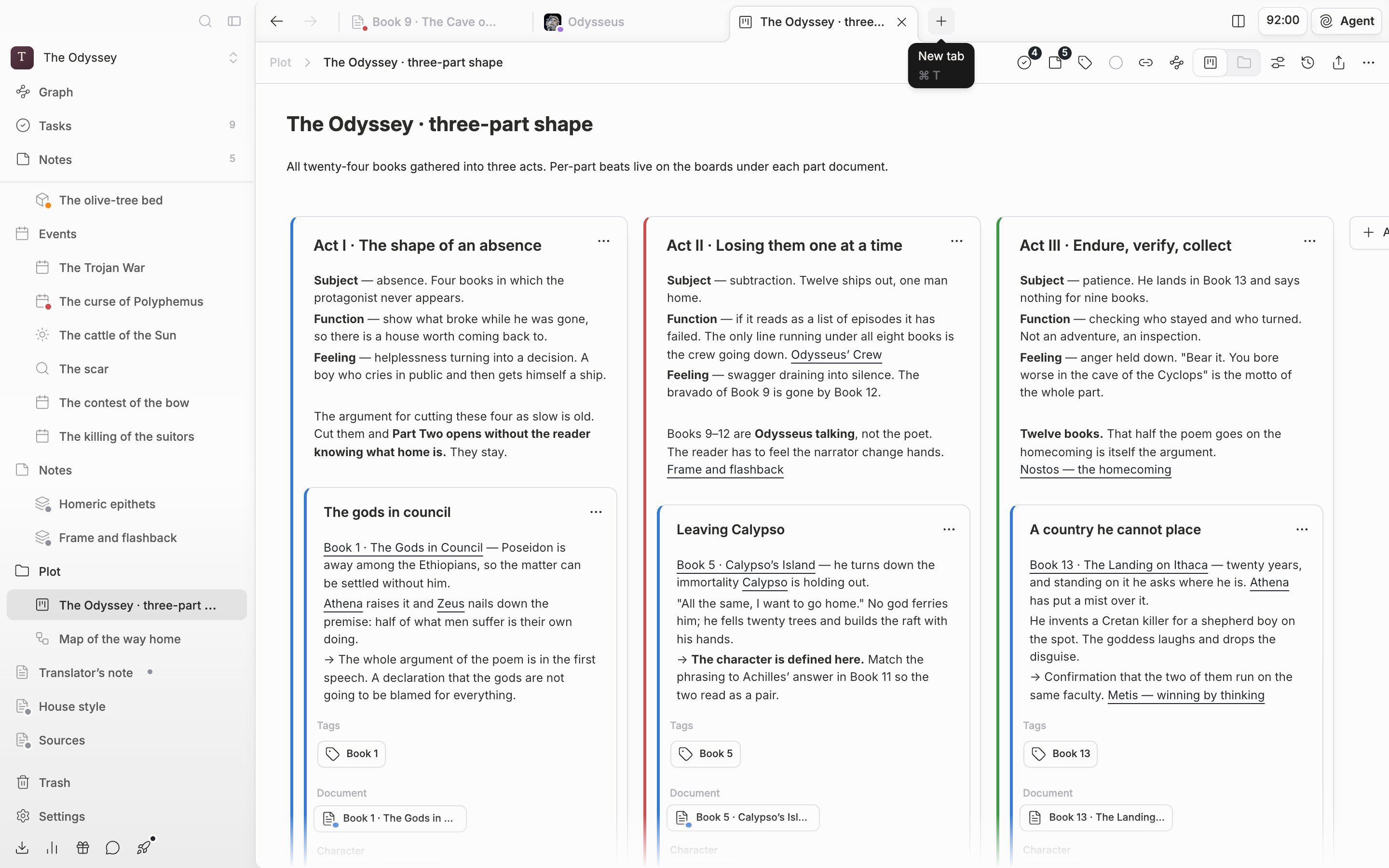
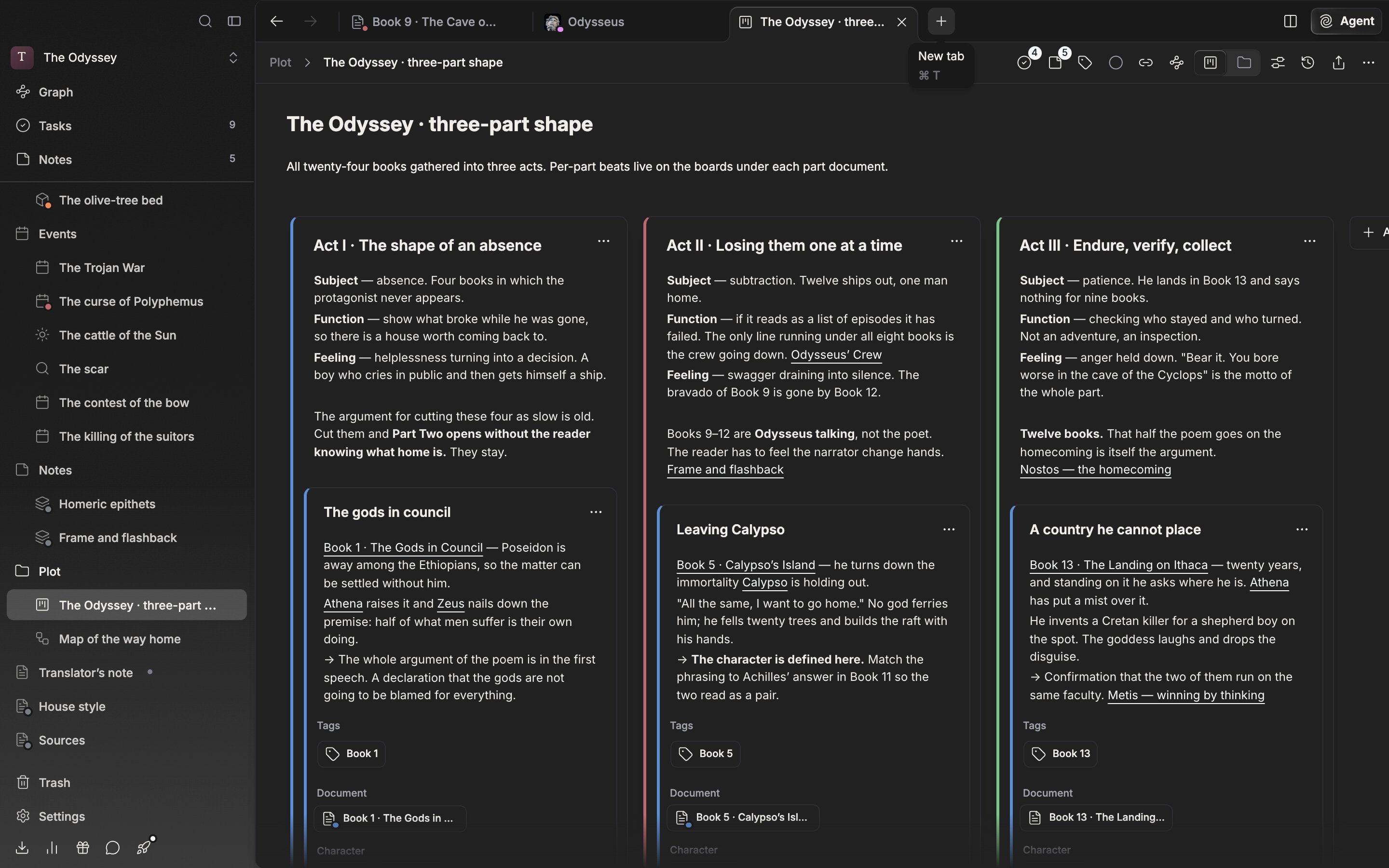
The **+** at the right end of the tab bar (`Cmd/Ctrl + T`) is a little different. It makes one more tab with the same file as the current tab. Use it when you want to lay the front and the back of a long manuscript side by side.

<div className="app-window block dark:hidden">
  <img src="https://mintcdn.com/raumlabsinc/WQIpN21D_2L4wB76/images/en/project/tabs--01.png?fit=max&auto=format&n=WQIpN21D_2L4wB76&q=85&s=75de6d29f3230361464be7190897d100" alt="Three or four document, sheet, and plotboard tabs are lined up in one pane's tab bar, the close X is visible on the active tab, and a “New tab” tooltip floats above the + button at the right end." width="2880" height="1800" data-path="images/en/project/tabs--01.png" />
</div>

<div className="app-window hidden dark:block">
  <img src="https://mintcdn.com/raumlabsinc/WQIpN21D_2L4wB76/images/en/project/tabs--01-dark.png?fit=max&auto=format&n=WQIpN21D_2L4wB76&q=85&s=c1c4abea5976368db5dec39bc73fdd53" alt="Three or four document, sheet, and plotboard tabs are lined up in one pane's tab bar, the close X is visible on the active tab, and a “New tab” tooltip floats above the + button at the right end." width="2880" height="1800" data-path="images/en/project/tabs--01-dark.png" />
</div>

<p className="app-caption">The + at the right end of the tab bar makes one more tab with the current file.</p>

## Reordering and moving

Tabs can be dragged. Drop one inside the same tab bar and the order changes, and if you are working with a split screen you can drop it on another pane's tab bar to hand it over whole. Drop it on the body and the screen splits toward the edge nearest the cursor.

You move between tabs with `Cmd/Ctrl + 1` through `9`. Counting from the left, the tab in that place is the one you get.

## Closing and bringing back

Close with the X that appears when you put the cursor on a tab, or with `Cmd/Ctrl + W`. If the pane has only one tab, instead of closing, that place turns into the home screen. On a split screen the pane folds away.

When you close one and regret it, `Cmd/Ctrl + Shift + T`. It remembers up to ten recently closed tabs and puts them back where they were.
<div className="app-window block dark:hidden">
  <img src="https://mintcdn.com/raumlabsinc/WQIpN21D_2L4wB76/images/en/project/tabs--02.png?fit=max&auto=format&n=WQIpN21D_2L4wB76&q=85&s=e019f7dc2e9fea8ed1b6b14c6c092f62" alt="A document in the sidebar file tree has been right-clicked and the menu is open. The “Open in New Tab” entry and, below it, “Split Right” and “Split Bottom” are visible together." width="2880" height="1800" data-path="images/en/project/tabs--02.png" />
</div>

<div className="app-window hidden dark:block">
  <img src="https://mintcdn.com/raumlabsinc/WQIpN21D_2L4wB76/images/en/project/tabs--02-dark.png?fit=max&auto=format&n=WQIpN21D_2L4wB76&q=85&s=d98847e0768fd3a184747d7ac7689ca0" alt="A document in the sidebar file tree has been right-clicked and the menu is open. The “Open in New Tab” entry and, below it, “Split Right” and “Split Bottom” are visible together." width="2880" height="1800" data-path="images/en/project/tabs--02-dark.png" />
</div>

<p className="app-caption">"Open in New Tab" in the right-click menu. It opens a new tab and leaves the file you were looking at as it is.</p>

## What a tab shows

A tab carries the file name and an icon. If you have attached a label, a dot in that color is stamped at the lower right of the icon, and if you put a portrait on a sheet, the photo goes where the icon is. Select several in the sidebar and open them together and the tab name changes to a count, as in **Multi-select (3)**.

You pick the tab shape under **Tab Style** in **Layout** in **Settings → Appearance**, choosing between **Notch** and **Cards**.

<Note>
  The tab layout is saved for each project on the device you are using. Restart the app and the tabs you last had open come back as they were, but another device keeps its own layout separately.
</Note>
