> ## Documentation Index
> Fetch the complete documentation index at: https://docs.pensiv.so/llms.txt
> Use this file to discover all available pages before exploring further.
# Shortcuts
> The shortcuts actually bound in the pensiv desktop app, in the same order as the Shortcuts tab: Global, Project, Sidebar, Plotboard, Editor, Canvas, Agent.
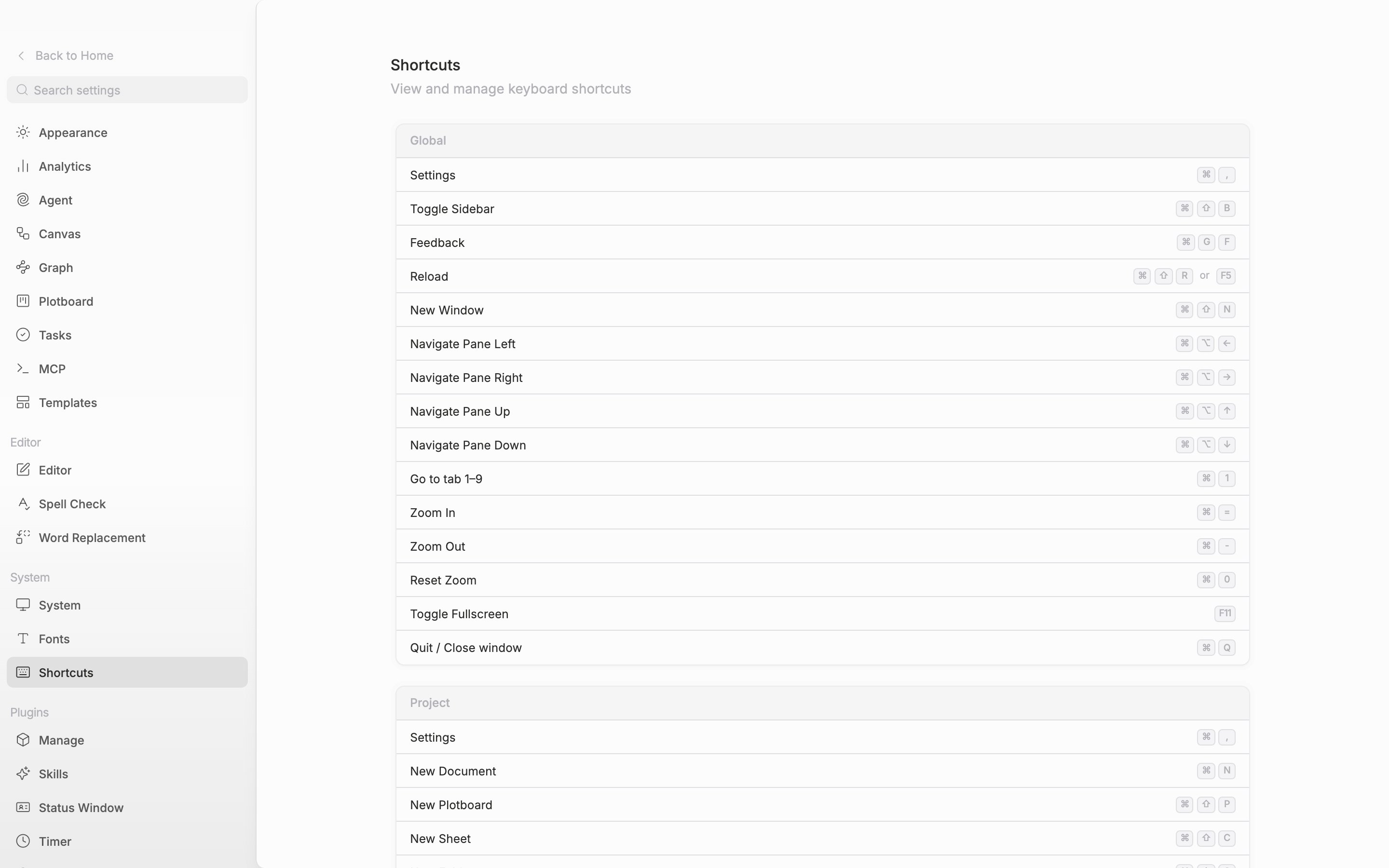
The same list is there inside the app. Open settings and go to the **Shortcuts** tab.
The tables are written with macOS keys. On Windows and Linux, read ⌘ as Ctrl and ⌥ as Alt. ⇧ is Shift and ⌫ is Backspace.
## Global
These are the keys listed in the **Global** card of the app settings, carried over as they are. Of them, only Settings, Feedback, Reload, New Window, Toggle Fullscreen, Zoom In / Zoom Out / Reset Zoom, and Quit also work on the home screen (with no project open). Toggle Sidebar (⌘ ⇧ B), pane navigation (⌘ ⌥ ←→↑↓), and Go to tab 1–9 work only with a project open.
| Action | Keys |
| ------------------- | --------------------------------- |
| Settings | ⌘ , |
| Toggle Sidebar | ⌘ ⇧ B |
| Feedback | ⌘ G F |
| Reload | ⌘ ⇧ R or F5 |
| New Window | ⌘ ⇧ N |
| Navigate Pane Left | ⌘ ⌥ ← |
| Navigate Pane Right | ⌘ ⌥ → |
| Navigate Pane Up | ⌘ ⌥ ↑ |
| Navigate Pane Down | ⌘ ⌥ ↓ |
| Go to tab 1–9 | ⌘ 1 … ⌘ 9 |
| Zoom In | ⌘ = |
| Zoom Out | ⌘ - |
| Reset Zoom | ⌘ 0 |
| Toggle Fullscreen | F11 |
| Quit / Close window | ⌘ Q (Alt F4 on Windows and Linux) |
Esc also takes you out of full screen. If a dialog or the search panel is up, though, it takes the Esc first, so you have to press it once more.
## Project
These work only while a project is open.
| Action | Keys |
| ----------------- | ------- |
| Command Palette | ⌘ K |
| Search project | ⌘ ⇧ F |
| New Document | ⌘ N |
| New Sheet | ⌘ ⇧ C |
| New Canvas | ⌘ ⇧ V |
| New Folder | ⌘ ⇧ G |
| Duplicate File | ⌘ D |
| Save | ⌘ S |
| New Tab | ⌘ T |
| Reopen Closed Tab | ⌘ ⇧ T |
| Close Pane | ⌘ W |
| Horizontal Split | ⌘ \\ |
| Vertical Split | ⌘ ⇧ \\ |
| Toggle Pane Lock | ⌘ ⌥ L |
| Navigate Back | ⌘ \[ |
| Navigate Forward | ⌘ ] |
| Toggle file notes | ⌘ ⌥ M |
| Focus mode | ⌘ ⇧ F11 |
| Character Map | ⌘ F10 |
| Hanja Conversion | F9 |
**New Canvas** and **Paste Without Formatting** in the editor section below are the same ⌘ ⇧ V. With the cursor in a place where letters are typed, the paste runs; anywhere else, the canvas is created.
Esc also leaves Focus mode.
## Sidebar
The tree navigation keys (↑ ↓ ← →, Space, Enter, ⌫) work only when the sidebar has focus. Collapse / expand (⌥ \[, ⌥ ]) works while a project is open regardless of focus, even in the middle of typing in the body. The four rows at the bottom are mouse actions.
| Action | Keys |
| -------------------------------- | ----------------------------------- |
| Move selection up / down | ↑ ↓ |
| Expand child items | → |
| Collapse child items | ← |
| Open selected file | Space (Enter on Windows and Linux) |
| Rename selected file | Enter (F2 on Windows and Linux) |
| Collapse All | ⌥ \[ |
| Expand All | ⌥ ] |
| Move file to trash | ⌫ |
| Add / remove from selection | ⌘ click |
| Select a range | ⇧ click |
| Add a range to the selection | ⌘ ⇧ click |
| Open in new tab | Middle click |
| Collapse / expand all subfolders | ⌘ click the folder's collapse arrow |
On macOS, Enter renaming follows Finder. The key that opens is Space.
## Plotboard
| Action | Keys |
| ------------- | ----- |
| New Plotboard | ⌘ ⇧ P |
| New Card | ⌘ ⇧ A |
| New Part Card | ⌘ ⇧ M |
With the cursor resting on a card, the new card appears right after it.
## Editor
| Action | Keys |
| ------------------------ | ------------ |
| Undo | ⌘ Z |
| Redo | ⌘ ⇧ Z or ⌘ Y |
| Search | ⌘ F |
| Bold | ⌘ B |
| Italic | ⌘ I |
| Underline | ⌘ U |
| Strikethrough | ⌘ ⇧ S |
| Bullet List | ⌘ ⇧ 8 |
| Numbered List | ⌘ ⇧ 7 |
| Task List | ⌘ ⇧ 9 |
| Paste Without Formatting | ⌘ ⇧ V |
## Canvas
These work when you have a canvas open.
| Action | Keys |
| ------------------------------ | ----------------------------------------------- |
| Pan | Space + drag (right click + drag does the same) |
| Zoom to fit | ⇧ 1 |
| Zoom to selection | ⇧ 2 |
| Add to / remove from selection | ⇧ click |
| Remove card | ⌫ or Delete |
| Copy / Paste | ⌘ C / ⌘ V |
| Undo / Redo | ⌘ Z / ⌘ ⇧ Z |
| Enter edit mode | ⇧ Enter |
| Exit edit mode | Esc |
| Move selected card | ← → ↑ ↓ (hold ⇧ for grid steps) |
| Create node | Double-click the background |
| Create child node | Tab |
| Create sibling node | Enter |
| Navigate to nearest node | ⌥ ← → ↑ ↓ |
| Create floating node | ⌘ ← → ↑ ↓ |
| Create child node in direction | ⌘ ⇧ ← → ↑ ↓ |
## Agent
| Action | Keys |
| ---------- | ---- |
| New Chat | ⌘ T |
| Close Chat | ⌘ W |
While the agent panel has focus, the agent takes ⌘ T and ⌘ W. To open a new tab or close one, click once on the body side to move the focus first.
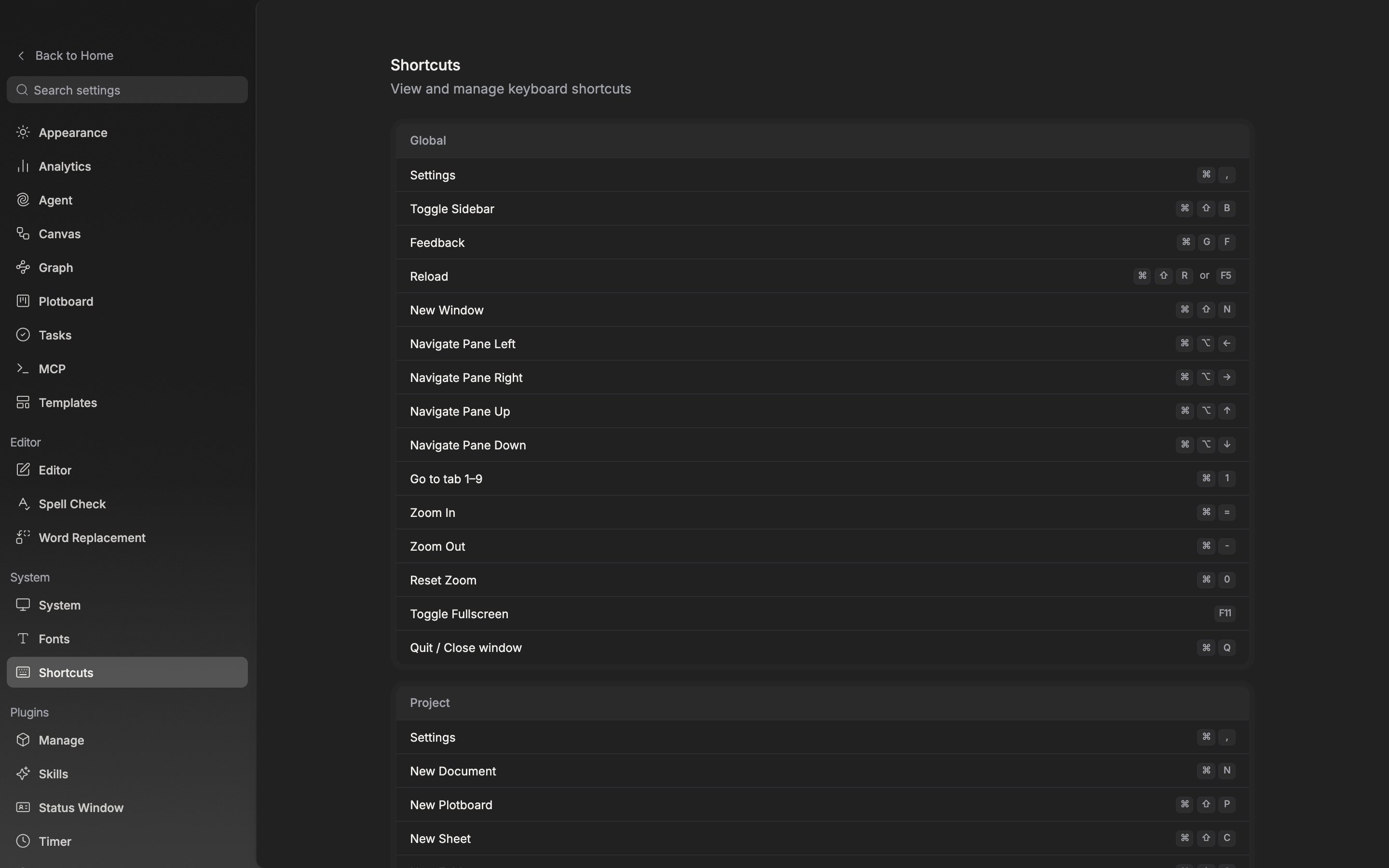
The shortcut list as seen inside the app. It is split into cards by scope.