> ## Documentation Index
> Fetch the complete documentation index at: https://docs.pensiv.so/llms.txt
> Use this file to discover all available pages before exploring further.

# Theme and fonts

> How to switch between light and dark, and how to bring fonts for your manuscript in from your computer and manage them.

In settings, **Appearance** is the first tab of the first group at the top of the left list, the group that starts without a label. **Fonts** is in the **System** group.

## Switching between light and dark

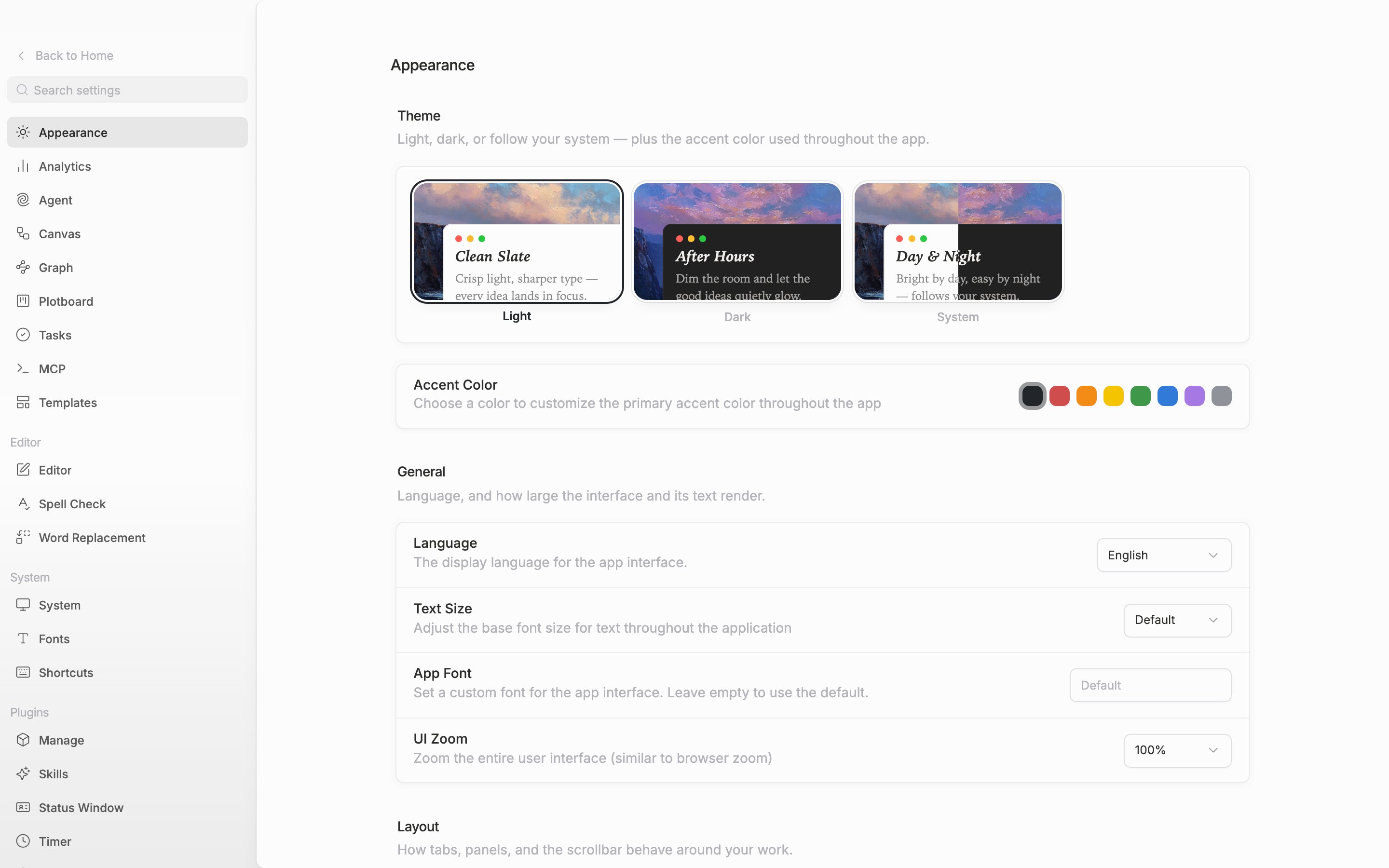
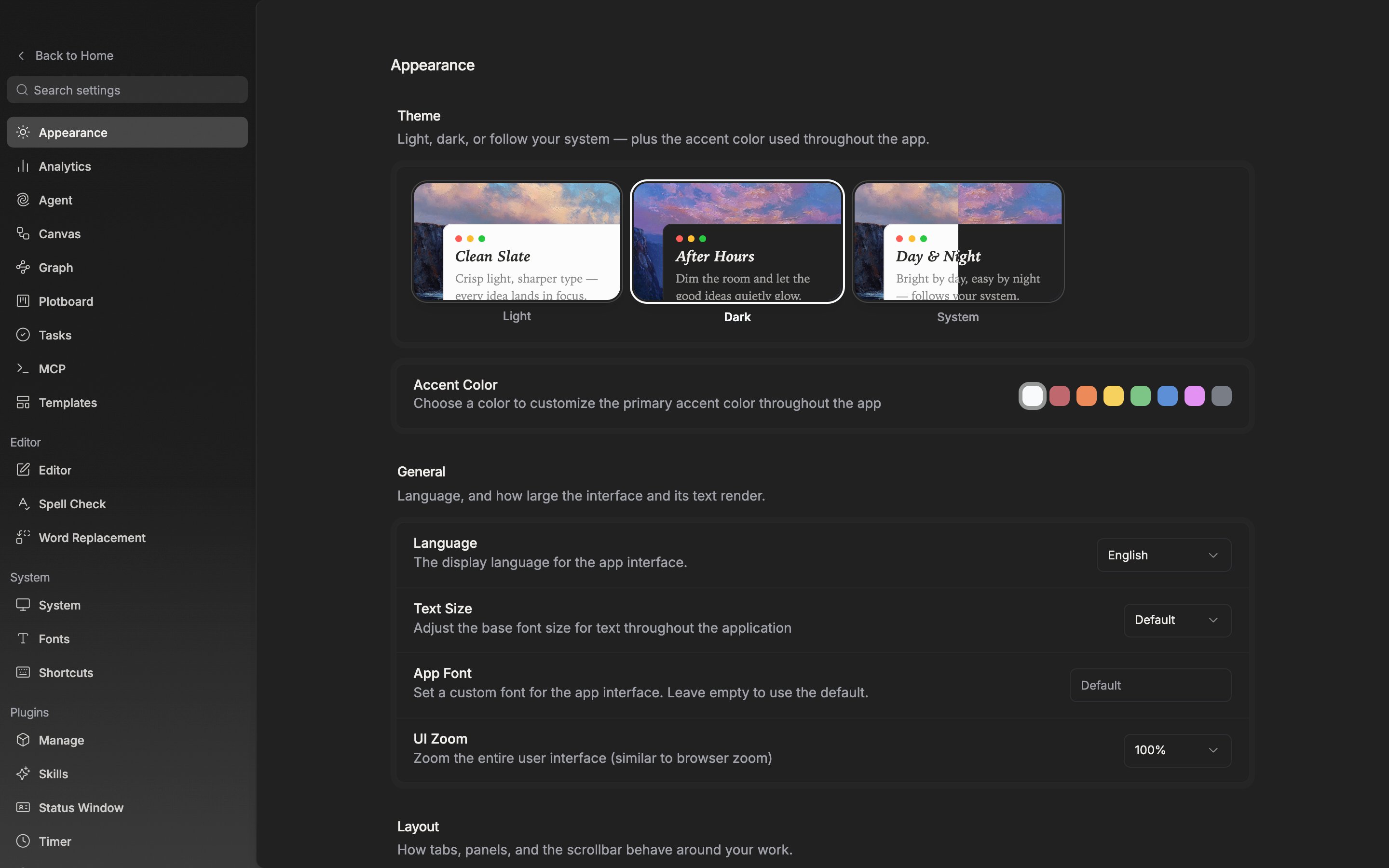
The **Theme** section at the top of **Appearance** holds three preview images. They are **Light**, **Dark**, and **System**, and System follows your operating system setting as it is. The app changes the moment you click, and windows you opened separately switch along with it. The value you pick is saved to your account, so the app opens in the same mode on other devices.

The command palette also has three commands — **Light Mode**, **Dark Mode**, and **System Theme** — which help when you want to switch without taking your hands off the manuscript.

**Accent Color** right below sets the color used throughout the app. To swap the colors out entirely, see [Installing and creating themes](/en/extend/themes).

<div className="app-window block dark:hidden">
  <img src="https://mintcdn.com/raumlabsinc/ENyX88kfW0HMrWQi/images/en/settings/appearance--01.png?fit=max&auto=format&n=ENyX88kfW0HMrWQi&q=85&s=19a8497033f90b492cf2494d9b897537" alt="The top of the page. The three Light, Dark, and System preview images in the “Theme” section all fit on one row, and the currently chosen tile shows a border and a bold label. The “Accent Color” row below is visible too." width="2880" height="1800" data-path="images/en/settings/appearance--01.png" />
</div>

<div className="app-window hidden dark:block">
  <img src="https://mintcdn.com/raumlabsinc/ENyX88kfW0HMrWQi/images/en/settings/appearance--01-dark.png?fit=max&auto=format&n=ENyX88kfW0HMrWQi&q=85&s=a8450392635e4a04ff05d2957169c303" alt="The top of the page. The three Light, Dark, and System preview images in the “Theme” section all fit on one row, and the currently chosen tile shows a border and a bold label. The “Accent Color” row below is visible too." width="2880" height="1800" data-path="images/en/settings/appearance--01-dark.png" />
</div>

<p className="app-caption">Pick one of the three tiles: Light, Dark, or System.</p>

## Importing fonts

Go to **Fonts** and click **Import Font** at the top right. It accepts `.ttf`, `.otf`, `.woff`, and `.woff2`, and you may select several at once. A file larger than 10MB does not come in. If you have nothing yet, only **No imported fonts yet** and **Import Your First Font** are shown.

Files that share a family name are grouped into a single row in the list, however many you add. Add the bold and italic files together and bold and italic in your manuscript come out in shapes that belong to that font. When two files overlap in weight and style, the later one overwrites the earlier one.

Imported fonts are appended at the bottom of the font lists in the document toolbar and in the **Editor** settings, below a divider.

## Deleting, and moving between devices

Click the trash can at the right of a row and **Delete font family?** appears, telling you how many files will be removed. Click **Delete** and the files go too. If you were using that font as your default font, it reverts to Inter.

Font files stay on this device only. On another device, even under the same account, the default font drops back to Inter, and a font applied directly to a paragraph shows in the toolbar as **Unknown**. Anyone you exchange manuscripts with has to import the same font on their own.

The font of the app interface itself is set in the **App Font** field in **Appearance**. Type the font name yourself; leave it empty and it returns to **Default**.
