> ## Documentation Index
> Fetch the complete documentation index at: https://docs.pensiv.so/llms.txt
> Use this file to discover all available pages before exploring further.

# General settings

> Set the language, the light or dark theme, and the accent color in the Appearance tab. Also where you choose which screen opens when you start the app.

Open settings and **Appearance**, at the top of the left list, comes up first. Choosing **Settings** from the command palette lands on this screen too. The app's language and colors are set here.

## Language

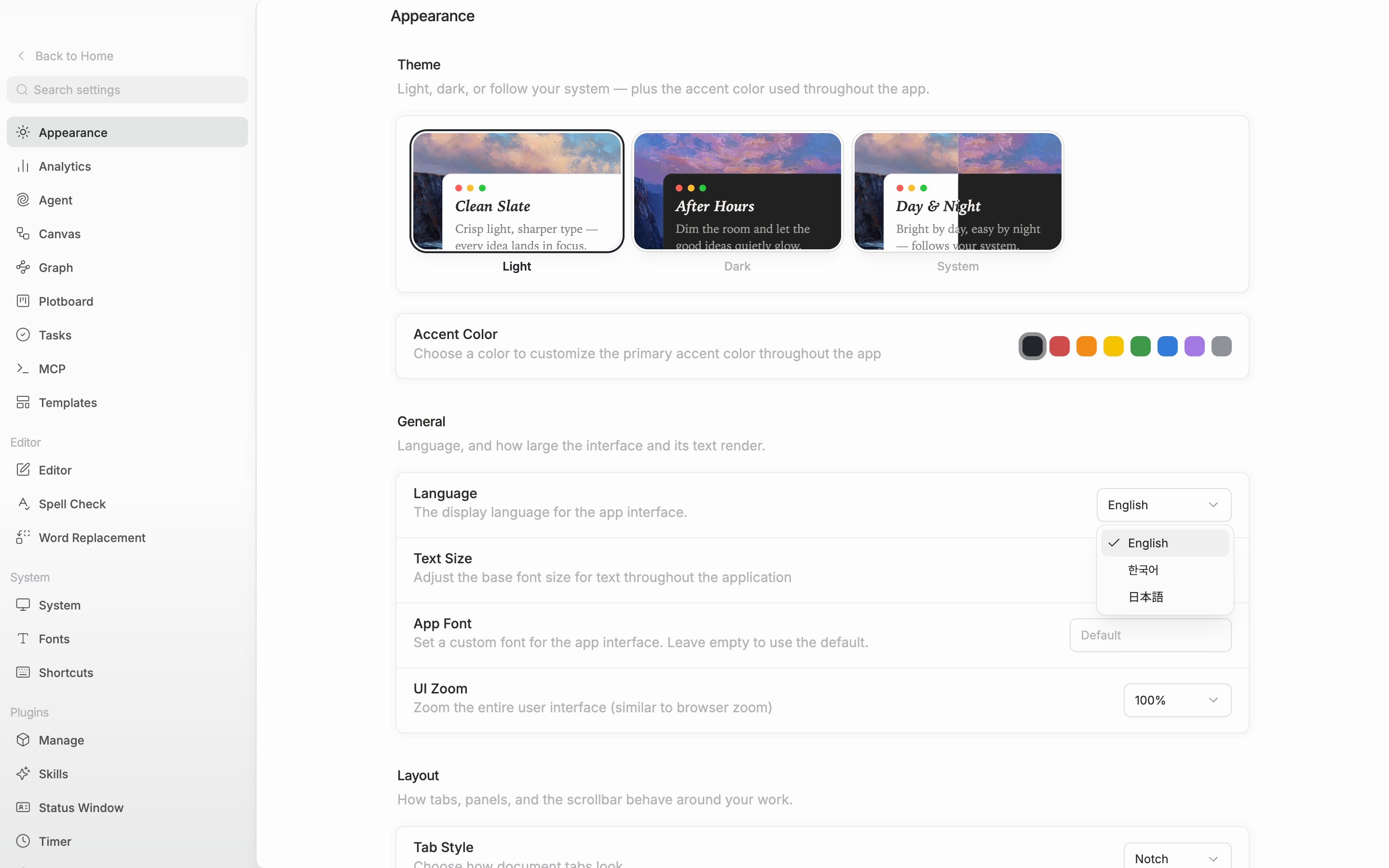
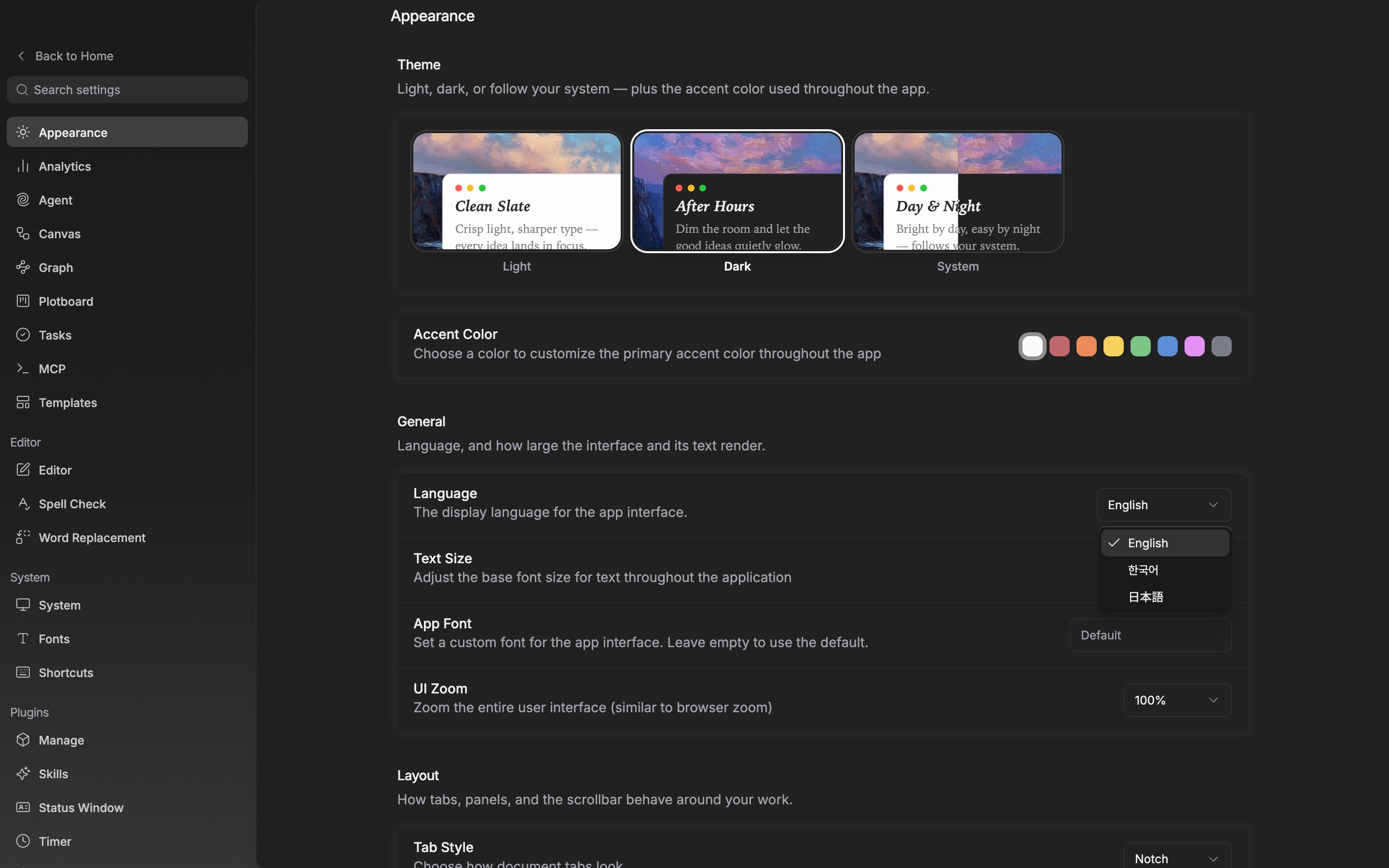
The first row of the **General** section is **Language**. Choose among English · 한국어 · 日本語 and the on-screen text changes at once, followed by "Language updated". If saving fails, it reverts to the original language. This value is saved to your account, so signing in on another device opens in the same language.

<div className="app-window block dark:hidden">
  <img src="https://mintcdn.com/raumlabsinc/JcYuBBCW81V1OYpG/images/en/settings/preferences--01.png?fit=max&auto=format&n=JcYuBBCW81V1OYpG&q=85&s=ed605550fb7e9f424dea50aada5baf1f" alt="The Language dropdown in the General section is open with the three items English, 한국어, and 日本語 visible, and one of them selected. The Text Size row below is visible too." width="2880" height="1800" data-path="images/en/settings/preferences--01.png" />
</div>

<div className="app-window hidden dark:block">
  <img src="https://mintcdn.com/raumlabsinc/JcYuBBCW81V1OYpG/images/en/settings/preferences--01-dark.png?fit=max&auto=format&n=JcYuBBCW81V1OYpG&q=85&s=f6396357c083add86af6a9b921638e20" alt="The Language dropdown in the General section is open with the three items English, 한국어, and 日本語 visible, and one of them selected. The Text Size row below is visible too." width="2880" height="1800" data-path="images/en/settings/preferences--01-dark.png" />
</div>

<p className="app-caption">The language is saved to your account, so it opens the same way on other devices.</p>

## Theme

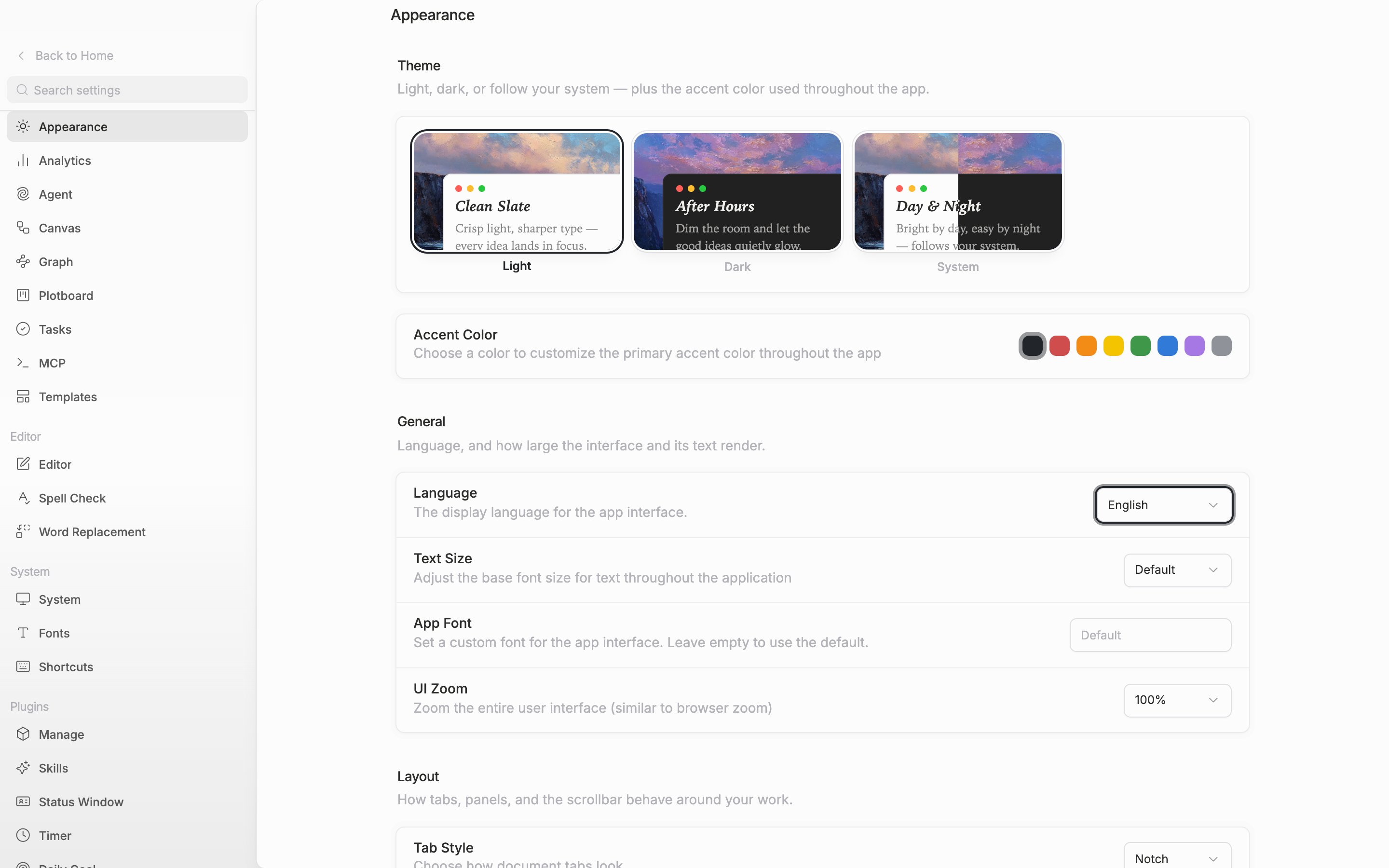
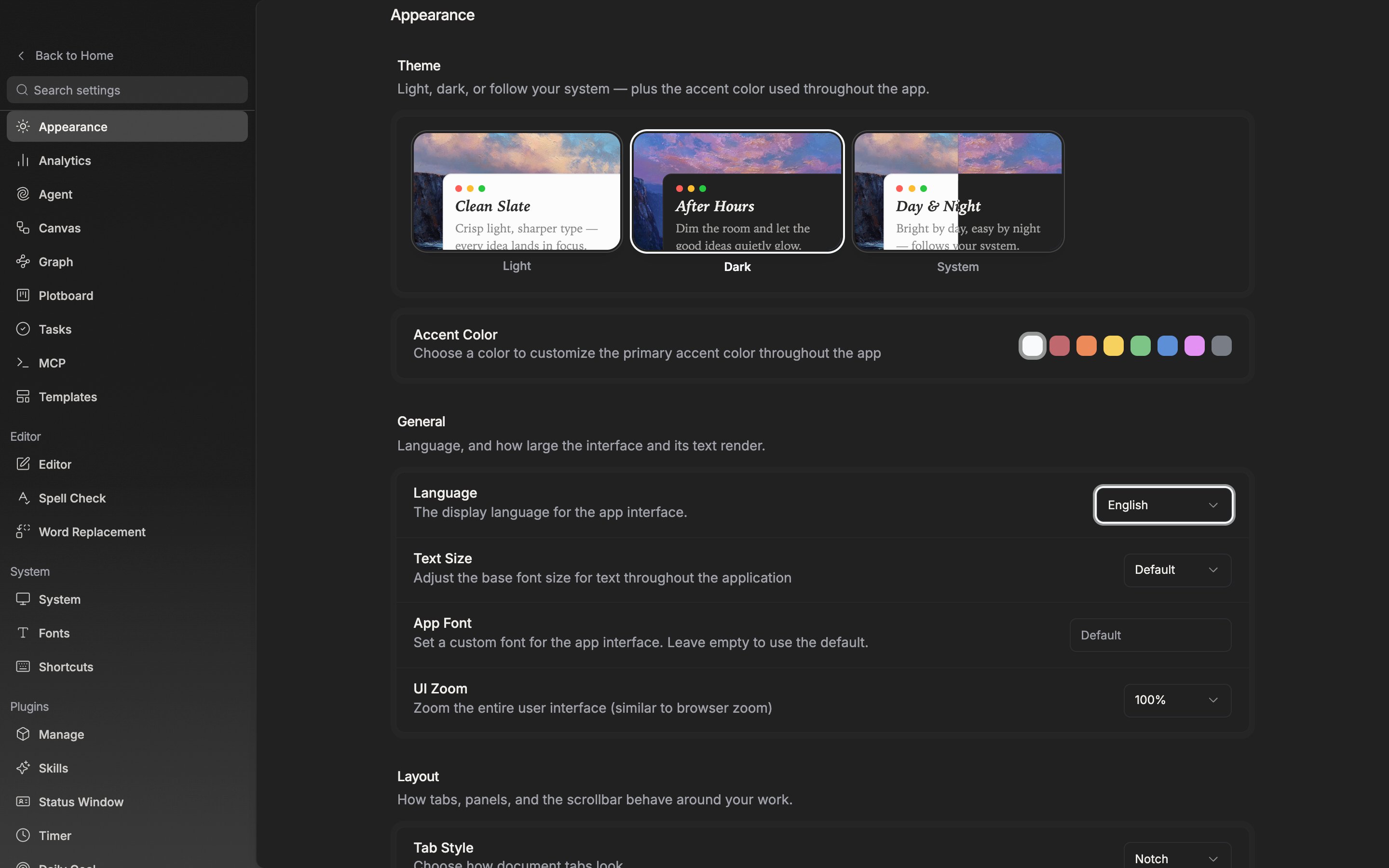
The **Theme** section at the top has three tiles: **Light · Dark · System**. Choose **System** and it follows the operating system setting, changing on its own between day and night. It applies to the window the moment you click, so you can decide by clicking back and forth between the tiles. **Light Mode**, **Dark Mode**, and **System Theme** in the command palette switch it as well.

## Accent color

The **Accent Color** row below the theme holds eight color swatches. The leftmost is the default, followed by red, orange, yellow, green, blue, purple, and gray. The color you pick is used for accents throughout the app, such as buttons and selection marks. Raise **Accent tint** in the **Window** section and the same color washes faintly over the window background too.
<div className="app-window block dark:hidden">
  <img src="https://mintcdn.com/raumlabsinc/ENyX88kfW0HMrWQi/images/en/settings/preferences--02.png?fit=max&auto=format&n=ENyX88kfW0HMrWQi&q=85&s=8364c3c98cf25dfd29657bd57c649545" alt="The top of the Appearance tab. All three Light, Dark, and System tiles are visible with one of them selected and its border highlighted. The eight color swatches on the Accent Color row just below are uncut." width="2880" height="1800" data-path="images/en/settings/preferences--02.png" />
</div>

<div className="app-window hidden dark:block">
  <img src="https://mintcdn.com/raumlabsinc/ENyX88kfW0HMrWQi/images/en/settings/preferences--02-dark.png?fit=max&auto=format&n=ENyX88kfW0HMrWQi&q=85&s=ce41e6c5d65cf4c9386fd8fa6cbb80cc" alt="The top of the Appearance tab. All three Light, Dark, and System tiles are visible with one of them selected and its border highlighted. The eight color swatches on the Accent Color row just below are uncut." width="2880" height="1800" data-path="images/en/settings/preferences--02-dark.png" />
</div>

<p className="app-caption">The theme tiles and the accent color. They apply to the window as soon as you pick one.</p>

## The screen that opens when you start the app

Startup behavior is in the **System** tab, not in **Appearance**. It shows in the desktop app only and is stored per device rather than in your account.

* **Open in start** — pensiv runs automatically when you turn on your device.
* **Open last visited** — reopening the app takes you straight into the last project screen you were looking at.

Both are on to begin with.

<Note>
  The only screens it remembers are the ones inside a project. If you left the project and closed the app while sitting on Home, there is no screen to return to, so it starts at Home again next time.
</Note>
