> ## Documentation Index
> Fetch the complete documentation index at: https://docs.pensiv.so/llms.txt
> Use this file to discover all available pages before exploring further.
# Profile
> Where to change your profile picture and name, and where that name shows up in the app.
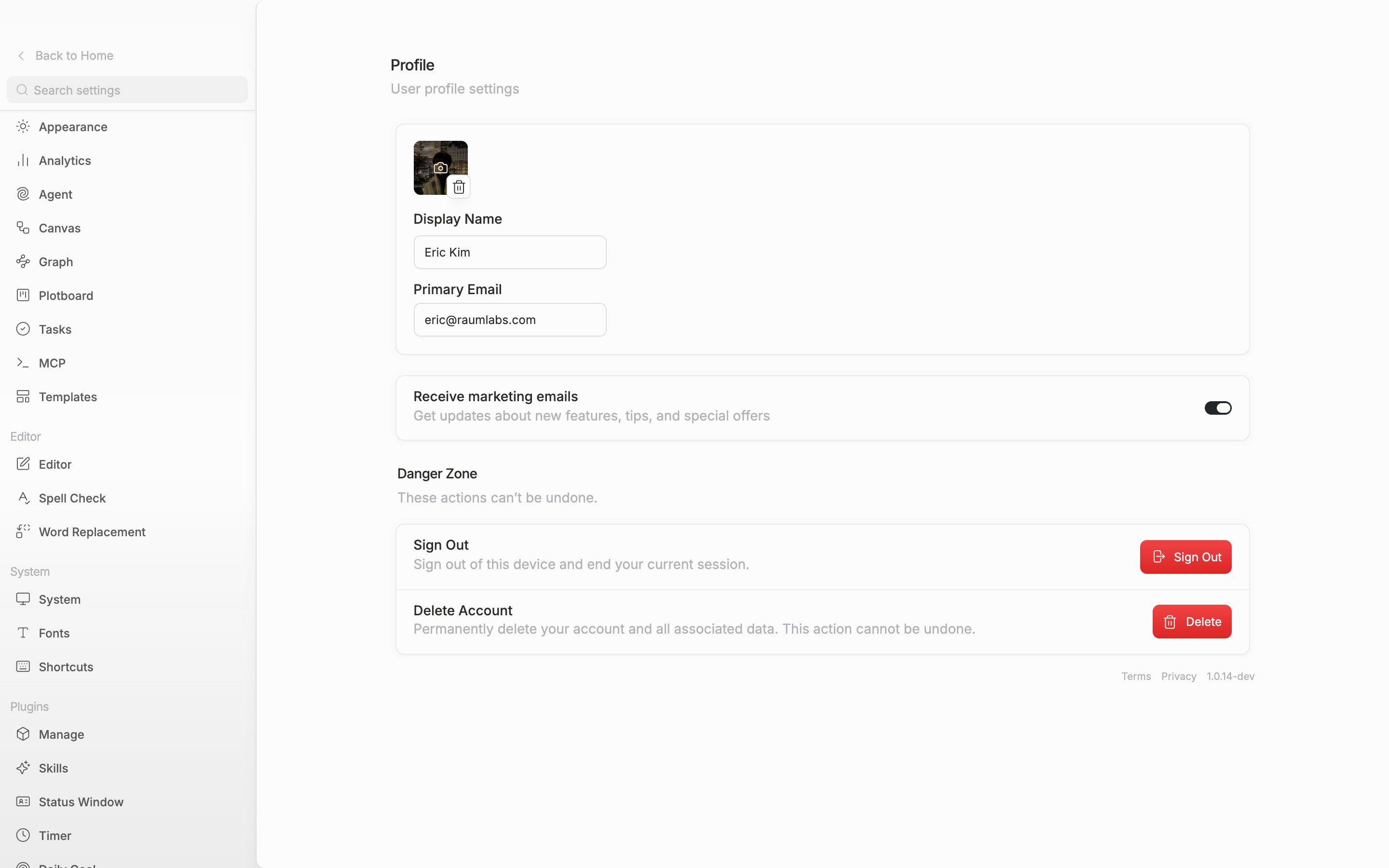
Open **Settings** and choose **Profile** from the **Workspace** group on the left. It is the same screen whether or not you came in with a project open.
The values you touch here belong to your account, not to a project. They follow you when you sign in on another device.
## Picture
The square at the top is your profile picture. Click it to pick a file, or drag an image file onto that spot and it uploads as well. It accepts only JPEG, PNG, GIF, and WebP, and rejects anything over 5MB.
Hover over it and a trash can appears at the bottom right. Click it and the picture is removed, returning to a square with the first letter of your name in it.
## Name
The value you type into **Display Name** is the display name used throughout the app. There is no save button. It uploads on its own a moment after you stop typing. Keep the length between 2 and 30 characters.
It does not have to be your real name. Write a pen name and that is the name you go by. Here is where this value is visible:
* The account row at the top left of the Home screen, and the menu that opens from it
* The first letter placed in the square when you have left the picture empty
* The name laid on the card when you share an AI review result as a card
Leave the name empty and your email address appears in these places instead.
## Email
**Primary Email** holds the address you signed up with. It is read-only and cannot be changed on this screen.
The picture, name, and email sit together in one card.
## Marketing emails
The **Receive marketing emails** switch below the card decides whether you get emails about new features, tips, and special offers.
Further down, the **Danger Zone** holds **Sign Out** and **Delete Account**. Those cannot be undone, so they are covered separately.