> ## Documentation Index
> Fetch the complete documentation index at: https://docs.pensiv.so/llms.txt
> Use this file to discover all available pages before exploring further.
# Sync and automatic backup
> Check the last sync time and queued changes in the Sync Settings tab, and see how the desktop app leaves project files on its own and how long it keeps them.
This is **Sync Settings** in the **Project** group of the settings sidebar. It shows in the desktop app only, and appears only when you come in with a project open.
## Sync status
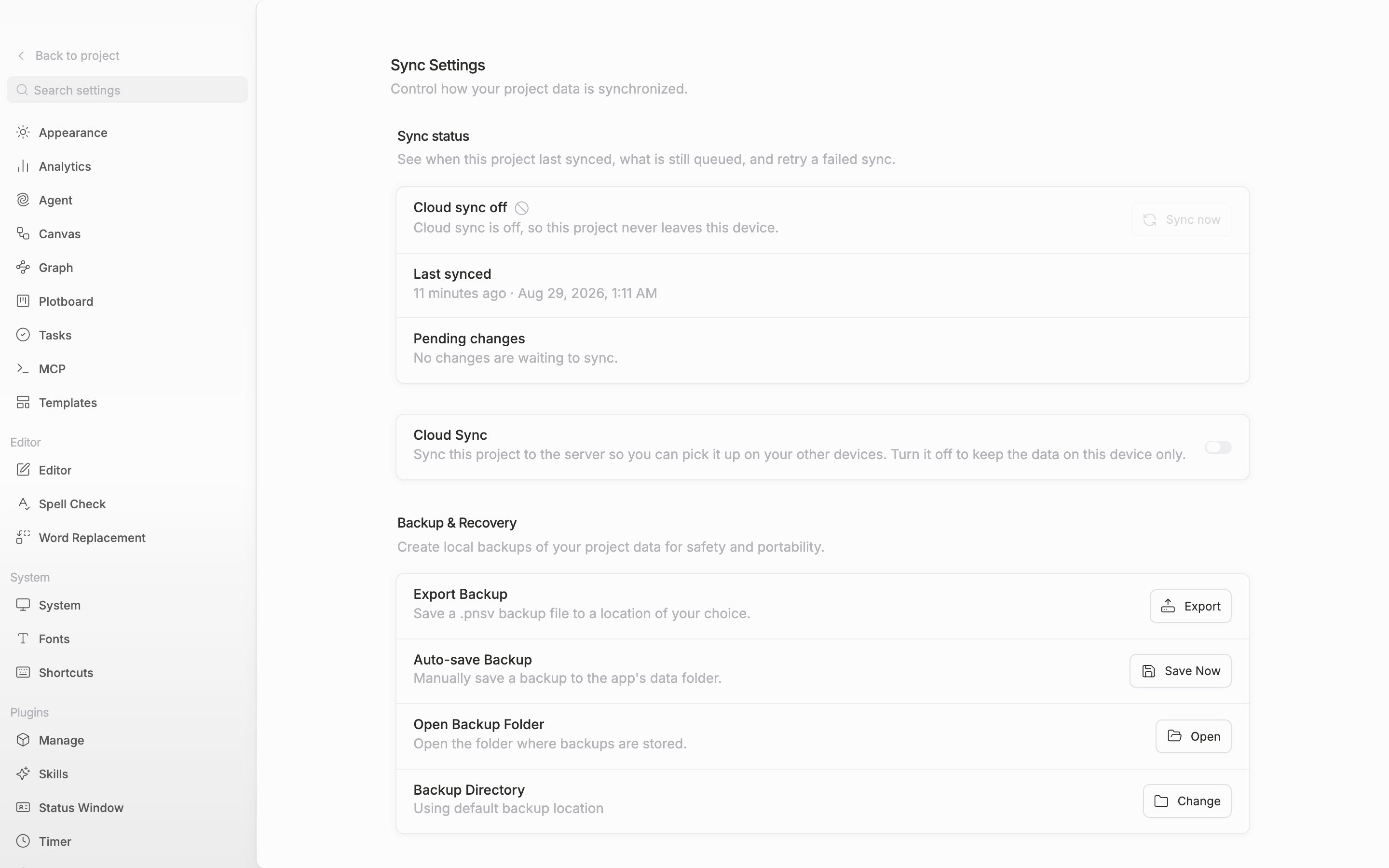
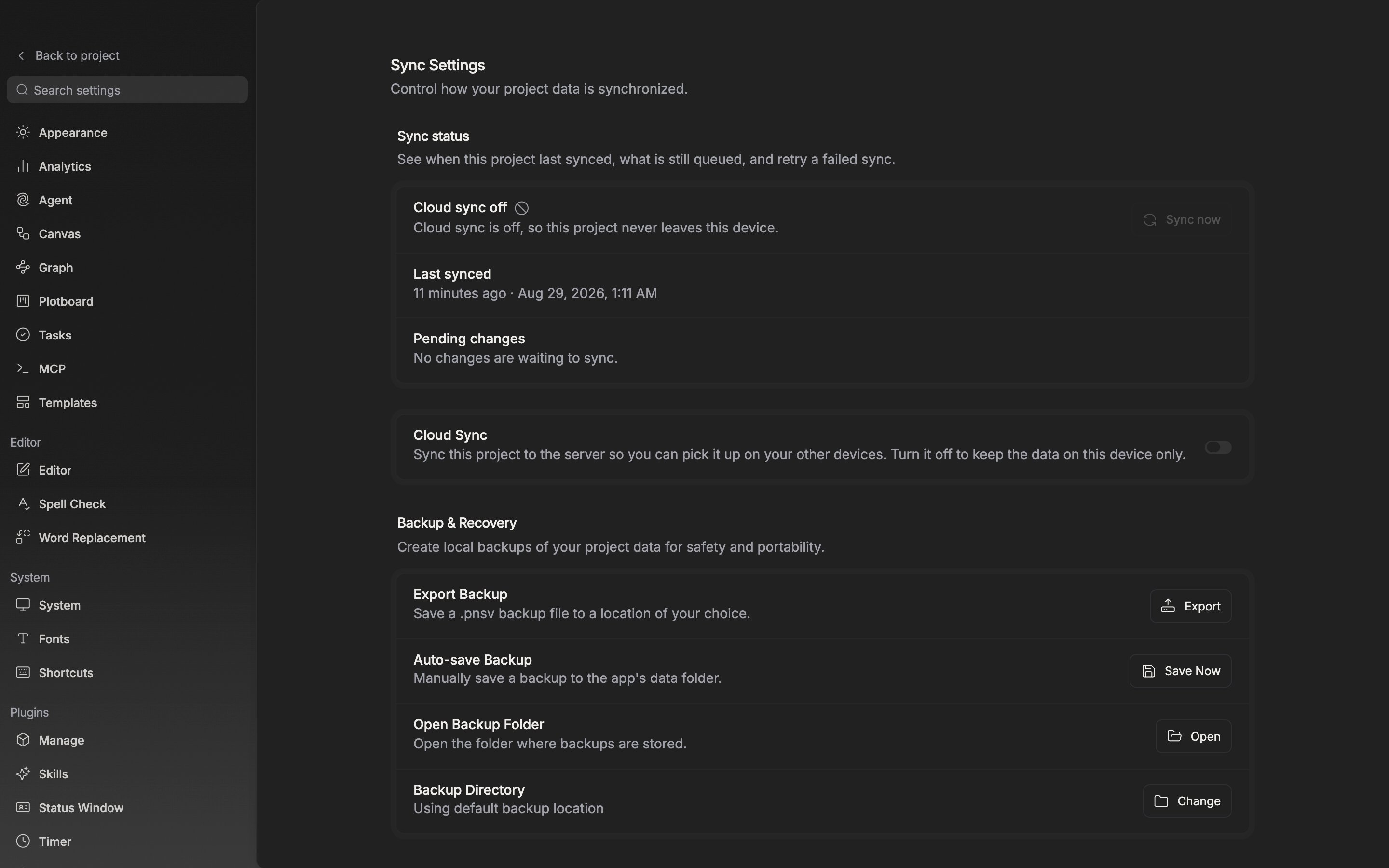
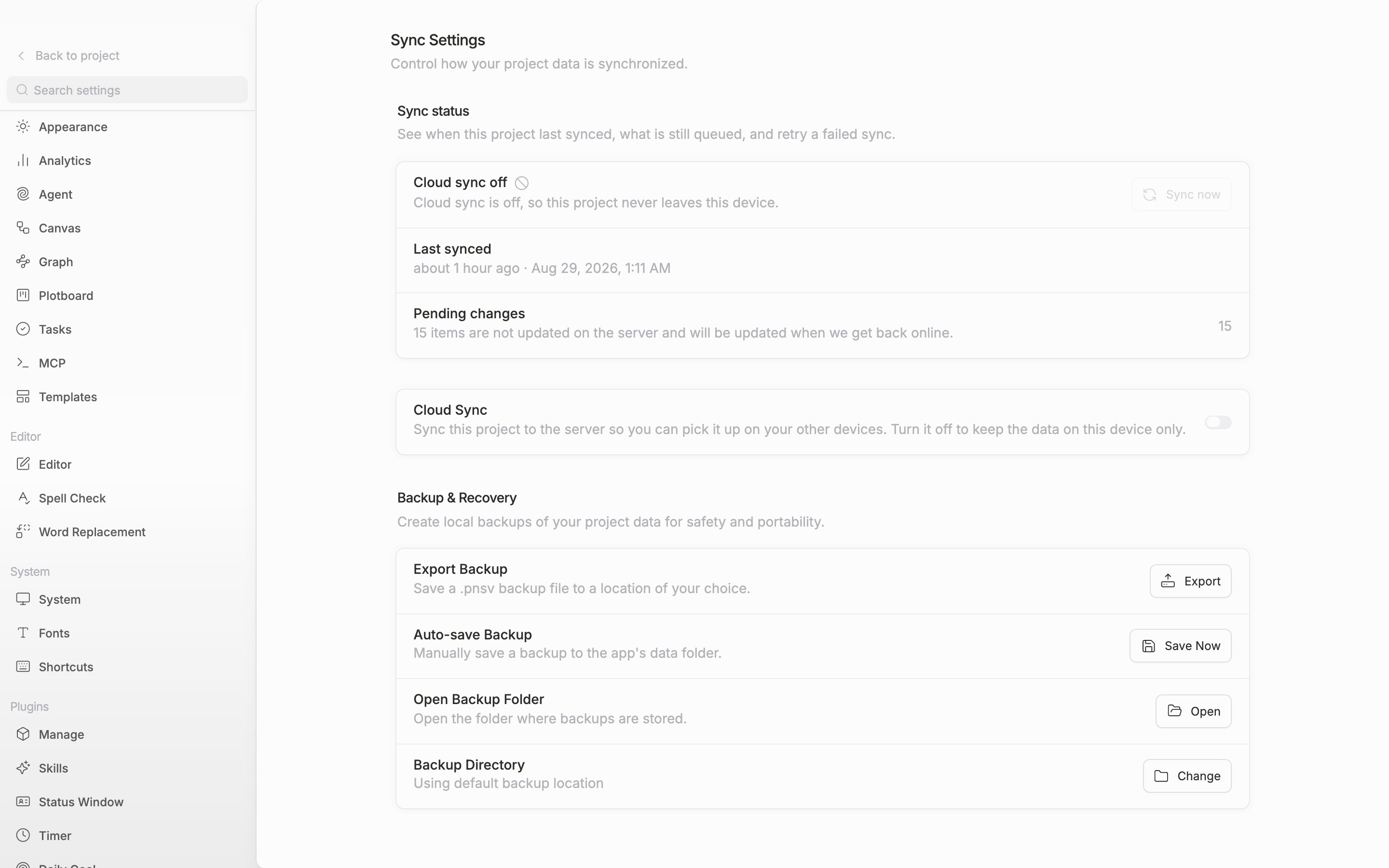
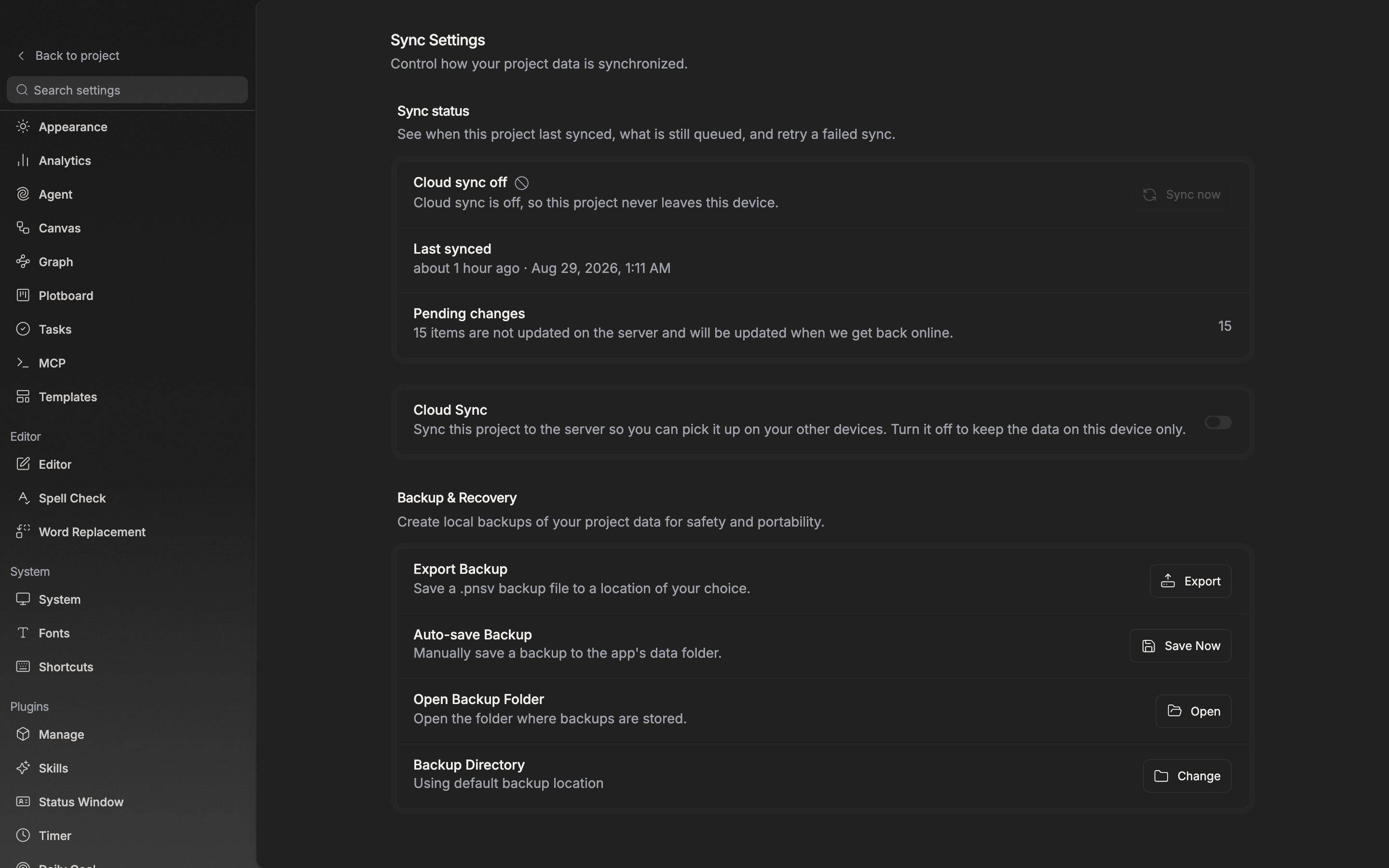
The first row of the **Sync status** section at the top is the current state. Even when several conditions overlap, it shows only one. In the order **Cloud sync off** · **Syncing** · **Offline** · **Last sync failed** · **Waiting to sync** · **Up to date**, the earlier one wins.
The **Last synced** row carries a relative time and an exact time together. This record builds up per device, so a time uploaded from a laptop does not show on a desktop. **Pending changes** is the number of items that have not made it to the server yet.
Click **Sync now** on the right and it runs once on the spot. If the previous attempt failed it changes to **Retry sync**, and when the connection is down **Check connection** appears alongside.
The Sync status section. The last sync record builds up per device.
## Turning cloud sync off
Turn off **Cloud Sync** right below and that project stays on this device only. The first time you turn it off, a **Turn Off Cloud Sync** dialog appears once, and it only actually goes off when you press **Turn Off Cloud Sync**.
## Backup & Recovery
Whether sync is off or on, the desktop app leaves the project as a separate `.pnsv` file. It saves once three seconds after you open a project. From then on a save is scheduled whenever a document edit is recorded, and the file is updated five seconds after the last change. On the note, folder, canvas, sheet, task, and plotboard screens, `Ctrl`/`Cmd` + `S` writes on the spot without waiting the five seconds. In the document editor, though, it only saves the manuscript and restarts the backup timer, so the file is still updated five seconds later. To leave one right away, use **Save Now** on **Auto-save Backup** below.
* **Export Backup** — **Export** saves a `.pnsv` file to the location you want.
* **Auto-save Backup** — **Save Now** leaves one more copy in the default folder.
* **Open Backup Folder** — **Open** shows you the place where the files pile up.
* **Backup Directory** — set a folder with **Change** and it saves to both the default location and that folder.
The Backup & Recovery section. These files keep piling up even with sync turned off.
On the first backup after the date changes, a snapshot for that day is left separately in the default folder. Only one is made per day. Dated files older than seven days are removed as the new snapshot is written. The date is based on UTC, so it rolls over at 9:00 AM Korean time.