> ## Documentation Index
> Fetch the complete documentation index at: https://docs.pensiv.so/llms.txt
> Use this file to discover all available pages before exploring further.

# System and cache

> The desktop-only settings, from startup behavior and how the window closes to the screen blur and Reset cache, which clears the cache built up on this device.

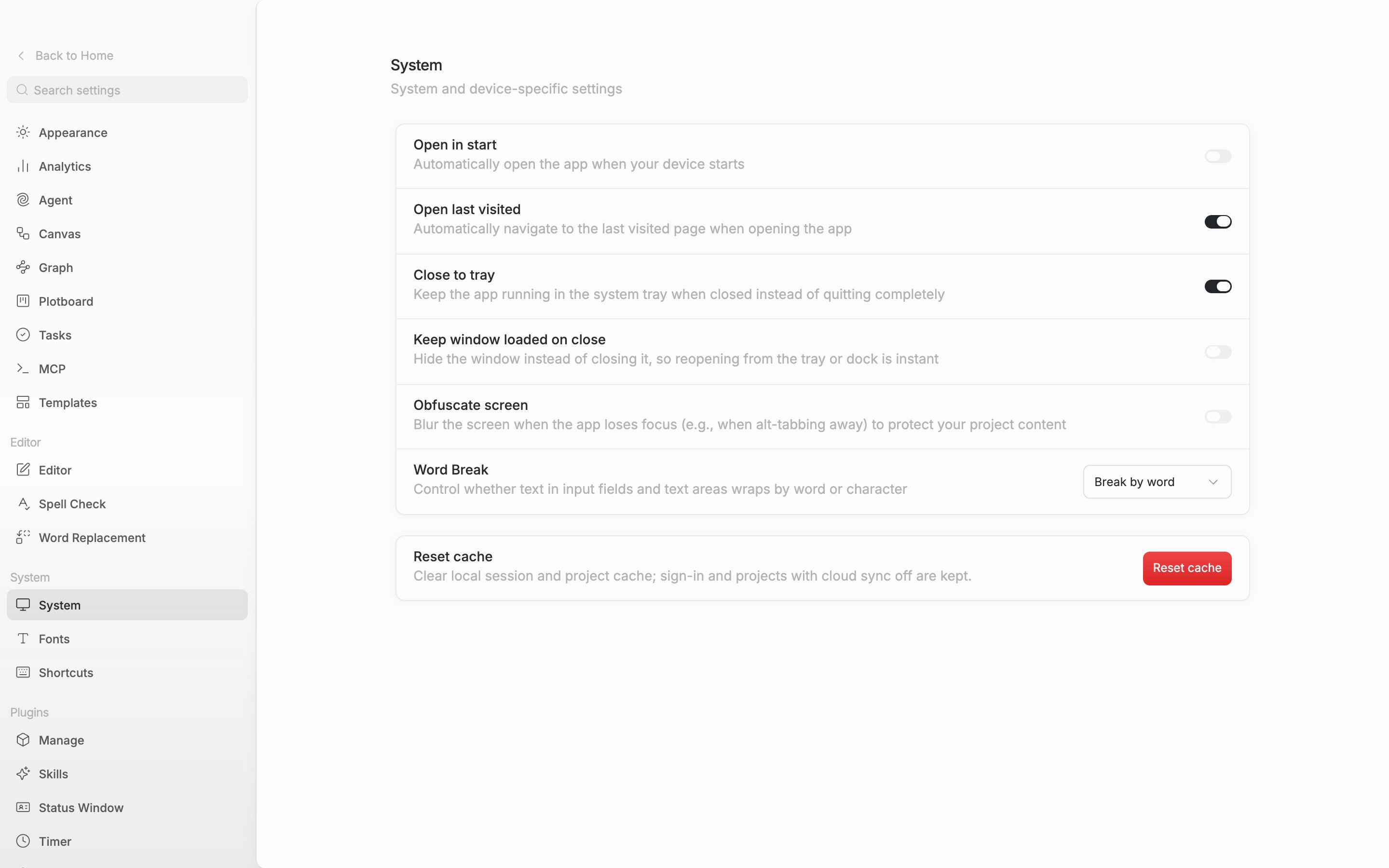
**System** in settings exists only in the desktop app you install. Open pensiv in a browser and it does not appear in the list at all. The values set here stay on this device rather than in your account, so they do not follow you to another computer.

## At startup

Turn on **Open in start** and pensiv comes up together with your device. **Open last visited** takes you back to the spot you were looking at just before, when you reopen the app. The only spots it remembers are screens inside a project, so if you closed the app on Home you start at Home again. Both are on to begin with.

## When you close the window

With **Close to tray** on, the app stays in the tray or the Mac menu bar even after you close the window. Turn it off and the app quits completely the moment you close the window. **Keep window loaded on close** goes one step further. It hides the window instead of destroying it, so there is nothing to wait for when you reopen it, at the cost of holding on to that much memory. The default is off.

## Obfuscate screen

With this on, the whole screen blurs the moment the app loses focus. It keeps your manuscript from sitting in plain view when you step away for a moment at a cafe or the office. The blurred screen also carries a note on how to turn it off.

## Word break

Choose between **Break by word** and **Break by character**. This value applies to input fields throughout the app, such as title fields and sheet inputs. How the manuscript body wraps is set separately in the editor settings, not here.

## Reset cache

This button clears the local session and project cache built up on this device and makes the app fetch them from the server again. Keep it as a last resort for when what you see on screen no longer matches the actual data. Your sign-in information stays as it is, and the databases of projects with cloud sync off are not deleted, because those projects exist nowhere but this device.

Click it and a confirmation dialog appears once. When the cleanup finishes, the app refreshes itself. Any changes that have not made it to the server go with it, so check first in the sync status under project settings that there are no pending changes.

<div className="app-window block dark:hidden">
  <img src="https://mintcdn.com/raumlabsinc/ENyX88kfW0HMrWQi/images/en/settings/system--01.png?fit=max&auto=format&n=ENyX88kfW0HMrWQi&q=85&s=f1be35f1d4824d7dbfcfdc4d0eaae7f5" alt="The Settings > System screen of the desktop app. The six rows of the upper card, from Open in start through Word Break, and the Reset cache card below are visible together in one screen." data-og-width="2880" width="2880" data-og-height="1800" height="1800" data-path="images/en/settings/system--01.png" data-optimize="true" data-opv="3" srcset="https://mintcdn.com/raumlabsinc/ENyX88kfW0HMrWQi/images/en/settings/system--01.png?w=280&fit=max&auto=format&n=ENyX88kfW0HMrWQi&q=85&s=7639d781c6a9c26fa8d3e0d9f50d8c65 280w, https://mintcdn.com/raumlabsinc/ENyX88kfW0HMrWQi/images/en/settings/system--01.png?w=560&fit=max&auto=format&n=ENyX88kfW0HMrWQi&q=85&s=e7d83608d5200bc58840dee6a59577c2 560w, https://mintcdn.com/raumlabsinc/ENyX88kfW0HMrWQi/images/en/settings/system--01.png?w=840&fit=max&auto=format&n=ENyX88kfW0HMrWQi&q=85&s=66564bb0cc383b07329be0f10c44cd58 840w, https://mintcdn.com/raumlabsinc/ENyX88kfW0HMrWQi/images/en/settings/system--01.png?w=1100&fit=max&auto=format&n=ENyX88kfW0HMrWQi&q=85&s=387a0e6bb4964fbce80d2347416560ed 1100w, https://mintcdn.com/raumlabsinc/ENyX88kfW0HMrWQi/images/en/settings/system--01.png?w=1650&fit=max&auto=format&n=ENyX88kfW0HMrWQi&q=85&s=2b57201d59672fed79e5d959ed7b3a81 1650w, https://mintcdn.com/raumlabsinc/ENyX88kfW0HMrWQi/images/en/settings/system--01.png?w=2500&fit=max&auto=format&n=ENyX88kfW0HMrWQi&q=85&s=7cc2c69dc1b66b3fff5e68df53047e59 2500w" />
</div>

<div className="app-window hidden dark:block">
  <img src="https://mintcdn.com/raumlabsinc/ENyX88kfW0HMrWQi/images/en/settings/system--01-dark.png?fit=max&auto=format&n=ENyX88kfW0HMrWQi&q=85&s=b7d479e879d8408fef95e5dbb18f114e" alt="The Settings > System screen of the desktop app. The six rows of the upper card, from Open in start through Word Break, and the Reset cache card below are visible together in one screen." data-og-width="2880" width="2880" data-og-height="1800" height="1800" data-path="images/en/settings/system--01-dark.png" data-optimize="true" data-opv="3" srcset="https://mintcdn.com/raumlabsinc/ENyX88kfW0HMrWQi/images/en/settings/system--01-dark.png?w=280&fit=max&auto=format&n=ENyX88kfW0HMrWQi&q=85&s=33c63ccc5d917b19c4232422b41affbc 280w, https://mintcdn.com/raumlabsinc/ENyX88kfW0HMrWQi/images/en/settings/system--01-dark.png?w=560&fit=max&auto=format&n=ENyX88kfW0HMrWQi&q=85&s=e6384fd8f4477d465f03cb70126e7624 560w, https://mintcdn.com/raumlabsinc/ENyX88kfW0HMrWQi/images/en/settings/system--01-dark.png?w=840&fit=max&auto=format&n=ENyX88kfW0HMrWQi&q=85&s=56eab1fdd5d925f0a58ac398c2ca0185 840w, https://mintcdn.com/raumlabsinc/ENyX88kfW0HMrWQi/images/en/settings/system--01-dark.png?w=1100&fit=max&auto=format&n=ENyX88kfW0HMrWQi&q=85&s=11d42fddadd361b0cc1e3aeb0f27e315 1100w, https://mintcdn.com/raumlabsinc/ENyX88kfW0HMrWQi/images/en/settings/system--01-dark.png?w=1650&fit=max&auto=format&n=ENyX88kfW0HMrWQi&q=85&s=a9f791cb39db0d9f5363195d36720622 1650w, https://mintcdn.com/raumlabsinc/ENyX88kfW0HMrWQi/images/en/settings/system--01-dark.png?w=2500&fit=max&auto=format&n=ENyX88kfW0HMrWQi&q=85&s=8ab0636813046d0675749b28145f76ae 2500w" />
</div>

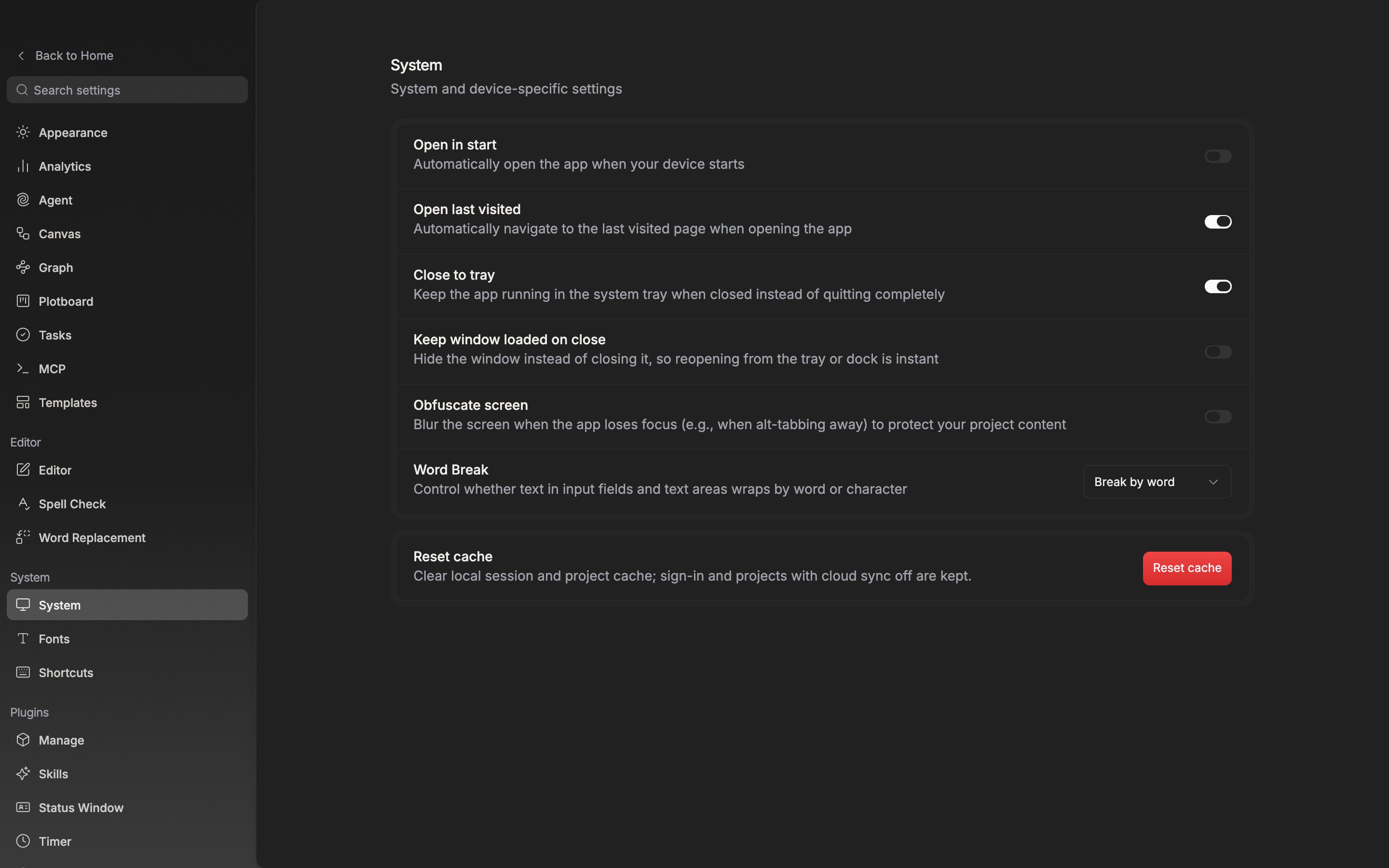
<p className="app-caption">Every setting in the System tab is stored on this device only.</p>