> ## Documentation Index
> Fetch the complete documentation index at: https://docs.pensiv.so/llms.txt
> Use this file to discover all available pages before exploring further.

# Making your first project

> Which of Start My Own, Start with an Example, and Import Existing Work to pick, and which folders and files each template makes for you.

Once you have signed in, the project list home opens. Nothing is there yet, so press "New Project" in the middle. The same button is at the top right.

## Picking one of three paths

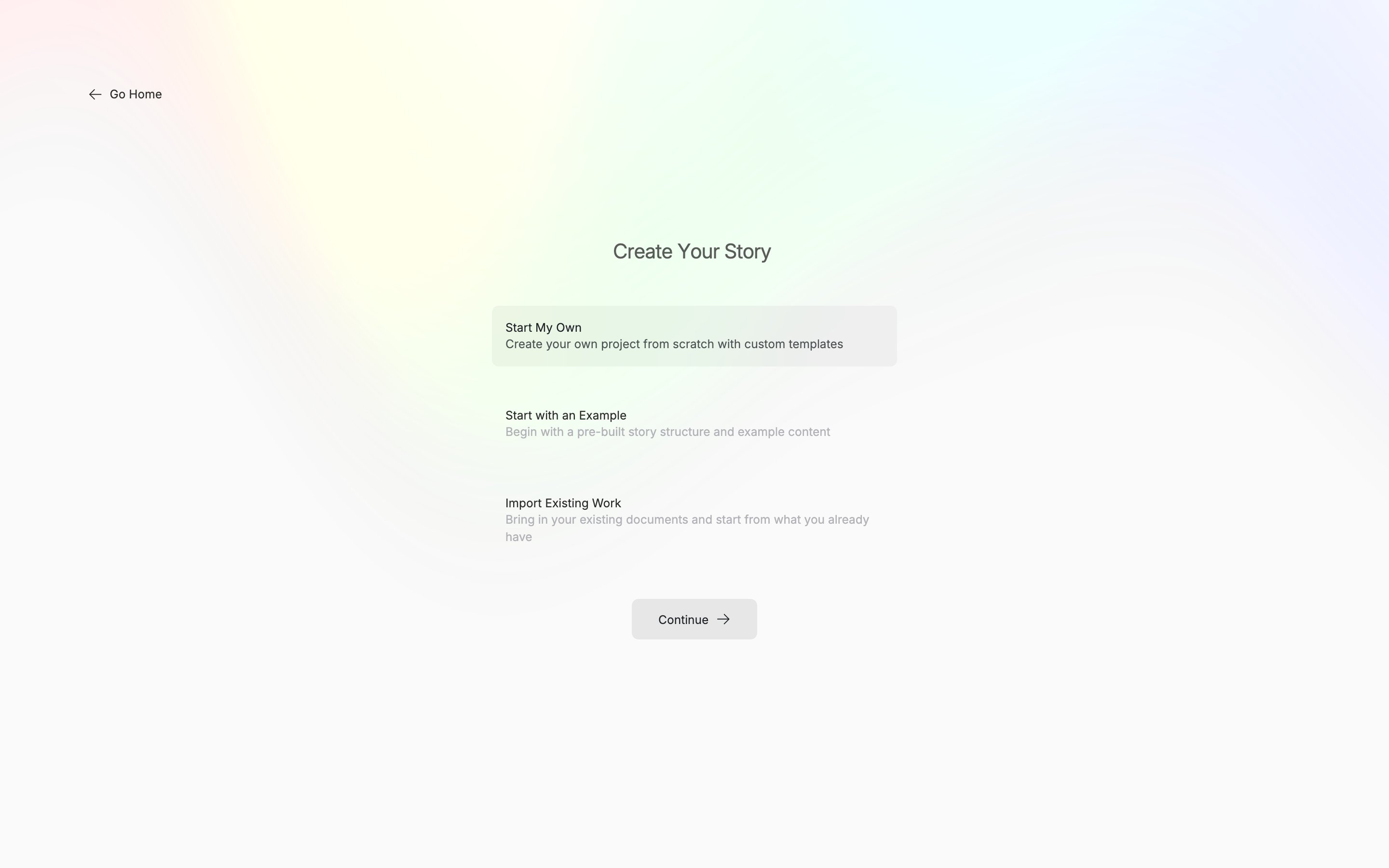
Start My Own begins from a template, Start with an Example from a finished sample project, and Import Existing Work from manuscripts you have already written. The steps that follow differ by the path you pick. Switching paths clears the name and description you have entered.

<div className="app-window block dark:hidden">
  <img src="https://mintcdn.com/raumlabsinc/ENyX88kfW0HMrWQi/images/en/start/first-project--01.png?fit=max&auto=format&n=ENyX88kfW0HMrWQi&q=85&s=52d31b0aba14bd151cb3ae097c724b6a" alt="The first screen, “Create Your Story”. Three cards — Start My Own, Start with an Example, and Import Existing Work — are visible, with Start My Own selected." width="2880" height="1800" data-path="images/en/start/first-project--01.png" />
</div>

<div className="app-window hidden dark:block">
  <img src="https://mintcdn.com/raumlabsinc/ENyX88kfW0HMrWQi/images/en/start/first-project--01-dark.png?fit=max&auto=format&n=ENyX88kfW0HMrWQi&q=85&s=75a2e21654b40abfb9a004e5d331c836" alt="The first screen, “Create Your Story”. Three cards — Start My Own, Start with an Example, and Import Existing Work — are visible, with Start My Own selected." width="2880" height="1800" data-path="images/en/start/first-project--01-dark.png" />
</div>

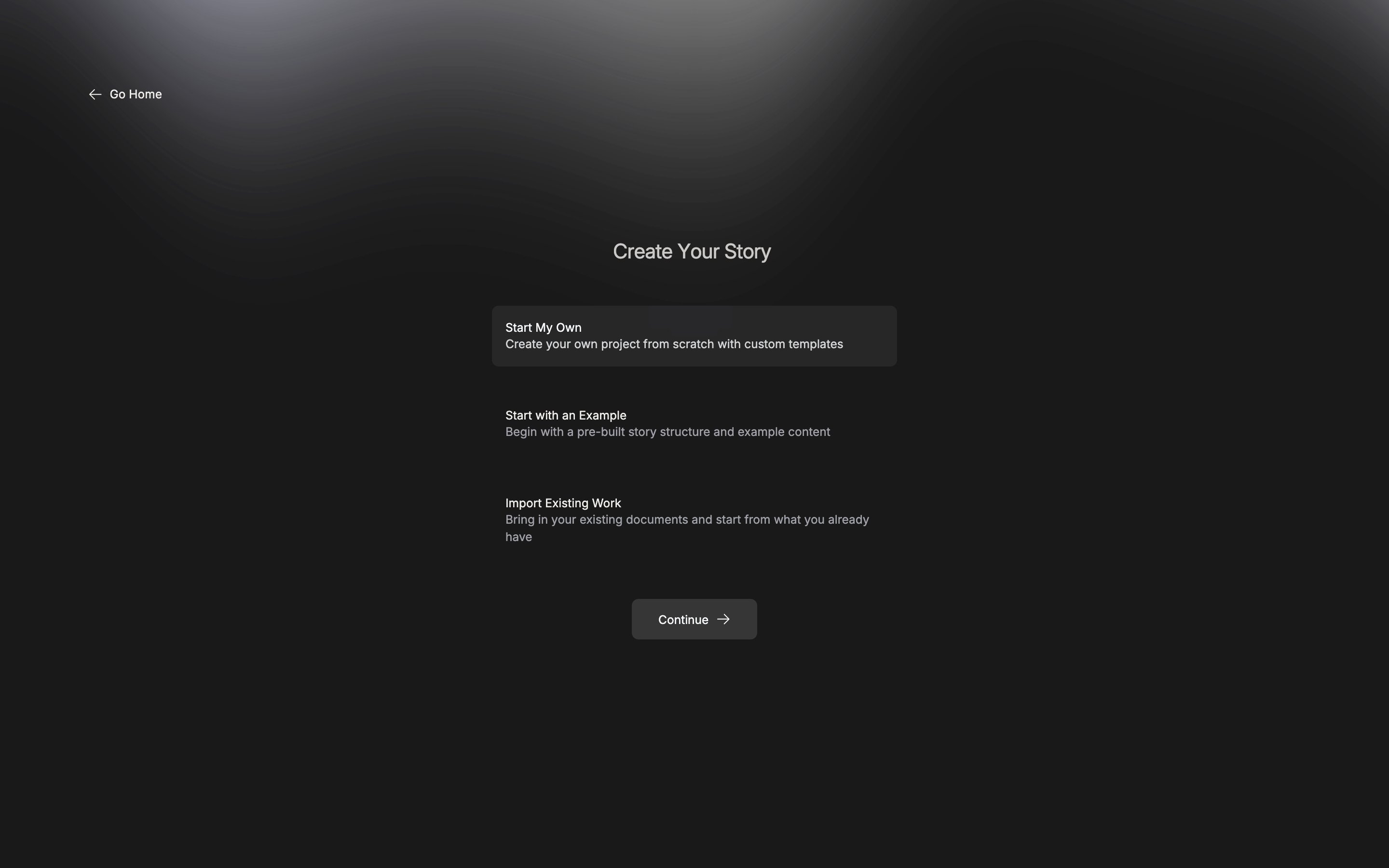
<p className="app-caption">The first screen, where you pick how to start.</p>

## Start My Own

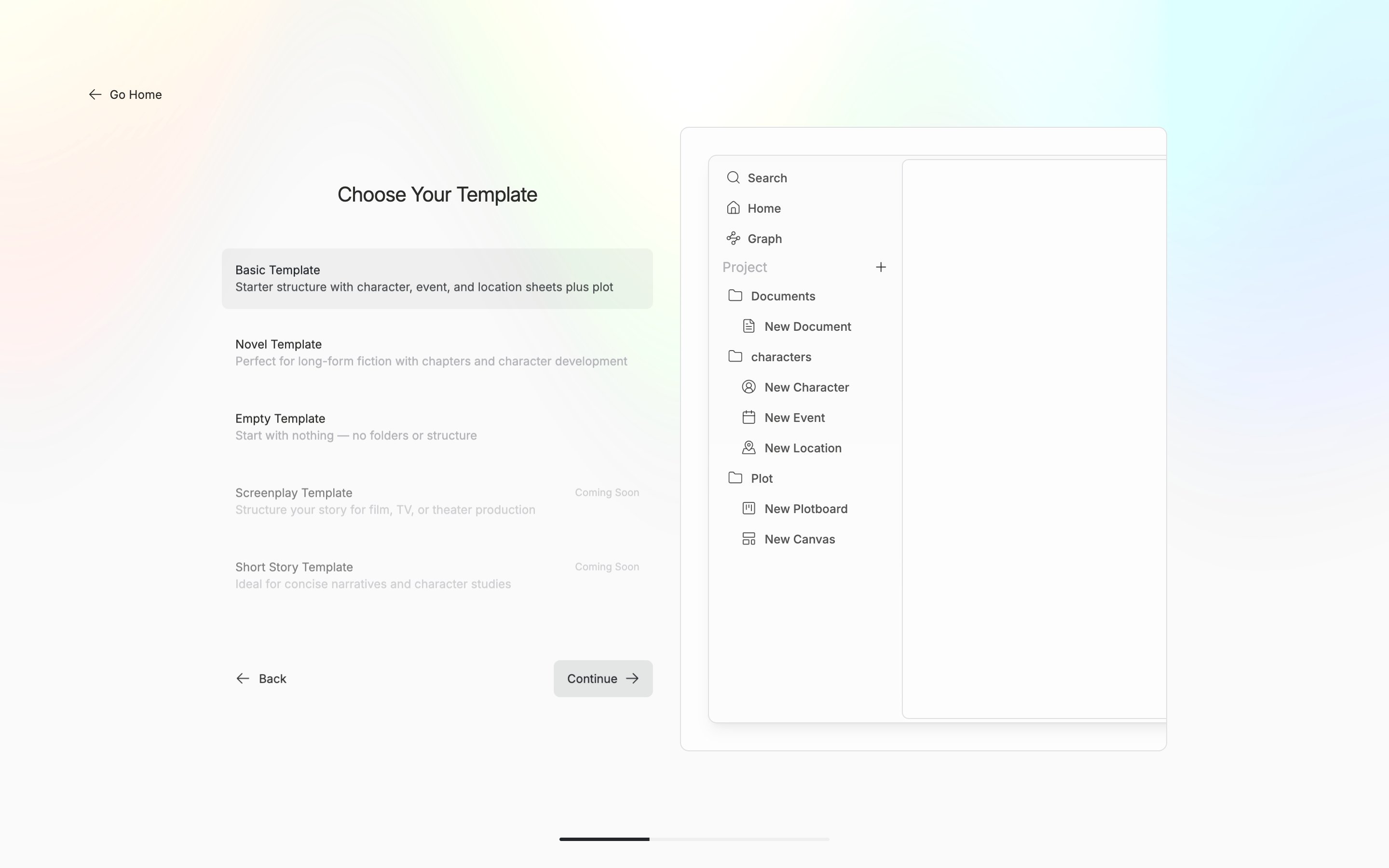
Pick a template and the file tree it will make is previewed on the right.

| Template       | What it makes                                                                                                                                                                                                                                                                                                                                 |
| -------------- | --------------------------------------------------------------------------------------------------------------------------------------------------------------------------------------------------------------------------------------------------------------------------------------------------------------------------------------------- |
| Basic Template | Documents, characters, and Plot folders; New Document; New Character, New Event, and New Location sheets; a plotboard with Beginning, Development, and Ending; a canvas                                                                                                                                                                       |
| Novel Template | Documents, characters, Plot, and Research folders; Novel Outline, Chapter 1, and Background Research documents; Protagonist, Antagonist, Inciting Incident, and Main Setting sheets; a "Novel Structure" plotboard holding Act 1, Act 2, and Act 3 cards; a canvas. Only the folder layout matches Basic — the files inside are all different |
| Empty Template | No folders and no files                                                                                                                                                                                                                                                                                                                       |

Screenplay Template and Short Story Template are in the list too, but you cannot pick them yet.

Next it asks for a title and a description. You can pass the description by with "Skip". Press "Create Project" on the review screen and you are done.
<div className="app-window block dark:hidden">
  <img src="https://mintcdn.com/raumlabsinc/JcYuBBCW81V1OYpG/images/en/start/first-project--02.png?fit=max&auto=format&n=JcYuBBCW81V1OYpG&q=85&s=181b4bfc0796a6f629474013d6f8fa99" alt="The template selection screen. Basic Template is selected and the preview on the right shows the Documents, characters, and Plot folder tree." width="2880" height="1800" data-path="images/en/start/first-project--02.png" />
</div>

<div className="app-window hidden dark:block">
  <img src="https://mintcdn.com/raumlabsinc/by9xNbVXURkjf0zh/images/en/start/first-project--02-dark.png?fit=max&auto=format&n=by9xNbVXURkjf0zh&q=85&s=e891208af766193527e475ed5ba47186" alt="The template selection screen. Basic Template is selected and the preview on the right shows the Documents, characters, and Plot folder tree." width="2880" height="1800" data-path="images/en/start/first-project--02-dark.png" />
</div>

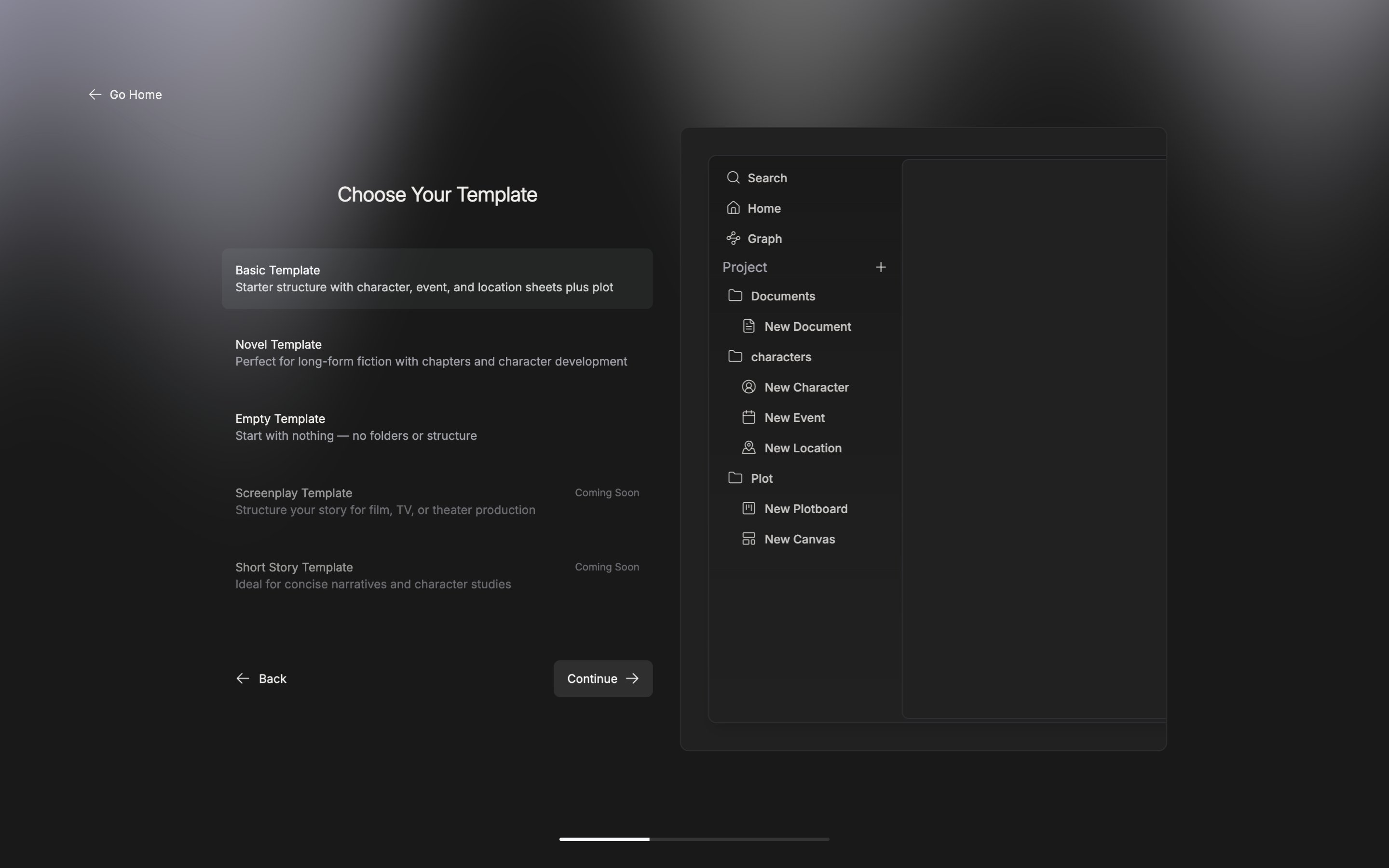
<p className="app-caption">The file tree the chosen template will make, previewed on the right.</p>

## Start with an Example

If you are writing in English, you see "Alice in Wonderland". Pick it and press "Continue" and it is made right away, without asking for a title. It is a finished project whose documents, sheets, and plotboards are already linked, so it is easier to learn from than a blank screen.

## Import Existing Work

You settle the project name first, then drag your manuscripts in. It takes DOCX, EPUB, TXT, MD, HWP, and RTF files and folders, Scrivener `.scriv` packages, and Notion export zips. "Continue" turns on once you have put in at least one. It is made as an empty project, so no default folders come with it — only the manuscripts you brought in.

Once making it is done, the new project home opens.
