> ## Documentation Index
> Fetch the complete documentation index at: https://docs.pensiv.so/llms.txt
> Use this file to discover all available pages before exploring further.

# Coming over from Scrivener

> For when you want to move a Scrivener manuscript into pensiv. How to hand over the whole .scriv folder, and what the Binder and the Corkboard become here.

What you have made so far was a new project. A manuscript you have piled up in Scrivener can be moved over whole as well.

## Hand over the whole .scriv folder

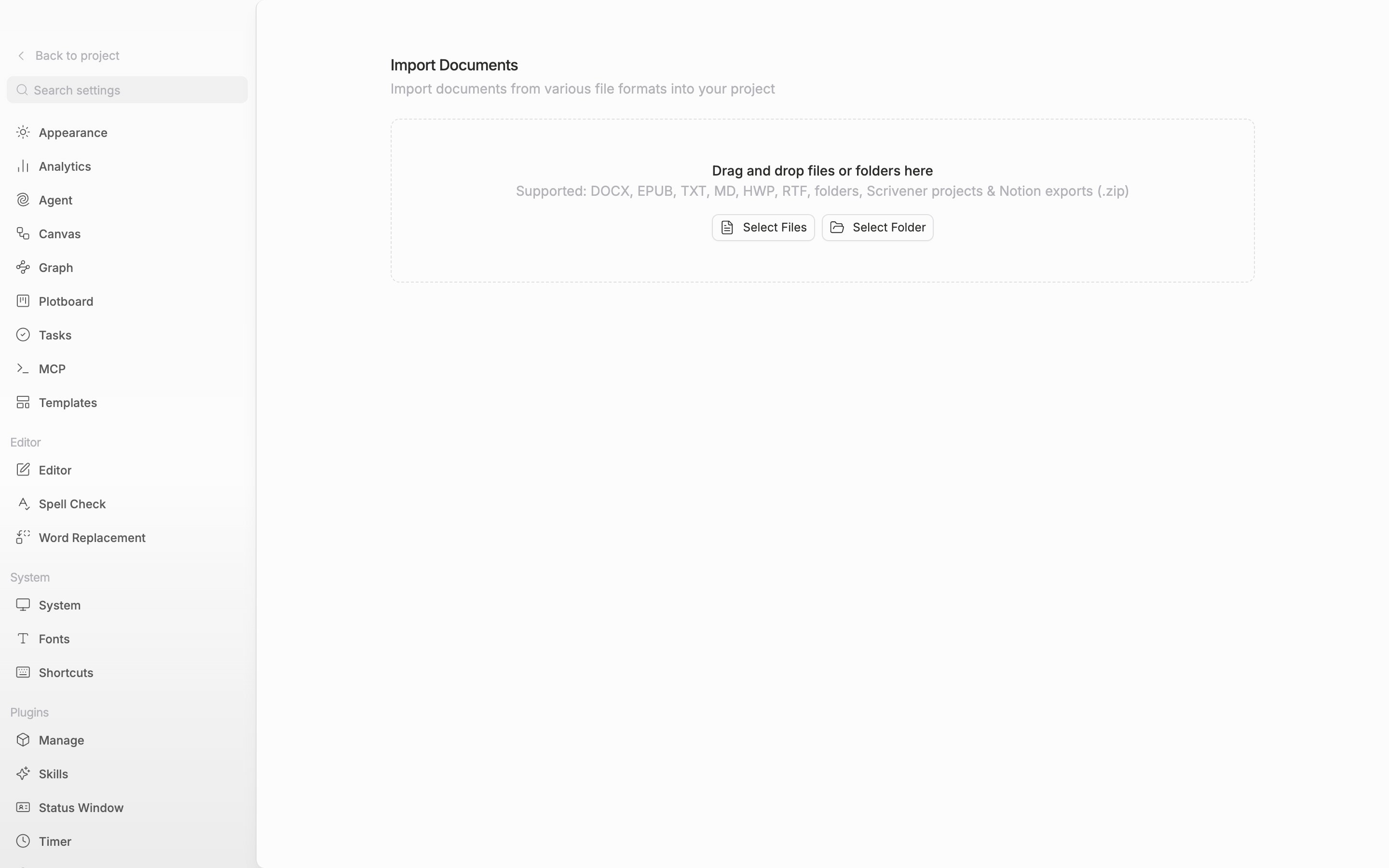
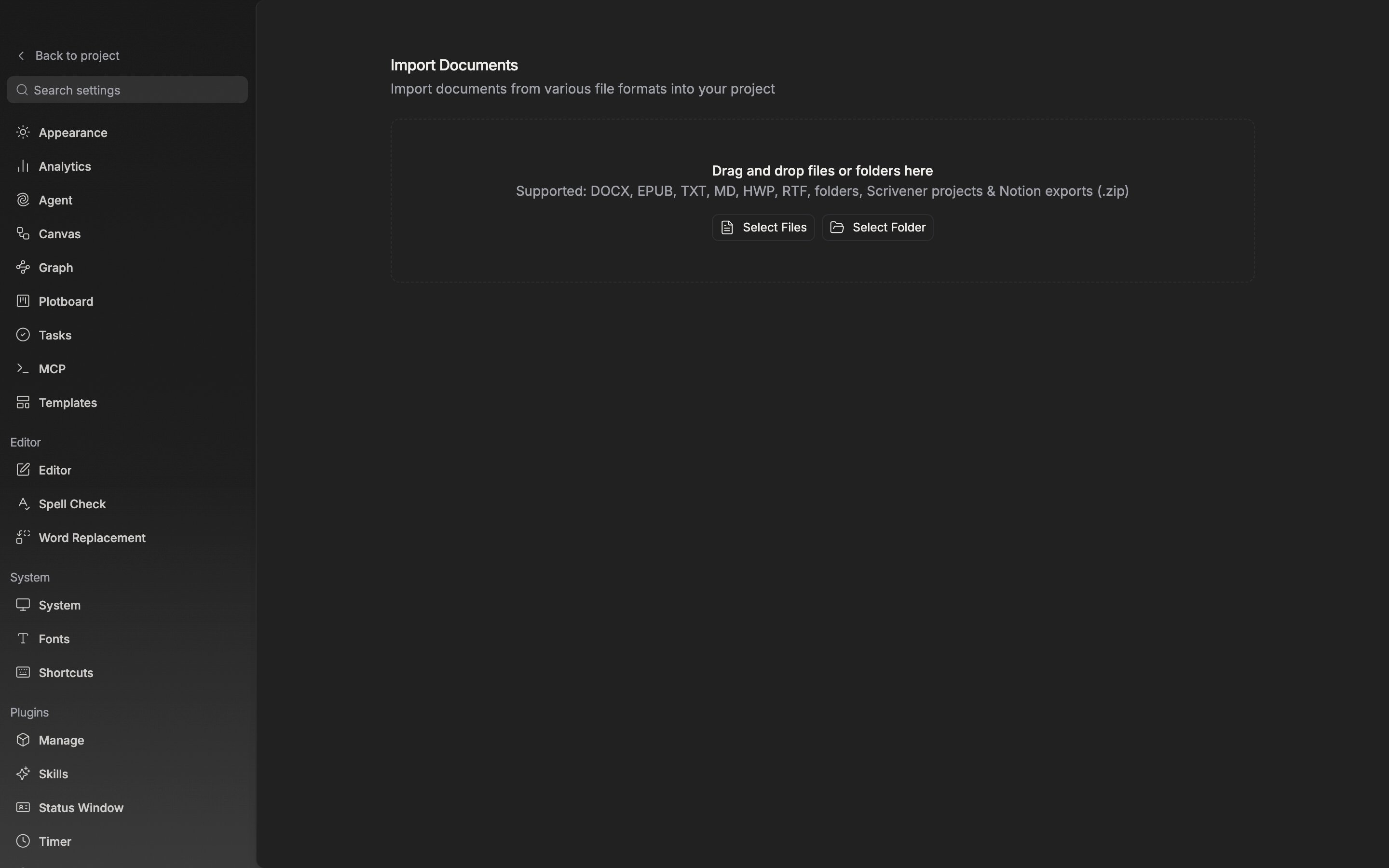
In **Settings**, open **Import** in the Project group. Drag the whole `.scriv` into the drop zone under **Import Documents**.

Hand over only the `.scrivx` file and pensiv sends it back, saying "A .scrivx file only holds the outline". The text is scattered in the `Files` folder beside it, so the outline file alone gives you nothing but titles.

On macOS a `.scriv` is a package, so **Select Files** catches it too, but on Windows it is just a folder, so you have to use **Select Folder**.

<div className="app-window block dark:hidden">
  <img src="https://mintcdn.com/raumlabsinc/ENyX88kfW0HMrWQi/images/en/start/from-scrivener--01.png?fit=max&auto=format&n=ENyX88kfW0HMrWQi&q=85&s=4dafdf96343ea801d412b2956304bc57" alt="The Import tab in Settings. The dashed drop zone shows “Drag and drop files or folders here” and the supported-format note, with the “Select Files” and “Select Folder” buttons below." width="2880" height="1800" data-path="images/en/start/from-scrivener--01.png" />
</div>

<div className="app-window hidden dark:block">
  <img src="https://mintcdn.com/raumlabsinc/ENyX88kfW0HMrWQi/images/en/start/from-scrivener--01-dark.png?fit=max&auto=format&n=ENyX88kfW0HMrWQi&q=85&s=f4531a192ae33908f978b28d0af943c6" alt="The Import tab in Settings. The dashed drop zone shows “Drag and drop files or folders here” and the supported-format note, with the “Select Files” and “Select Folder” buttons below." width="2880" height="1800" data-path="images/en/start/from-scrivener--01-dark.png" />
</div>

<p className="app-caption">Drag the whole .scriv folder into the Import tab.</p>

## What lands where

The Binder's order and nesting come across as they are. They arrive in the sidebar held in one folder named after the project.

* Synopses become the document **Description**
* Document notes become **Notes**
* Labels and status become the project's **Labels** and **Status**. If one with the same name exists, that one is used

The Scrivener trash does not come across, and images and PDFs with no text are skipped.

## What your old words are called here

| Scrivener   | pensiv                                               |
| ----------- | ---------------------------------------------------- |
| Binder      | The sidebar file tree                                |
| Corkboard   | A folder's **Grid** and **Freeform**, and plotboards |
| Outliner    | A folder's **List**                                  |
| Scrivenings | Viewing several documents run together               |
| Compile     | **Combine** in **Export documents**                  |

Grab several documents in the sidebar with `Shift` or `Cmd/Ctrl` and switch the view toggle at the top right over to the document side, and the ones you picked run together as one set. From the same place, choose **Export** → **Combine** and they become one file in HWP, DOCX, EPUB, TXT, or Markdown.
