> ## Documentation Index
> Fetch the complete documentation index at: https://docs.pensiv.so/llms.txt
> Use this file to discover all available pages before exploring further.

# A look around the screen

> Which screen opens once you make a project, and what each item in the left sidebar opens.

The project you made earlier should be open. pensiv has two screens, broadly: **home**, where you pick a manuscript, and the **project home** you reach once you are inside a project.

## Home — which manuscript to open

The sidebar holds your account and the search box, and below them the workspace and **All Projects**. As manuscripts pile up, drag project cards into **Collections** to group them.

## Project home — where to pick up today

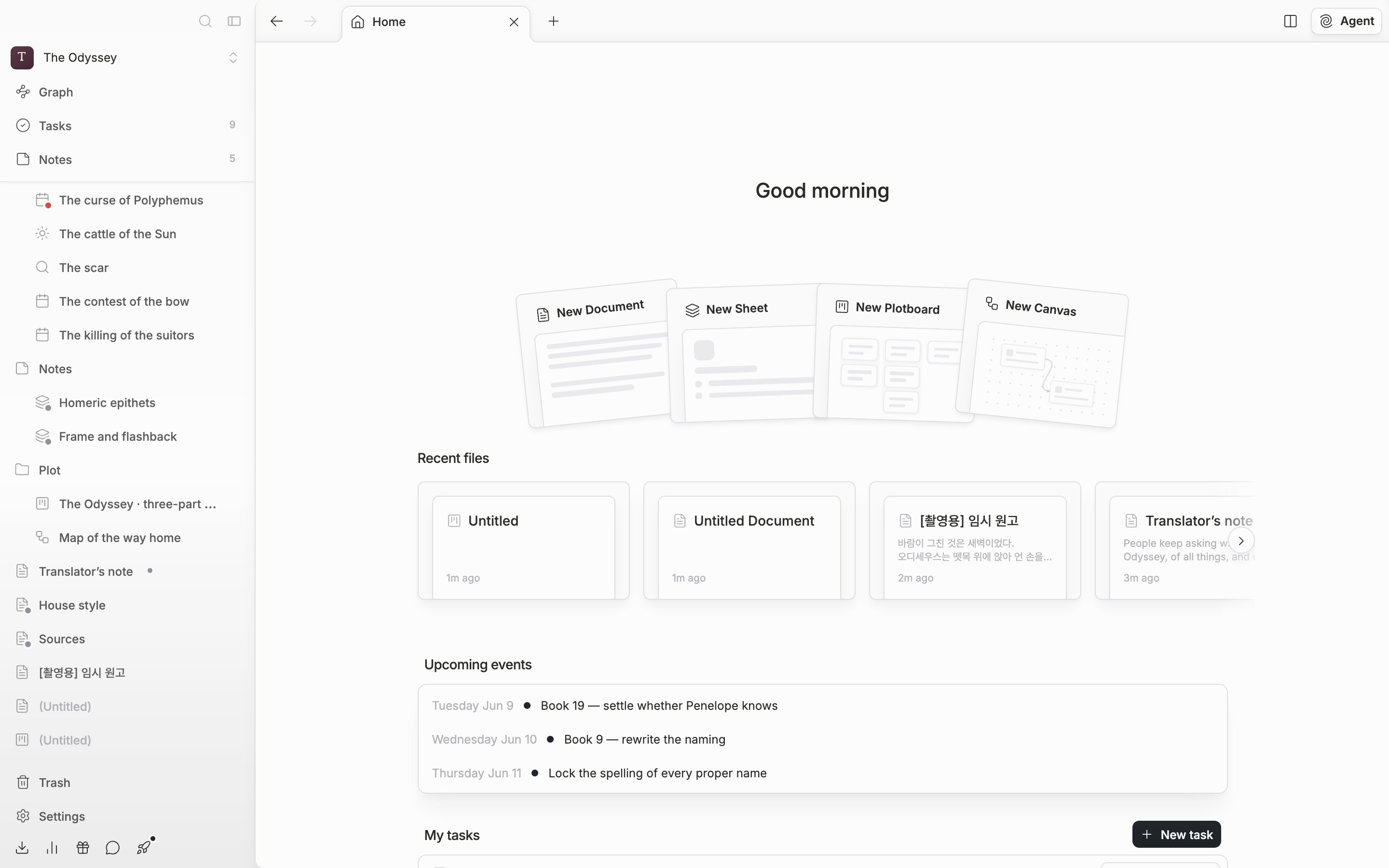
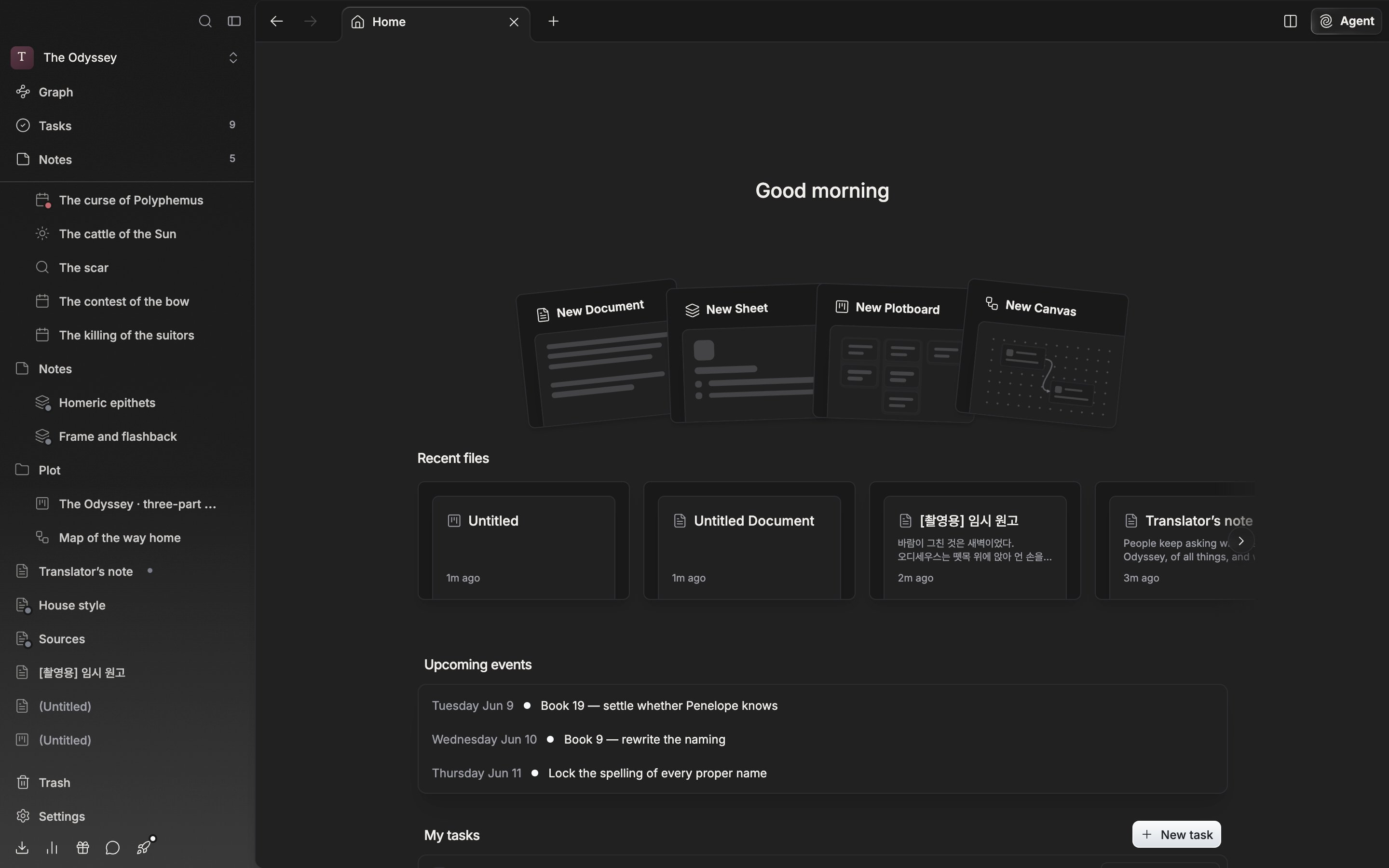
Under the greeting, four cards — **New Document · New Sheet · New Plotboard · New Canvas** — are fanned out, and below them come **Recent files**, **Upcoming events**, and **My tasks**. The tab is named "Home", and closing every file brings you back to this screen.

<div className="app-window block dark:hidden">
  <img src="https://mintcdn.com/raumlabsinc/ENyX88kfW0HMrWQi/images/en/start/tour--01.png?fit=max&auto=format&n=ENyX88kfW0HMrWQi&q=85&s=11e0074caa95f842e4d13357fc8e61a9" alt="The project home. The greeting, the four New Document · New Sheet · New Plotboard · New Canvas cards, and the Recent files row all fit in one screen. Sidebar included." width="2880" height="1800" data-path="images/en/start/tour--01.png" />
</div>

<div className="app-window hidden dark:block">
  <img src="https://mintcdn.com/raumlabsinc/ENyX88kfW0HMrWQi/images/en/start/tour--01-dark.png?fit=max&auto=format&n=ENyX88kfW0HMrWQi&q=85&s=811a0b4880954e23f505ca55d26ef958" alt="The project home. The greeting, the four New Document · New Sheet · New Plotboard · New Canvas cards, and the Recent files row all fit in one screen. Sidebar included." width="2880" height="1800" data-path="images/en/start/tour--01-dark.png" />
</div>

<p className="app-caption">The project home you get when you open a project. The creation cards and Recent files are visible together.</p>

## The sidebar — the handles you run the manuscript with

The project name is at the very top. Press it to jump to another project or leave for home. The four rows below it are passages across the whole project.

* **Search** — the command palette opens in search mode. `Cmd/Ctrl + Shift + F`.
* **Graph** — see how the items in the project are connected, on a single sheet.
* **Tasks** — carries a number for the tasks you have not finished yet.
* **Notes** — collects the ideas that are awkward to put into the manuscript. It carries a count too.

## Sections and the file tree

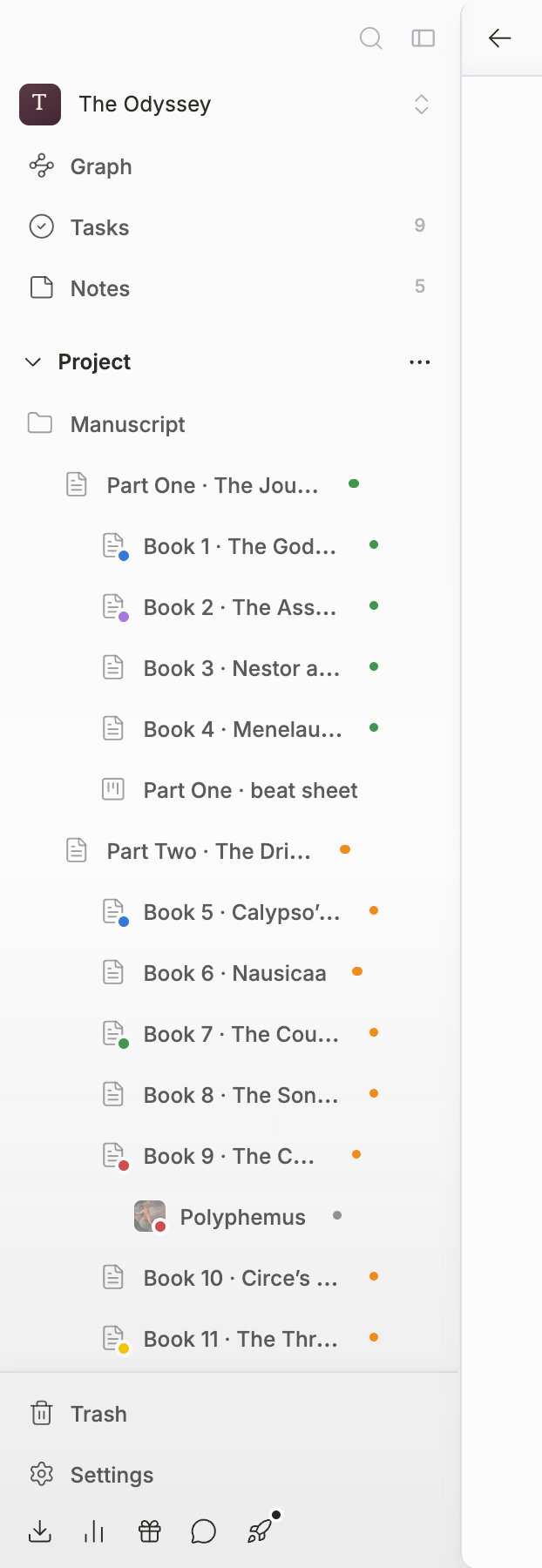
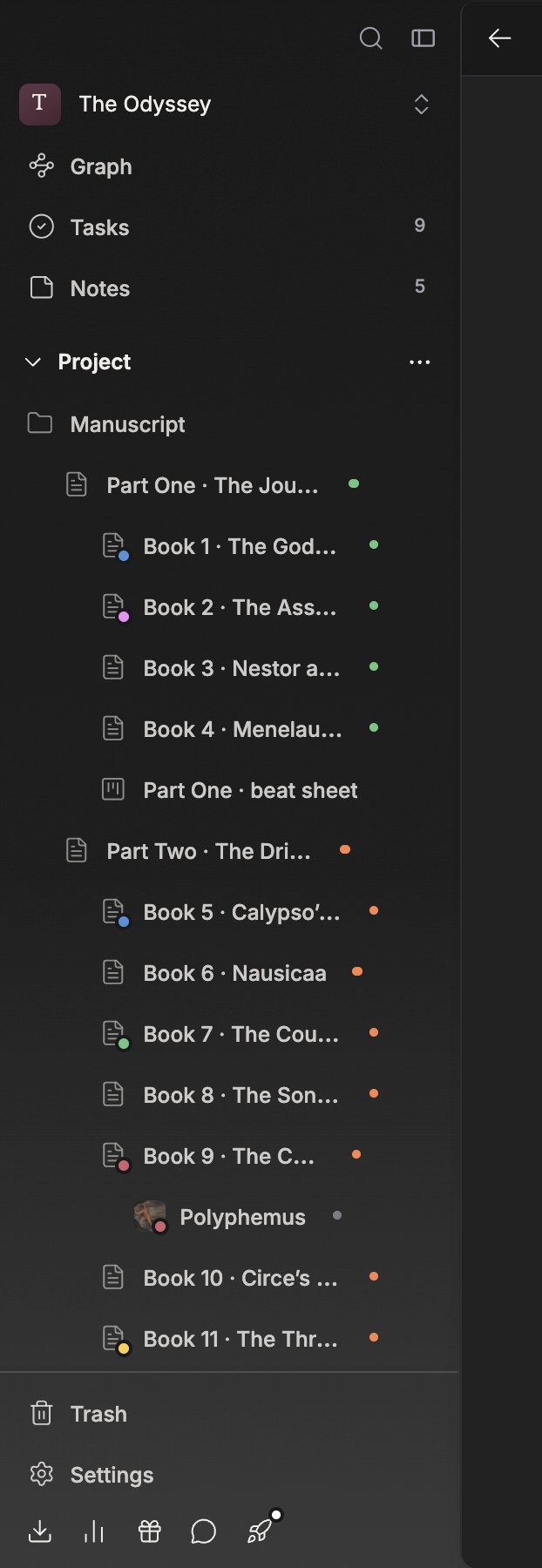
This is where the manuscript actually piles up. A new project has a **Bookmarks** section and a **Project** section. Drag the files you open often up into Bookmarks.

**More**, at the right of the section name, makes a New Document, New Sheet, New Plotboard, New Canvas, or New Folder right there. **Add Section** adds another branch. For a trilogy, put one per part.
<div className="app-crop block dark:hidden">
  <img src="https://mintcdn.com/raumlabsinc/ENyX88kfW0HMrWQi/images/en/start/tour--02.png?fit=max&auto=format&n=ENyX88kfW0HMrWQi&q=85&s=fa83209e542b04a982578db5c6b456e7" alt="The sidebar alone. From the top: the project name; Search, Graph, Tasks, and Notes (Tasks and Notes with number badges); the Bookmarks section; the Project section with the file tree below it; and Trash and Settings at the bottom — all in one screen." width="622" height="1800" data-path="images/en/start/tour--02.png" />
</div>

<div className="app-crop hidden dark:block">
  <img src="https://mintcdn.com/raumlabsinc/ENyX88kfW0HMrWQi/images/en/start/tour--02-dark.png?fit=max&auto=format&n=ENyX88kfW0HMrWQi&q=85&s=9c9d21f7b0601f3d69e9855100749460" alt="The sidebar alone. From the top: the project name; Search, Graph, Tasks, and Notes (Tasks and Notes with number badges); the Bookmarks section; the Project section with the file tree below it; and Trash and Settings at the bottom — all in one screen." width="622" height="1800" data-path="images/en/start/tour--02-dark.png" />
</div>

<p className="app-caption">The sidebar in one shot. The passages at the top, sections and the file tree in the middle, Trash and Settings at the bottom.</p>

**Trash** and **Settings** are at the very bottom. You can drag files you want to delete onto Trash, and Settings also opens with `Cmd/Ctrl + ,`.
