> ## Documentation Index
> Fetch the complete documentation index at: https://docs.pensiv.so/llms.txt
> Use this file to discover all available pages before exploring further.
# Filling properties and descriptions with AI
> AI reads what you already wrote in a sheet body and fills in property rows and descriptions. Where to press, what it reads, and how to keep or revert.
You often write "Twenty years old, only son of the royal house of Ithaca" in a character sheet's body, then copy the same words into the age row and the affiliation row. Auto-fill does that copying for you. It takes only facts written in the body and makes nothing up. Rows that can't be confirmed from the body are left empty.
It works on every plan and does not use AI credits.
## Filling sheet properties
At the bottom of the sheet's property list, to the right of **Add Property**, is the **Auto-fill Properties** button. Write the body first, then press it. While the button is spinning you can't press it again, and when it finishes the suggestions fill in row by row.
It fills text properties and tag properties.
* Empty rows — it puts in the value it found in the body. Text is usually one line, and tags are a few short words.
* Rows with a value — it doesn't change what is already there and only adds what is missing. Text gets appended after a comma, and tags get only the tags that weren't there yet.
* New rows — if something is clearly written in the body but no property fits it, it suggests a new text or tag property. The name is given in the project's language.
Properties that link documents or category sheets are only read for their names; they are not filled.
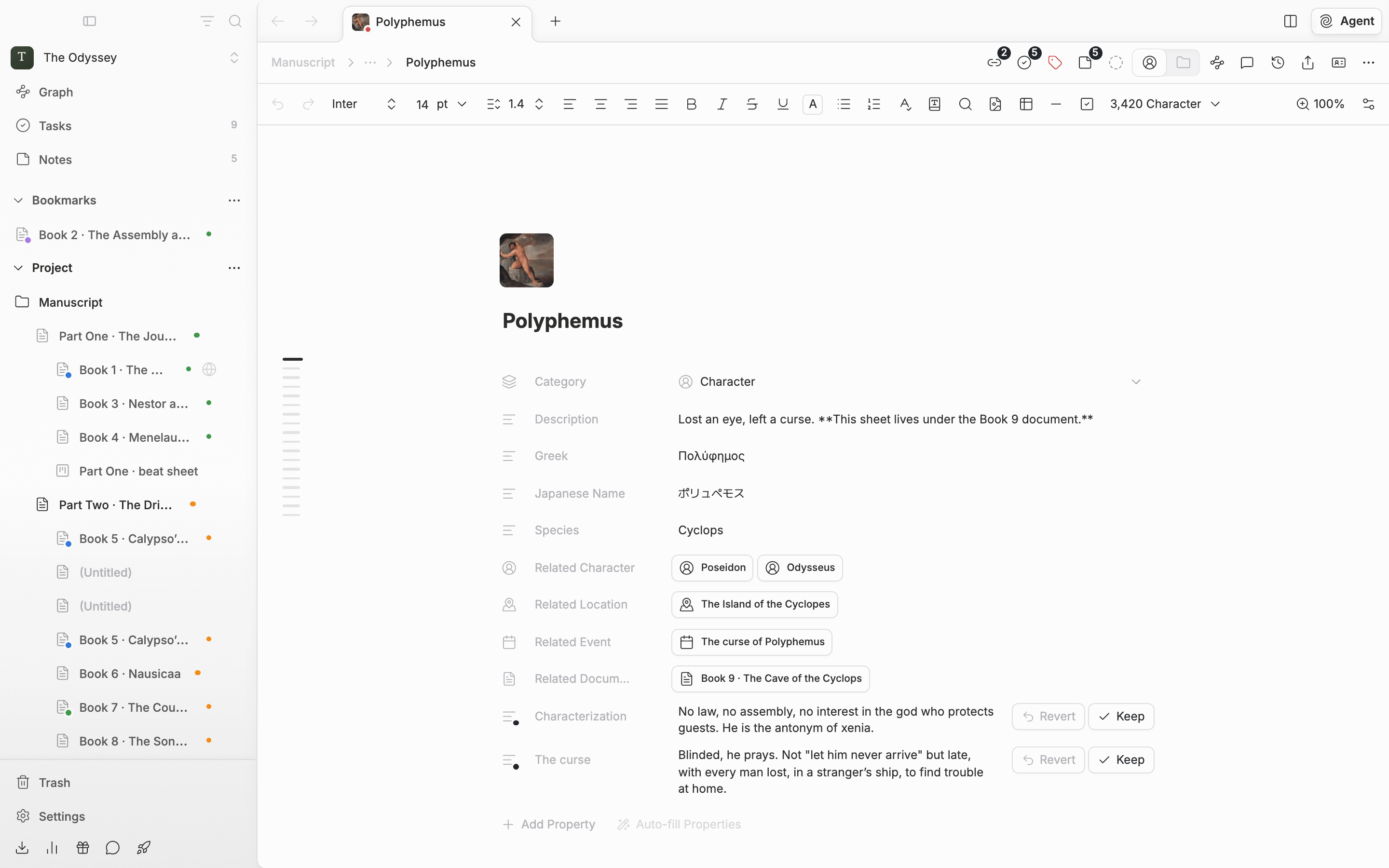
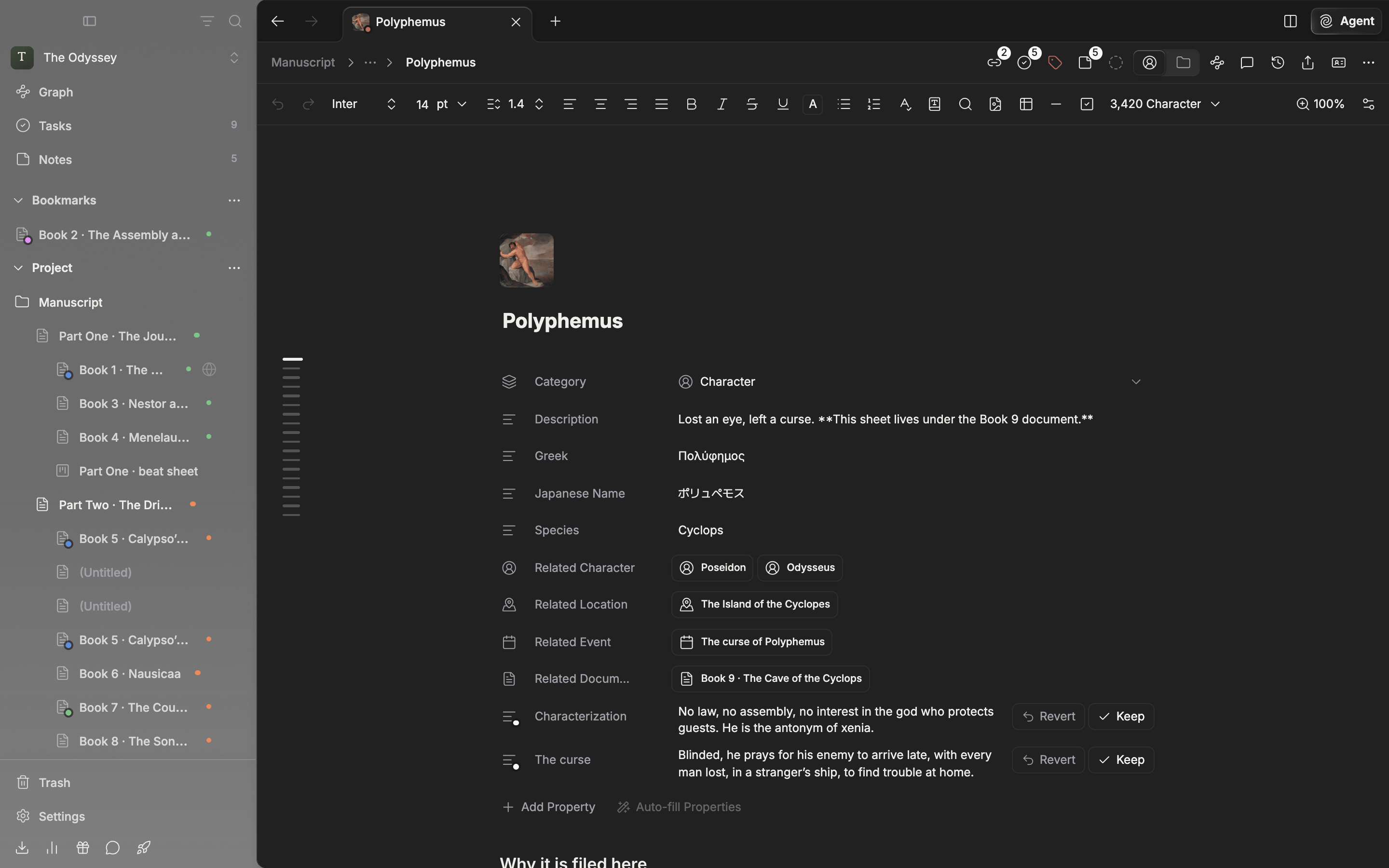
Rows proposed by autofill. Keep or revert each one.
## Keeping or reverting suggestions
Suggestions are not saved right away. The value that came in looks as if it were saved, but a small dot marks the type icon and **Revert** and **Keep** attach to the right end of the row. A notice such as "3 suggested — Keep or Revert each row" tells you first how many it suggested.
* **Keep** — saves just that row.
* **Revert** — throws the suggestion away. The original value stays as it was.
Suggestions you haven't checked disappear when you move to another sheet. Press the button again and the remaining suggestions are replaced by new ones. While suggestions remain, you can't drag property rows to reorder them, so sort them out first.
## Writing a description
Hover over a description field and a magic wand button appears at its top right. Press it and it reads the body and writes a description of a sentence or two. You find this button in these places.
* The **Description** row under the sheet title
* Cards in the Grid, Freeform, and Timeline folder views (not in List view)
* File cards on a canvas — when the card is selected and its description is showing
* The description field under a plotboard's title
What it reads depends on the file. For documents and sheets it reads the body. For a folder it reads the titles and descriptions of the files directly inside, and for a plotboard it reads the titles and descriptions of the plot cards in order.
A description goes straight into the field with no confirmation step and overwrites the description that was there. Don't press it on a field holding a description you worked hard on. If you don't like the result, press it again to have it write a new one.
## How much it reads
It reads the body from the start, up to about 8,000 characters. In a long sheet, the key information is picked up more reliably near the top. The title and category are passed along for reference, but it does not read linked documents, other sheets, or the rest of the project's files.
If the body is empty, "Write something on this page first — autofill only uses what's already there." appears and nothing is filled. If there is a body but no facts worth copying, it tells you "Nothing in the content to fill in yet."
## Limits
Each button rests for 10 seconds after a run. Press it in the meantime and a notice reading "Just ran" comes up with the seconds remaining.
There is also a generous cap on how many times you can use it per day. Go past it and "You've used autofill a lot today. It resets at midnight UTC." appears, and just as it says, the cap frees up again at midnight UTC.
The button does not appear on locked files. To fill one, unlock it first.
This documentation is built and hosted on [Mintlify](https://mintlify.com), a developer documentation platform.