> ## Documentation Index
> Fetch the complete documentation index at: https://docs.pensiv.so/llms.txt
> Use this file to discover all available pages before exploring further.

# Backlinks and mentions

> Backlinks show which documents mention this sheet. How to open the list from the header, read it, and jump back to the place that links here.

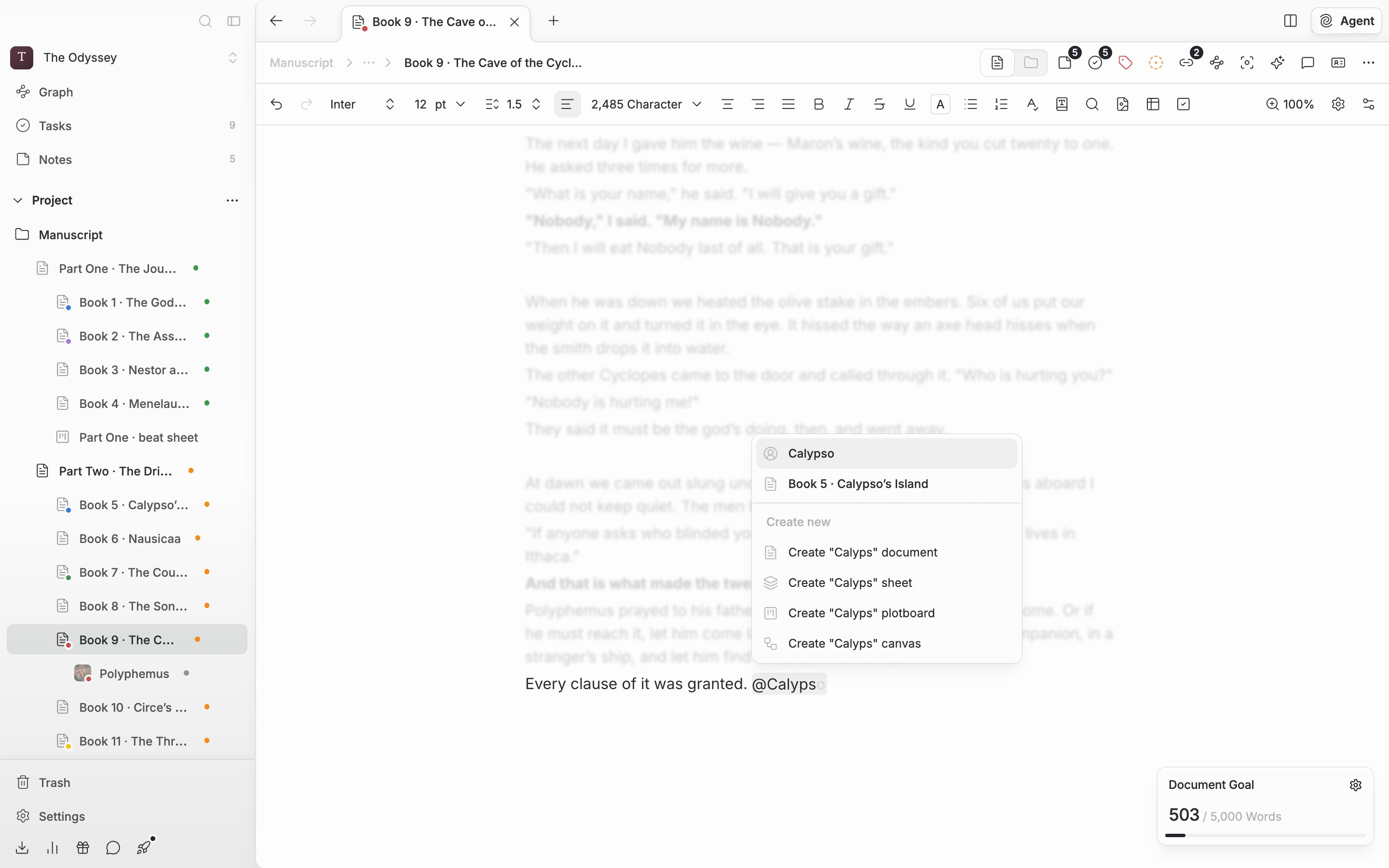
Type `@` in the body of a document or a sheet and a file list opens. Type nothing after it and the documents and sheets you touched most recently come up. Keep typing and documents, sheets, folders, plotboards, and canvases whose titles contain those characters are matched. The file you currently have open is left out of the list. Move with the up and down arrows and insert with Enter or Tab. When nothing matches, `No files found for "@Ella"` appears.

If no file with that title exists yet, "Create new" is appended below the list. Pick one of `Create "Ella" document`, `Create "Ella" sheet`, `Create "Ella" plotboard`, or `Create "Ella" canvas` and the file is created on the spot with the mention inserted. You can stand up a sheet the moment a character occurs to you, without breaking your flow.

<div className="app-window block dark:hidden">
  <img src="https://mintcdn.com/raumlabsinc/ObXQRDSsIBKX7SbO/images/en/structure/backlinks--01.png?fit=max&auto=format&n=ObXQRDSsIBKX7SbO&q=85&s=c28fff158f98dfc5f4a7a3d00795d455" alt="`@Ella` has been typed into the body and the mention suggestion popup is open. Two or three existing files are matched at the top (including one with a sheet portrait), and below them the “Create new” divider and the four document, sheet, plotboard, and canvas rows are not cut off. The first entry is selected." width="2880" height="1800" data-path="images/en/structure/backlinks--01.png" />
</div>

<div className="app-window hidden dark:block">
  <img src="https://mintcdn.com/raumlabsinc/ObXQRDSsIBKX7SbO/images/en/structure/backlinks--01-dark.png?fit=max&auto=format&n=ObXQRDSsIBKX7SbO&q=85&s=43b59e06e8070789b08d411a492d3c9c" alt="`@Ella` has been typed into the body and the mention suggestion popup is open. Two or three existing files are matched at the top (including one with a sheet portrait), and below them the “Create new” divider and the four document, sheet, plotboard, and canvas rows are not cut off. The first entry is selected." width="2880" height="1800" data-path="images/en/structure/backlinks--01-dark.png" />
</div>

<p className="app-caption">If the name you are looking for is not there, create it on the spot and it is inserted right away.</p>

## Working with an inserted mention

Click a mention once and you move to that file. Hold Cmd (Ctrl) while clicking to open it in the side pane. Click it twice and the mention unwraps back into text, so you can retype it for a different file. Rename the target file later and the mention in the body follows the new title. Delete the mention and the relationship between the two files goes with it.

If typing `@` does not open the list, check whether "@ mentions" is off in the Editor tab of Settings. Mentions you already inserted keep working even while it is off.

## Tracing back who called you

A mention points one way, from the file that calls to the file that is called, so on the called file you have to trace it back separately. The number on the link icon in the header ("View backlinks") is how many files call this one.

Click the icon and a list divided into "Documents", "Sheets", and "Plots" opens, with the sentence the mention sat in carried along under each title. A mention that was inside a list keeps its bullet and indentation, so you can guess the context it was called in without opening the file. Click an entry to go to that file, or Cmd (Ctrl) + click to open it in the side pane. At the bottom, "Links from this note" is the reverse — the files this one calls. When both sides are empty, only "No backlinks" is left.

The link icon sits in document, sheet, plotboard, and folder headers from the start. If you do not see it, turn on "Backlinks" under "Customize" in "More" at the right end of the header.
