> ## Documentation Index
> Fetch the complete documentation index at: https://docs.pensiv.so/llms.txt
> Use this file to discover all available pages before exploring further.

# Notes

> A scratch board belonging to one project. Drag cards into place, filter by color and tag, and find the notes written on files gathered in the same spot.

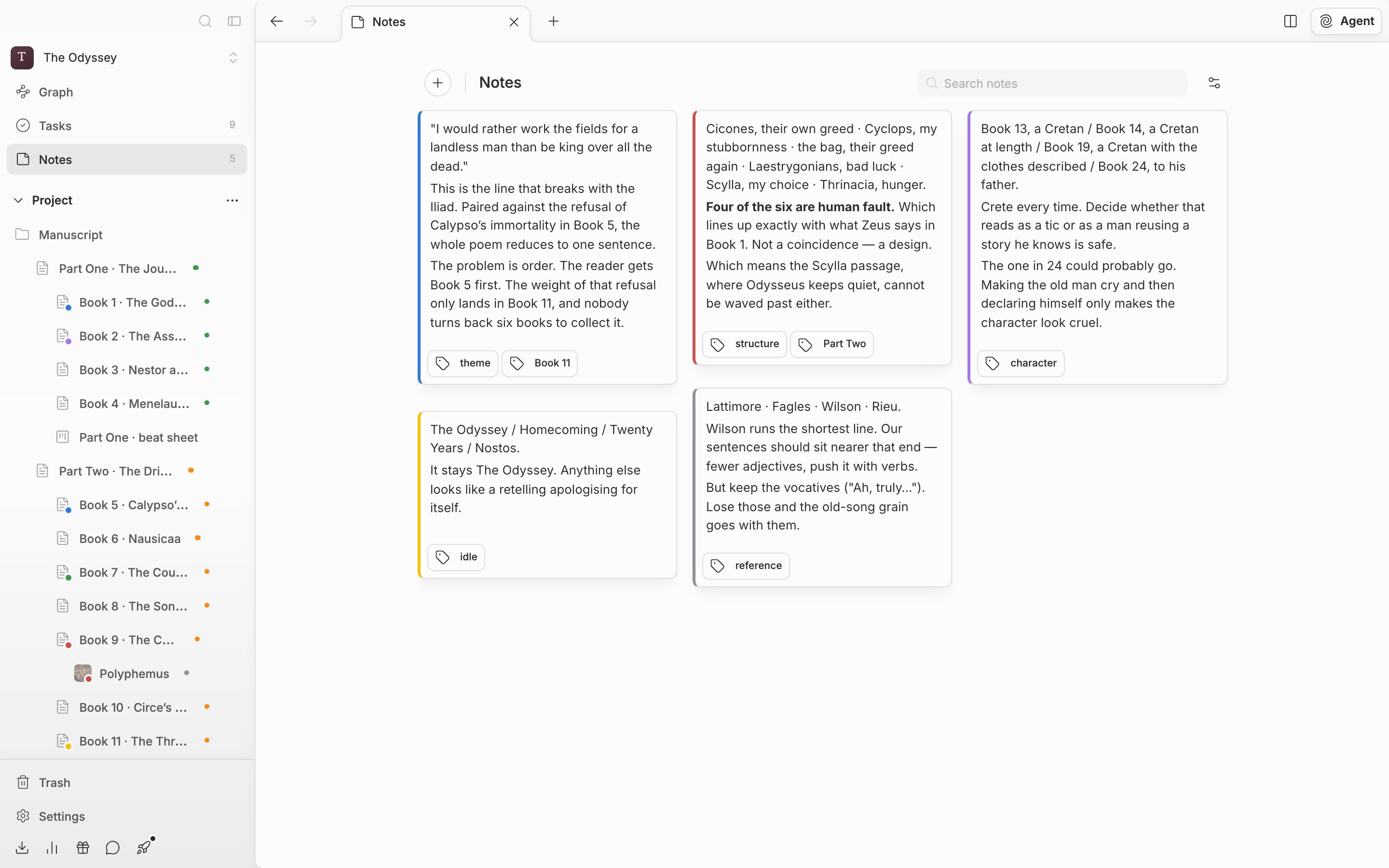
Notes is a scratch board belonging to one project. Click **Notes** in the sidebar to open the board. The number beside the item name is how many notes that project has, and past 99 it shortens to `99+`.

<div className="app-window block dark:hidden">
  <img src="https://mintcdn.com/raumlabsinc/ENyX88kfW0HMrWQi/images/en/structure/notes--01.png?fit=max&auto=format&n=ENyX88kfW0HMrWQi&q=85&s=9db867d8da98eaba2d4169d8a50e13b8" alt="A board with six or seven note cards stacked like bricks. Cards with a color stripe and cards with tags are mixed together, with the + button and the “Notes” heading at the top left and the search field at the top right." width="2880" height="1800" data-path="images/en/structure/notes--01.png" />
</div>

<div className="app-window hidden dark:block">
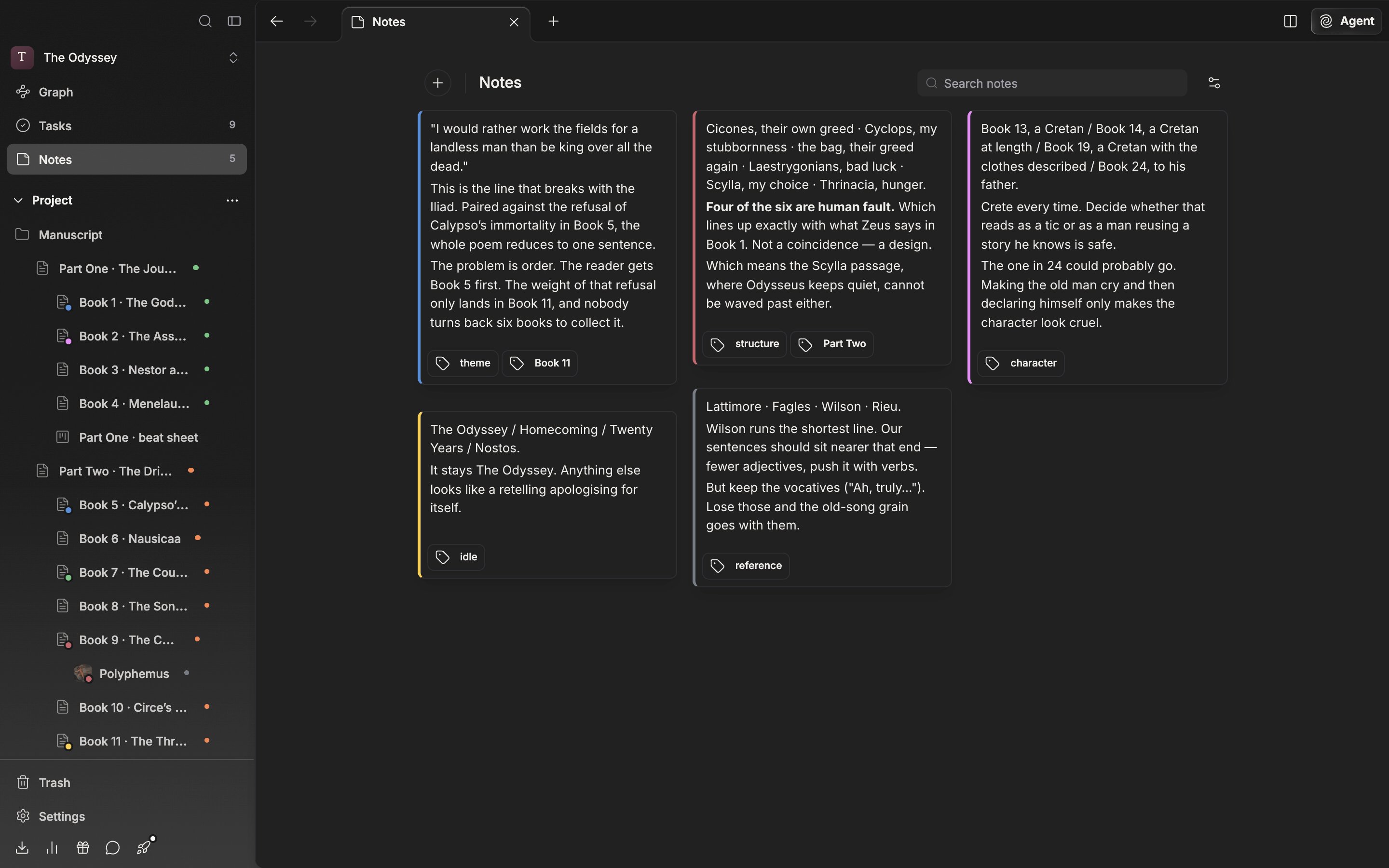
  <img src="https://mintcdn.com/raumlabsinc/ENyX88kfW0HMrWQi/images/en/structure/notes--01-dark.png?fit=max&auto=format&n=ENyX88kfW0HMrWQi&q=85&s=60244f5a217ca86e03ca98f7295eda3f" alt="A board with six or seven note cards stacked like bricks. Cards with a color stripe and cards with tags are mixed together, with the + button and the “Notes” heading at the top left and the search field at the top right." width="2880" height="1800" data-path="images/en/structure/notes--01-dark.png" />
</div>

<p className="app-caption">One screen of the notes board. This is where you drag cards into place.</p>

## Writing a note

Click **+** (Create Note) at the top left and an empty card appears at the front. There is no separate title field; you write straight into the card body. While it is empty, "Start writing your note..." shows dimmed. It saves when you stop typing.

Click inside the card, or add at least one tag, and a tag field opens below. An empty field reads "Enter tags separated by comma".

## Arranging

Drag cards to reorder them. Drag the handle at the bottom-right corner to change the width and height, and double-click it to return to the original size. Width snaps in column units; height is free.

The more menu at the top right of a card holds **Color** and **Delete**. The colors are Blue, Red, Green, Orange, Purple, Yellow, and Gray, and **Reset** clears them. Adding a color puts a stripe down the left side of the card.

## Filtering

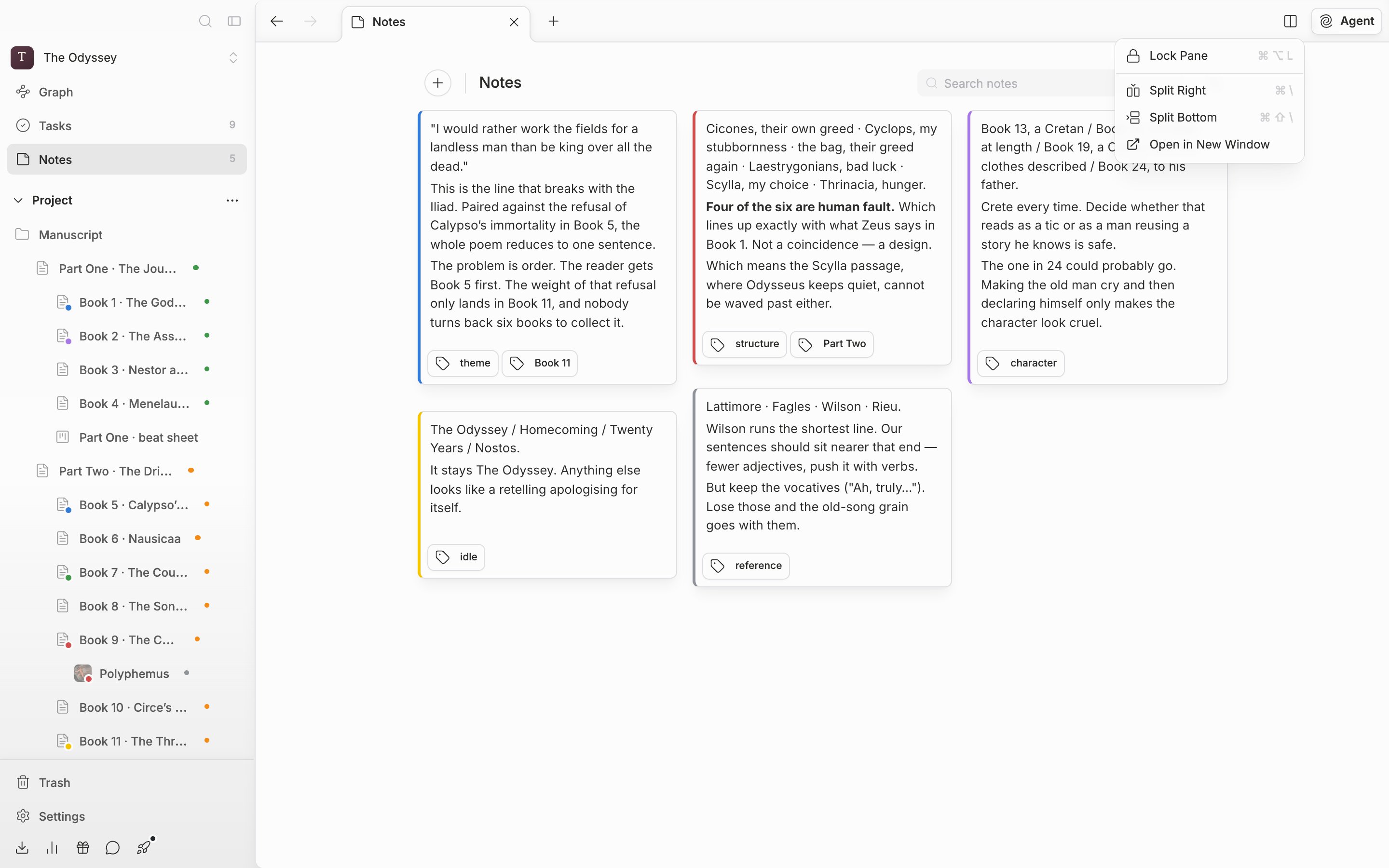
The search field at the top right ("Search notes") is focused with `Cmd/Ctrl + F`. It scans body text and tags together and ignores spaces. `Esc` clears it. The button next to it holds **All**, **Colors**, and **Tags**, and the tag entry appears only if the project has at least one tag. The colors and tags you filter by persist per project, but the search term does not.

When nothing matches, "No matching notes" appears; when there is not a single card yet, "No notes yet".
<div className="app-window block dark:hidden">
  <img src="https://mintcdn.com/raumlabsinc/ENyX88kfW0HMrWQi/images/en/structure/notes--02.png?fit=max&auto=format&n=ENyX88kfW0HMrWQi&q=85&s=f13f80b7d1dde0c88eb339e456c1b312" alt="The dropdown opened by clicking the button next to the search field. The “Colors” and “Tags” submenus appear under “All”, and a few colors are selected so the button carries a dot marker." width="2880" height="1800" data-path="images/en/structure/notes--02.png" />
</div>

<div className="app-window hidden dark:block">
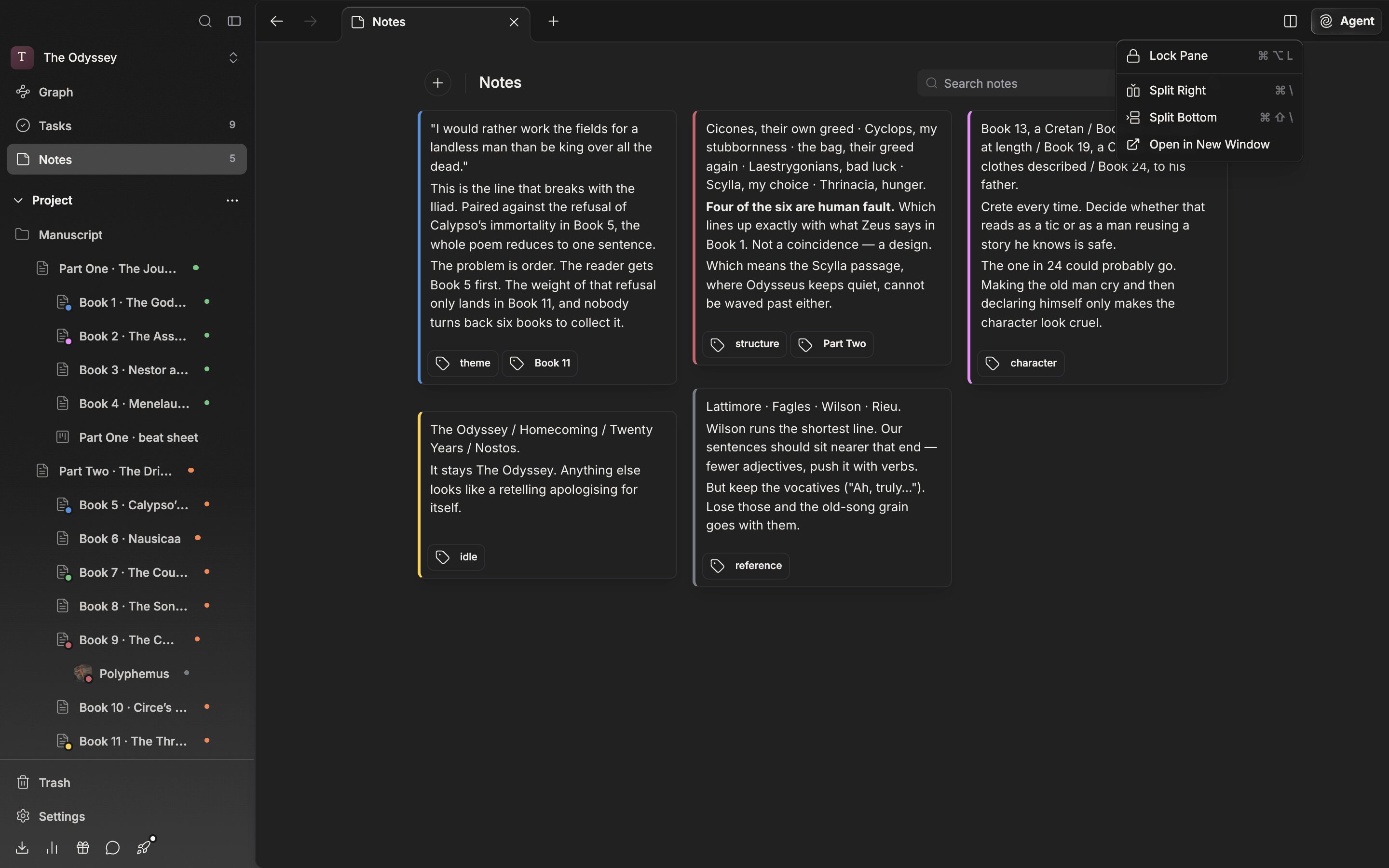
  <img src="https://mintcdn.com/raumlabsinc/ENyX88kfW0HMrWQi/images/en/structure/notes--02-dark.png?fit=max&auto=format&n=ENyX88kfW0HMrWQi&q=85&s=59f49a759751322197d80a78facf6a36" alt="The dropdown opened by clicking the button next to the search field. The “Colors” and “Tags” submenus appear under “All”, and a few colors are selected so the button carries a dot marker." width="2880" height="1800" data-path="images/en/structure/notes--02-dark.png" />
</div>

<p className="app-caption">Filter cards by color and tag.</p>

## File notes

Below the divider at the bottom of the board, the notes written on files are attached, grouped by file. The arrow collapses and expands them. The **Open** button beside it jumps to that file. What you edit on the card goes straight into that file's notes.
