> ## Documentation Index
> Fetch the complete documentation index at: https://docs.pensiv.so/llms.txt
> Use this file to discover all available pages before exploring further.
# Plot cards and part cards
> The two kinds of card that fill a plotboard. Covers how the two lock together, and how to create them and change their order.
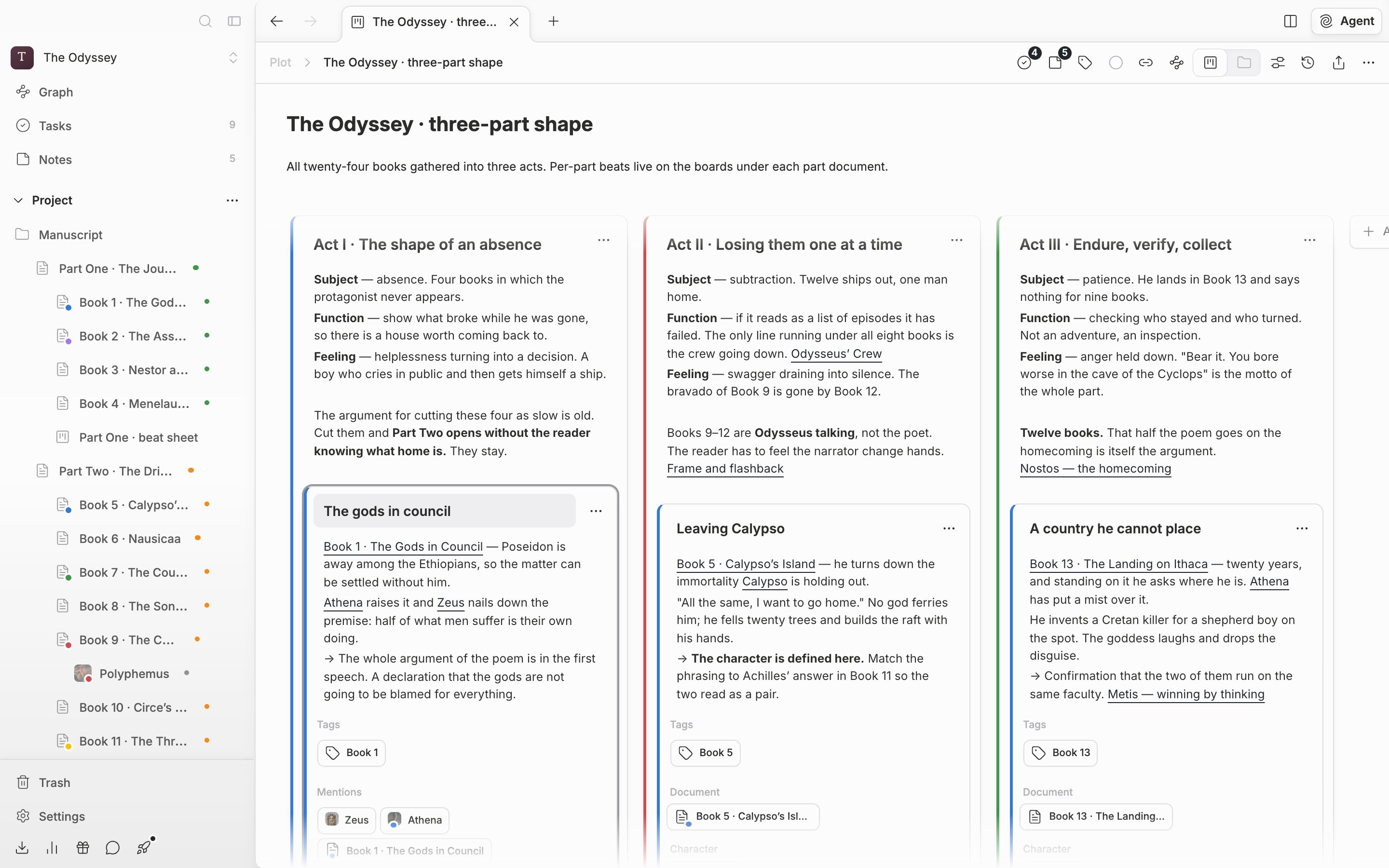
A plot card holds one chunk of the story; a part card holds one scene inside that chunk. It is the relationship of a container to its contents.
## How the two lock together
A plot card has a title and a description, and part cards stack vertically below them. A part card always belongs to some plot card. It cannot sit on the board on its own.
Beyond the title and description, a part card also carries **Tags** and **Mentions**. Documents, sheets, plotboards, and canvases go in the mentions field. Click an attached name and you go straight to that file. The two fields open only when they hold a value or the cursor is on the card. When empty they stay folded, and the card stays short.
## Creating
**Add New Card** (`Cmd/Ctrl + Shift + A`) at the end of the board creates a plot card, and **New Part Card** (`Cmd/Ctrl + Shift + M`) at the bottom of a plot card creates a part card. The ··· menu at the top right of a plot card also holds **New Part Card**.
The buttons always append at the end, but the shortcuts differ. They insert **right after** the card the cursor is on, which helps when you are extending the story in the middle of an order you already worked out. A new card comes up selected, with its title filled in as **New Card** or **New Part Card**. Type over it and it is replaced.
Press `Cmd/Ctrl + Shift + M` on a board with no plot cards and it tells you there is no card to hold a part card, and asks you to create a card first.
Put the cursor on a part card and the Tags and Mentions fields open.
## Reordering
You move cards by dragging. Drop a plot card between two cards and it takes that spot; a part card can move up and down inside the same plot card, or be thrown into a different plot card entirely. While you drag, a small card holding only the title follows the cursor. A line rises at the drop point to show where it will land.
Dragging is briefly disabled while the cursor is inside a title or a description. Finish editing, click once outside the card, then grab it.
## Splitting threads by color
On both kinds of card, picking a color under **Color** in the ··· menu puts a color stripe down the left side. Use it to separate point-of-view characters or plot threads by eye. To clear it, pick **Reset** in the same menu.