> ## Documentation Index
> Fetch the complete documentation index at: https://docs.pensiv.so/llms.txt
> Use this file to discover all available pages before exploring further.

# Working with sheet properties

> The four types — text, tags, documents, and category sheets — the template picker, and how a child sheet inherits its property layout.

Below a sheet's title sit two rows, Category and Description. The rows you set up yourself below those are properties. Make one row each for the entries you keep having to look up again while writing: a character's age, an organization's capital city.

## Four types

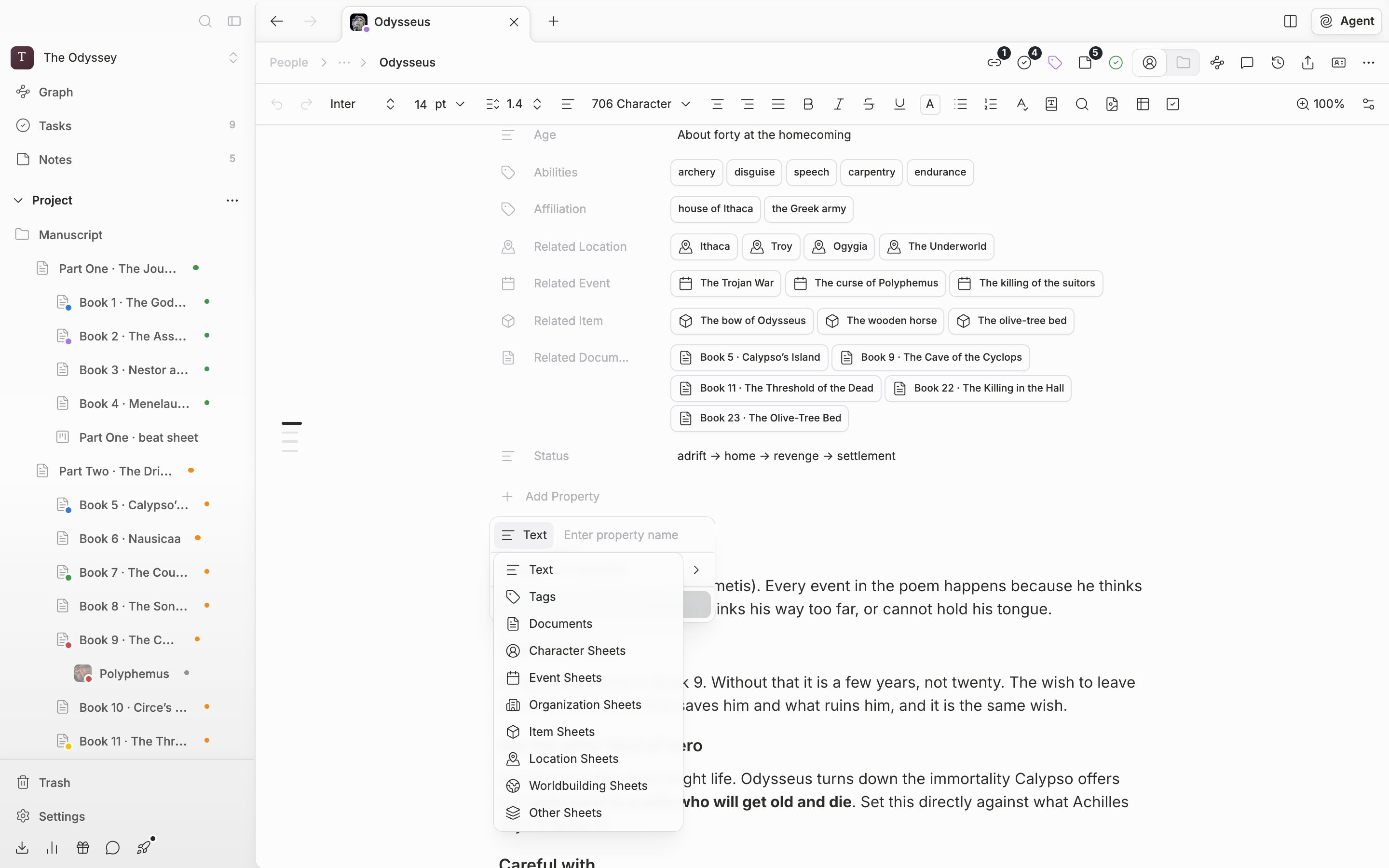
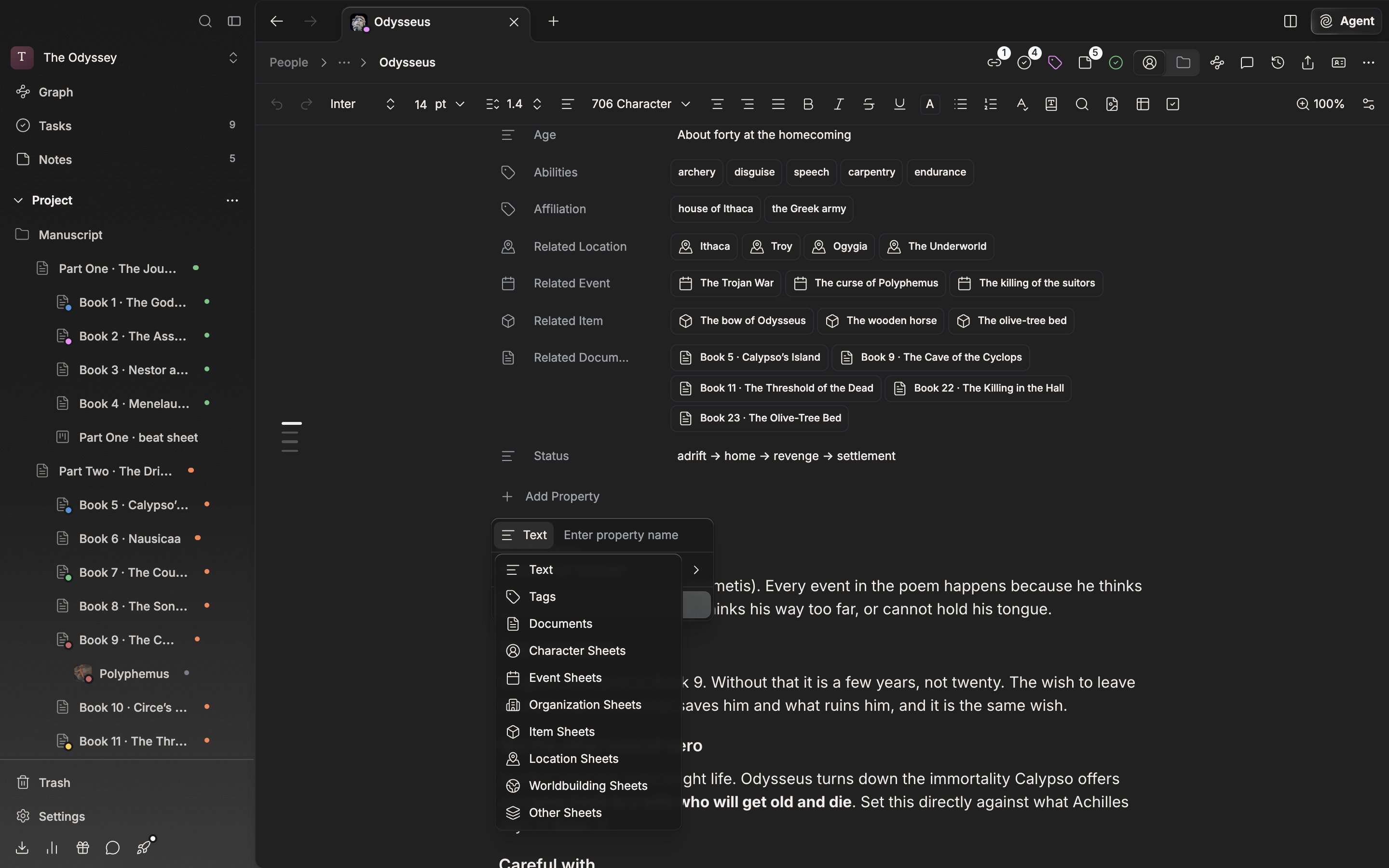
Click Add Property and a type button appears on the left, with a name field on the right. Create only becomes clickable once you enter a name.

* Text — you write the value out as text. Use it for entries that never tie to another file, such as age, height, or title.
* Tags — you pick several. A word that is not in the list is created on the spot and used.
* Documents — you attach manuscript files. If a search turns up nothing, the `Create "…" document` entry in the list creates a new document and attaches it in one step.
* Category sheets — pick one category, as in Character Sheets or Location Sheets, and the property takes only sheets in that category as values. The seven categories are Character, Event, Organization, Item, Location, Worldbuilding, and Other.

<div className="app-window block dark:hidden">
  <img src="https://mintcdn.com/raumlabsinc/ENyX88kfW0HMrWQi/images/en/structure/sheet-properties--01.png?fit=max&auto=format&n=ENyX88kfW0HMrWQi&q=85&s=72b0e43630d26a3d033fcc1450869e75" alt="The “Add Property” dropdown is open on a character sheet, and the type button's submenu shows Text, Tags, Documents, and the per-category entries such as Character Sheets and Event Sheets." width="2880" height="1800" data-path="images/en/structure/sheet-properties--01.png" />
</div>

<div className="app-window hidden dark:block">
  <img src="https://mintcdn.com/raumlabsinc/ENyX88kfW0HMrWQi/images/en/structure/sheet-properties--01-dark.png?fit=max&auto=format&n=ENyX88kfW0HMrWQi&q=85&s=69c805b34af913e1fdc239c99146eb8d" alt="The “Add Property” dropdown is open on a character sheet, and the type button's submenu shows Text, Tags, Documents, and the per-category entries such as Character Sheets and Event Sheets." width="2880" height="1800" data-path="images/en/structure/sheet-properties--01-dark.png" />
</div>

<p className="app-caption">The list you pick a property type from.</p>

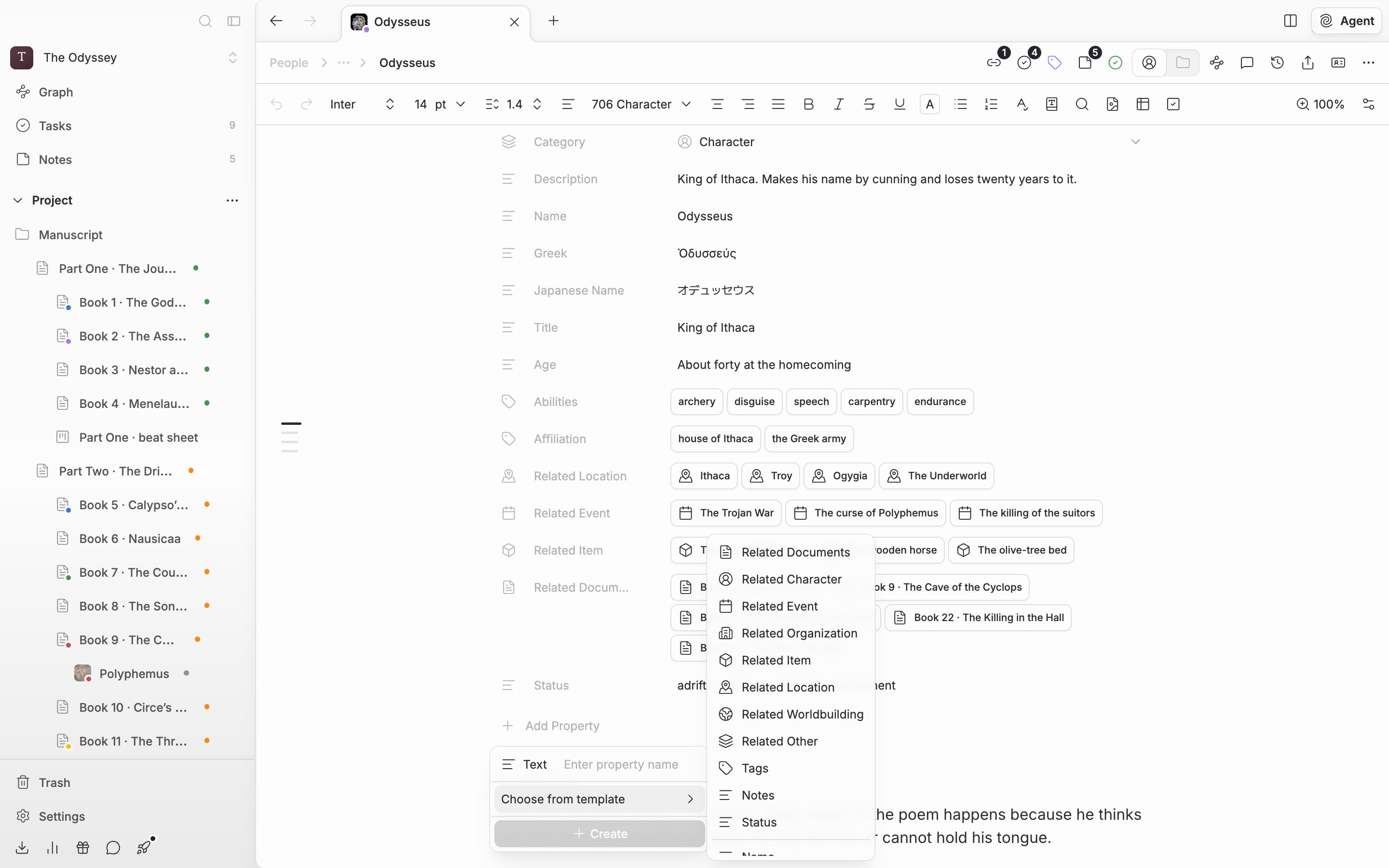
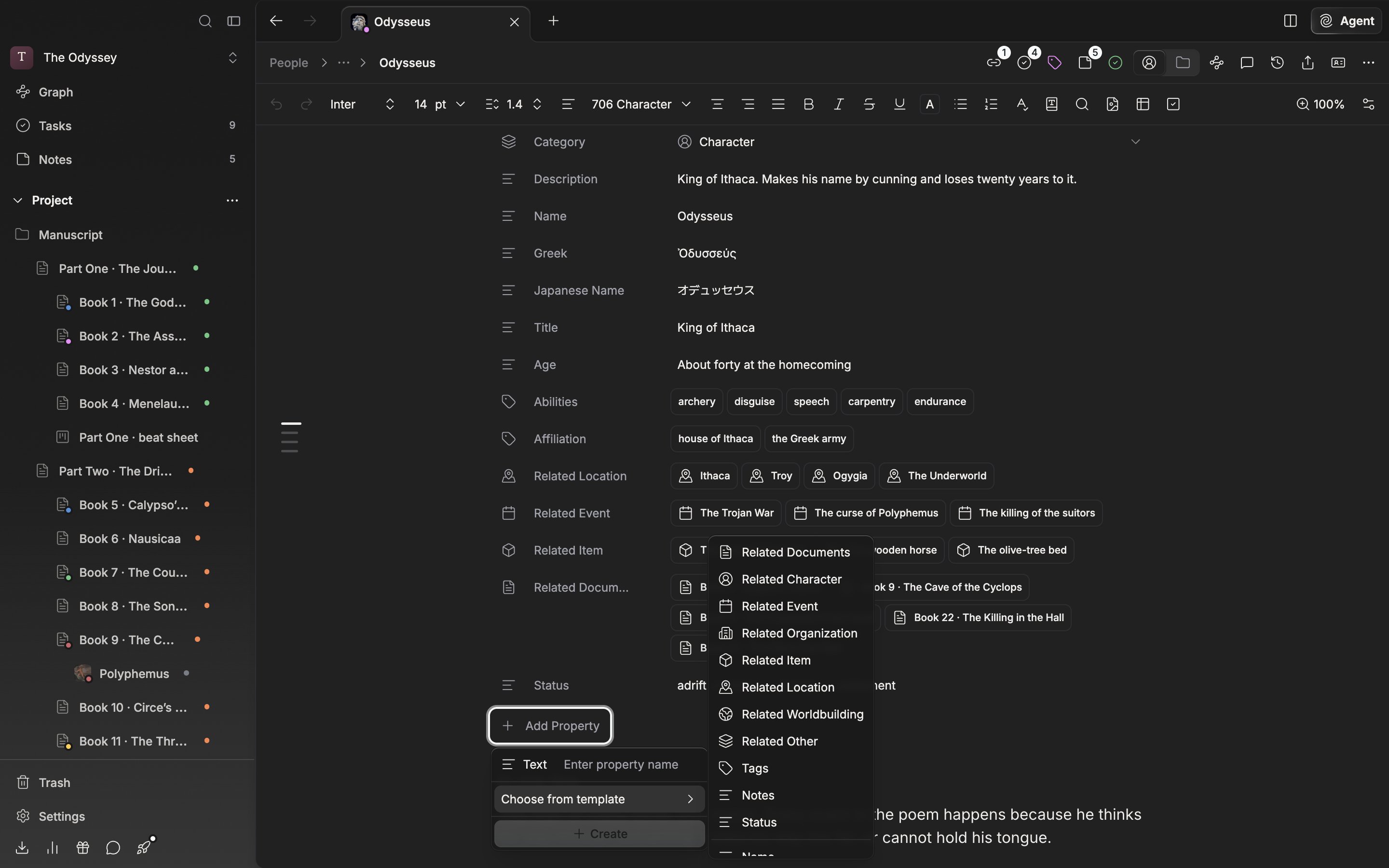
## Choose from template

If naming is a chore, open Choose from template. At the top are Related Documents, the seven per-category entries beginning with Related Character, Tags, Notes, and Status. Below are text entries such as Name, English Name, Hanja Name, Gender, Species, MBTI, and Title; tag entries such as Abilities and Affiliation; and entries that take another sheet as their value, such as Leader, Members, Location, Birthday, and Duration. Pick one and the row is created immediately with that name and type.
<div className="app-window block dark:hidden">
  <img src="https://mintcdn.com/raumlabsinc/scBcZNHBfFBpIiOh/images/en/structure/sheet-properties--02.png?fit=max&auto=format&n=scBcZNHBfFBpIiOh&q=85&s=0799695fda6f937920a13b8bc7bab8fd" alt="Inside “Add Property”, the “Choose from template” submenu is expanded, showing Related Documents, Related Character, Tags, Notes, and Status, with Name, English Name, Hanja Name, and the rest below them." width="2880" height="1800" data-path="images/en/structure/sheet-properties--02.png" />
</div>

<div className="app-window hidden dark:block">
  <img src="https://mintcdn.com/raumlabsinc/scBcZNHBfFBpIiOh/images/en/structure/sheet-properties--02-dark.png?fit=max&auto=format&n=scBcZNHBfFBpIiOh&q=85&s=a0caa0c4d91a3109a7e5bf84bf8f903c" alt="Inside “Add Property”, the “Choose from template” submenu is expanded, showing Related Documents, Related Character, Tags, Notes, and Status, with Name, English Name, Hanja Name, and the rest below them." width="2880" height="1800" data-path="images/en/structure/sheet-properties--02-dark.png" />
</div>

<p className="app-caption">The screen for setting up a property by picking from a template.</p>

## A child sheet inherits the layout

Create a sheet under another sheet and the parent's property names, types, order, and hidden state carry over as they are. The values are empty. Lay out the main character's sheet first and create the supporting cast under it, and every character gets the same rows in the same places. A sheet that already has properties when it is created — a duplicate, for instance — does not inherit.

Tags pool their values too. The tags of the sheets that inherited and share the same property come up as candidates. If a sheet in the same category uses a tag property with the same name, its tags come up as well. The more sheets have used a tag, the higher it sits.

## Tidying the rows

Click a property name for Rename, Hide, and Delete. A hidden property is not gone; it is counted next to Add Property as something like "3 hidden". You bring it back from there. Drag the icon to the left of the name to reorder. The Category and Description rows are hidden and restored the same way.
