> ## Documentation Index
> Fetch the complete documentation index at: https://docs.pensiv.so/llms.txt
> Use this file to discover all available pages before exploring further.
# Building reference material with sheets
> How to pull recurring reference material — characters, places, organizations — out into sheets, and what the seven categories do.
Characters, events, organizations, objects, places, worldbuilding rules. Jot this material down in a corner of the manuscript and you will not find it when you actually need it. A sheet is where you pull that material out into a file of its own.
## Ways to create one
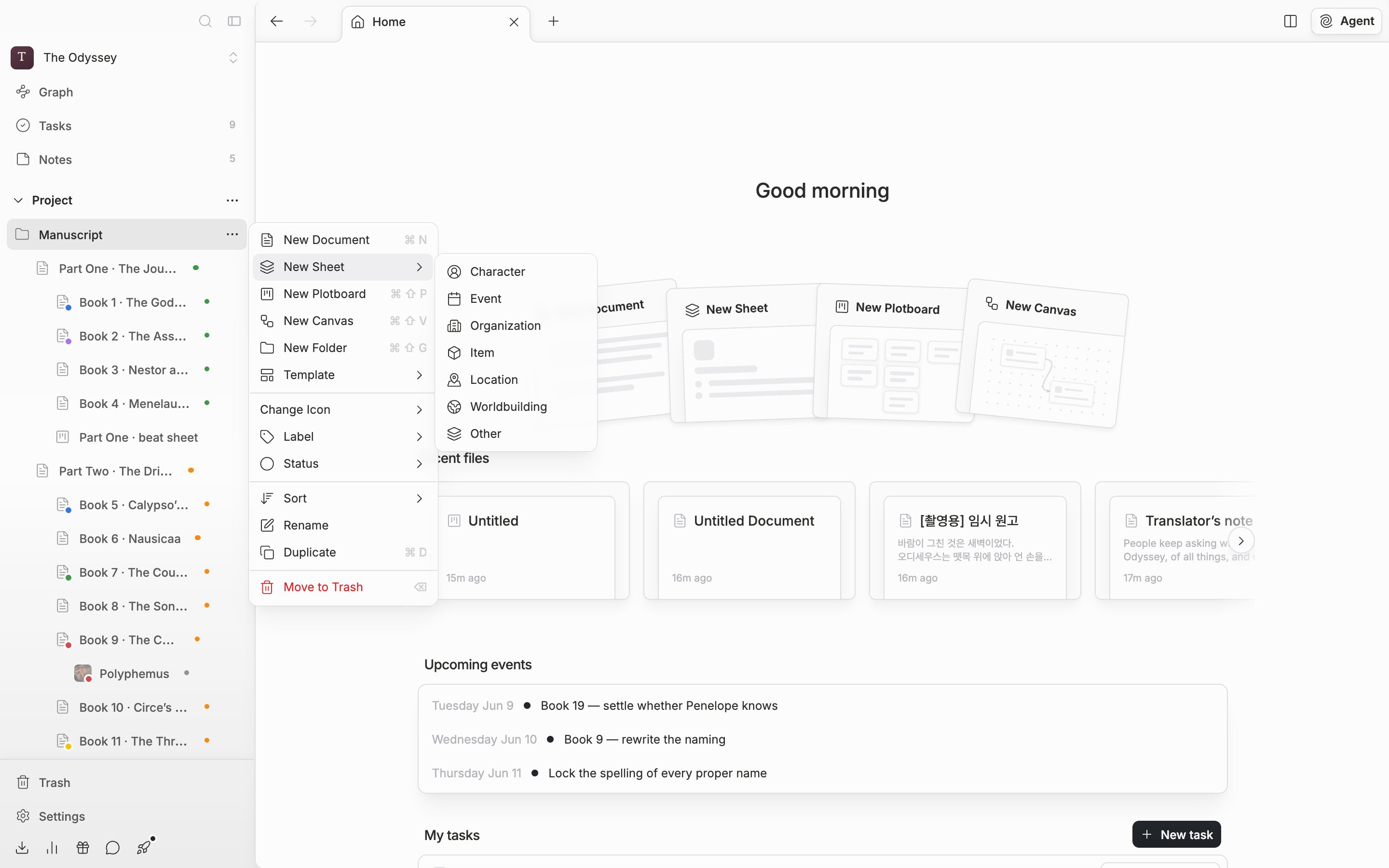
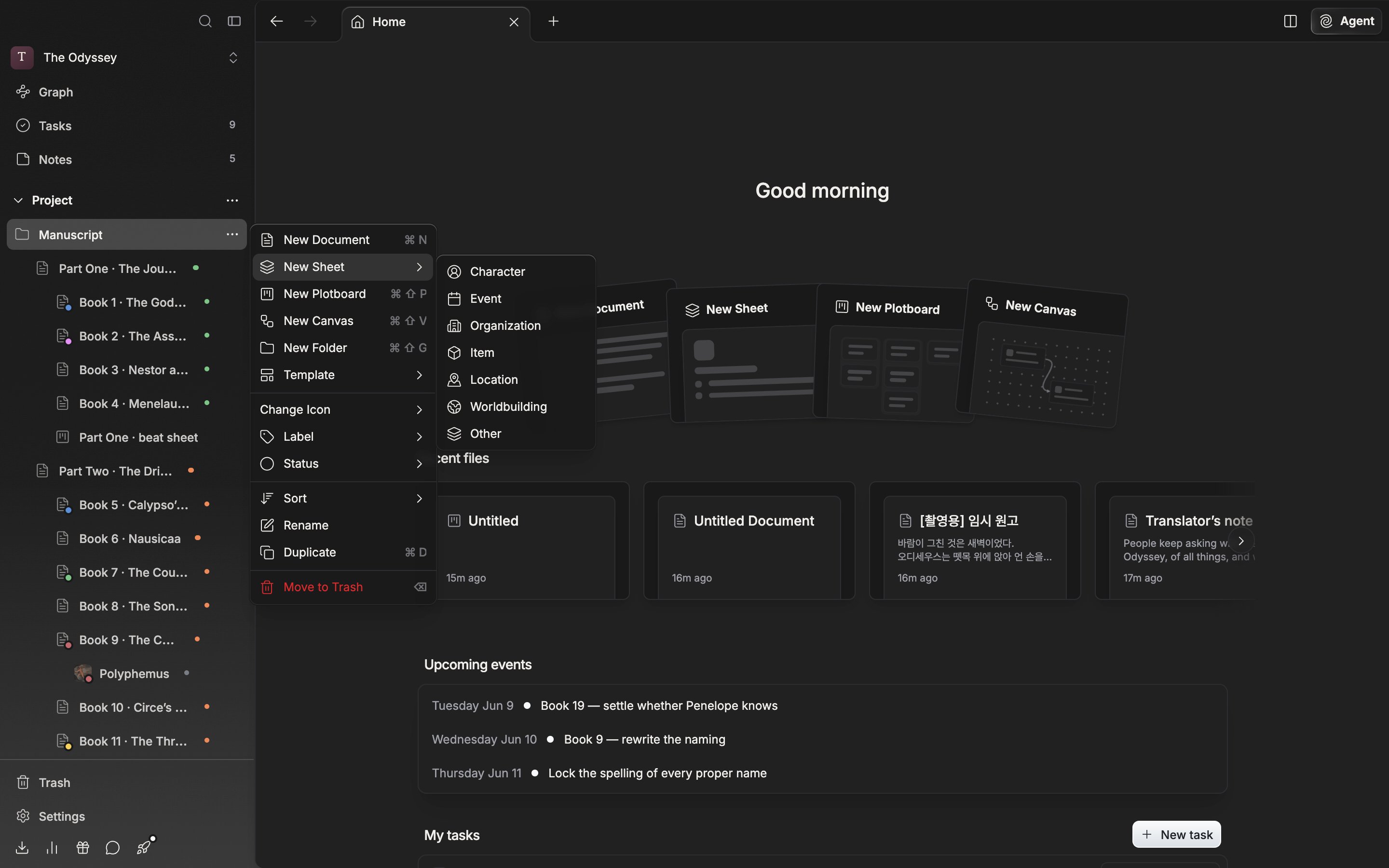
Click the three dots at the right end of a sidebar section heading to open the create menu. Hover **New Sheet** and the seven categories open as a submenu. The sheet is created in whichever category you pick there.
Right-clicking a file row in the sidebar, or clicking the three dots on that row, brings up the same submenu. This path puts the new sheet **under** the file you clicked, as a child. Use it to hang a weapon sheet under the main character's sheet.
Drag over a name in the body text, right-click, and pick a category under **Create sheet**. The selected text becomes the sheet's title.
**New Sheet** in the command palette, `Cmd/Ctrl + Shift + C`, and the **New Sheet** item you get by right-clicking empty space inside a folder do not ask for a category. They create the sheet as **Other**.
Create from the sidebar, the command palette, the shortcut, or the folder menu and the view moves to the new sheet with the cursor in the title field. Creating from selected body text leaves the view where it is. The selected text turns into a mention, and you reach the sheet by clicking **Open** in the `Sheet "Title" created` toast. Leave the title empty and the field keeps a dimmed category name such as "Untitled Character".
Pick a category in the New Sheet menu to create one.
## The seven categories
Character, Event, Organization, Item, Location, Worldbuilding, Other. Menus always list them in this order.
A category is more than a label. It separates three things.
* **Icon** — the icon on a sheet's row in the sidebar comes from its category. An icon set on the file itself takes precedence.
* **Properties that take sheets as values** — a Character Sheets property offers only sheets in the Character category as candidates.
* **Tag candidates** — tag properties with the same name pool their values, but a different category keeps them apart. A property inherited from a parent sheet, or carried over by duplication, keeps sharing candidates even after you change the category or rename it.
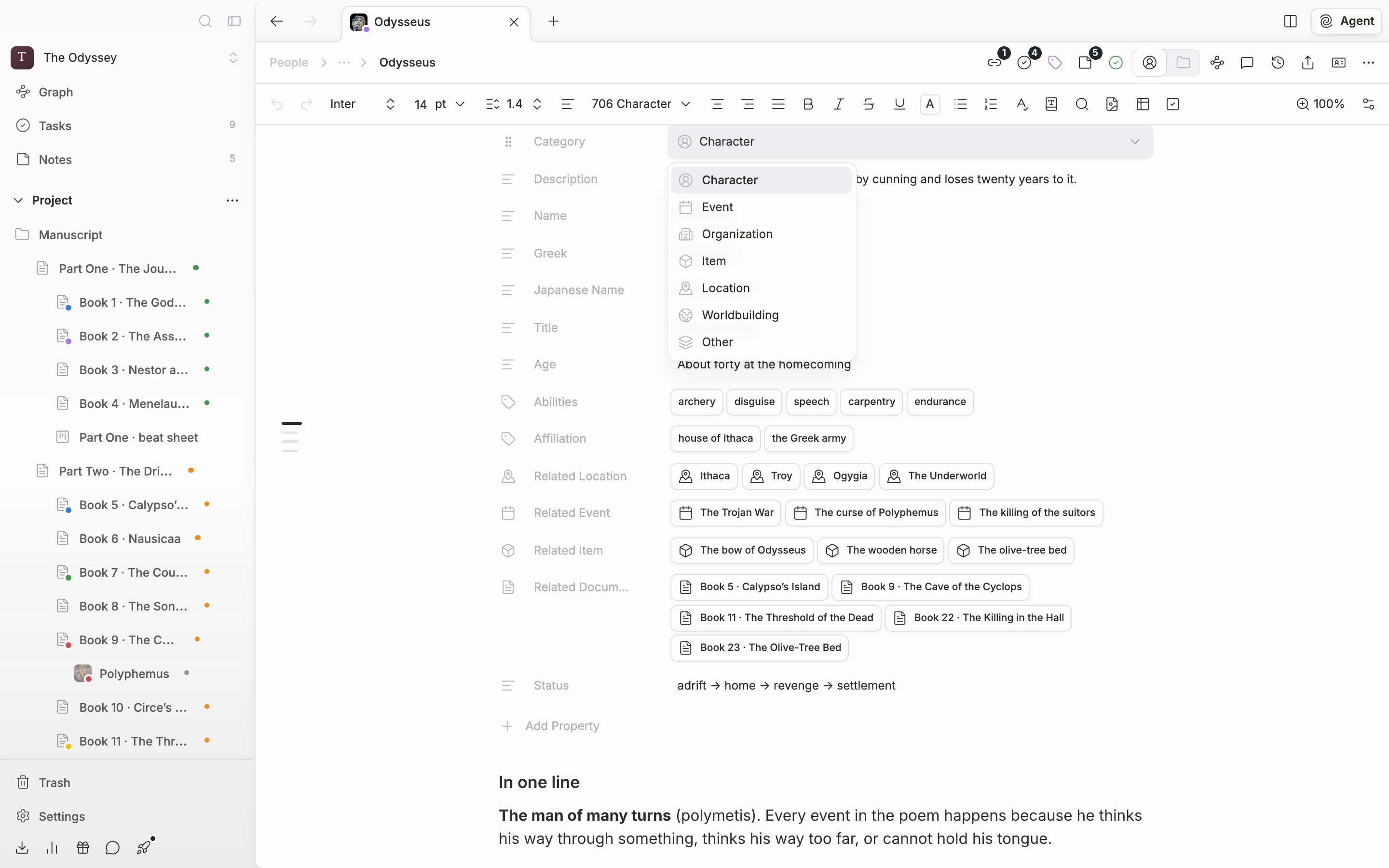
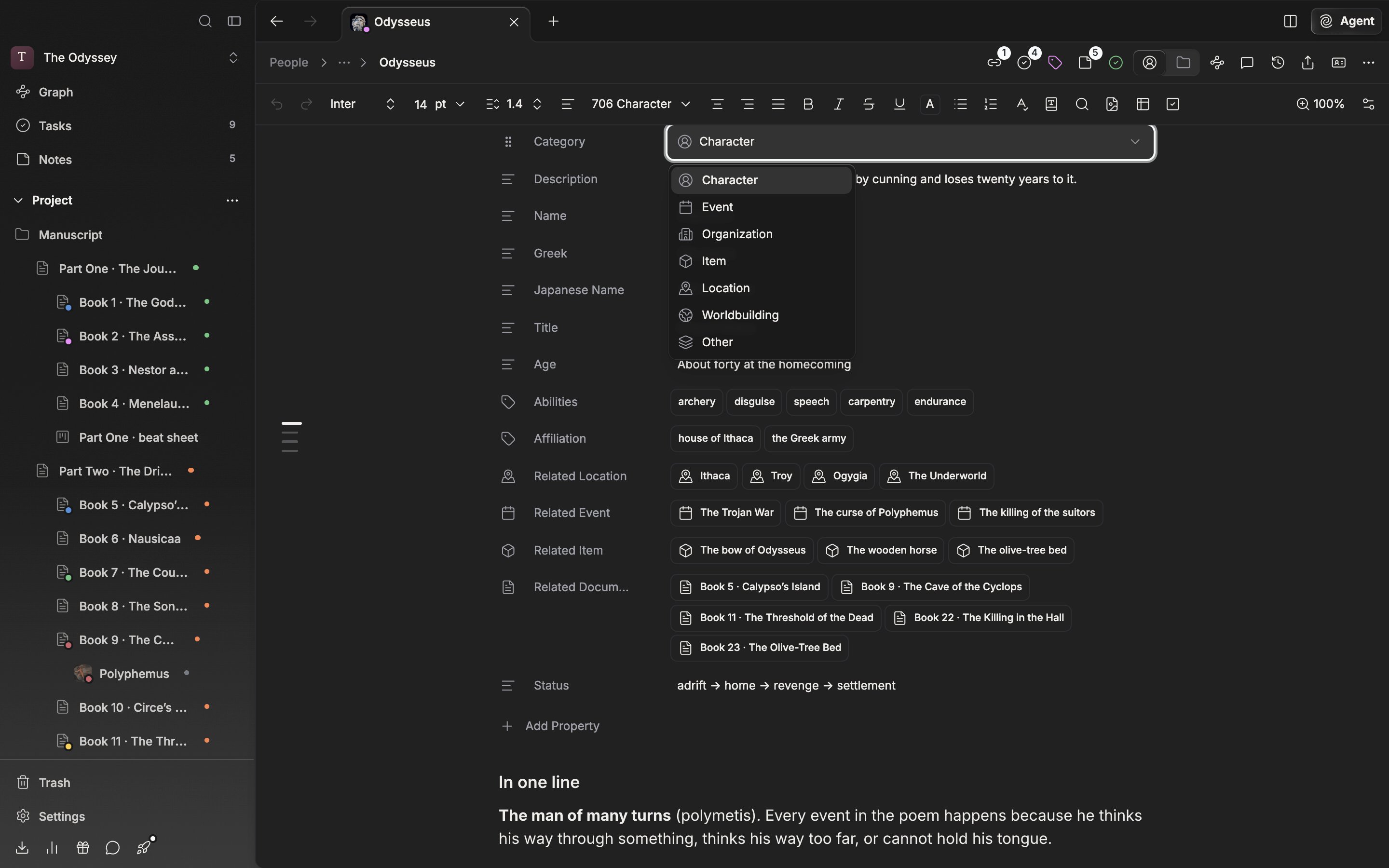
You can change it later. Open the sheet, click the value on the **Category** row, and pick another category. The properties you filled in and the body text stay as they are.
The category can be changed after the sheet is created.
## There is no screen that lists sheets alone
A sheet is a file of the same rank as a document or a plotboard, so it sits in the sidebar tree alongside them. Enter the sheet view without picking a sheet and you get only the message "Select a sheet". If you want to scan by category, it is better to split them into folders or sections.
Create a sheet under another sheet and it inherits the parent's property layout. Only the names, types, and order carry over; the values are empty.