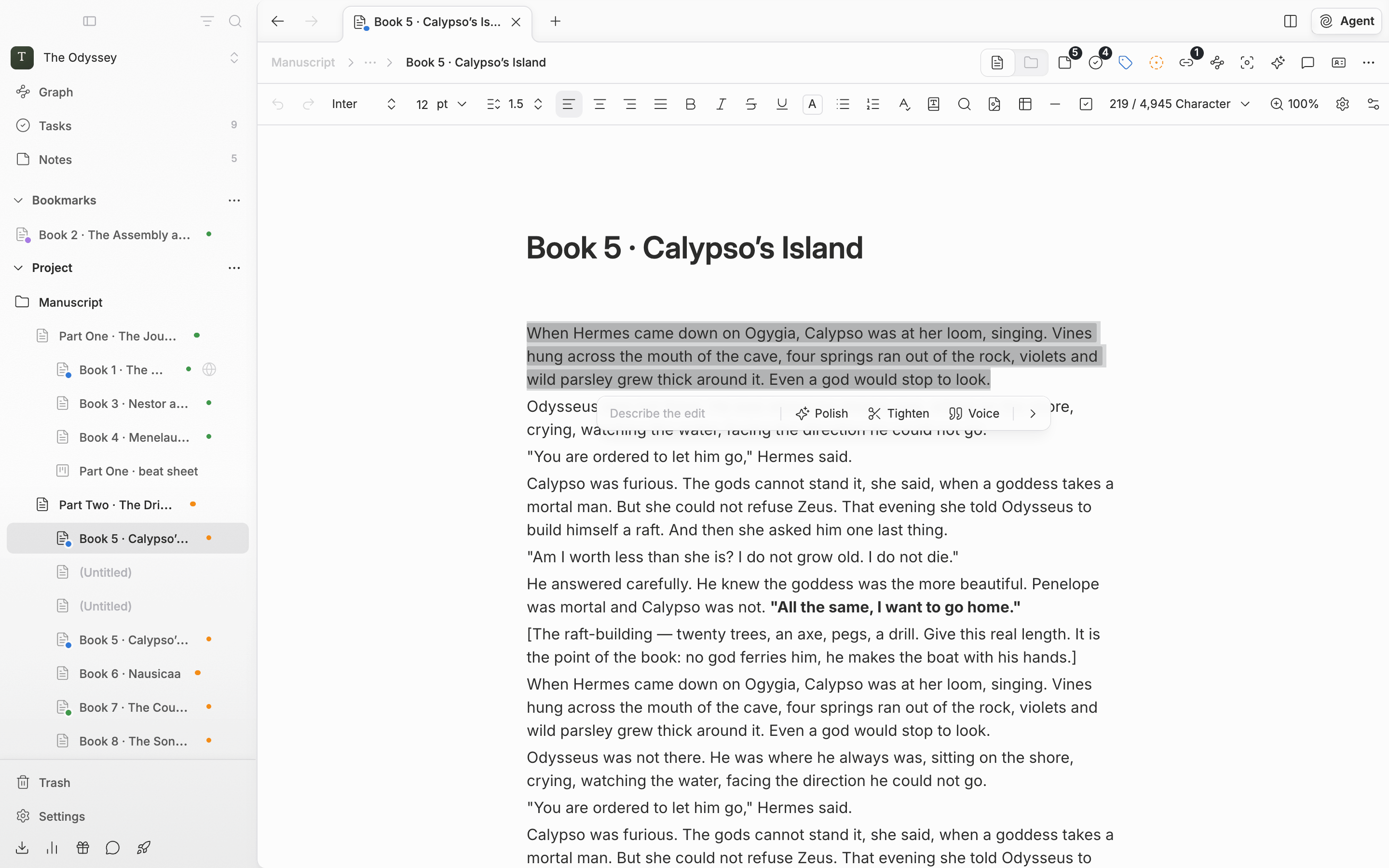
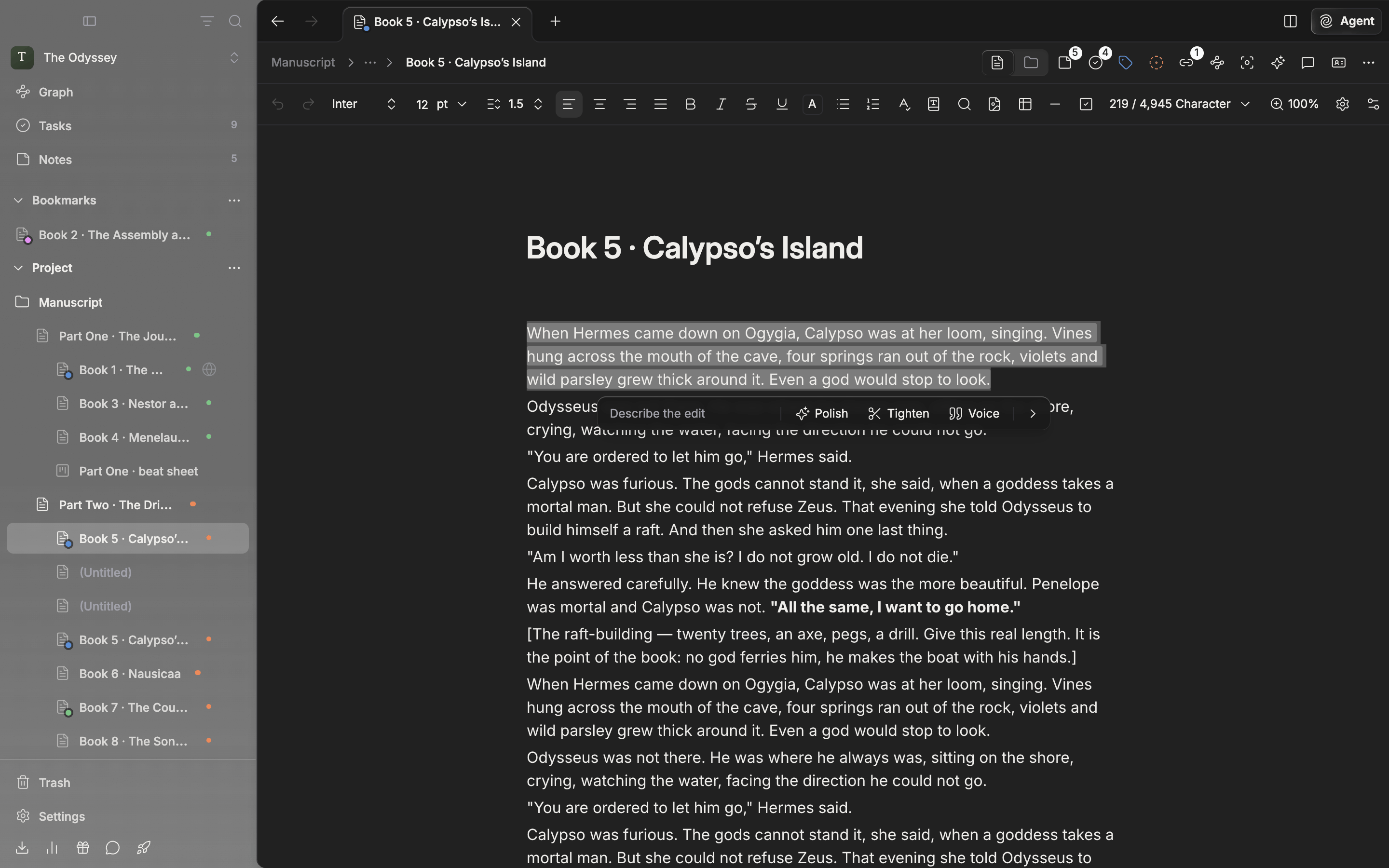
The rewrite bar. Pick a direction or write what to change.
## Choosing a direction The bar has three directions you can press right away, and the chevron on the right (**Show more actions**) brings out four more. | Button | What it does | | - | - | | **Polish** | Fixes only the spots that snag. Keeps the length close to the original. | | **Tighten** | Keeps the meaning and facts, trims the padding, and makes it shorter. | | **Voice** | Matches dialogue to the speech style, forms of address, and politeness level written in the character sheet. Leaves the narrative point of view alone. | | **Expand** | Unpacks compressed sentences. Uses only what is already in the text. | | **Flow** | Keeps the words as they are and only evens out sentence length and paragraph breaks. | | **Detail** | Brings out the sensory description the writing already implies. Does not invent facts that weren't there. | | **Grammar** | Fixes only sentences whose grammar is off. Spelling and spacing are the job of [spell check](/en/writing/spell-check). | **Voice** does not always show. It appears only when the project has a character sheet, that sheet's title appears in the selected sentences or just before or after them, and the sheet has at least one text or tag property with a value. Write a character's verbal habits into sheet properties and they are used here. Hidden properties are not read. If none of the set directions suits you, write your own in the input field, something like "drop the dialect" or "make it more restrained". Once you start typing, the direction buttons fold away and a send button appears; run it with Enter or the send button. You can't combine a direction button and your own instruction in one run. ## Seeing the result and deciding While it runs, the bar shows a phrase such as "Polishing". If you don't want to wait, stop it with the X (**Stop**) or Esc. A run you stop is not counted. When it finishes, the original is struck through and the new version attaches to it. If you selected a whole paragraph, the new version appears in a colored box below it; if you selected only part of a paragraph, it follows right after the original. Changed words appear bold and underlined. You don't pick sentence by sentence; you take or discard the new version as a whole. * **Accept** (✓) — the new version goes in where the original was. If you change your mind, a single Cmd(Ctrl)+Z brings the original back. * **Discard** (✗) — throws the new version away. Pressing Esc does the same. * **Try again** (↻) — rewrites afresh from the original with the same direction or instruction. Clicking outside the bar counts as discarding. If you edit the original directly while the new version is showing, "The passage changed while the suggestion was open, so it wasn't applied." appears and the suggestion closes. If there is nothing to fix, it tells you "Nothing to change" and the run is not counted.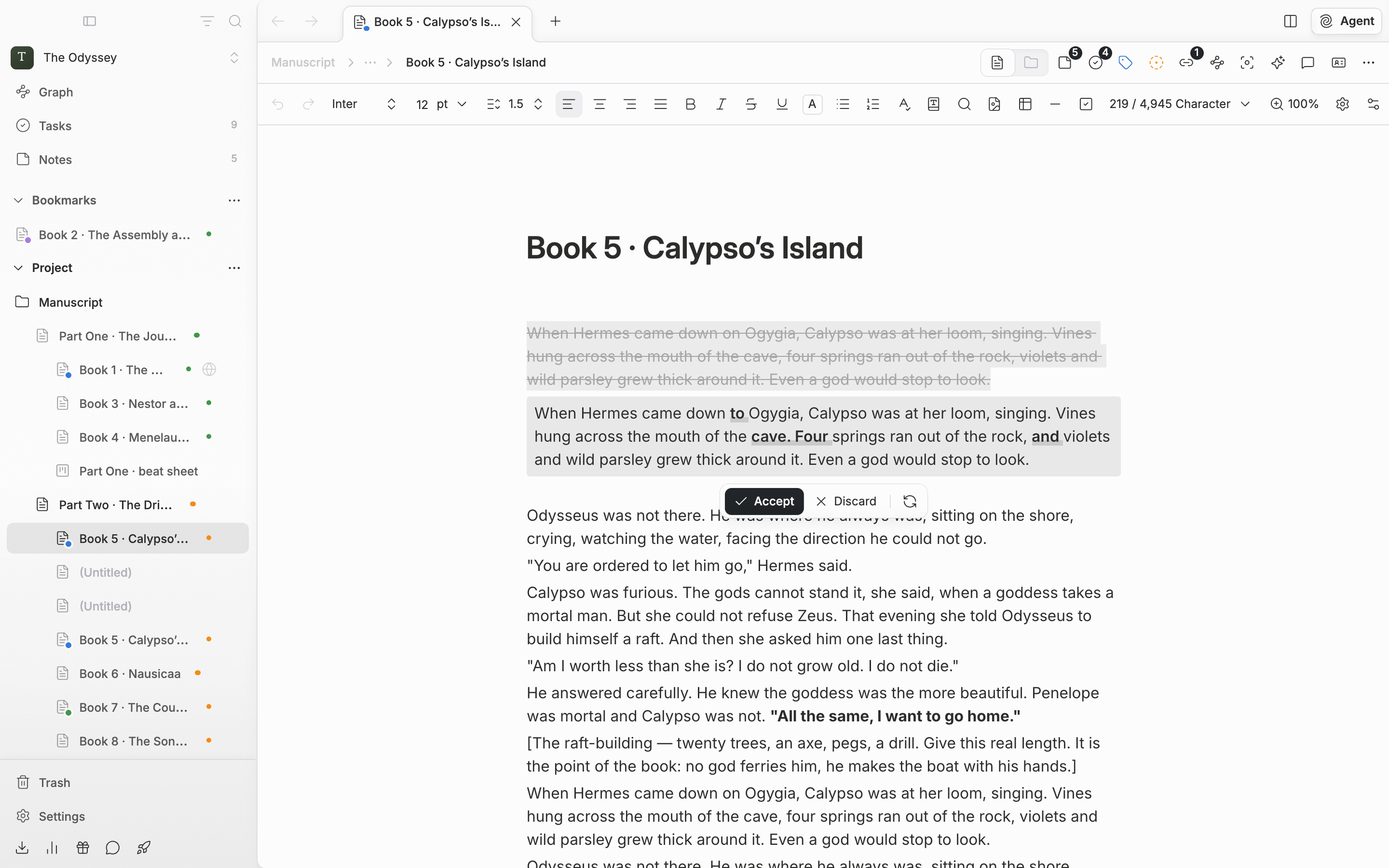
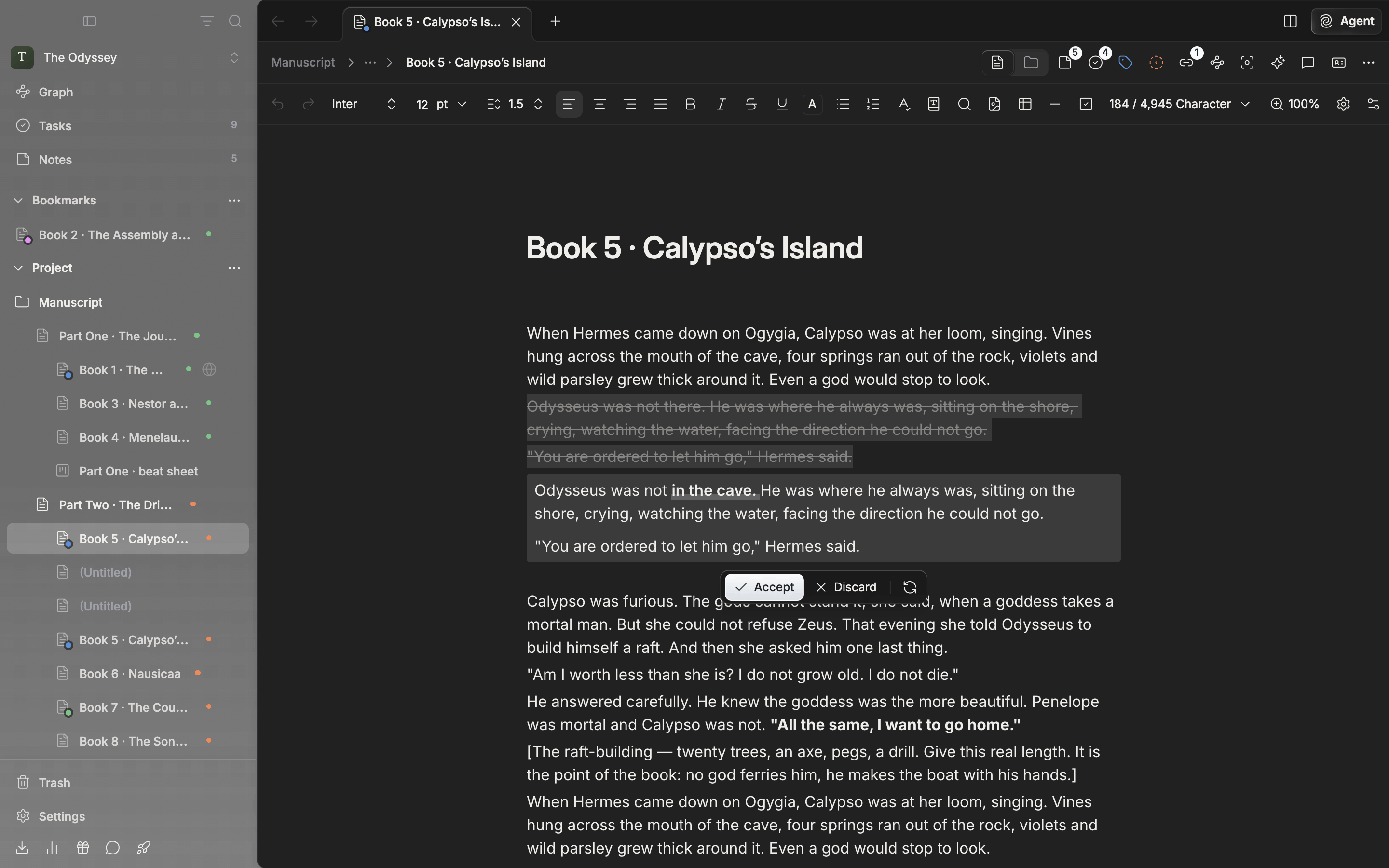
The new version laid over the original. Accept or discard it as a whole.
## What the AI reads along with it It doesn't send just the sentences you selected. About 800 characters before and after, the file title, and a few paragraphs taken from other parts of the same document as a style sample go along with them. If a sheet whose name appears near the selection exists, that sheet's text and tag properties are consulted too. It does not read the project's other documents. ## How much it can handle at once * Up to 4,000 characters and 40 paragraphs at a time. Go over and it stops, telling you how many characters you selected. * Stretches that mix in tables, images, mentions, dividers, or code blocks can't be rewritten yet. Select around those parts. * Paragraph types such as headings stay as they are. **Flow** can split or merge paragraphs. ## Daily limit AI rewrite does not use agent credits; each workspace has its own daily count. | Free | Basic | Pro | Pro+ | Ultra | | - | - | - | - | - | | 3 | 6 | 200 | Unlimited | Unlimited | A use is counted only when a new version actually comes back. Runs with nothing to fix, runs that hit an error, and runs stopped partway are not counted. On a plan with a limit, each use briefly shows how much you've used, like "1/3 used today", and once you have used it all, a notice appears with a **View plan** button. The count resets every day at midnight UTC. To see how much you have used today, look at **AI rewrites used today** under **Usage** in the **Billing** tab of settings. This documentation is built and hosted on [Mintlify](https://mintlify.com), a developer documentation platform.