> ## Documentation Index
> Fetch the complete documentation index at: https://docs.pensiv.so/llms.txt
> Use this file to discover all available pages before exploring further.
# Editor presets and per-document settings
> How to give each document its own font and width, and how to save combinations you use often as presets and swap them into a manuscript.
You may write a first draft spread wide and still need to see a serialized installment at the platform's width. pensiv attaches the editing environment to the document, so moving between documents never means setting it up again.
## First, three places that get confused
There are three places that change the editing environment. **Where you change it decides how far it reaches.**
| Where | What | How far it reaches |
| ------------------------------------------------------------------ | --------------------------------------------- | ---------------------------------------------------- |
| The **gear** at the right of the toolbar — Current File Settings | Font, size, indentation, page view, and so on | **This one document only** |
| The **slider at the far right** of the toolbar — Customize Toolbar | Which buttons sit on the toolbar | The toolbar's shape only. It does not reach the text |
| Settings → **Editor** | The **defaults** for those same items | Every document you make from now on |
Presets are a layer apart from these three. On the Editor screen in settings you **save a bundle of values under a name**, and once saved you pick it from Current File Settings and swap it into a document.
In one line — **defaults in settings, exceptions in the document, repeated exceptions as presets.**
## Current File Settings
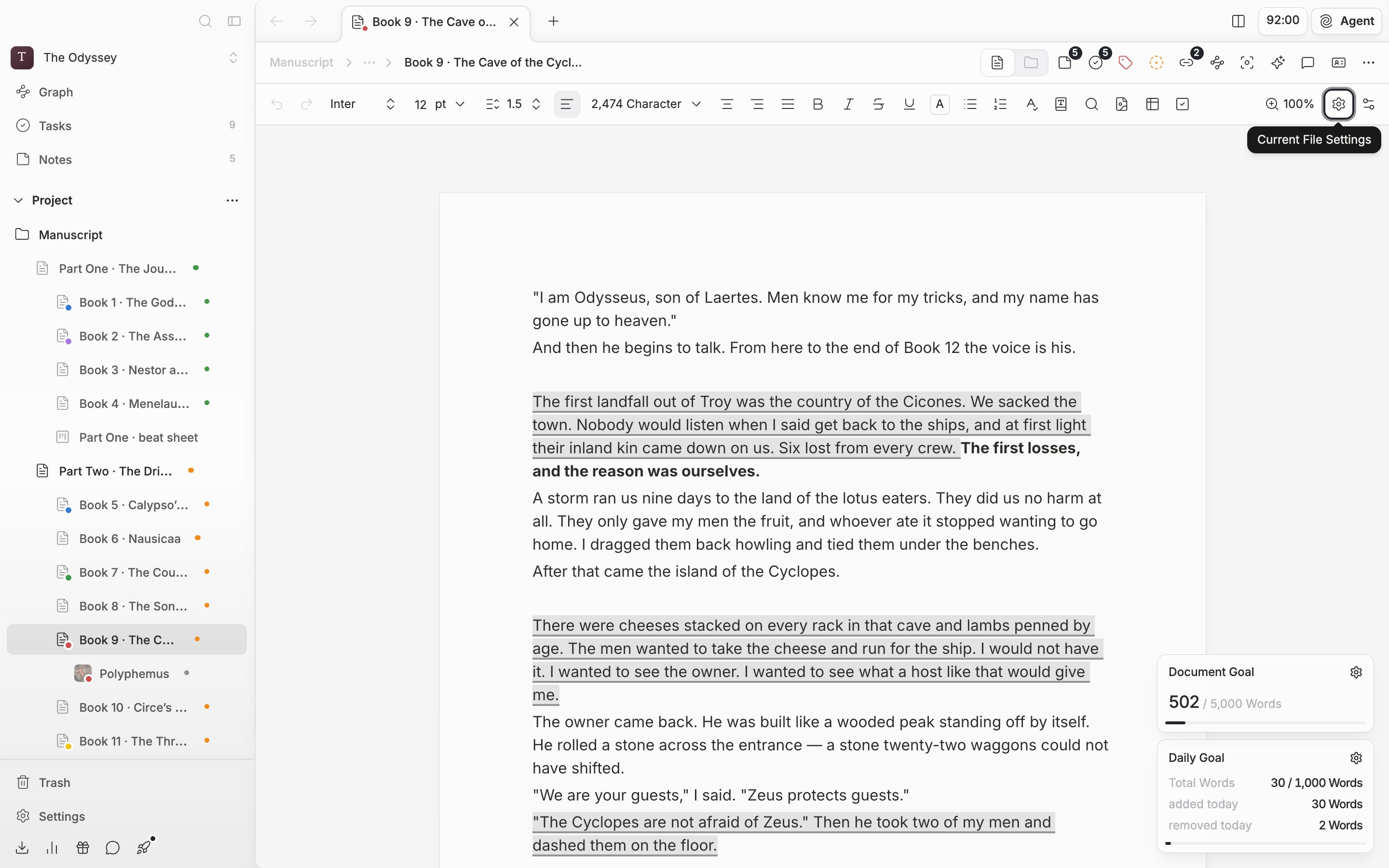
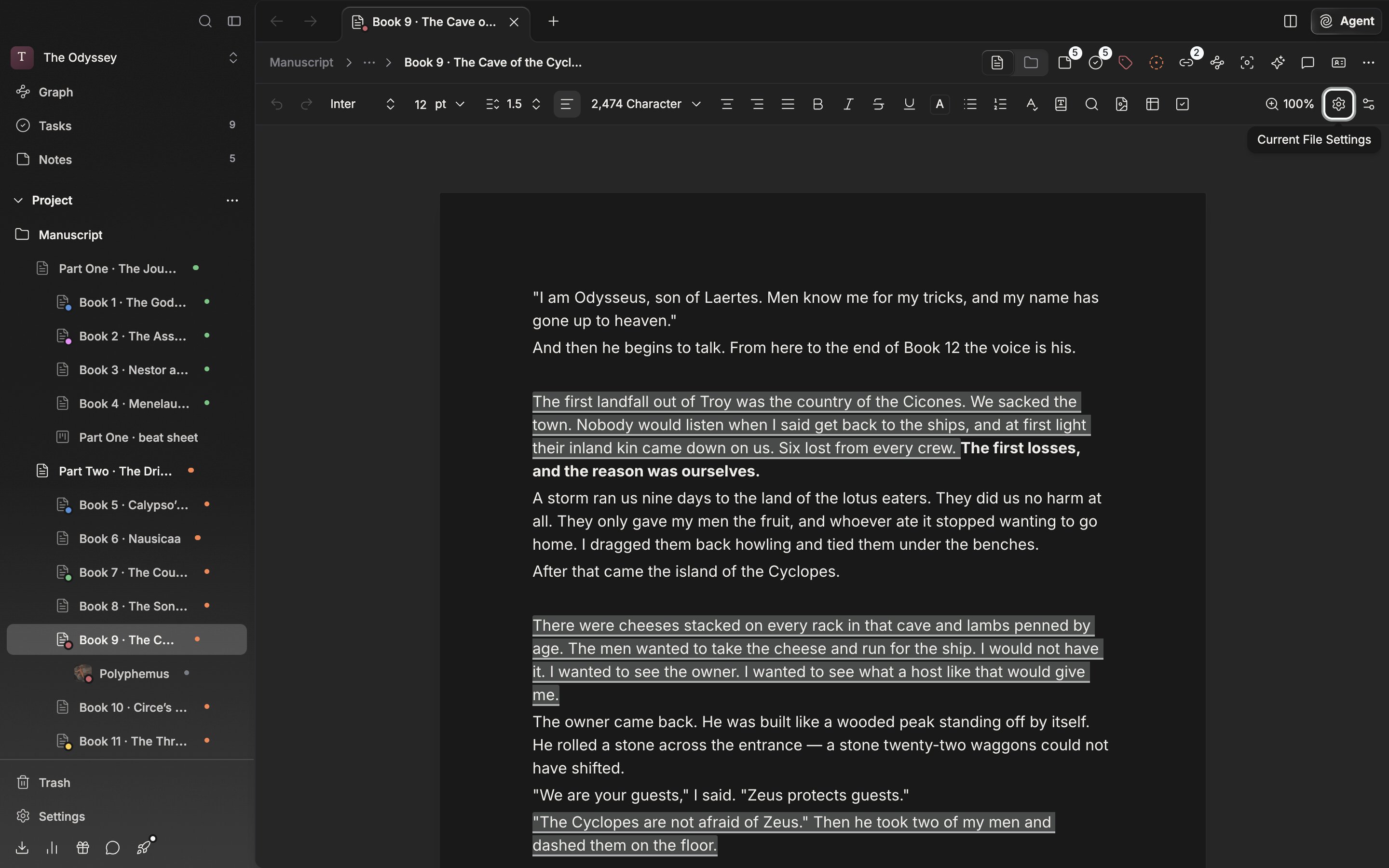
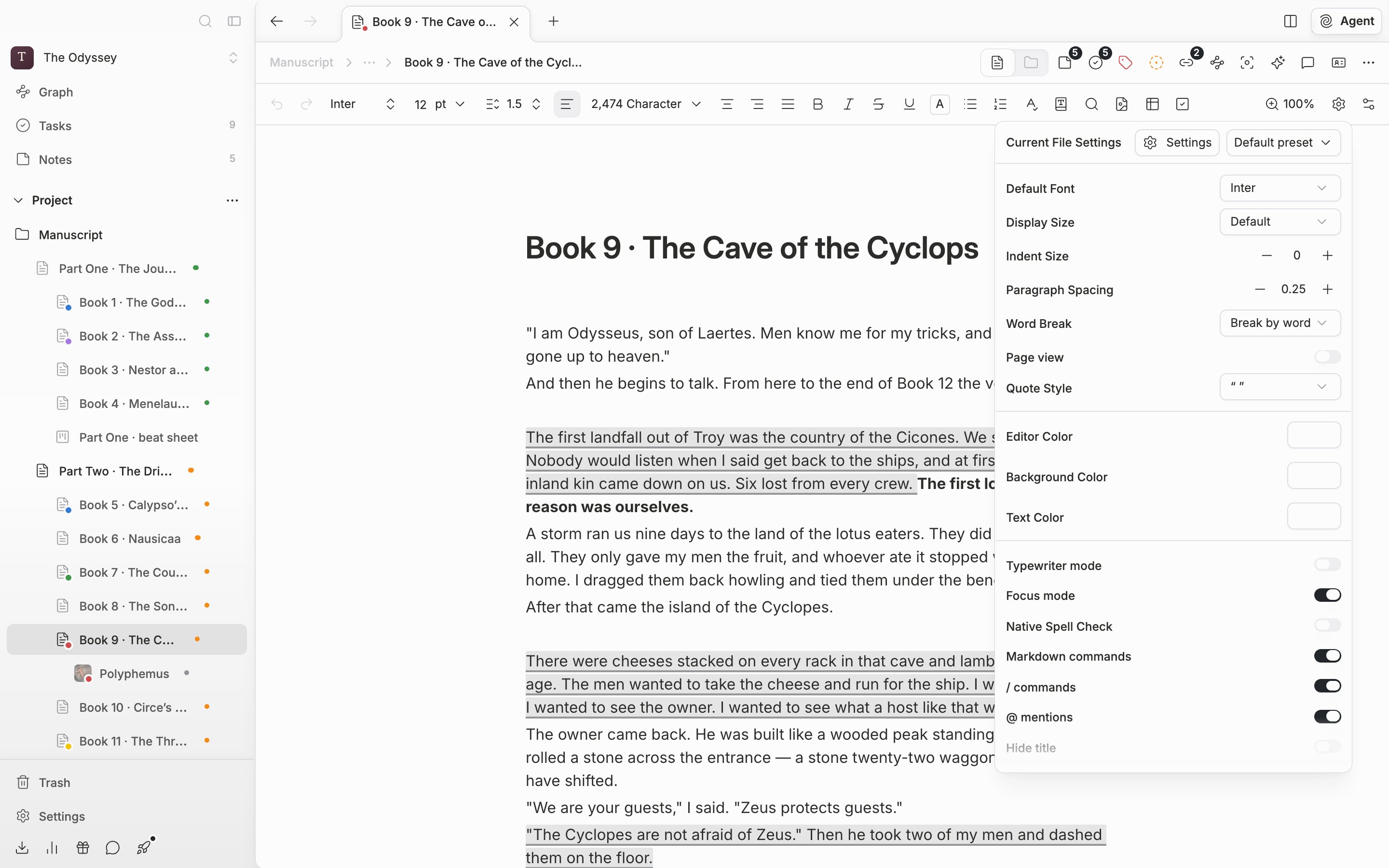
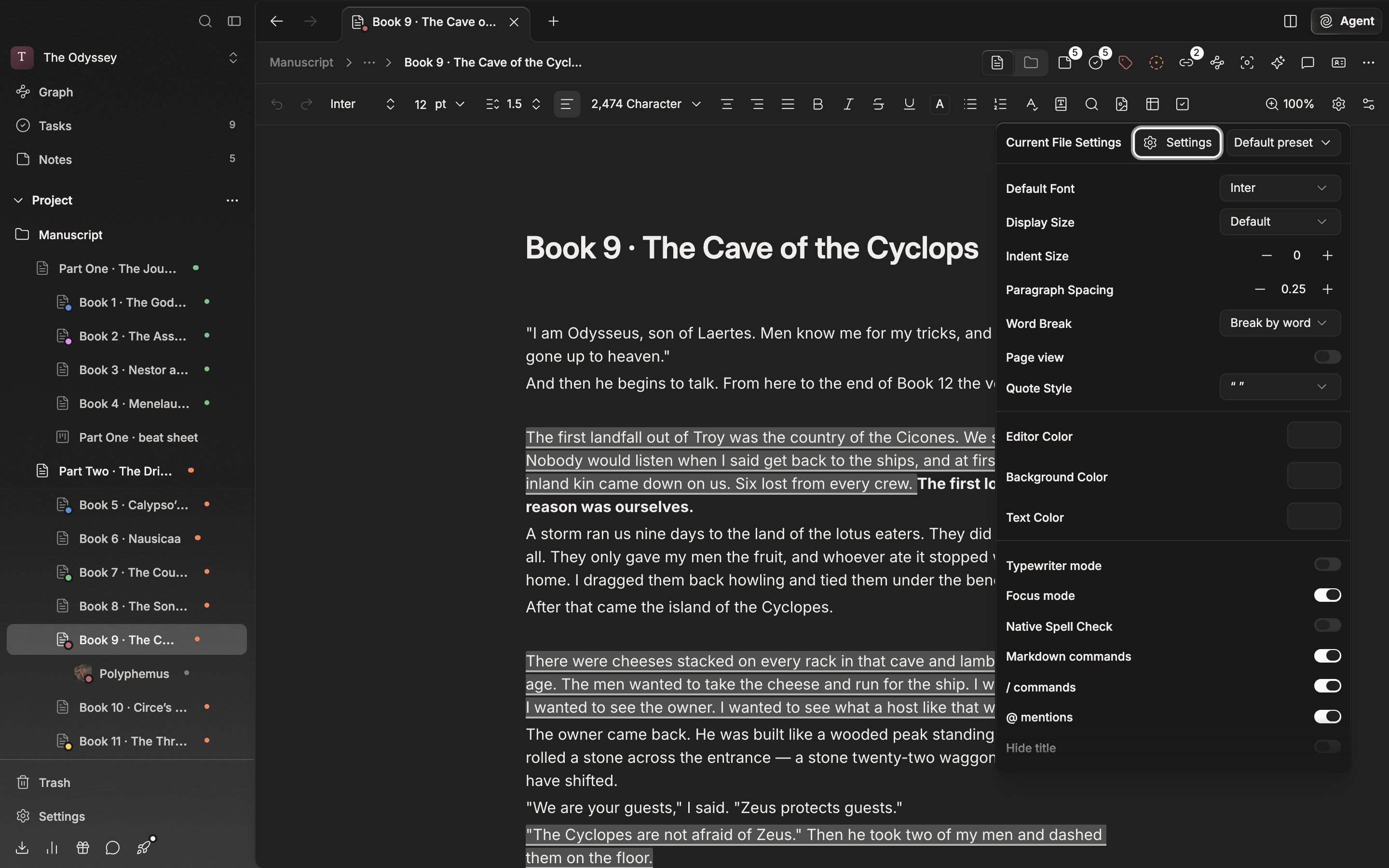
The gear button at the right of the toolbar is **Current File Settings**. Values changed here reach only the document you have open.
Where the values live splits in two. **Default Font**, **Display Size**, **Indent Size**, **Paragraph Spacing**, **Word Break**, **Page view**, **Quote Style**, and **Editor Color** are stored on the document, so everyone who opens it sees the same layout. **Typewriter mode**, **Focus mode**, **Word Count**, and **Show formatting marks**, on the other hand, apply to you alone within this document. Collaborators' screens stay as they were.
 1
1
 1
1
Current File Settings. The values that reach only the document you have open.
### Page view — seeing it as printed paper
**Page view** sits inside Current File Settings. Turn it on and the manuscript is no longer one continuous sheet but **cut into printed pages**. It is the view for judging submission length by eye, or for reading pacing page by page.
Turning it on brings three more settings with it.
* **Paper size** — A4, A5, Letter, Legal
* **Pages per row** — Auto follows the window width and the zoom level; 1 to 4 lay out that many across
* **Show page numbers**
Turn page view on and the manuscript reads as cut into printed pages.
Page view and the paper settings attach to the document but **do not go into a preset.** Swapping presets leaves these values as they are.
## Bundling it into a preset
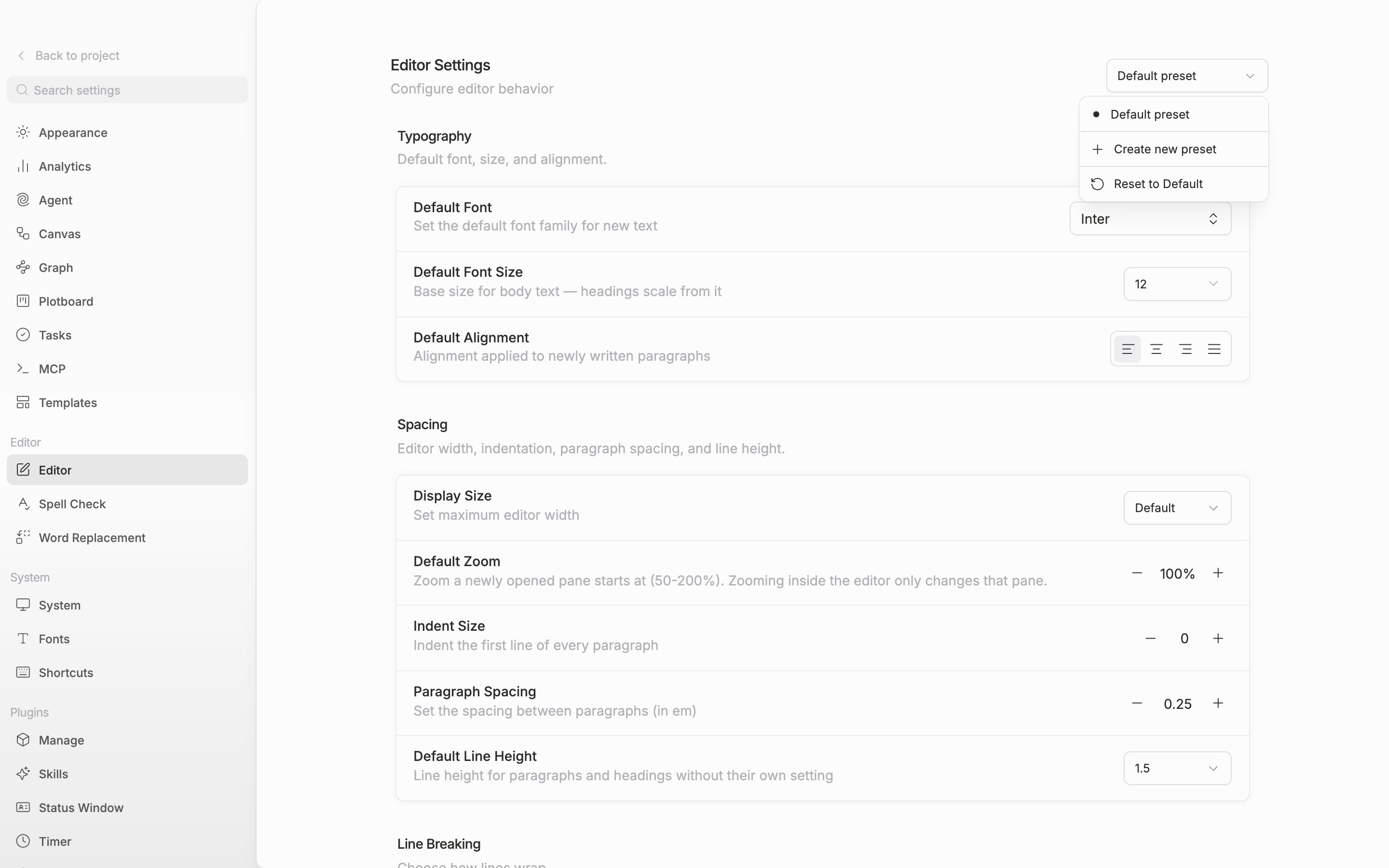
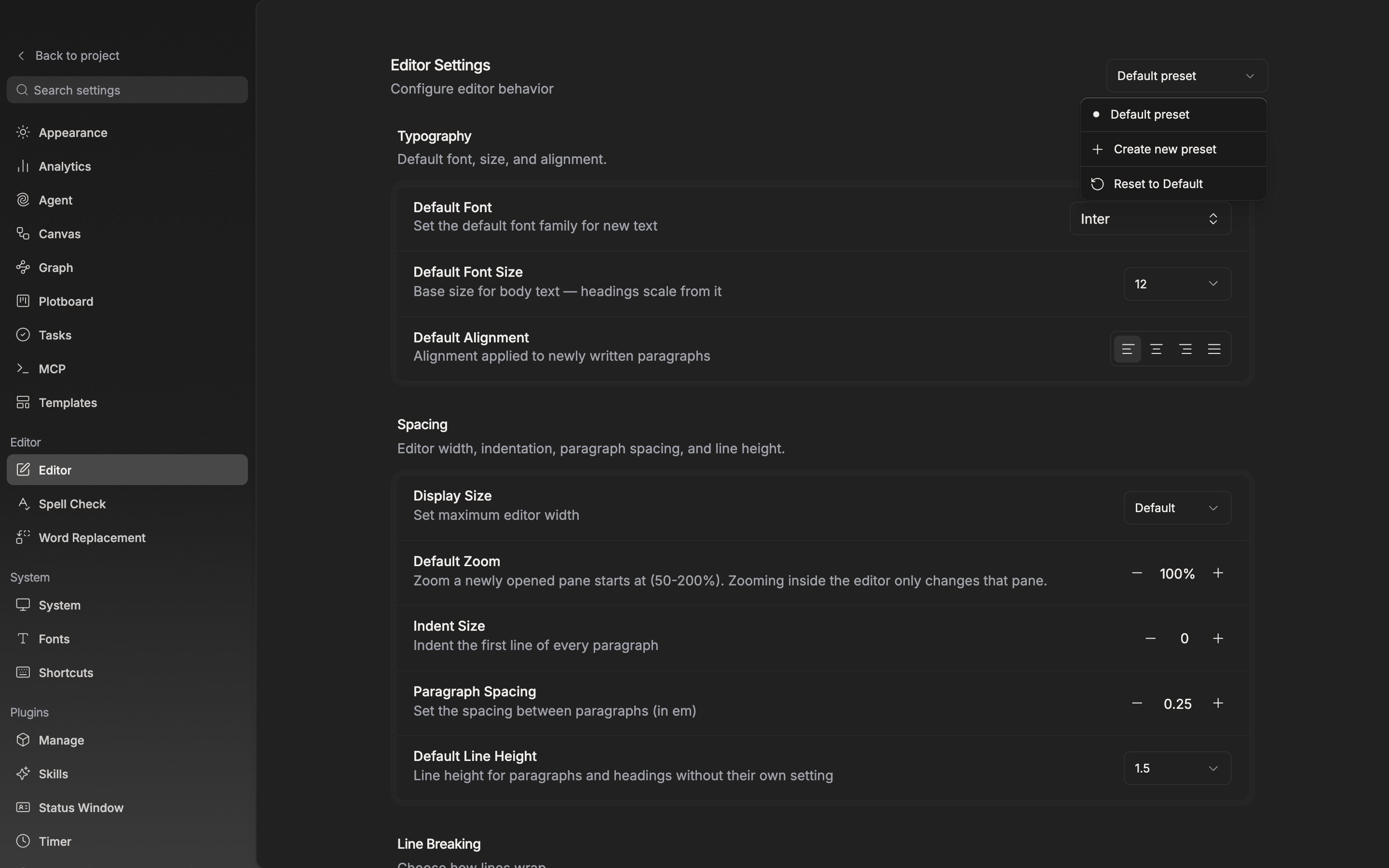
If you are going to repeat the same combination across several documents, choose **Create new preset** from the dropdown at the top right of the **Editor** screen in settings. A preset holding the current values is created, and you change its name with **Rename Preset**.
There is one thing to watch. While a preset is selected, every item on this screen edits that preset rather than the default settings. The same goes for the Munpia, Novelpia, KakaoPage, Joara, and Naver Series buttons under **Platform Shortcuts** below. Press a platform button with a preset created and its specification fills in at once. To make this preset the starting point for every document, press **Apply as default settings**.
Presets are created and edited on the Editor screen in settings.
## Swapping it into a manuscript
Back in the document, open **Current File Settings** and the current state shows at the top. **Default preset** when nothing has been touched, the preset's name when the values match one, and **Custom** when they do not. Pick a preset from the dropdown and it is laid over that document; pick **Default preset** and the settings attached to the document fall away, returning to the defaults.
A preset does not touch the personal settings that come with manuscript work. AI Review, Word Replacement, the spell checker and dictionary, page view and the paper settings, and the zoom level all stay at the values you were using, even after a preset is applied.