> ## Documentation Index
> Fetch the complete documentation index at: https://docs.pensiv.so/llms.txt
> Use this file to discover all available pages before exploring further.

# Formatting and typography

> How to change font, font size, line spacing, and alignment from the document toolbar, and how far a formatting change reaches.

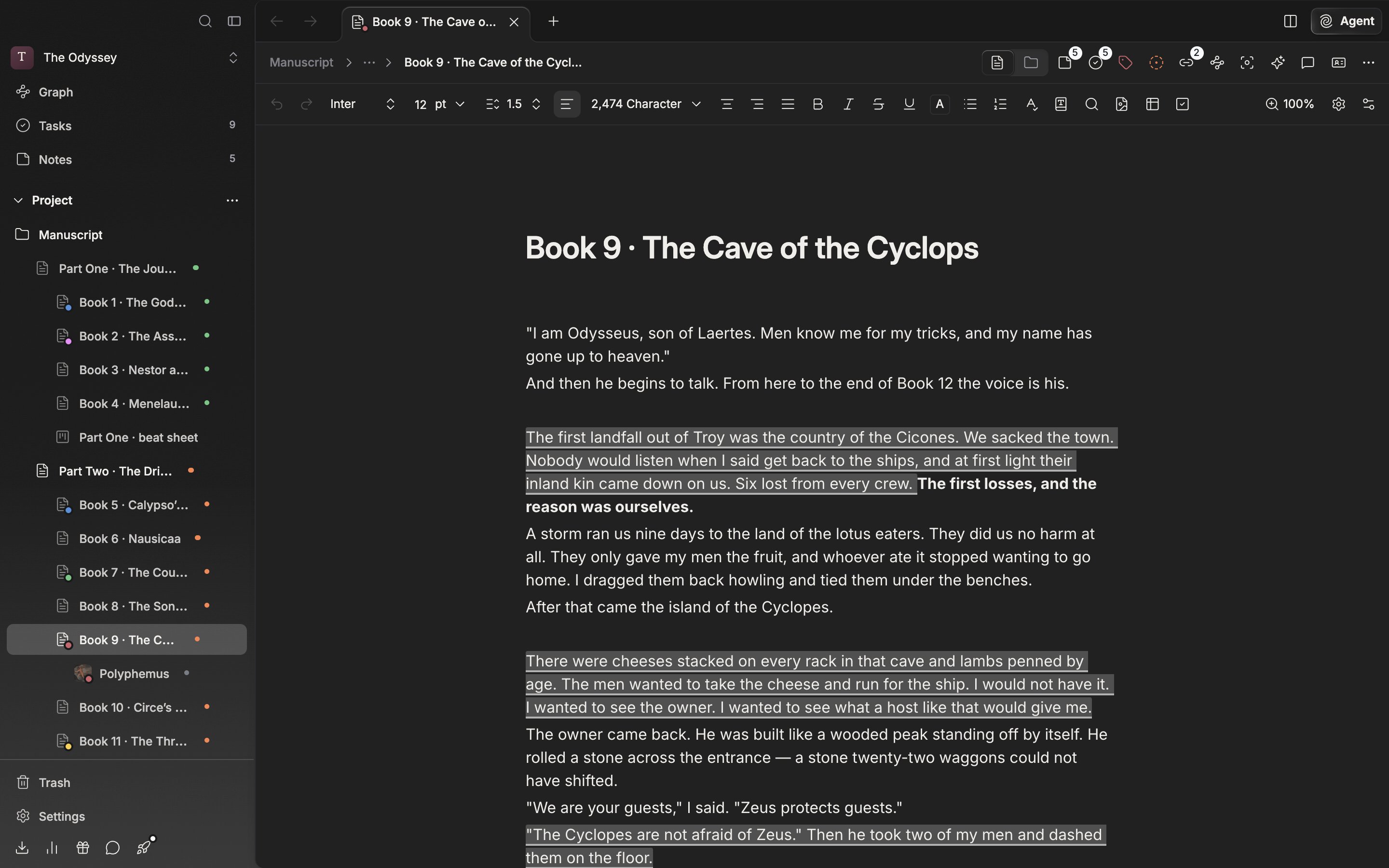
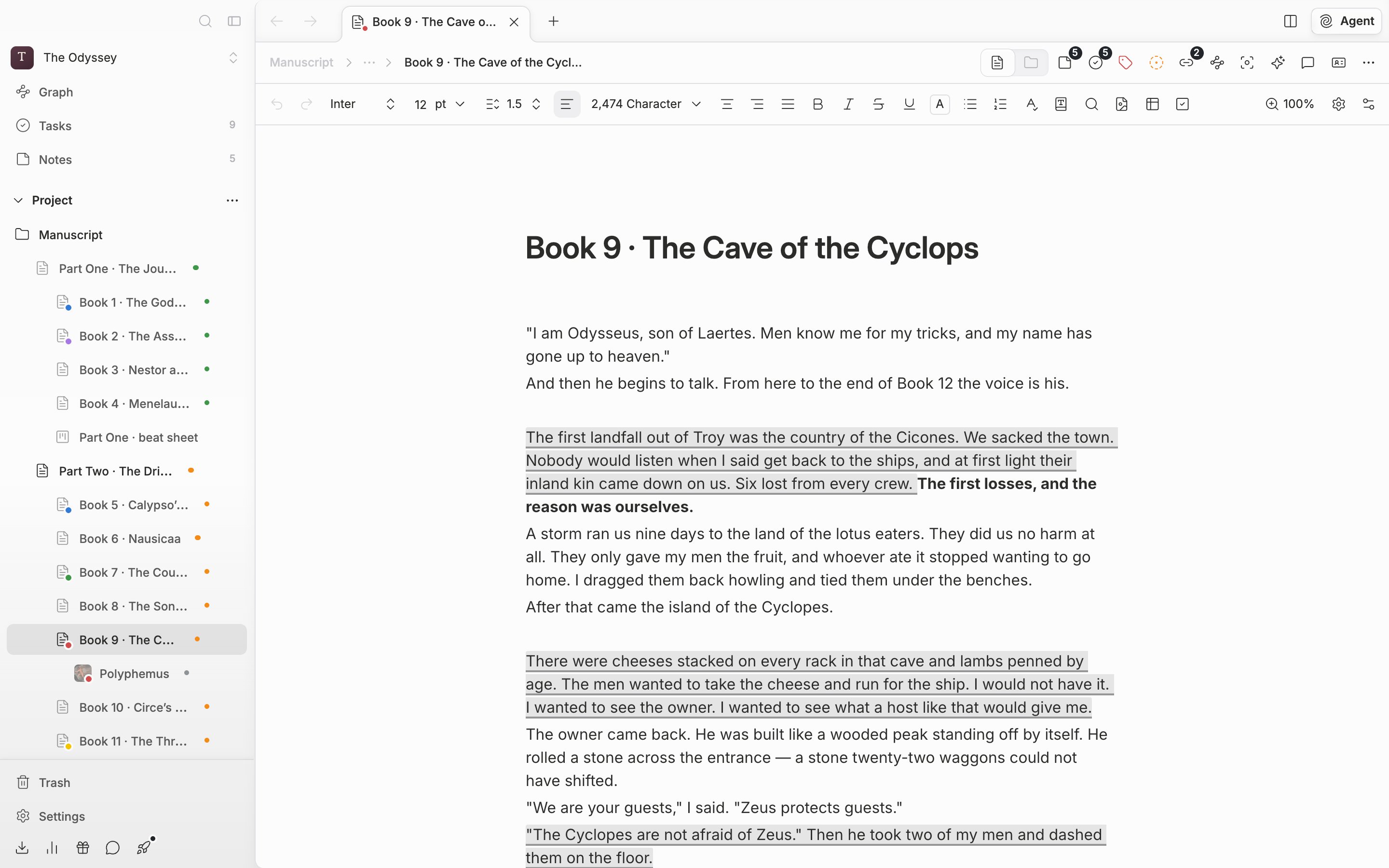
Open a document and a row of toolbar sits above the body. From the left: Undo and Redo, font, font size, line spacing, alignment, then Bold, Italic, Strikethrough, and Underline.

<div className="app-window block dark:hidden">
  <img src="https://mintcdn.com/raumlabsinc/GnwEix8Pn4ktt2lZ/images/en/writing/formatting--01.png?fit=max&auto=format&n=GnwEix8Pn4ktt2lZ&q=85&s=12dca937e92097ee5b3c21f67d3bcfa3" alt="A document open in its default state. The formatting toolbar at the top runs from the left end (Undo) to the right end (Customize Toolbar) in one uncut row, with two or three paragraphs of manuscript below it. No dropdown or popover is open." width="2880" height="1800" data-path="images/en/writing/formatting--01.png" />

  <b className="app-mark" style={{ left: '24%', top: '17%' }}>1</b>
  <b className="app-mark" style={{ left: '93%', top: '17%' }}>2</b>
  <b className="app-mark" style={{ left: '98%', top: '17%' }}>3</b>
</div>

<div className="app-window hidden dark:block">
  <img src="https://mintcdn.com/raumlabsinc/GnwEix8Pn4ktt2lZ/images/en/writing/formatting--01-dark.png?fit=max&auto=format&n=GnwEix8Pn4ktt2lZ&q=85&s=78983151646e637e4de84950f44c1b86" alt="A document open in its default state. The formatting toolbar at the top runs from the left end (Undo) to the right end (Customize Toolbar) in one uncut row, with two or three paragraphs of manuscript below it. No dropdown or popover is open." width="2880" height="1800" data-path="images/en/writing/formatting--01-dark.png" />

  <b className="app-mark" style={{ left: '24%', top: '17%' }}>1</b>
  <b className="app-mark" style={{ left: '93%', top: '17%' }}>2</b>
  <b className="app-mark" style={{ left: '98%', top: '17%' }}>3</b>
</div>

<p className="app-caption">The formatting toolbar above the document. Font, font size, and line spacing are gathered on the left.</p>

1. Font, font size, line spacing. What you pick here reaches the body straight away.
2. Zoom. It enlarges the screen without changing the font size — covered separately in [Zooming in and out](/en/writing/zoom).
3. Customize Toolbar. Choose which buttons sit on the toolbar — see [Customizing the toolbar](/en/writing/toolbar).

## First, how far formatting reaches

The reach of font and font size depends on what you had selected when you picked them.

* **With only the cursor placed**, it reaches the whole paragraph. It is stored as a property of the paragraph itself, so the next paragraph you make with Enter inherits the same value. This is the convenient way to write a whole chapter in one serif face.
* **With the whole paragraph selected**, it likewise becomes a paragraph property. Fonts set on parts inside it are wiped. Use this to tidy up mixed formatting.
* **With only part of a sentence selected**, it reaches that range alone and leaves the rest of the paragraph untouched.

Pick the default font again from the list and the setting is released, returning to the editor default.

## Font and font size

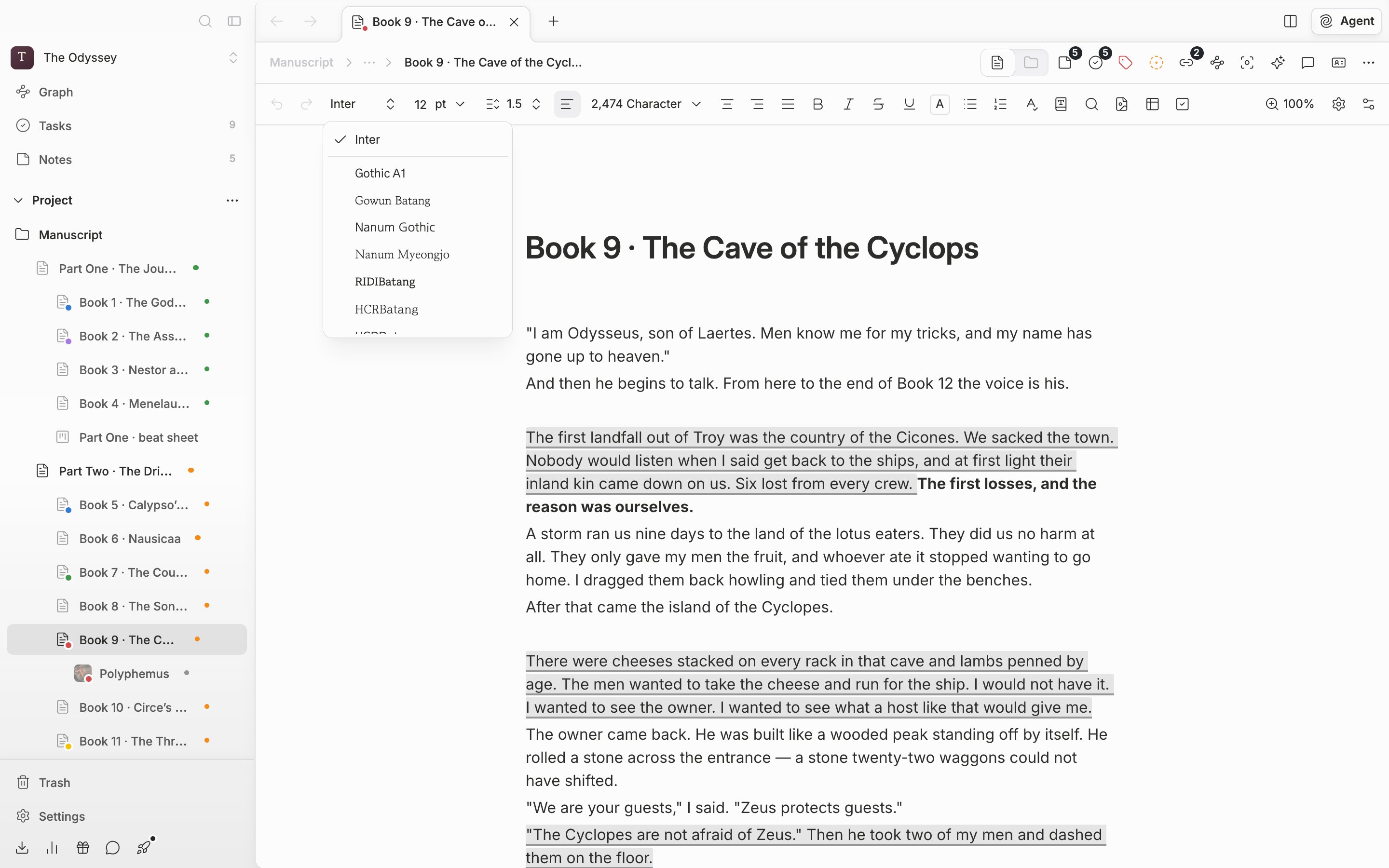
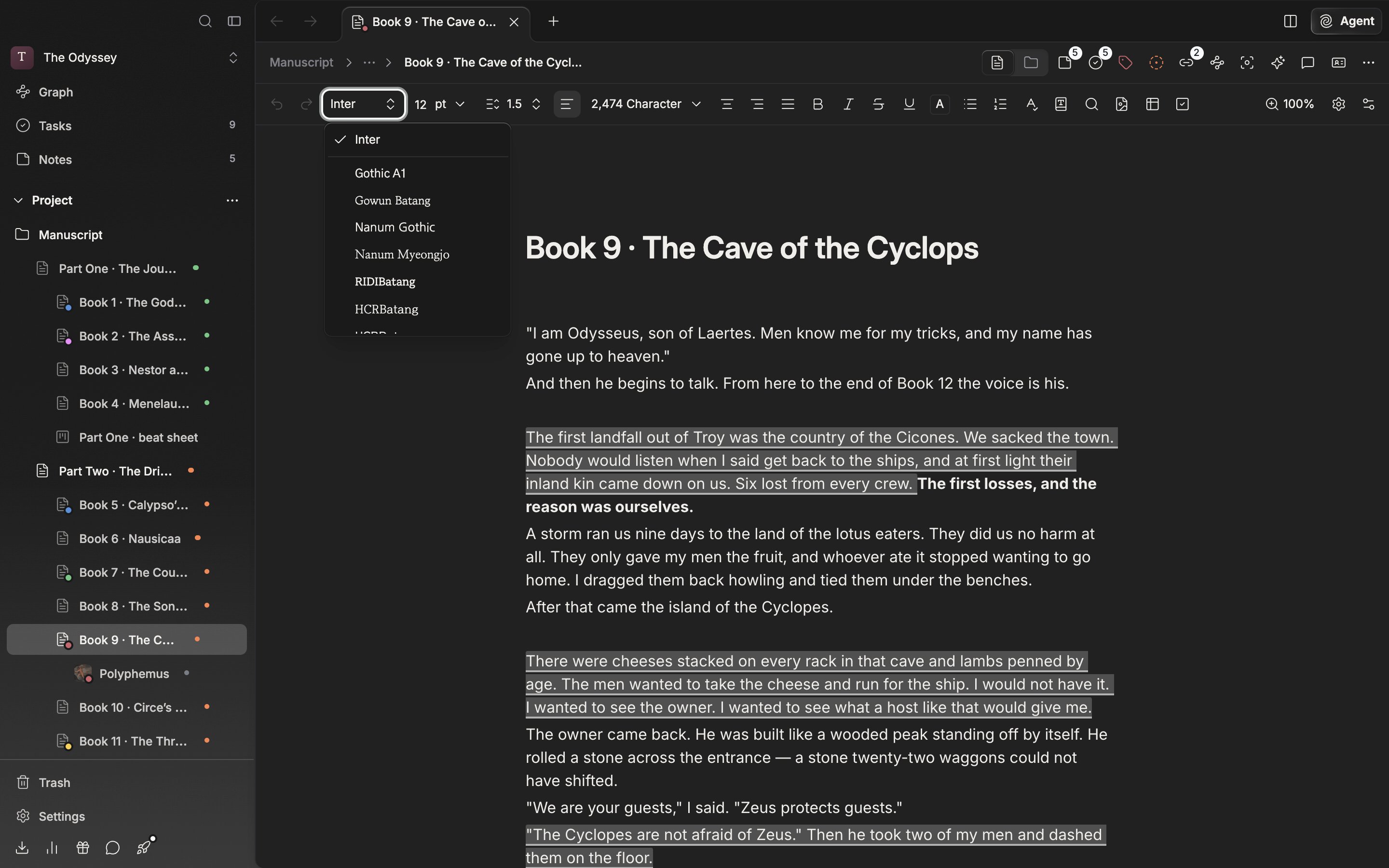
The font list starts with the default font at the top, with the rest below a divider. Korean faces worth using on a manuscript are in there — Nanum Myeongjo, Gowun Batang, HCRBatang, RIDIBatang. Fonts you brought in yourself are grouped separately at the bottom. You bring them in with **Import Font** on the **Fonts** tab in settings. A manuscript that arrives carrying a font not on the list shows **Unknown**.
<div className="app-window block dark:hidden">
  <img src="https://mintcdn.com/raumlabsinc/GnwEix8Pn4ktt2lZ/images/en/writing/formatting--02.png?fit=max&auto=format&n=GnwEix8Pn4ktt2lZ&q=85&s=c0b18beac01d8bfa9b68a7ad6675b960" alt="The font dropdown open. The default font at the top, a divider, and the list of Korean fonts below it." width="2880" height="1800" data-path="images/en/writing/formatting--02.png" />
</div>

<div className="app-window hidden dark:block">
  <img src="https://mintcdn.com/raumlabsinc/GnwEix8Pn4ktt2lZ/images/en/writing/formatting--02-dark.png?fit=max&auto=format&n=GnwEix8Pn4ktt2lZ&q=85&s=ab941da22c7ca61480feff9844cdcaad" alt="The font dropdown open. The default font at the top, a divider, and the list of Korean fonts below it." width="2880" height="1800" data-path="images/en/writing/formatting--02-dark.png" />
</div>

<p className="app-caption">The font list. The default font at the top, the rest below the divider.</p>

For font size, type a number in and press Enter, or press the arrow beside it and pick from the values prepared between 8pt and 72pt. The unit is pt, clipped to between 1 and 999.

## Line spacing and alignment

Press the line spacing button and a slider appears that moves from 1.0 to 3.0 in steps of 0.1. It applies to the selected paragraphs and headings the moment you let go.

Alignment has four options — Align Left, Align Center, Align Right, and Justify — and in that order they are Cmd(Ctrl)+Alt+L, E, R, and J. Pressing them while an IME is composing does not break the composition. Bold is Cmd(Ctrl)+B, italic +I, underline +U, and strikethrough +Shift+S.

## Defaults are set in settings

Set **Default Font**, **Default Font Size**, **Default Alignment**, **Default Line Height**, and **Paragraph Spacing** on the **Editor** tab in settings and new writing starts at those values. To keep one document different, open the gear at the right of the toolbar, **Current File Settings**.