> ## Documentation Index
> Fetch the complete documentation index at: https://docs.pensiv.so/llms.txt
> Use this file to discover all available pages before exploring further.

# Version history and restoring

> Version history keeps snapshots of a file as you write. How to open it, compare a snapshot with the current text, and restore one.

Sometimes chapter 3, which you overturned yesterday, feels worse than it was before you touched it. Version history is the list of points to go back to for exactly that.

## Opening the history

Choose **Document history** from **More** at the far right of the header. It is folded away at first, so if you use it often, pull it out to the header from **Customize** in the same menu.

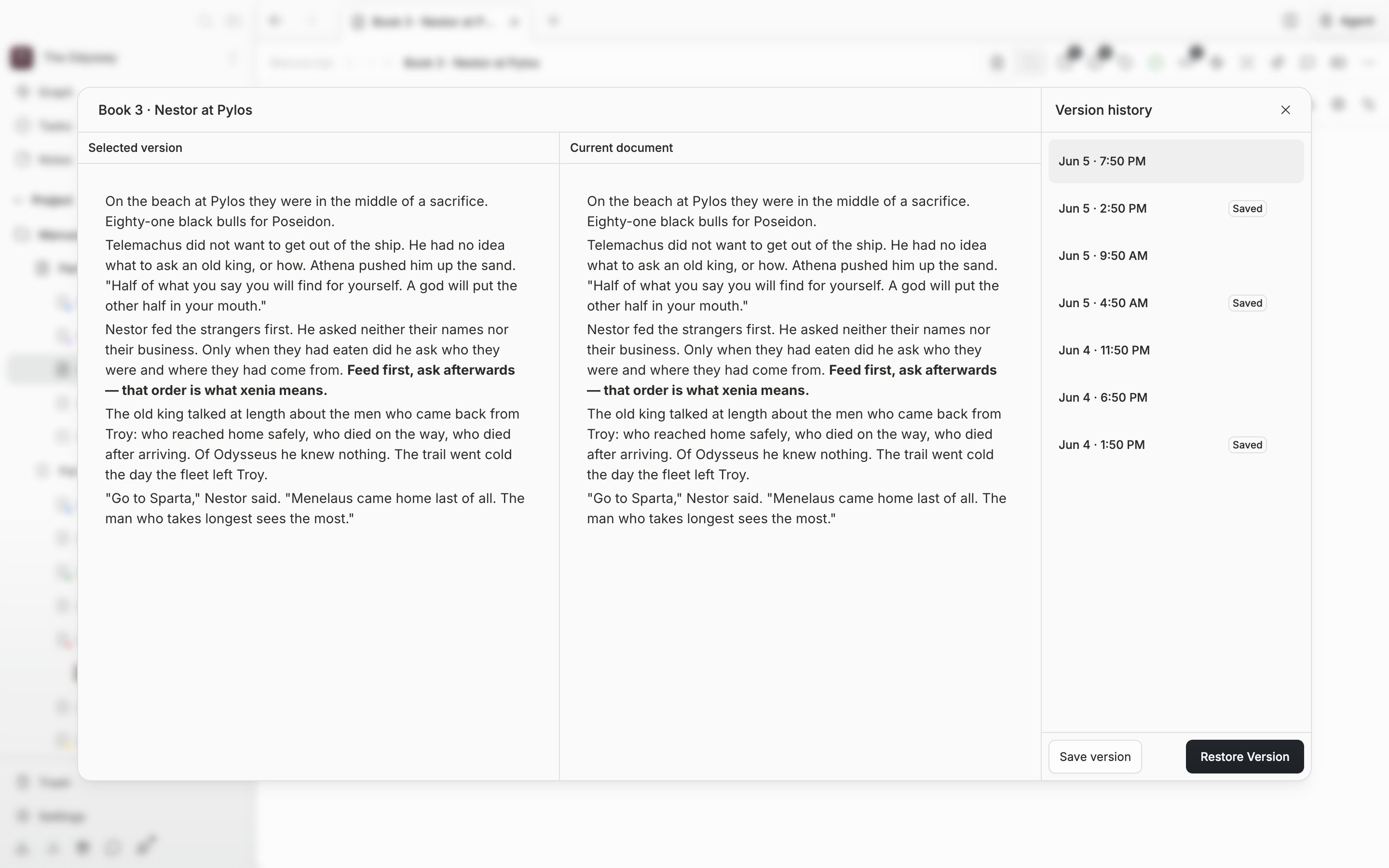
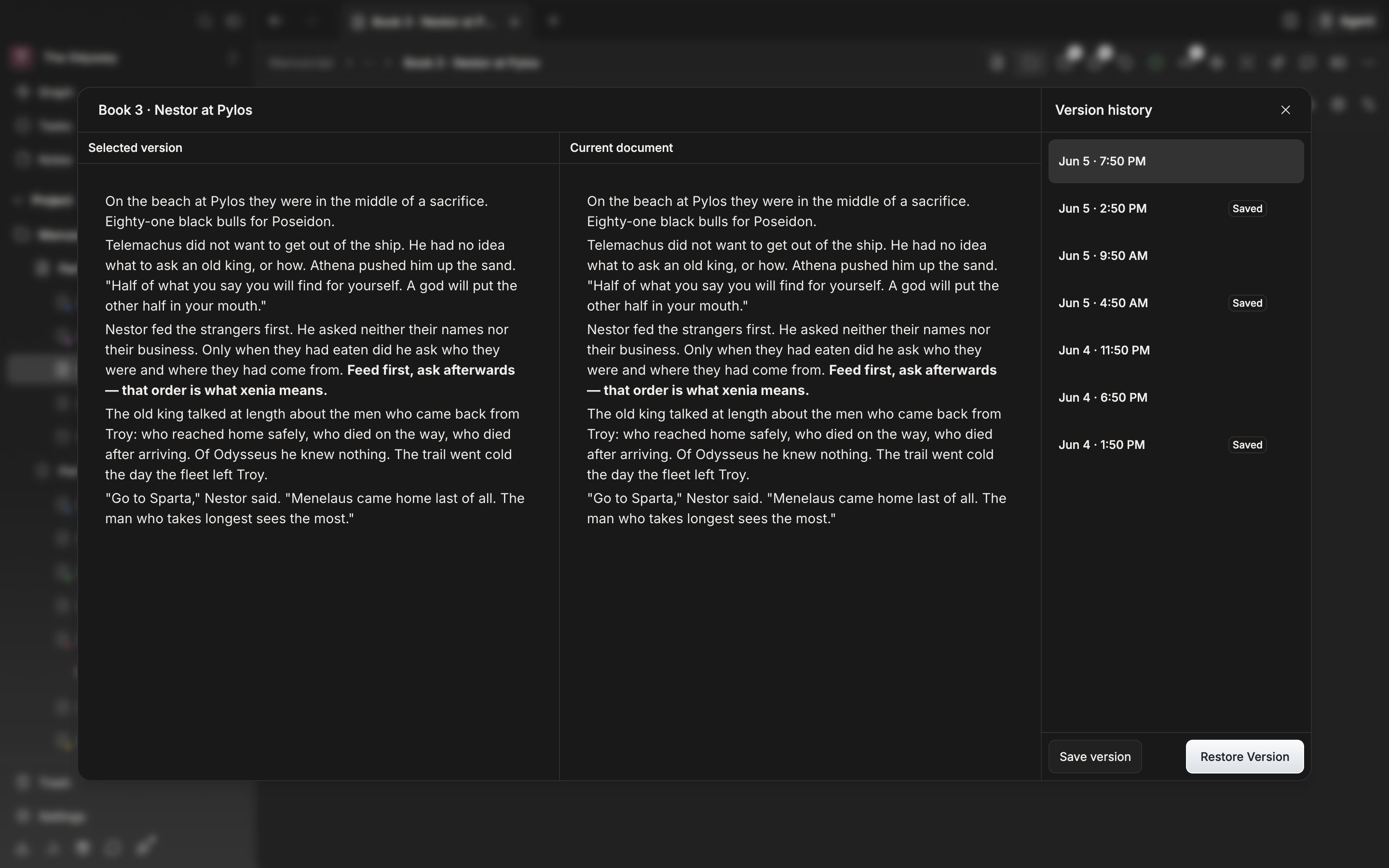
The window splits in two. On the right is the **Version history** list; on the left, a preview that lays out the chosen version as it was. The list runs newest first, and scrolling down attaches older versions. Points left by hand carry **Saved** and points made by restoring carry **Restore**, which sets them apart from the ones that piled up on their own. With nothing there yet it says "No versions yet".

<div className="app-window block dark:hidden">
  <img src="https://mintcdn.com/raumlabsinc/8BJ5FXMc3K-WKph5/images/en/writing/history--01.png?fit=max&auto=format&n=8BJ5FXMc3K-WKph5&q=85&s=d526a400bc7cb0194e3422e53429f27d" alt="The version history window open. Five or six entries stacked in the list on the right, one of them carrying a “Saved” badge, with the body of the chosen version laid out in the preview on the left." width="2880" height="1800" data-path="images/en/writing/history--01.png" />
</div>

<div className="app-window hidden dark:block">
  <img src="https://mintcdn.com/raumlabsinc/8BJ5FXMc3K-WKph5/images/en/writing/history--01-dark.png?fit=max&auto=format&n=8BJ5FXMc3K-WKph5&q=85&s=e927b7026a78bd378fbbd1c11fd8d2e4" alt="The version history window open. Five or six entries stacked in the list on the right, one of them carrying a “Saved” badge, with the body of the chosen version laid out in the preview on the left." width="2880" height="1800" data-path="images/en/writing/history--01-dark.png" />
</div>

<p className="app-caption">Pick a time from the list on the right and the manuscript from then lays out on the left.</p>

## When they pile up on their own

Automatic versions are kept sparingly. One appears only when ten minutes have passed since the last version and more than 200 characters have changed. Changing the title counts as a change, but touching only formatting, or changing only whitespace, does not. An hour of revising leaves only a few points.

So pin the points you want to remember by hand. `Cmd/Ctrl + S` asks no conditions and leaves that point as a version. The **Save version** button at the bottom of the window does the same. Save again within 30 seconds, though, and the new point takes the place of the previous manual version, so leave a little space between them if you want several points.

## Restoring

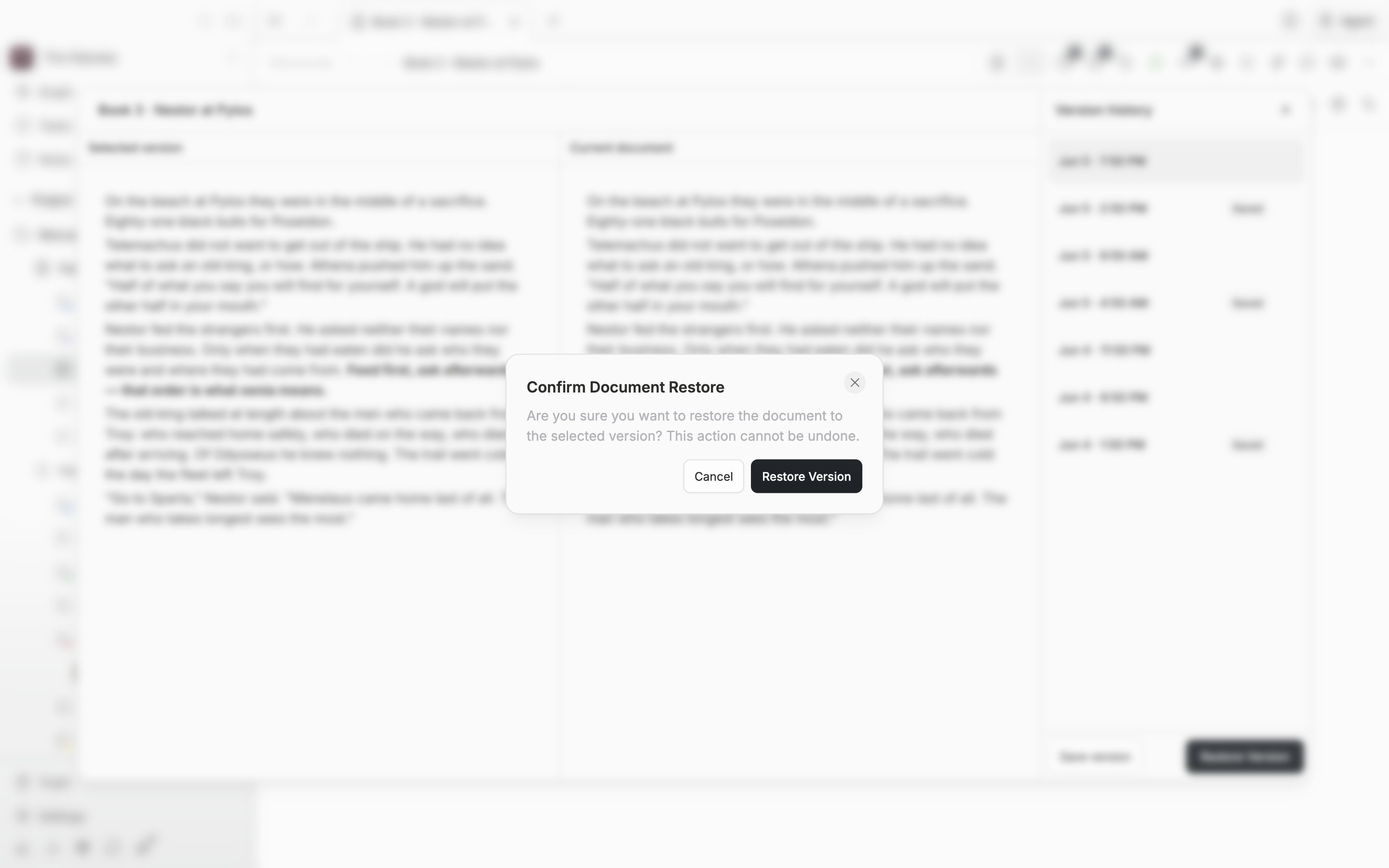
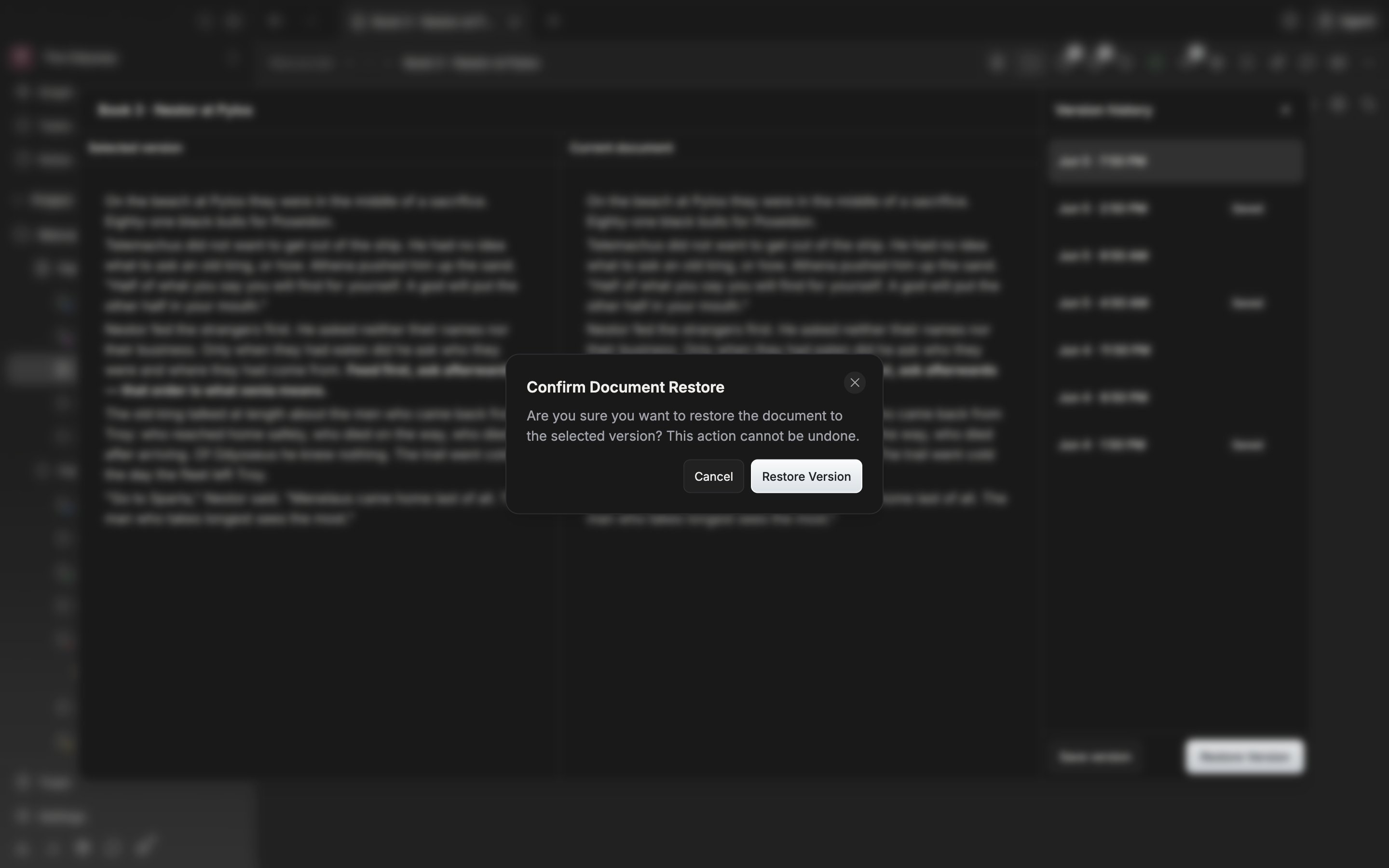
Pick a version from the list, check it in the preview on the left, and press **Restore Version**. The **Confirm Document Restore** window asks "Are you sure you want to restore the document to the selected version? This action cannot be undone." It does not look after the current manuscript for you, so if what you wrote after the last version matters, press **Save version** once before you restore.

The restored content comes straight into the editor, and one more point, badged **Restore**, appears in the list. Delete entries you do not need with the trash can that appears on hover (**Delete version**).
<div className="app-window block dark:hidden">
  <img src="https://mintcdn.com/raumlabsinc/8BJ5FXMc3K-WKph5/images/en/writing/history--02.png?fit=max&auto=format&n=8BJ5FXMc3K-WKph5&q=85&s=ee134b939922ee68c7407b2fdb297807" alt="The “Confirm Document Restore” dialog over the version history window, with the message and the cancel and restore buttons visible." width="2880" height="1800" data-path="images/en/writing/history--02.png" />
</div>

<div className="app-window hidden dark:block">
  <img src="https://mintcdn.com/raumlabsinc/scBcZNHBfFBpIiOh/images/en/writing/history--02-dark.png?fit=max&auto=format&n=scBcZNHBfFBpIiOh&q=85&s=5f6fc66992a29a841ed6ac5270c8d79e" alt="The “Confirm Document Restore” dialog over the version history window, with the message and the cancel and restore buttons visible." width="2880" height="1800" data-path="images/en/writing/history--02-dark.png" />
</div>

<p className="app-caption">Restoring cannot be undone, so if the current manuscript matters, leave it as a version first.</p>

## Old versions on the Free plan

On the Free plan, picking a version older than 60 days blurs the preview and covers it with "Restore not available on Free plan" and an **Upgrade plan** button. The restore button will not press either. The entry does not disappear from the list. Points within the last 60 days come back as they were, so restoring usually ends inside that window.
