> ## Documentation Index
> Fetch the complete documentation index at: https://docs.pensiv.so/llms.txt
> Use this file to discover all available pages before exploring further.

# Spell check

> How to run a manuscript through the checker and take up its suggestions, and how to put invented names into the dictionary so they stop being flagged.

A novel manuscript is full of names no dictionary has. So spell check moves as a pair: choosing a checker, and registering the exceptions.

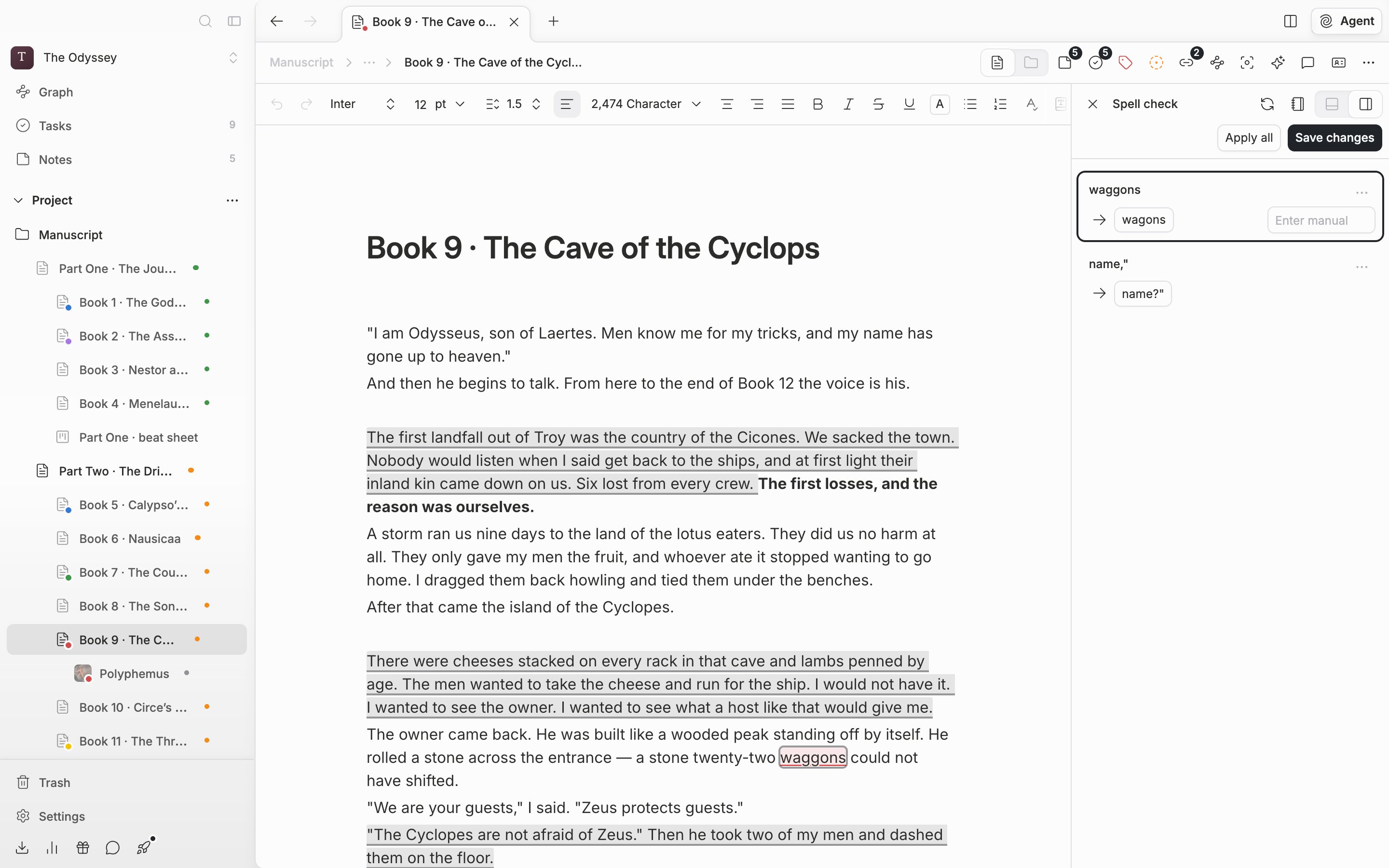
Press **Spell Check** on the toolbar and a panel opens on the right, running the check straight away. Press it with a sentence selected and it looks at those paragraphs only; with nothing selected it looks at the whole document. When you are working over a single scene, selecting first and then calling it is quicker.

<div className="app-window block dark:hidden">
  <img src="https://mintcdn.com/raumlabsinc/GnwEix8Pn4ktt2lZ/images/en/writing/spell-check--01.png?fit=max&auto=format&n=GnwEix8Pn4ktt2lZ&q=85&s=04d543eba52c489034b37559fb9c16b8" alt="Just after checking a manuscript. Four or five error cards stacked in the Spell check panel on the right, with the Apply all and Save changes buttons on the row above." width="2880" height="1800" data-path="images/en/writing/spell-check--01.png" />
</div>

<div className="app-window hidden dark:block">
  <img src="https://mintcdn.com/raumlabsinc/GnwEix8Pn4ktt2lZ/images/en/writing/spell-check--01-dark.png?fit=max&auto=format&n=GnwEix8Pn4ktt2lZ&q=85&s=3930c38271fd84109d5facd9f893e210" alt="Just after checking a manuscript. Four or five error cards stacked in the Spell check panel on the right, with the Apply all and Save changes buttons on the row above." width="2880" height="1800" data-path="images/en/writing/spell-check--01-dark.png" />
</div>

<p className="app-caption">The spell check panel. Each card sets the flagged word and the suggestion side by side.</p>

## Taking up a suggestion

Press a suggestion on a card and the body changes on the spot; press it once more and it goes back. To use a different word, write in the **Enter manual** field that appears when you press the card. It reaches the body as you type.

* The up and down arrows move between cards, and Enter switches between applying and reverting.
* Shift+Enter is **Apply all**, or **Reset** when everything is already applied.
* Cmd(Ctrl)+Enter is **Save changes**.

Leave with **Cancel** at the top left and everything you touched in this check goes back to how it was before. To keep the fixes, close with **Save changes**.

## Choosing a checker

The checker picker appears only when the app language is Korean; in English the built-in checker is the only one. In Korean, the bottom row of the panel switches checkers. **Built-in checker** works on every plan, and **바른한글 (구 부산대 맞춤법 검사기)** is for paid plans only. 바른한글 gives the reason each item was flagged, and long explanations open with **Show more**.

With 바른한글 selected, a **Rule strictness** row appears in the settings alongside it. **Strict** also catches loanwords with a native equivalent and translationese, which can feel like too much in creative writing. Drop to **Relaxed** and it looks only at spelling, spacing, and grammar.

## Putting names into the dictionary

Choose **Add to dictionary** from the three dots at the right of a card and that word stops being flagged from the next check on. Forms with a Korean particle attached drop out with it: put in "루베르크" and "루베르크를" or "루베르크에서는" pass too.

The list is edited on the **Spell Check** screen in settings. The **Dictionary** button at the top right of the panel takes you straight there. **Add Words** takes several at once separated by commas, and rows can be dragged to reorder or deleted.

<Note>
  The dictionary is stored on your account. Without logging in it says "Please log in to add words to dictionary".
</Note>
