> ## Documentation Index
> Fetch the complete documentation index at: https://docs.pensiv.so/llms.txt
> Use this file to discover all available pages before exploring further.

# Zooming in

> Zoom changes only how large the manuscript looks, not the font size stored in the file. How to change it and how to reset it.

Enlarge the text when you are polishing sentences aloud, shrink it when you are judging the length of a scene by eye. This is where the displayed size changes and the font size stays as it is.

## Straight from the wheel

Hold `Ctrl` (`Cmd` on Mac) over the body and roll the wheel. On a trackpad, pinch and spread with two fingers. Rolling up enlarges, each notch moves 5%, and it stops between 50% and 200%. The point under the cursor stays put, so only the size changes and you do not lose the sentence you were fixing.

## By the number on the toolbar

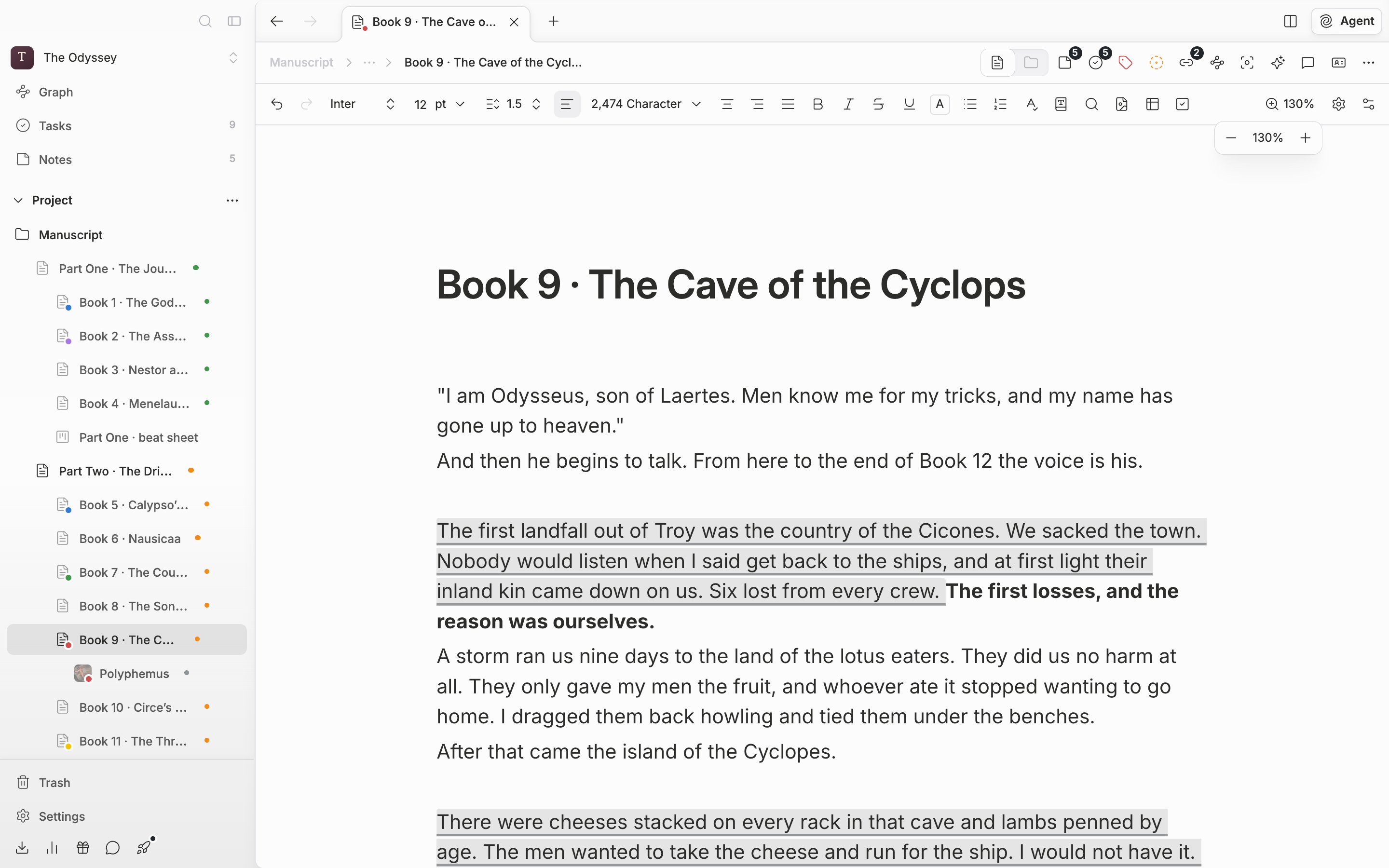
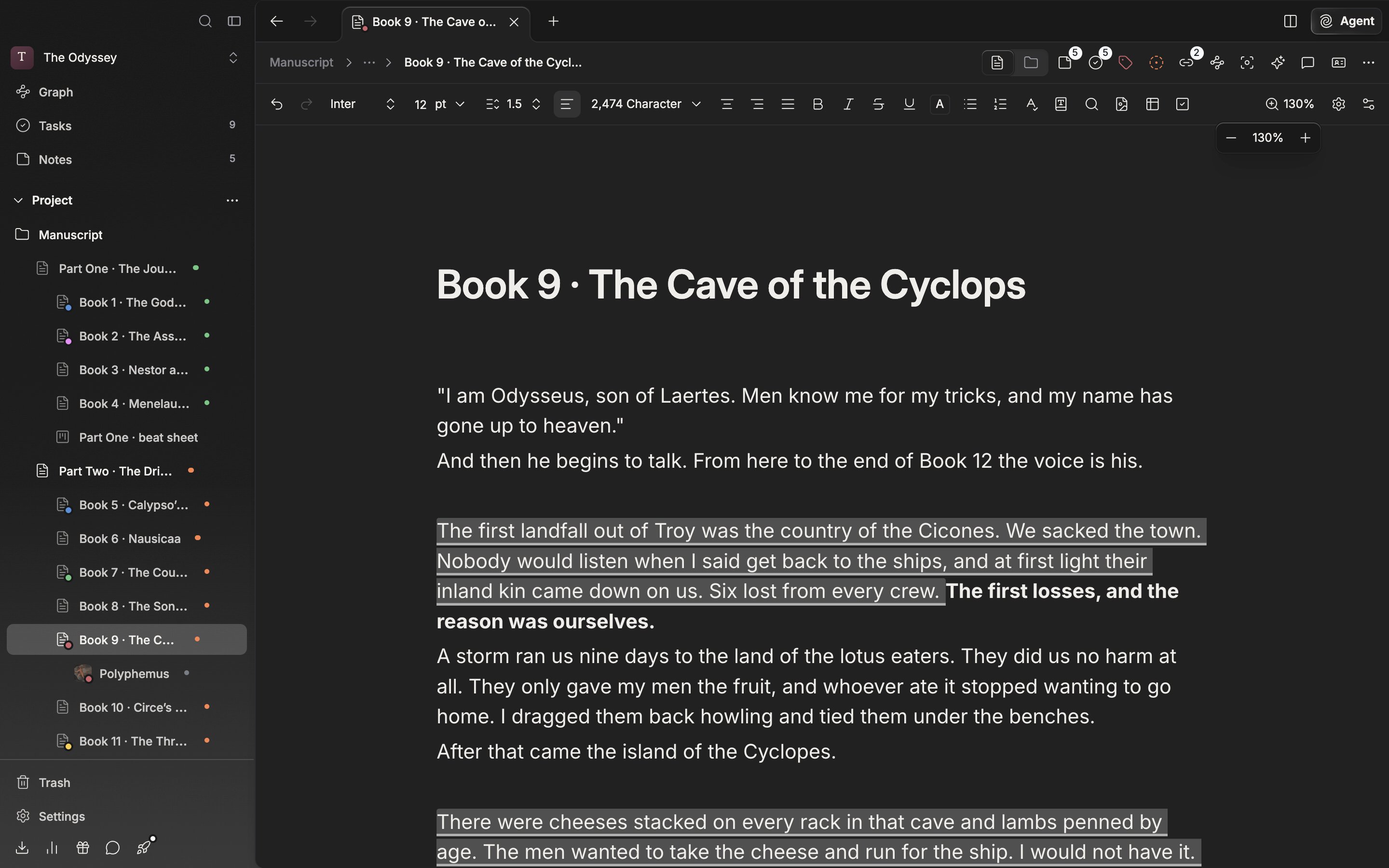
Among the buttons gathered at the right of the formatting toolbar, the one with the current zoom written as a number is **Zoom**. Open it and **−** and **+** move it 5% at a time, and pressing the number in the middle returns it to 100%. There is no toolbar in Focus Mode, so only the wheel gesture is left.

<div className="app-window block dark:hidden">
  <img src="https://mintcdn.com/raumlabsinc/GnwEix8Pn4ktt2lZ/images/en/writing/zoom--01.png?fit=max&auto=format&n=GnwEix8Pn4ktt2lZ&q=85&s=dc928eae695144310596cfdea8711a85" alt="The popover opened from the zoom button at the right of the formatting toolbar (the one with the zoom number on it). −, the zoom number, and + are visible, and the body is enlarged to something other than 100% (130%, say)." width="2880" height="1800" data-path="images/en/writing/zoom--01.png" />
</div>

<div className="app-window hidden dark:block">
  <img src="https://mintcdn.com/raumlabsinc/GnwEix8Pn4ktt2lZ/images/en/writing/zoom--01-dark.png?fit=max&auto=format&n=GnwEix8Pn4ktt2lZ&q=85&s=c82d73fa23261b56a1ac48a17c21d691" alt="The popover opened from the zoom button at the right of the formatting toolbar (the one with the zoom number on it). −, the zoom number, and + are visible, and the body is enlarged to something other than 100% (130%, say)." width="2880" height="1800" data-path="images/en/writing/zoom--01-dark.png" />
</div>

<p className="app-caption">The zoom on the toolbar. Press the number and it comes back to 100%.</p>

## The zoom stays with the panel

The zoom you set is not stored on the document and does not follow your account around. It stays with this panel on this device. Split the screen with the draft on the left and a later part of the same document on the right, enlarge one side, and the other stays as it was — and it does not touch the screens of the people working with you.

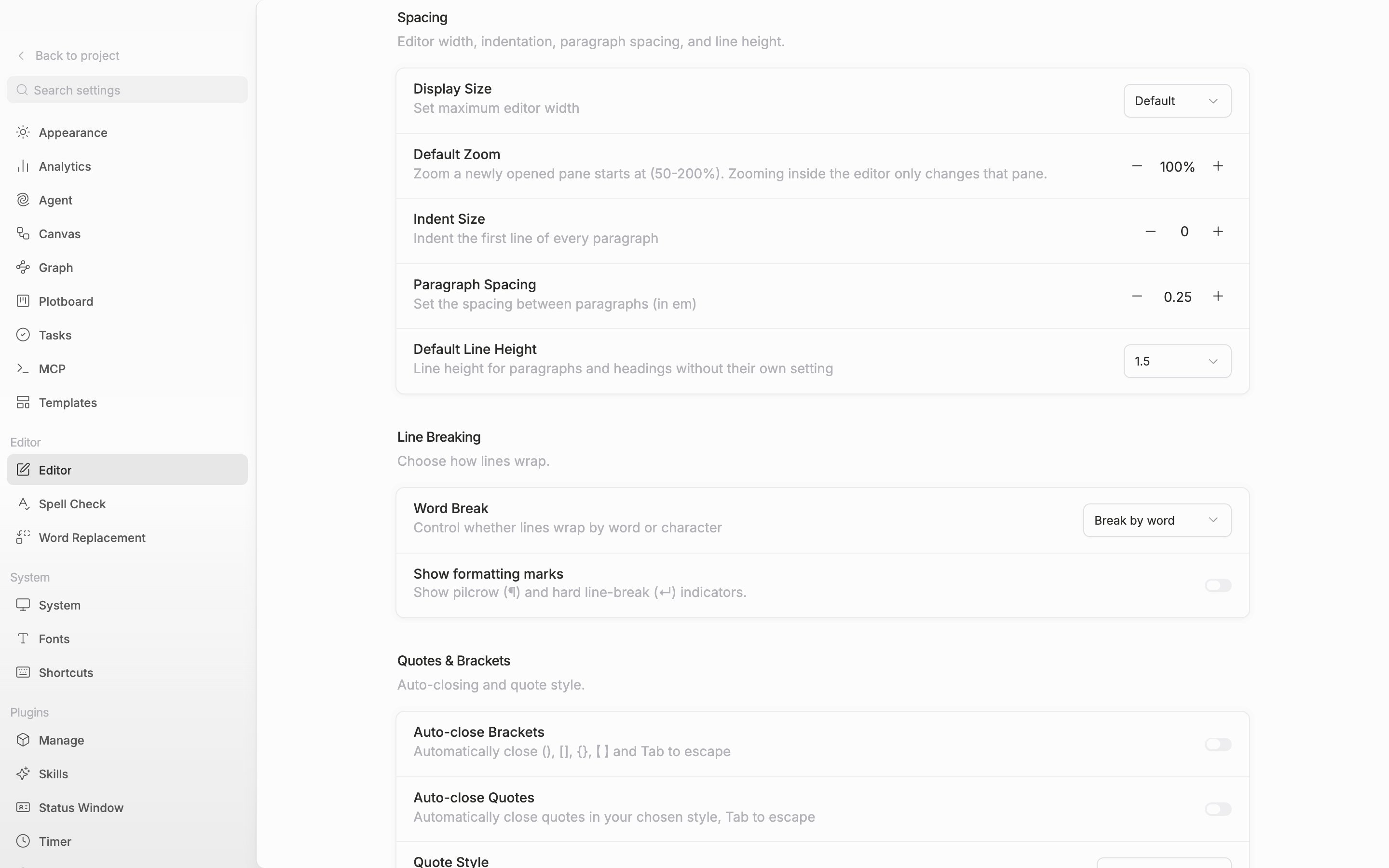
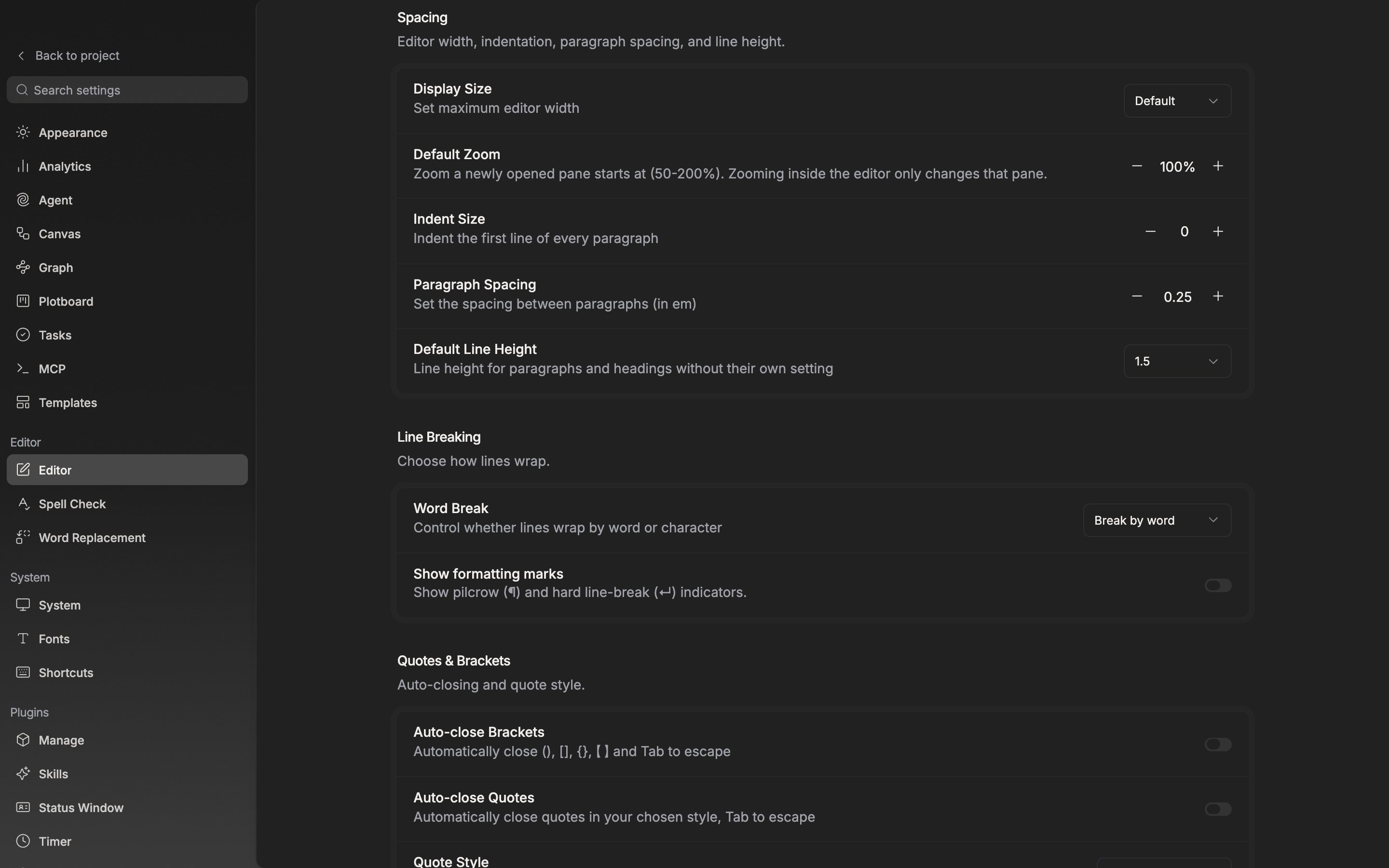
Open a document in a new panel and it opens at the zoom you last viewed that document at on this device. For a document you have never touched, it follows **Default Zoom**, in the **Spacing** section of **Settings** → **Editor**. That one also moves 5% at a time from 50% to 200%, starting at 100%. It is the value newly opened panels start from, so changing it does not shake panels you already have open.
<div className="app-window block dark:hidden">
  <img src="https://mintcdn.com/raumlabsinc/GnwEix8Pn4ktt2lZ/images/en/writing/zoom--02.png?fit=max&auto=format&n=GnwEix8Pn4ktt2lZ&q=85&s=160670f1567075bf25d6bf340aaffa62" alt="The Editor tab in settings, the “Spacing” section. The Default Zoom row shows −, the zoom number, and +." width="2880" height="1800" data-path="images/en/writing/zoom--02.png" />
</div>

<div className="app-window hidden dark:block">
  <img src="https://mintcdn.com/raumlabsinc/GnwEix8Pn4ktt2lZ/images/en/writing/zoom--02-dark.png?fit=max&auto=format&n=GnwEix8Pn4ktt2lZ&q=85&s=c54925b5977c00657752e94a890a3046" alt="The Editor tab in settings, the “Spacing” section. The Default Zoom row shows −, the zoom number, and +." width="2880" height="1800" data-path="images/en/writing/zoom--02-dark.png" />
</div>

<p className="app-caption">Default Zoom. The zoom that panels you open from now on will start at.</p>

It holds in **Page view** as well. When **Pages per row** is **Auto** it reads the window size and the zoom level together, so the higher the zoom, the fewer pages sit in one row.

One last thing. **Zoom In** (`Cmd/Ctrl + =`), **Zoom Out** (`Cmd/Ctrl + -`), and **Reset Zoom** (`Cmd/Ctrl + 0`), in the **Global** section of the shortcut list, enlarge the whole app screen rather than the manuscript. They are the same value as **UI Zoom** under **Settings** → **Appearance**, so the sidebar and the tab row grow along with it. To enlarge the body alone, use the wheel gesture or the toolbar.
