

Opening and closing
Press the Agent button at the far right of the tab bar, the one with a faint ring around it, and the panel opens. Put the cursor on it and a Toggle AI panel label appears. Press the same button once more and it closes. Whether you left it open stays as it was when you quit and reopen the app.Sizing it
Grab the divider between the panel and the manuscript and drag, and the width changes. It goes as narrow as 280 pixels and as wide as half the window. The manuscript side always keeps 320 pixels, so even dragging all the way over does not take away the space you were writing in. You cannot close the panel by dragging the divider. Closing is the Agent button’s job. The width you set is saved. Keep it narrow when you are only polishing dialogue and wide when you are discussing a whole outline, and that width comes back the next time.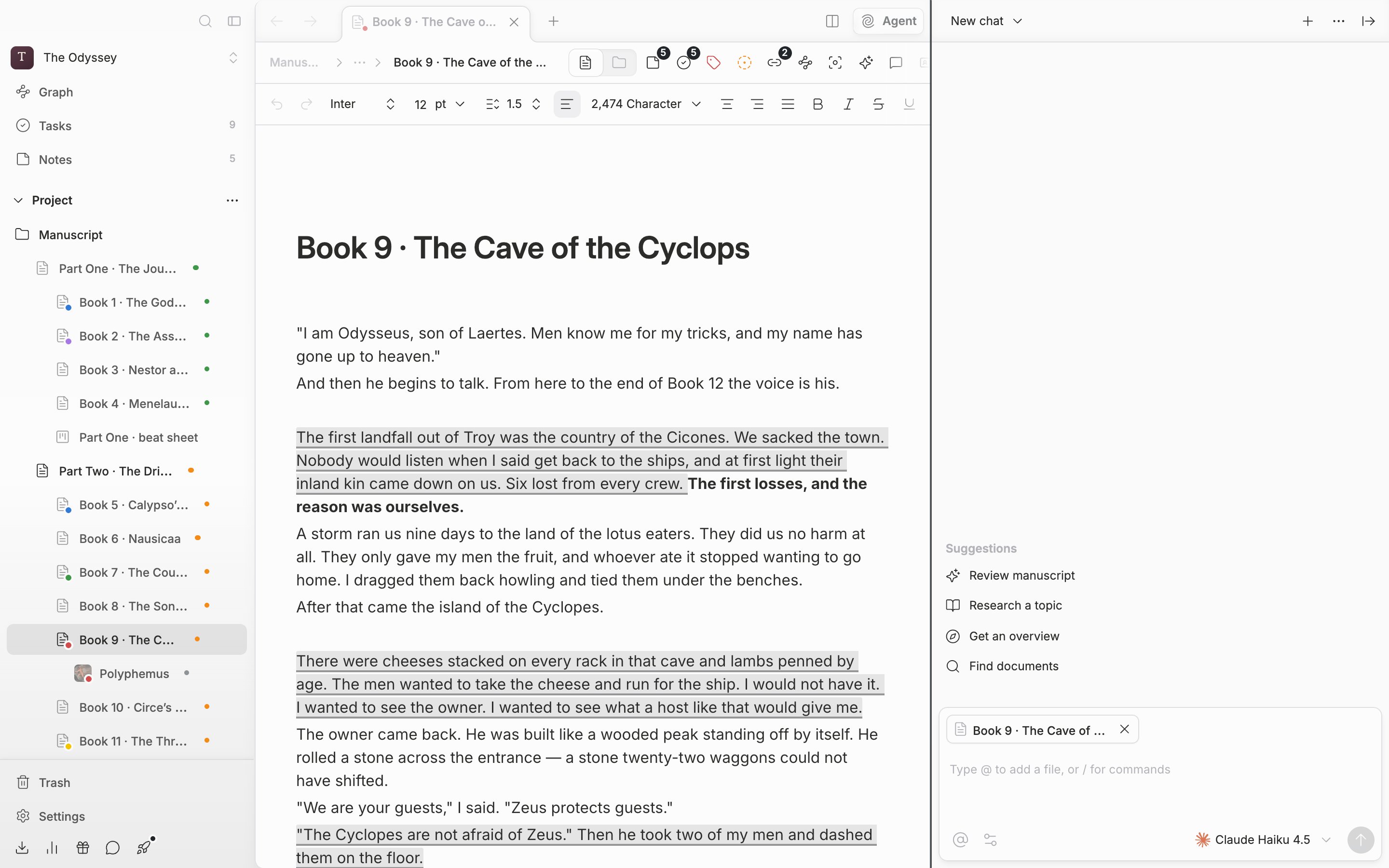
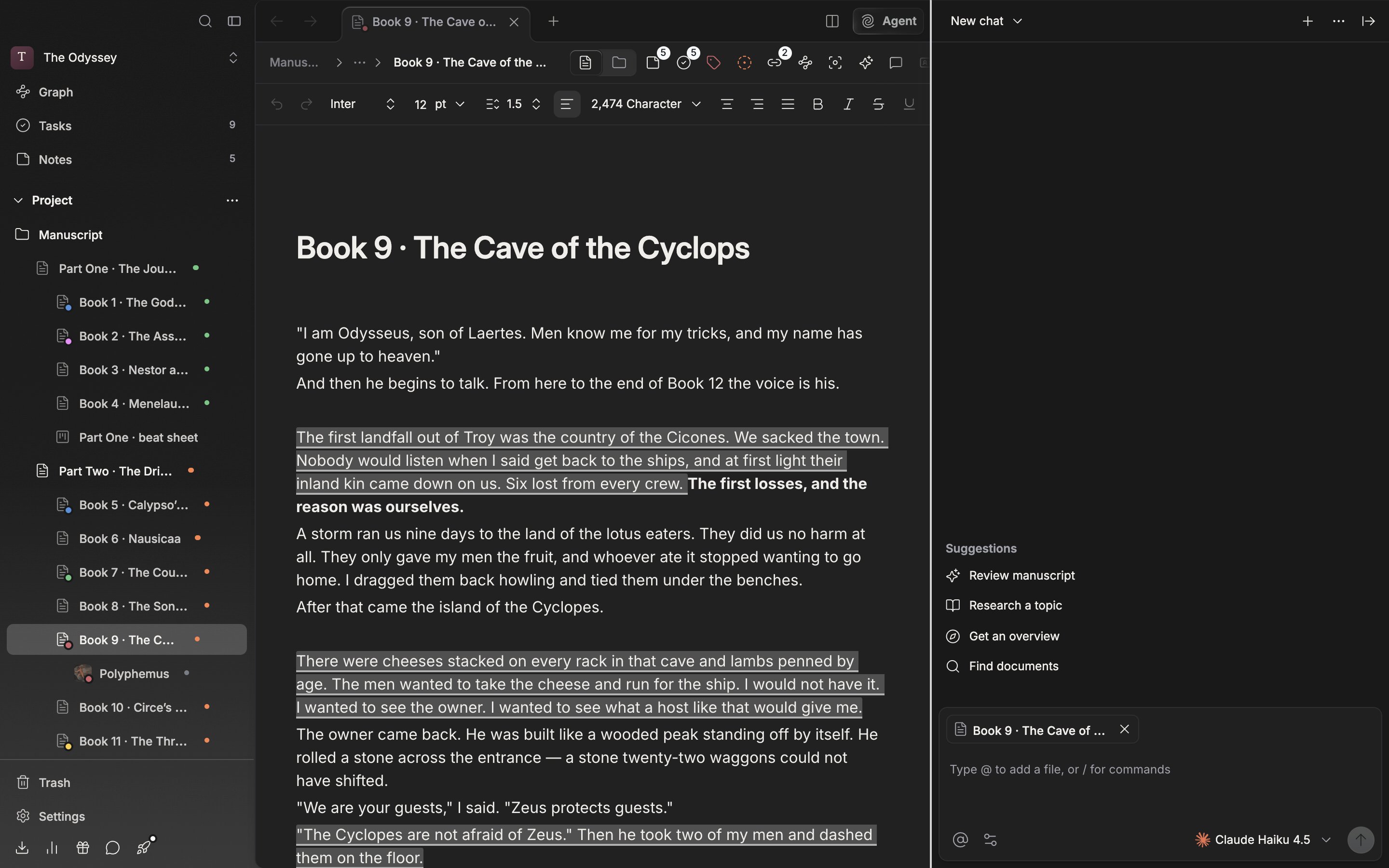
Drag the divider to adjust the panel width.
When you enter Focus mode
Switching to Focus mode closes the agent panel on its own. It is a mode you enter to leave the manuscript alone on screen, so the panel attached beside it steps aside as well. Press the Agent button again after leaving Focus mode and it comes back at the width it had.Separate for each project
Conversations are tied to the project. Move to another project and that project’s conversation attaches instead; the conversation you were looking at does not come along.With the cursor in the panel,
Ctrl + T opens a new conversation and Ctrl + W closes the current one. On Mac, ⌘ takes the place of Ctrl.