

Opening the filter
There are two icons at the top right of the sidebar. The funnel is Filter and the magnifying glass is Search. Press the funnel and a menu opens with the cursor already in the input field at the top. Picking an item in the menu does not close it. Pick several conditions one after another, and when you are done, click outside or press Esc to close it. The filter stays applied after the menu closes.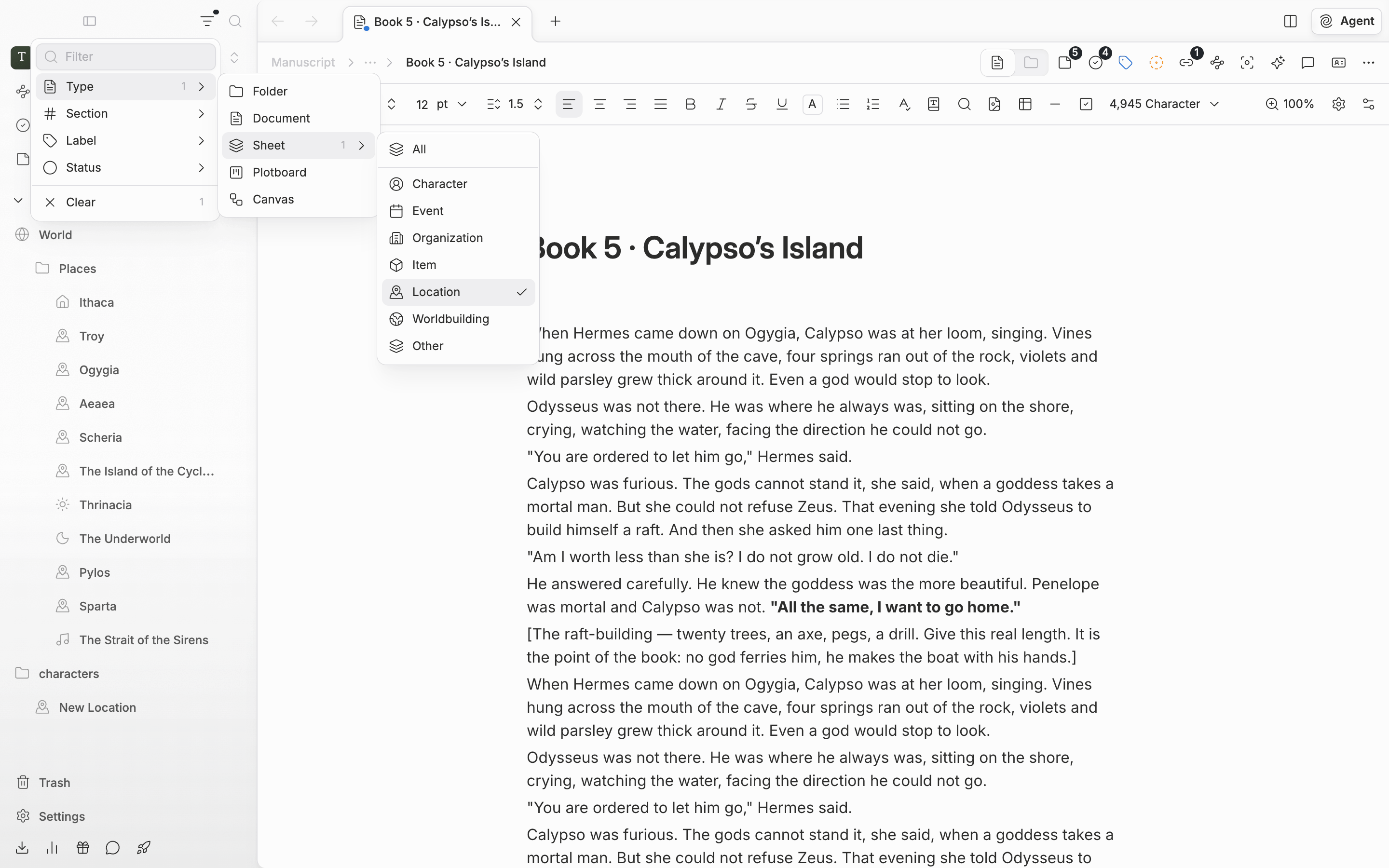
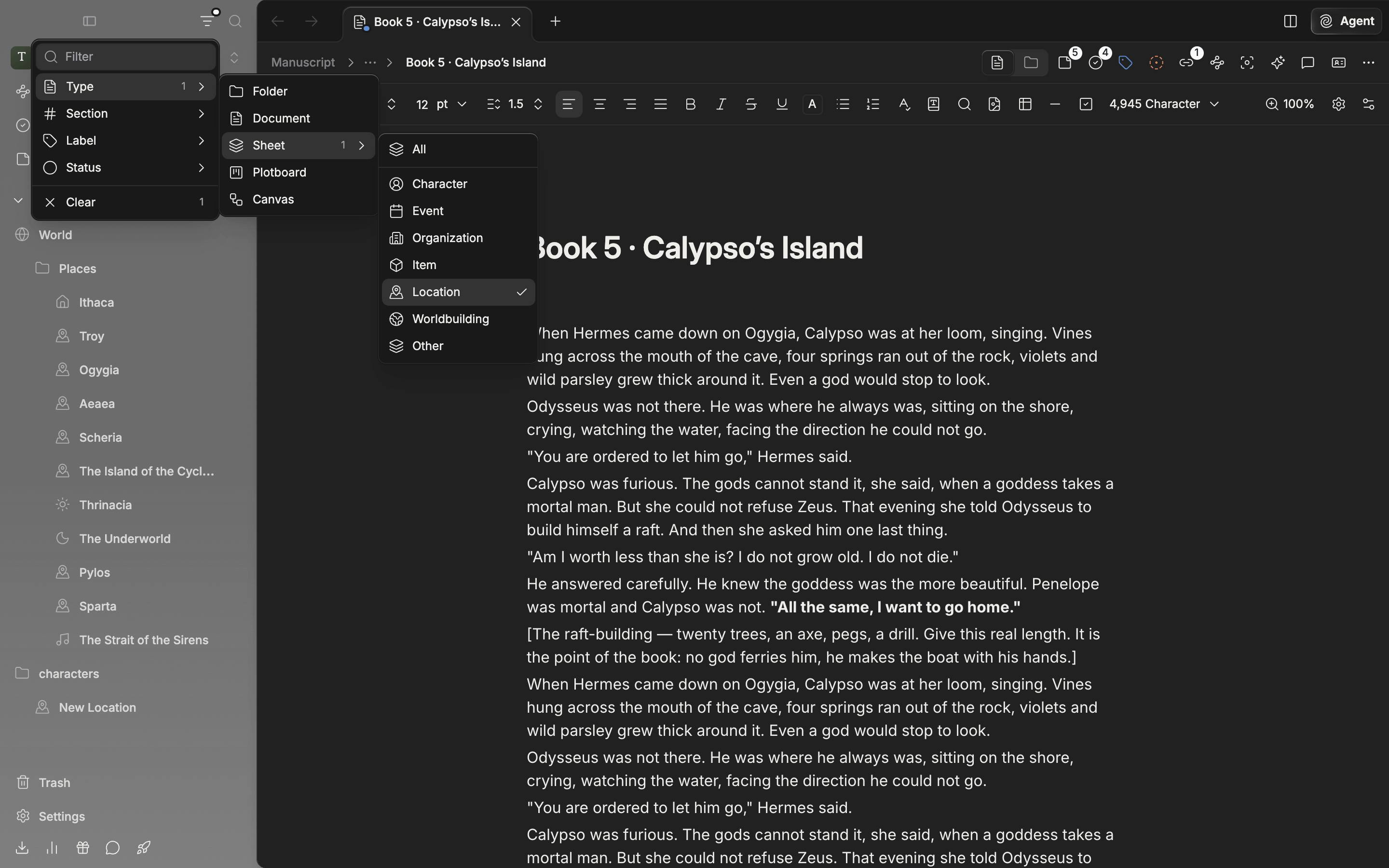
The filter menu. Go one level further from Type into Sheet to pick by category.
What you can filter by
- The input field — keeps only files whose title contains what you typed. Case doesn’t matter. It does not look at body text, and section names or the project name don’t match either. The X at the right of the field clears only the text.
- Type — pick from Folder, Document, Sheet, Plotboard, and Canvas. Sheet goes one level deeper, where you pick All or Character, Event, Organization, Item, Location, Worldbuilding, or Other. Picking All clears the category checks, and picking any category clears All.
- Section — the Project section comes first, followed by the sections you made, in sidebar order. A file inside a folder follows the section its outermost ancestor is in. If you have not made any sections of your own, this row does not appear.
- Label, Status — the labels and statuses registered in the project appear in the order set in settings. If the list is empty, the row does not appear.
Picking several
Pick several within one criterion and files matching any one of them stay. Pick two labels and files carrying either label show. Apply several criteria and only files matching all of them stay. Pick one label and one status and only files carrying both that label and that status show. While you filter by label or status, files with no label or status at all drop out. Type and sheet category count as one criterion. Pick Document and Character together and documents and character sheets both stay.Reading the filtered tree
If a matching file is inside a folder, that folder stays as a signpost and expands on its own. Even when the folder itself does not match, it still shows you the way to the file inside. It is different when the folder itself also matches. Then it keeps its collapsed state as it was, so you have to expand it yourself to see the results inside. Collapsed sections also show expanded while a filter is on. A section with no matching file disappears entirely. If no file matches at all, No results found and a Clear button appear where the tree was. While a filter is applied, a small dot sits at the top right of the funnel icon. Once the menu is closed, that dot is the only sign, so if the tree seems to be showing fewer files than it should, check for the dot first.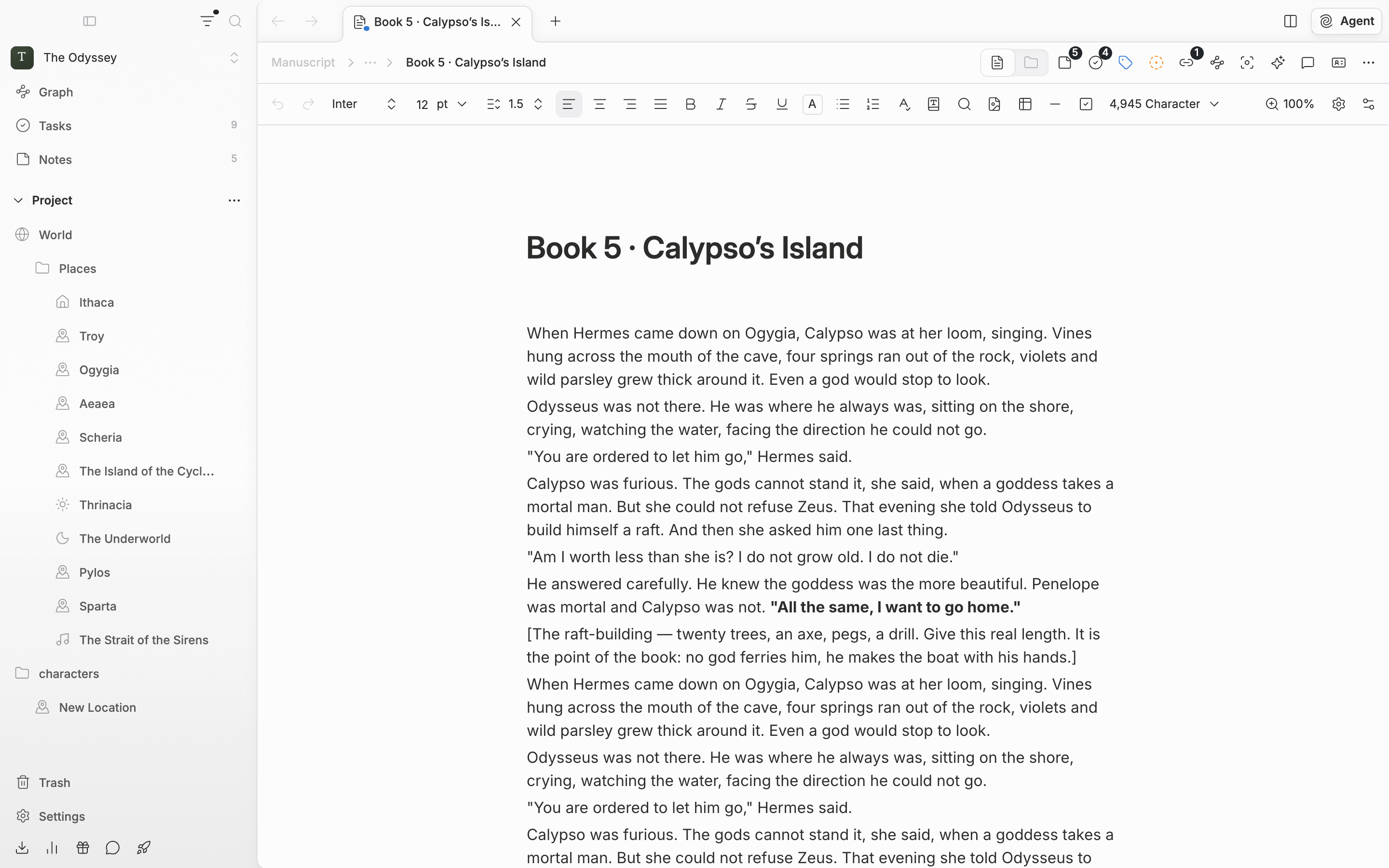
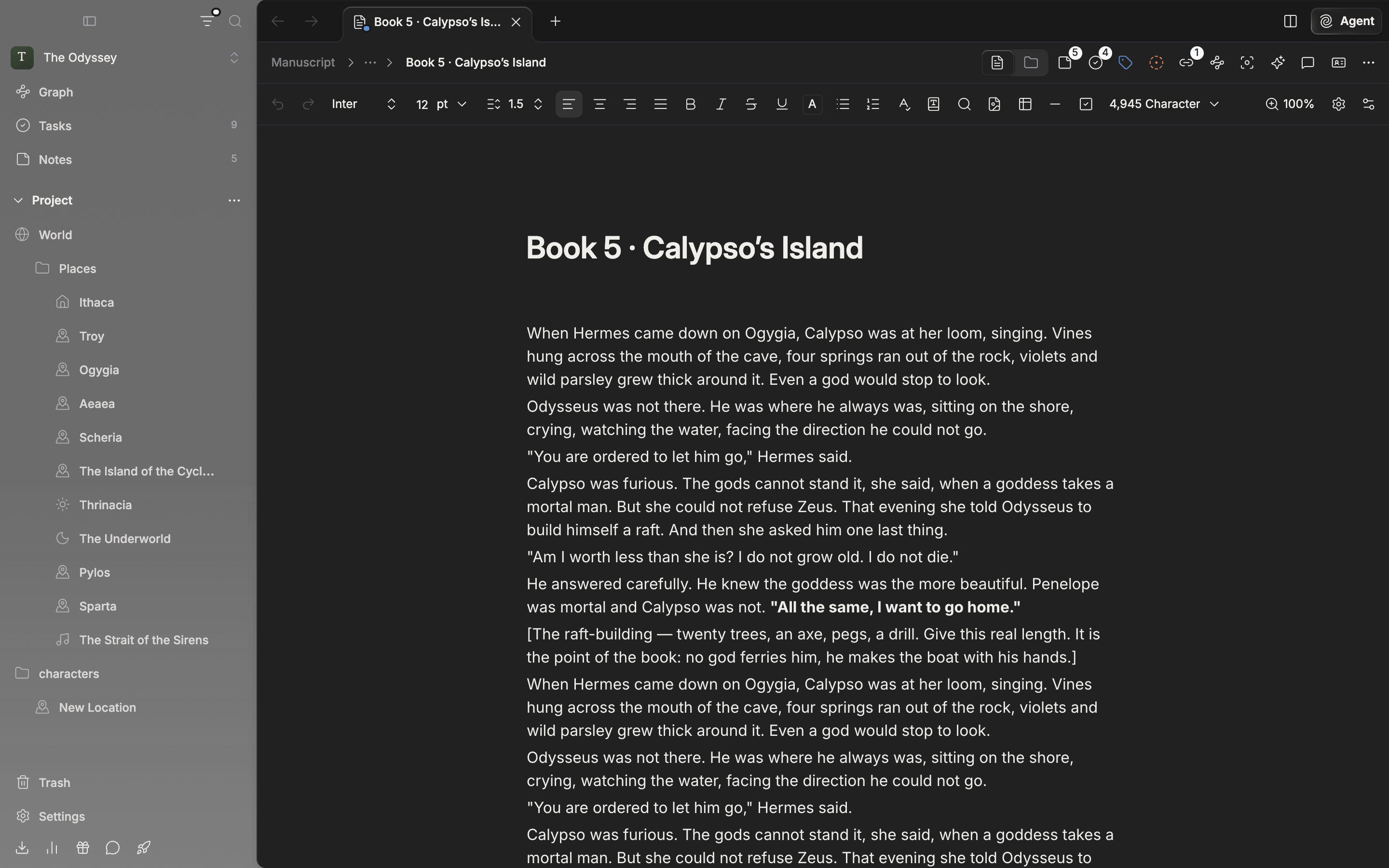
The tree with only location sheets left. A dot appears on the funnel icon while a filter is on.