

File Notes and Project Notes
The panel is called Notes, and it has two tabs at the top. File Notes attaches to the one file you have open. The empty field reads “Add notes for this file…”, and once you start writing it saves on its own about half a second later. There is no save button. Project Notes is the list of note cards scattered across the whole project. Whatever file you open the panel from, the same list appears. Where no file is settled on, the File Notes tab does not appear at all and only Project Notes shows. The tab you looked at last is remembered, so as you move between files the side you always use opens first.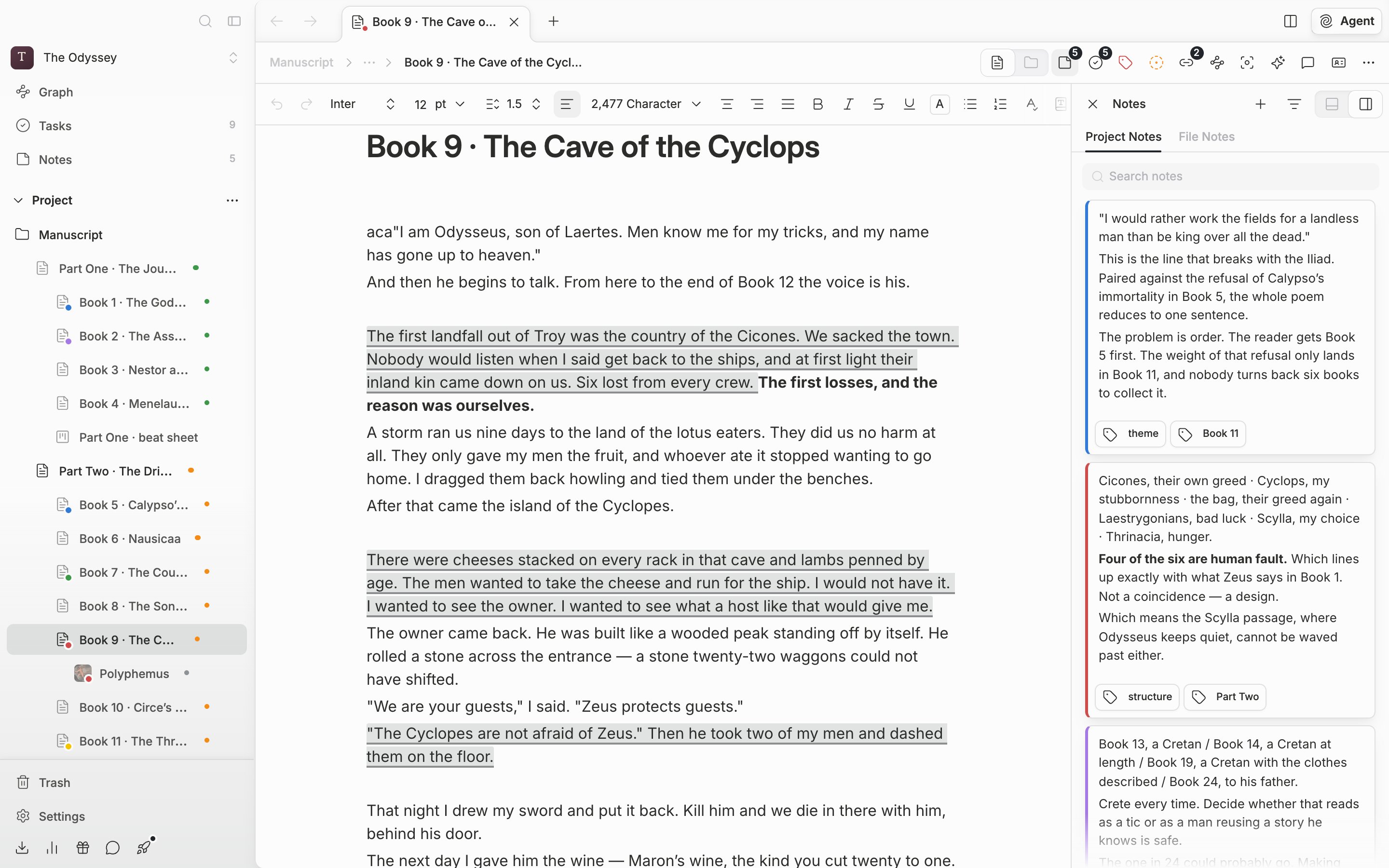
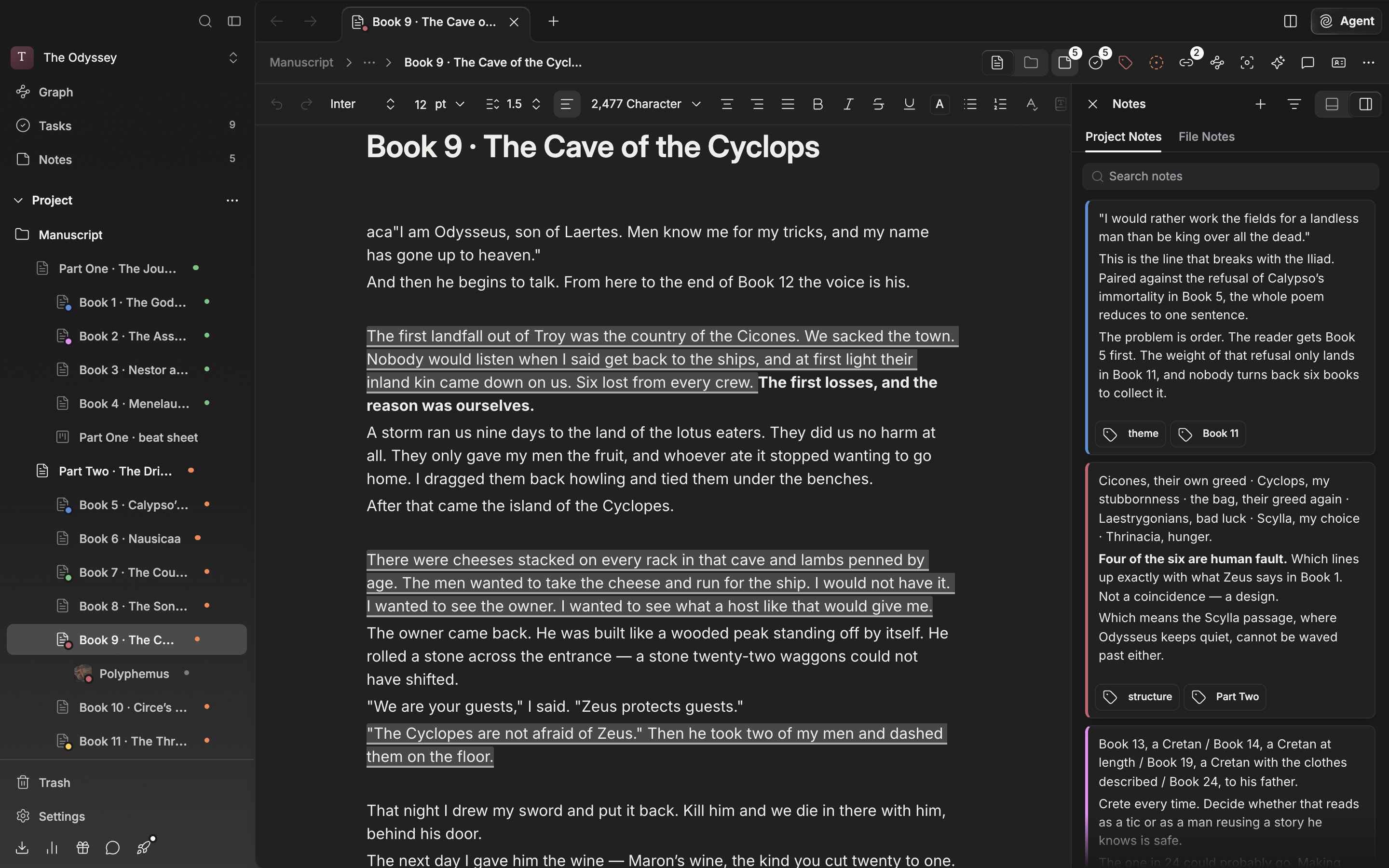
The Notes panel attached to the right of the manuscript. File Notes belongs to this file alone.
Working with Project Notes
Two more buttons appear at the top only on the Project Notes tab. Press the plus button (Create Note) and an “Untitled Note” appears at the top of the list. The funnel button narrows the list by All, Color, and Tags. The tag entry appears only when the project has at least one tag. Cards can be dragged to reorder. Press a card and you go to the project’s Notes screen. With no cards at all, it says “No notes yet”.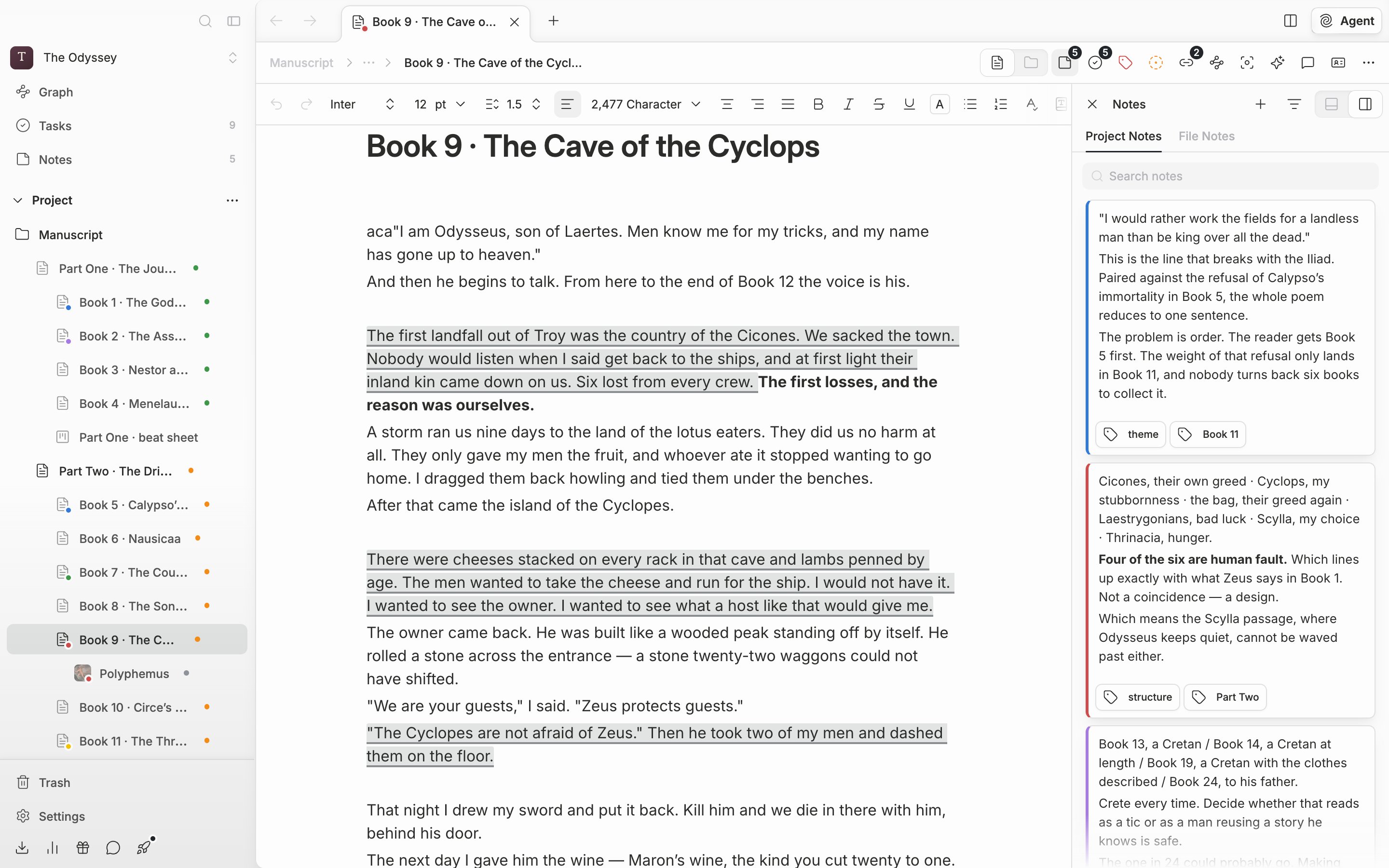
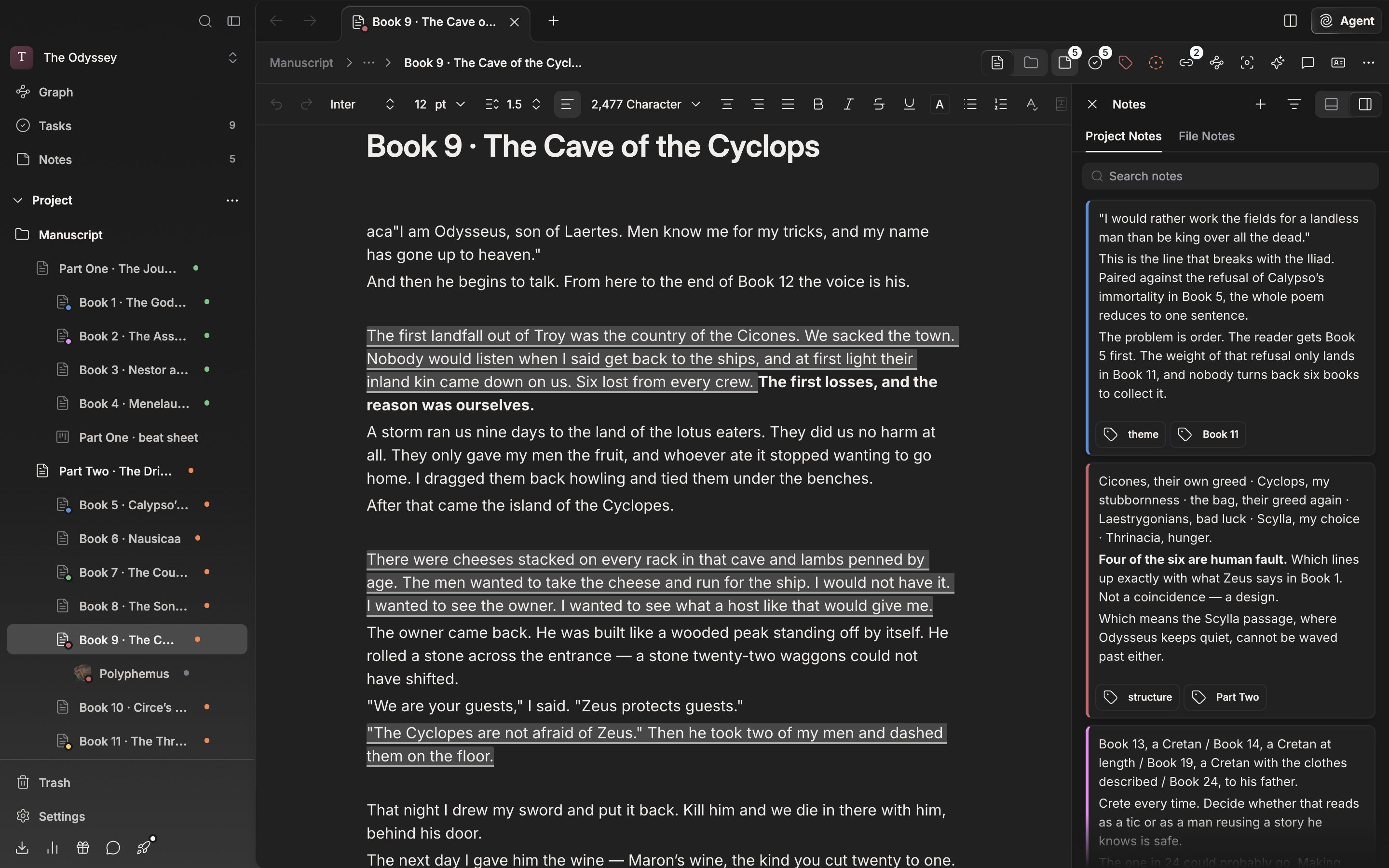
The Project Notes tab. The whole project’s notes, seen as they are beside the manuscript.
Search and panel position
The Search notes field under the tabs does a different job on each tab. On Project Notes it filters the card list (“No matching notes”); on File Notes there is only the one note, so it points out where it found the term inside it. Close the panel or move to another file and the query is cleared. Panel position, at the top right of the panel, chooses between Right and Bottom. Docked at the bottom the panel widens and Project Notes cards lay out in several columns, which suits scanning scattered notes all at once.The number on the note button in the header is the count of notes in the whole project. Emptying File Notes leaves that number as it was.