

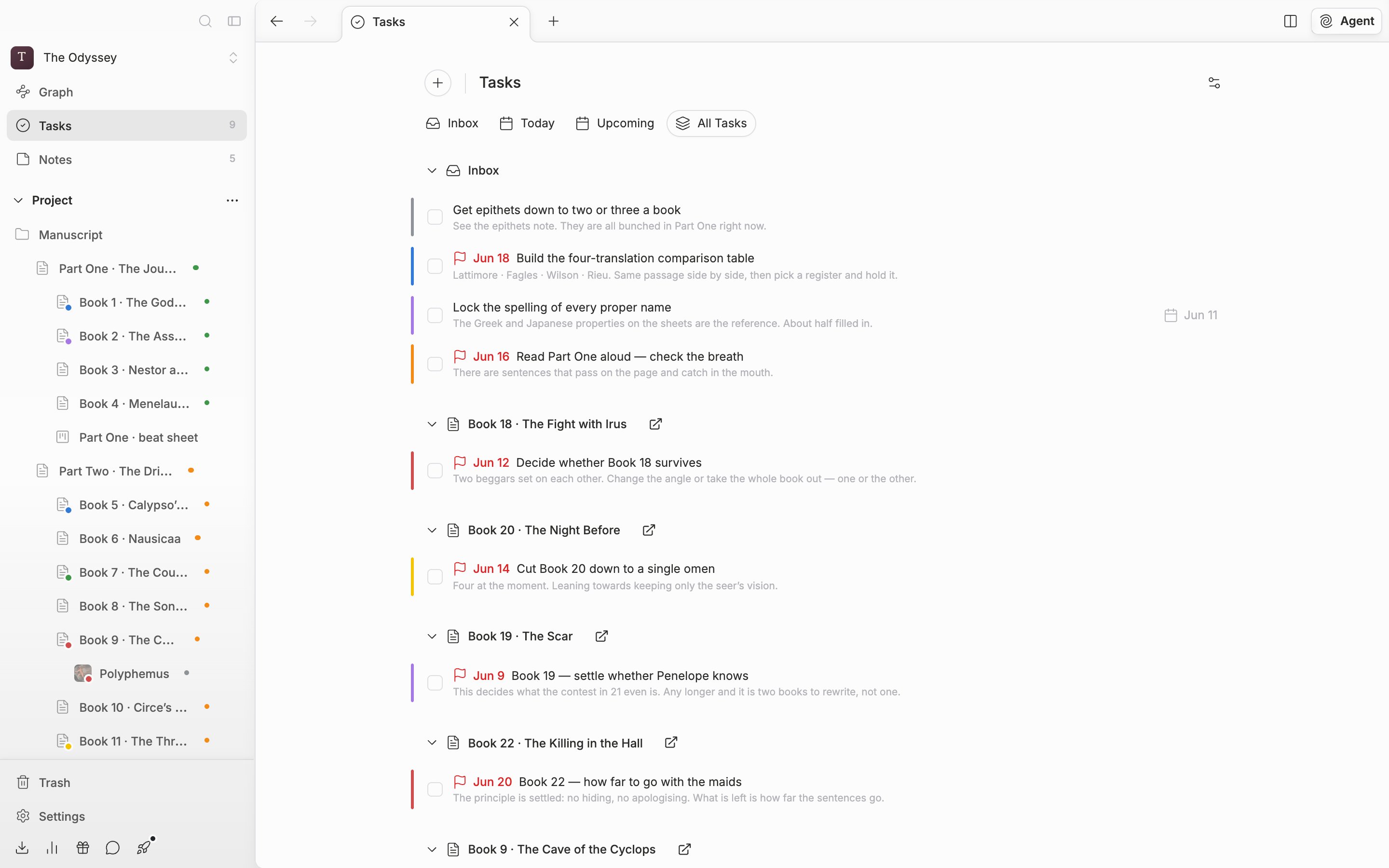
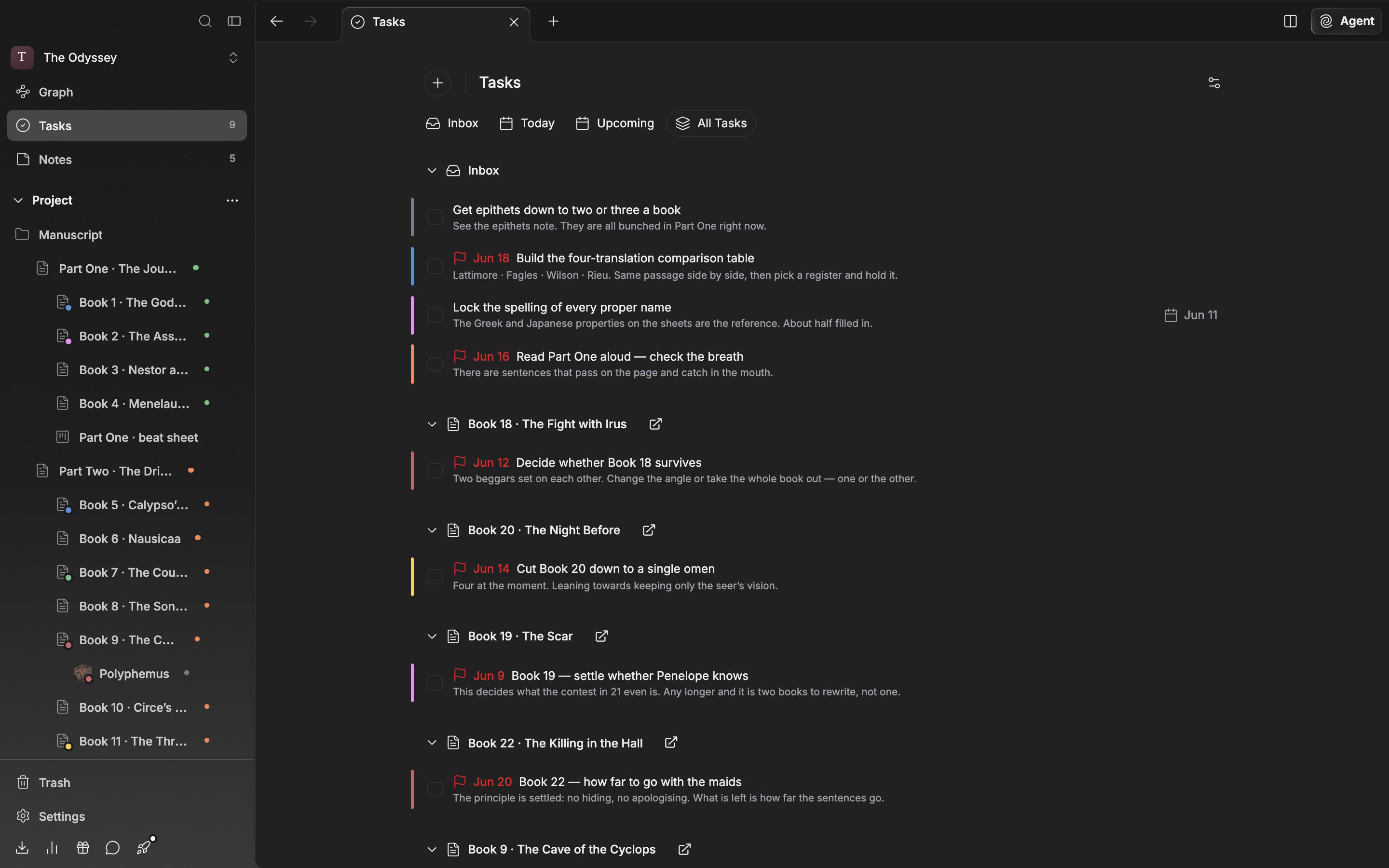
The All Tasks tab shows to-dos grouped by file.
The four tabs
Inbox is the tasks attached to no file. Today is the tasks whose deadline is today, and Upcoming is the tasks scheduled for later than today. Deadline and Schedule are different values, so the two tabs look at different places. All Tasks shows everything grouped by file. Tasks with no file go into the “Inbox” group. The gear icon on the right shows only the filters that apply to the current tab. Turn off “Show Scheduled Tasks” in Inbox and All Tasks and the tasks carrying a date drop out of the list; turn on “Show Past Dates” in Today and the tasks whose deadline has passed come up as well. “Show Completed” is on all three of Today, Upcoming, and All Tasks, and is what you use to bring finished tasks back. The tab you were on and the filter state are remembered per project.Working with tasks
Hover a row and Schedule, Deadline, and Move to buttons appear on the right. Move to attaches the task to another file or returns it to the inbox. Drag rows to reorder them. In the All Tasks tab, the moment you drop a task into a different group it becomes that file’s task. Click the checkbox and a strikethrough is drawn, then the task drops out of the list.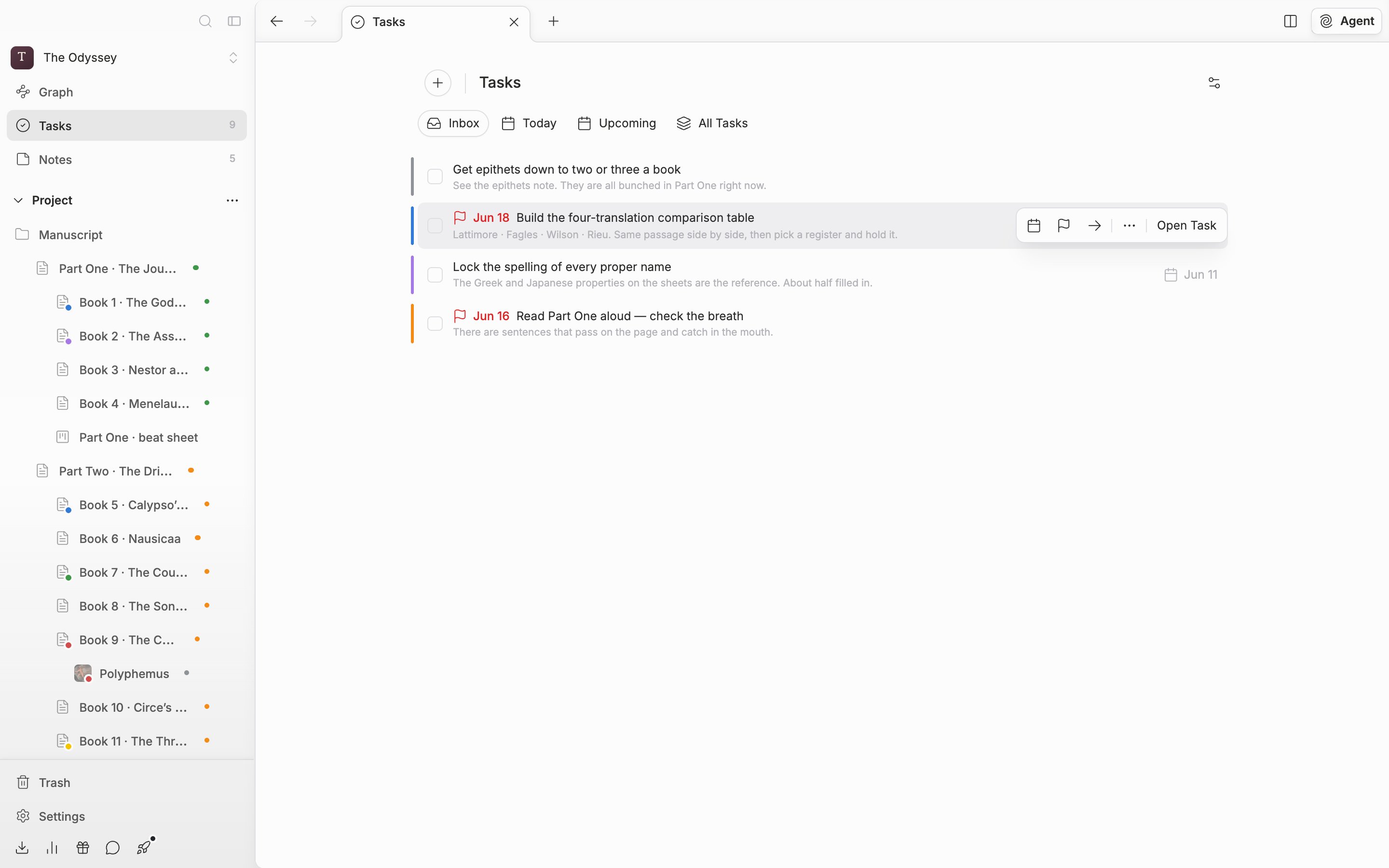
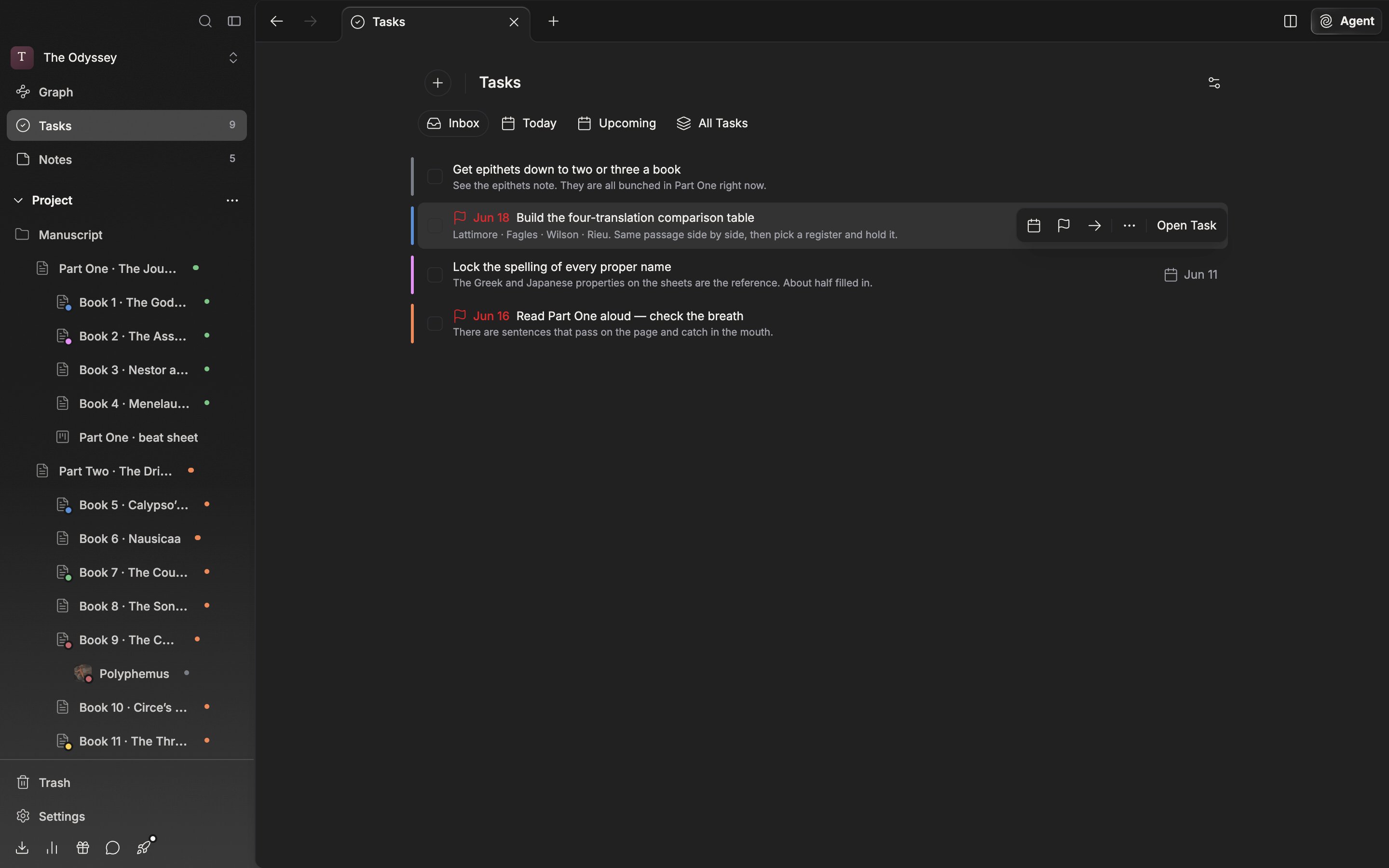
Hover a row to change its dates and its location on the spot.
Click the check icon in a document, sheet, plotboard, canvas, or folder header and the same list opens in small form. That file’s tasks come first, under “Current File”. To jump to the tasks page, click “View All”.Deadline reminders
Turn on Due tomorrow reminders in the “Tasks” tab of the settings window and the tasks due tomorrow are announced as desktop notifications at the Reminder time. The default is 9:00 AM. A given task is announced only once a day. Click the notification and that task opens straight away.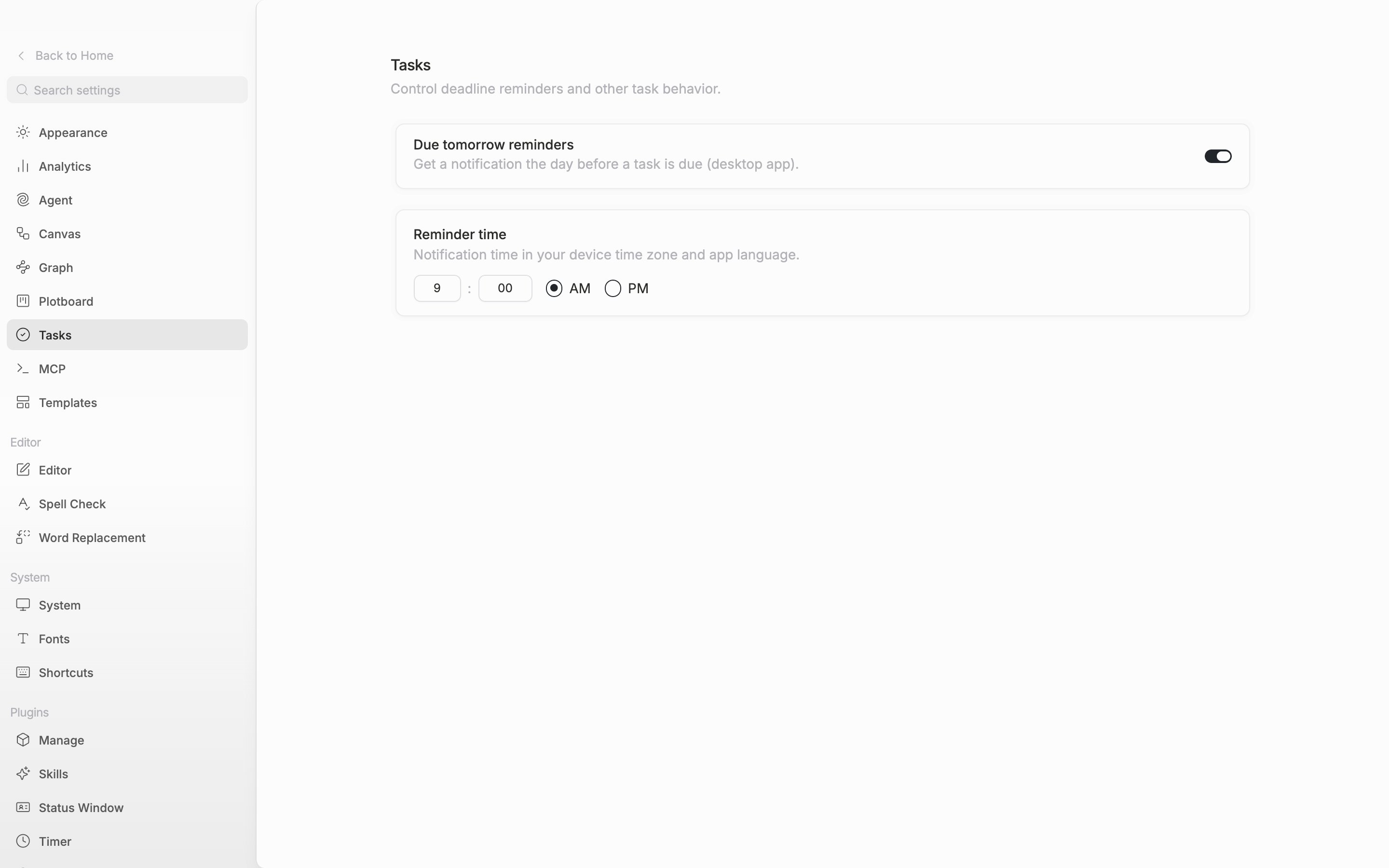
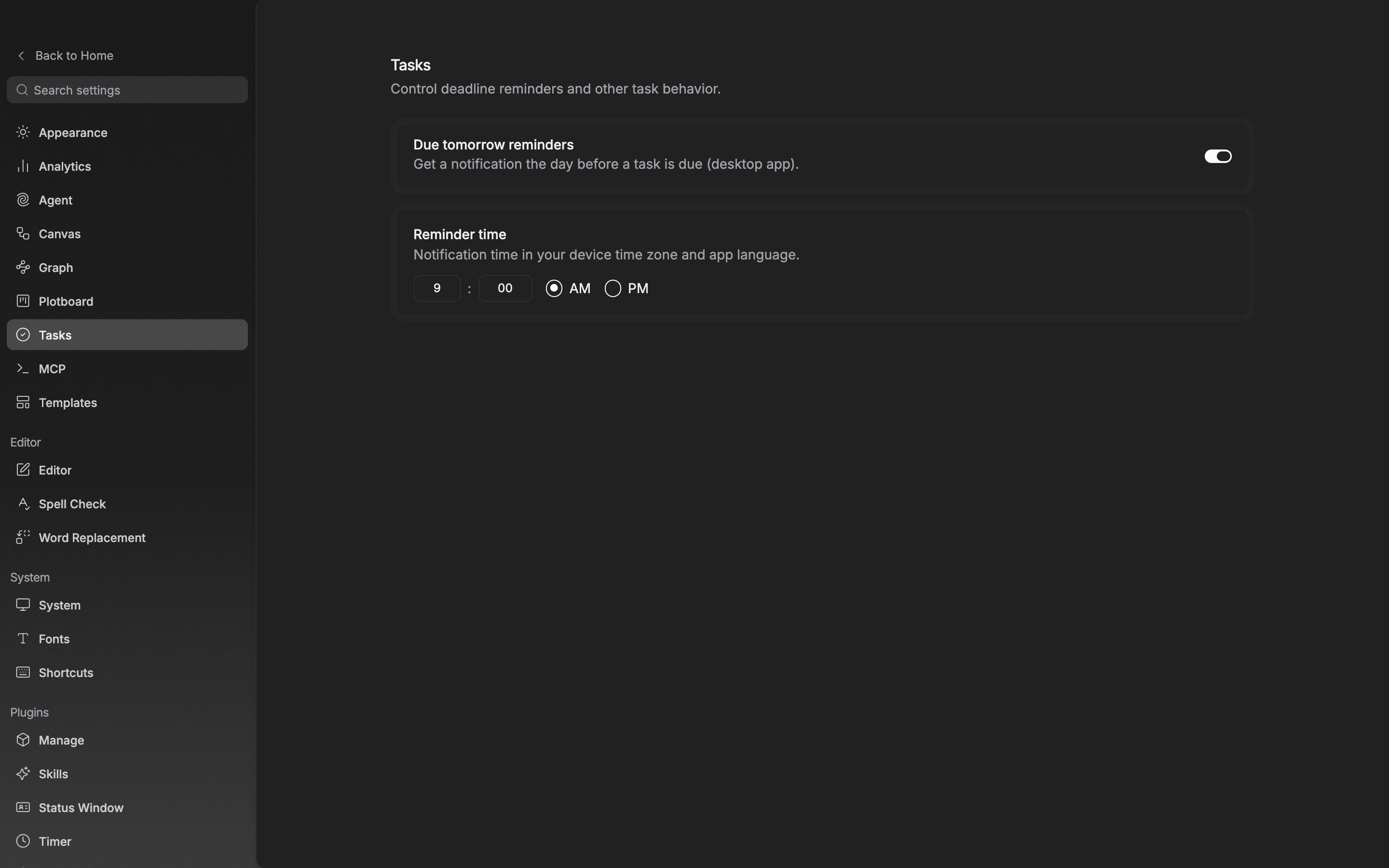
The time you get the reminder follows the device’s time zone.