

view value, so copy the link in that state and it opens in the same view next time. The same four tabs appear when you switch a document, a sheet, or a canvas to folder view.
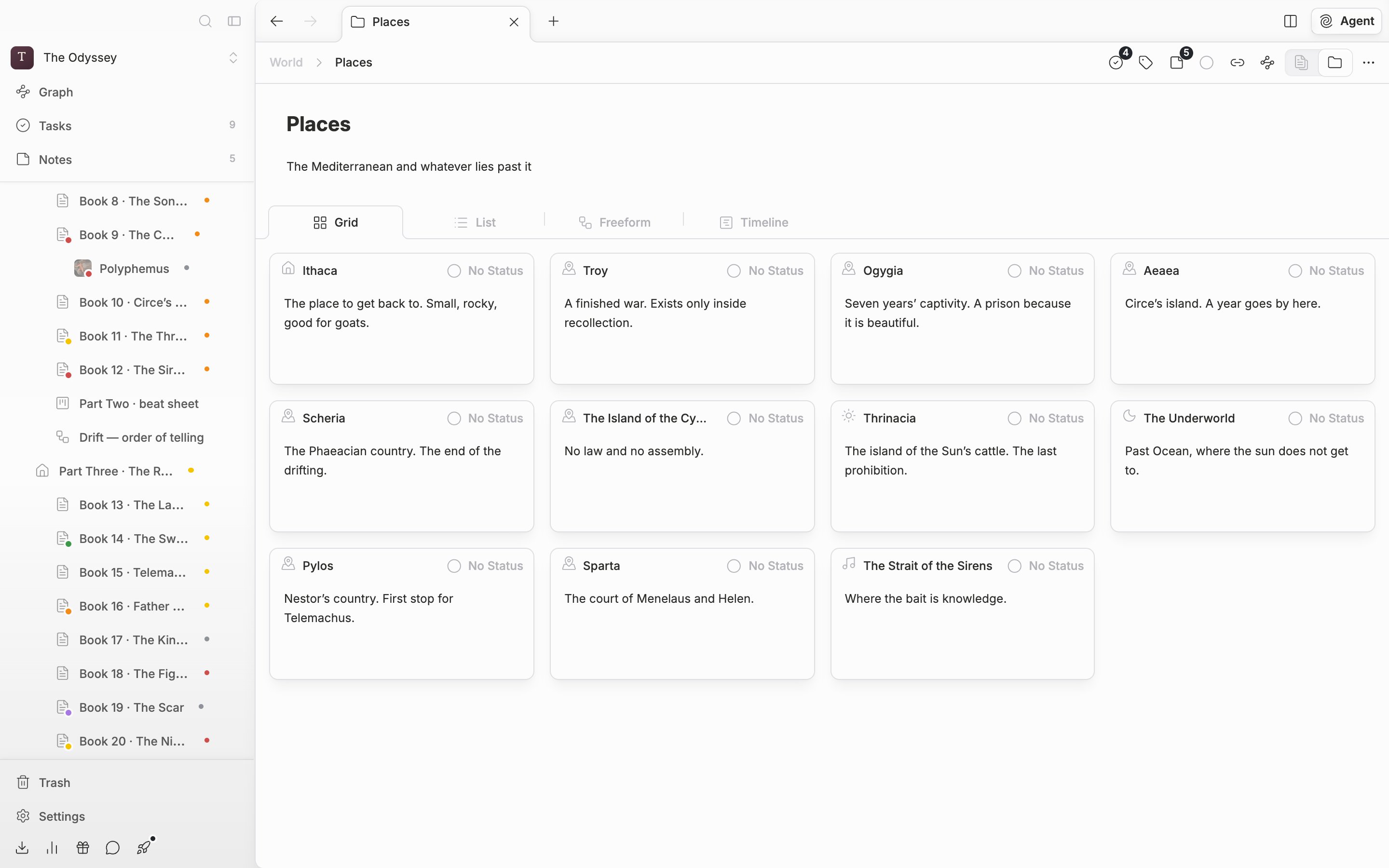
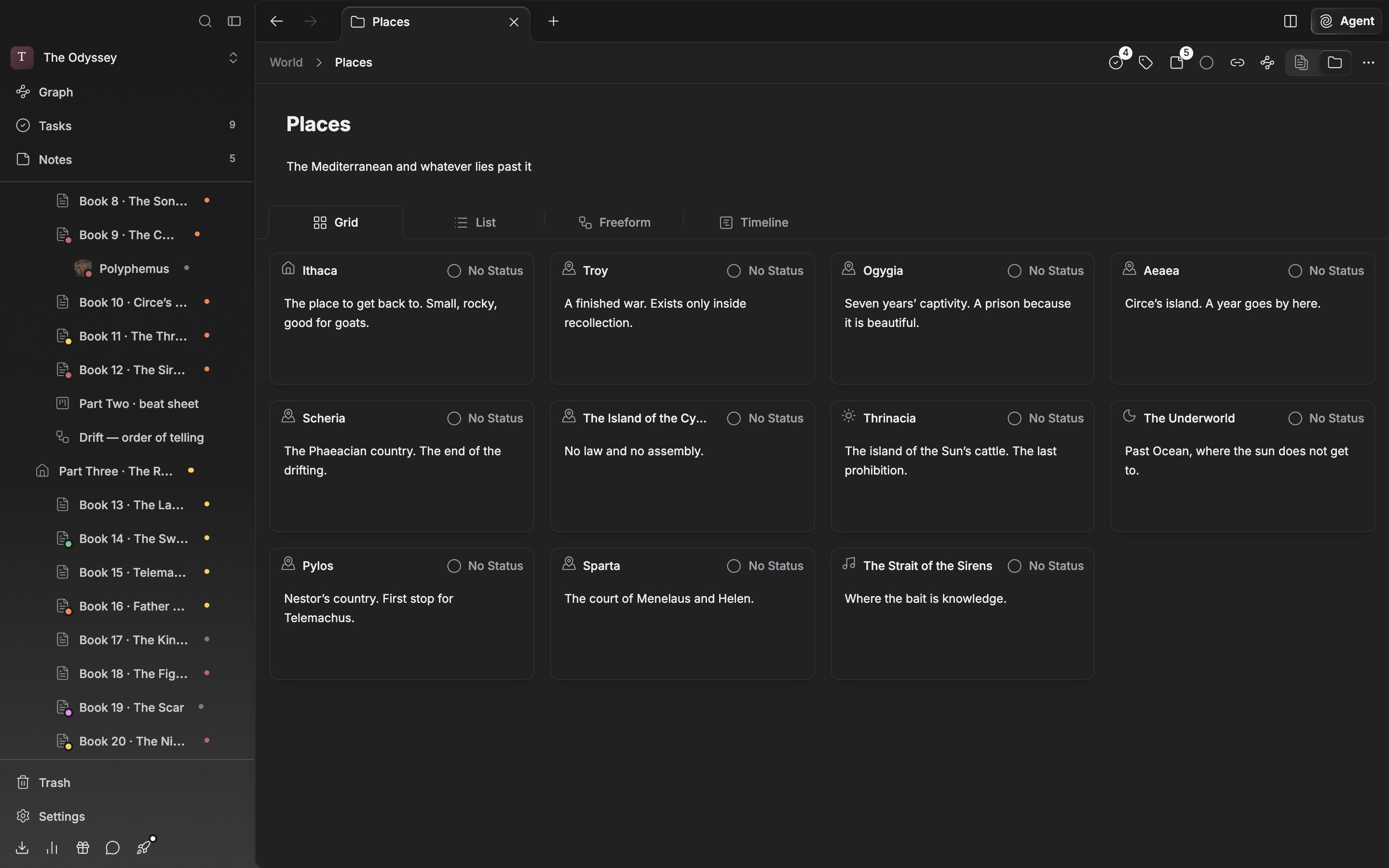
The four view tabs on the folder screen. Grid is what you get the first time.
Grid
Cards are laid out on a grid. You can edit the title and description right on the card, and you change the status at the top right. Hover over the description and a magic wand button appears; press it and AI reads that file’s body and writes the description in (Filling properties and descriptions with AI). Freeform and Timeline cards have the same button, and List does not. Labels show through as a dot at the corner of the icon and as the color of the card’s left border. A folder with something inside it takes the shape of several stacked cards. The number of columns changes on its own with the window width.List
One item per row. The icon, title, and status take in at a glance, and if tags are attached up to three show on the right. Put the cursor on a row and the icon’s place turns into a handle. Use it when you are scanning and adjusting the order of a manuscript. The order you set by dragging cards in Grid and List is the items’ actual order. The file tree on the left follows the same order.Freeform
A view where you leave cards wherever you want them. The place you move a card to is saved on the folder, so it is still there when you open it next. A card you have never moved is placed temporarily on a four-column grid. It suits laying out scenes whose order is not settled yet, as if spreading them on a desk, and finding the clusters.Timeline
Items are split into rows by label. The first is the “No Label” row, and after it comes one row per label. Drag a card to another row and its label changes along with its place. The orientation button in the header flips between horizontal and vertical, and this setting is remembered for each folder separately.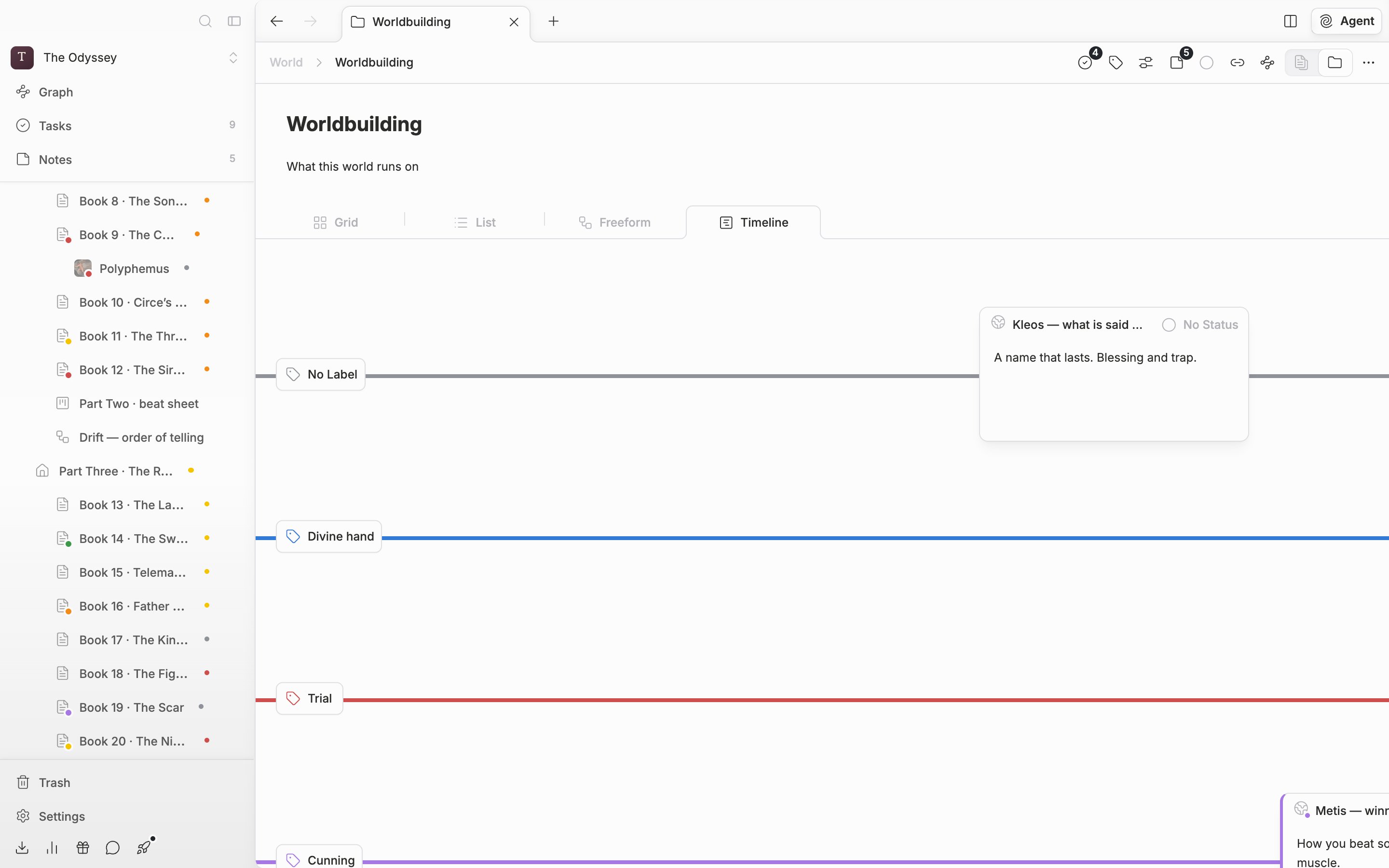
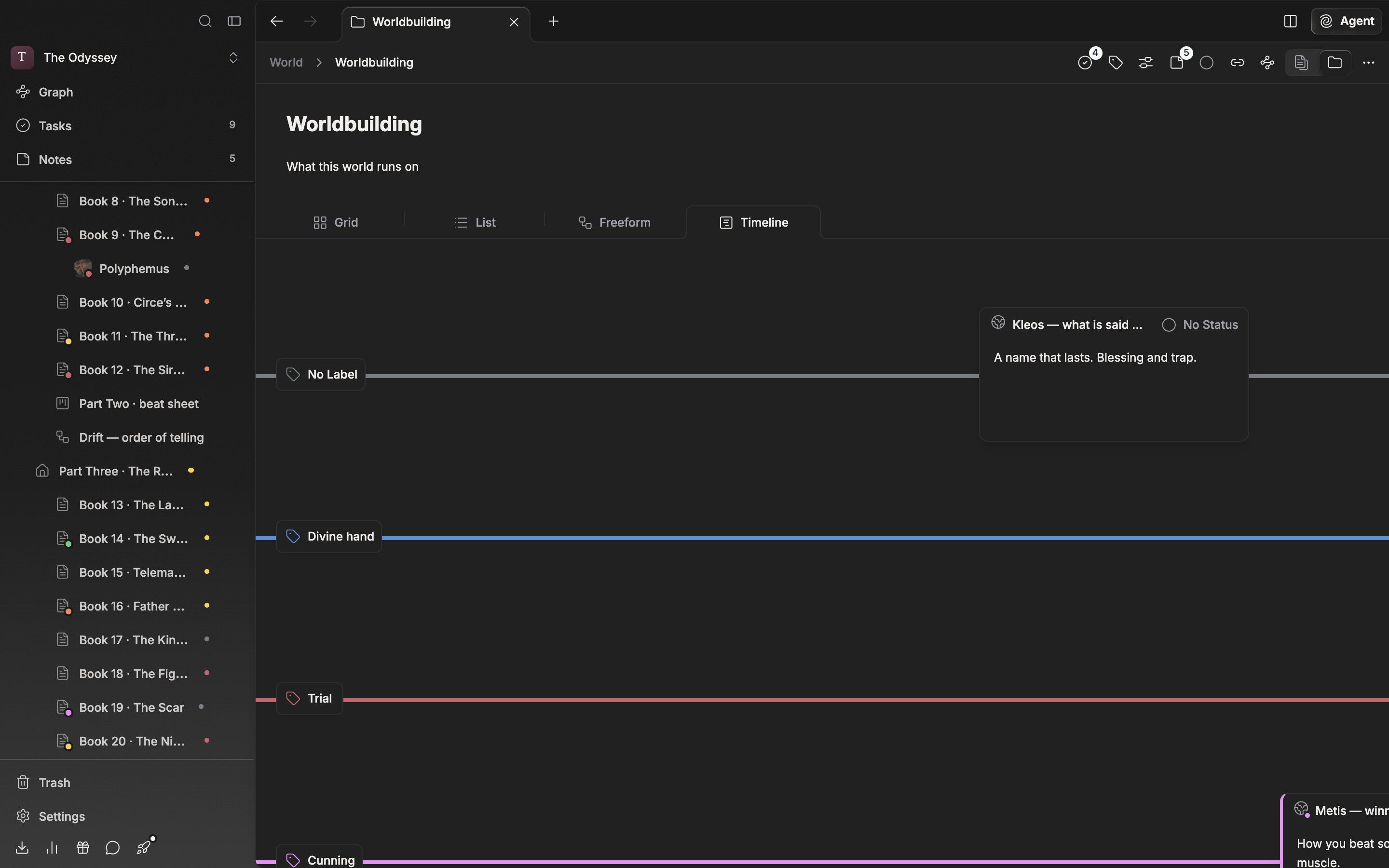
Timeline uses labels as rows. Move a card to another row and its label changes.