

Where it is
Come into settings with a project open and the Project group sits near the bottom of the left list. Choose Sync Settings inside it and the Backup & Recovery card appears. This section is visible in the desktop app only.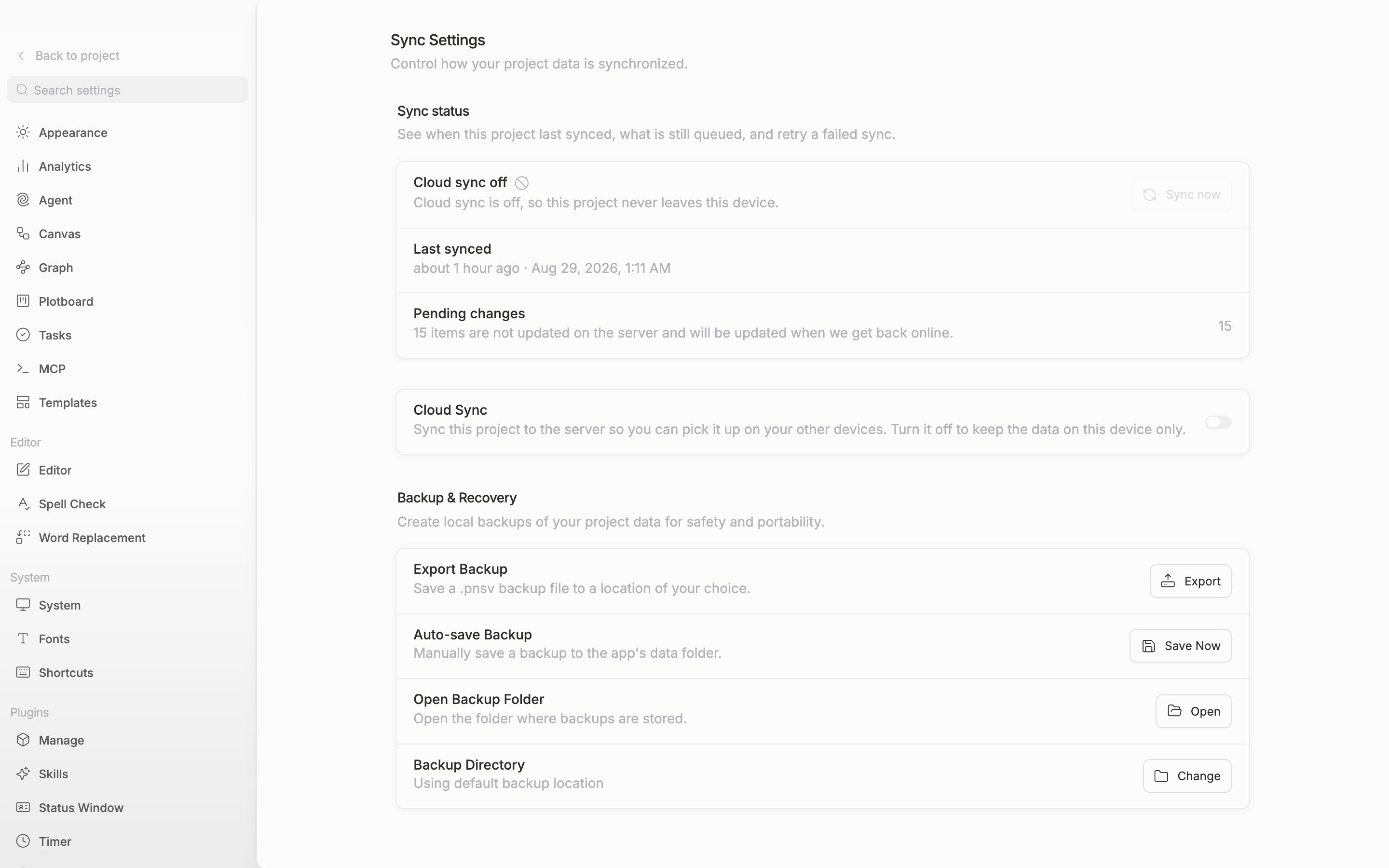
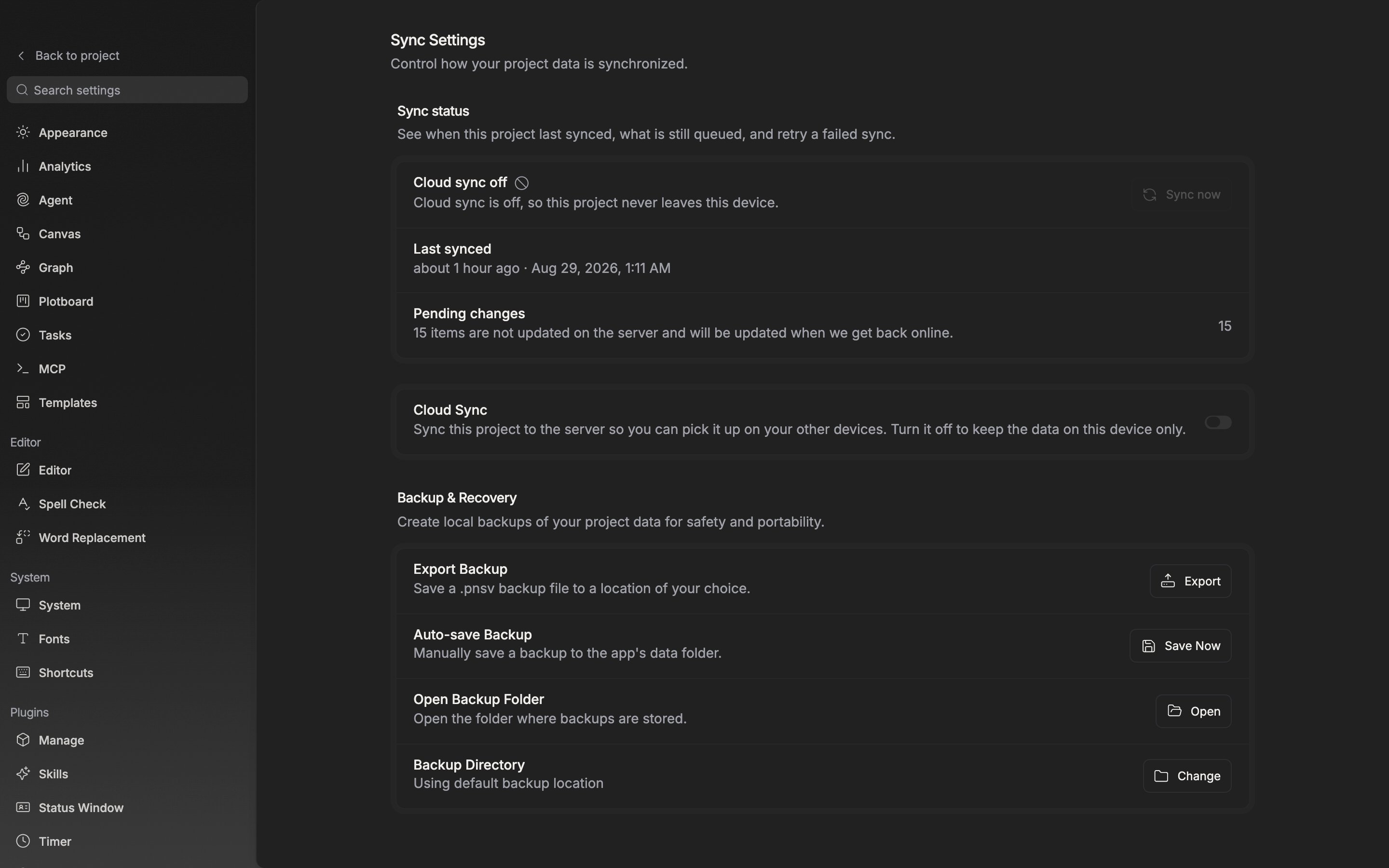
The Backup & Recovery card. One press of the export button turns the whole project into a single file.
Exporting to a backup file
Click the Export button on the Export Backup row and a dialog asks where to save. A.pnsv file is created with the time appended after the project name. When it is done, “Backup exported successfully” appears.
This one file holds the project’s documents and sheets, folders, plotboards and plot cards, canvases, relationships, labels, statuses, tasks, and notes. Not only the manuscript but the reference material and the structure you kept beside it go in whole.
.pnsv is a compressed and encrypted file, so it does not open in a text editor. Use document export when you hand a manuscript to someone else, and use this backup when you want to keep a whole project.The backup the app keeps on its own
The Auto-save Backup row leaves backups in the app’s data folder. Press Save Now and it saves a copy on the spot, followed by “Backup saved successfully”. Press Open on Open Backup Folder and that folder opens in Finder or File Explorer, so you can see with your own eyes whether the files are actually piling up. If you do not like the location, pick the folder you want with Change on Backup Directory. Once it is set, the row description carries the current path. Press the reset icon beside it to go back to the default location.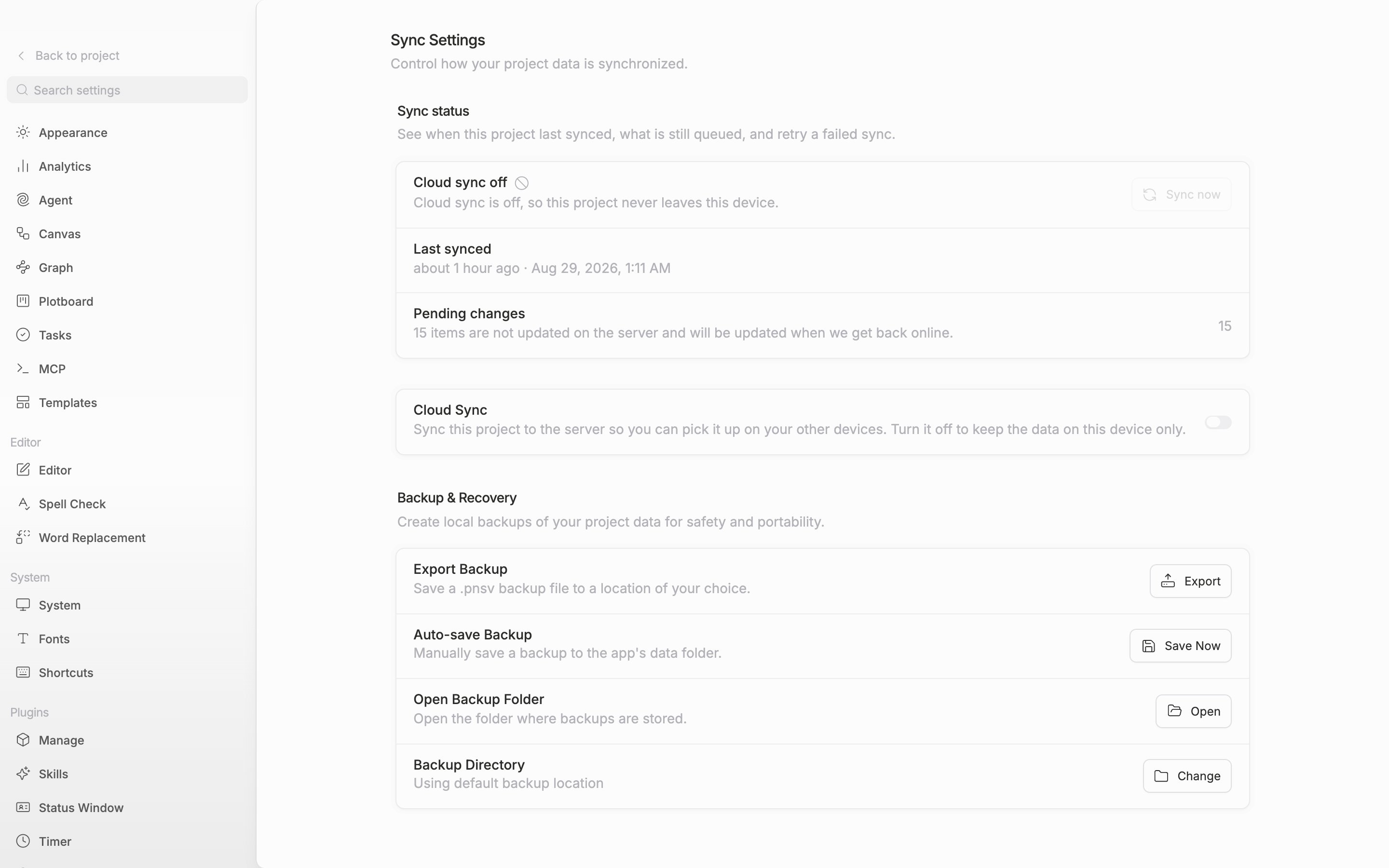
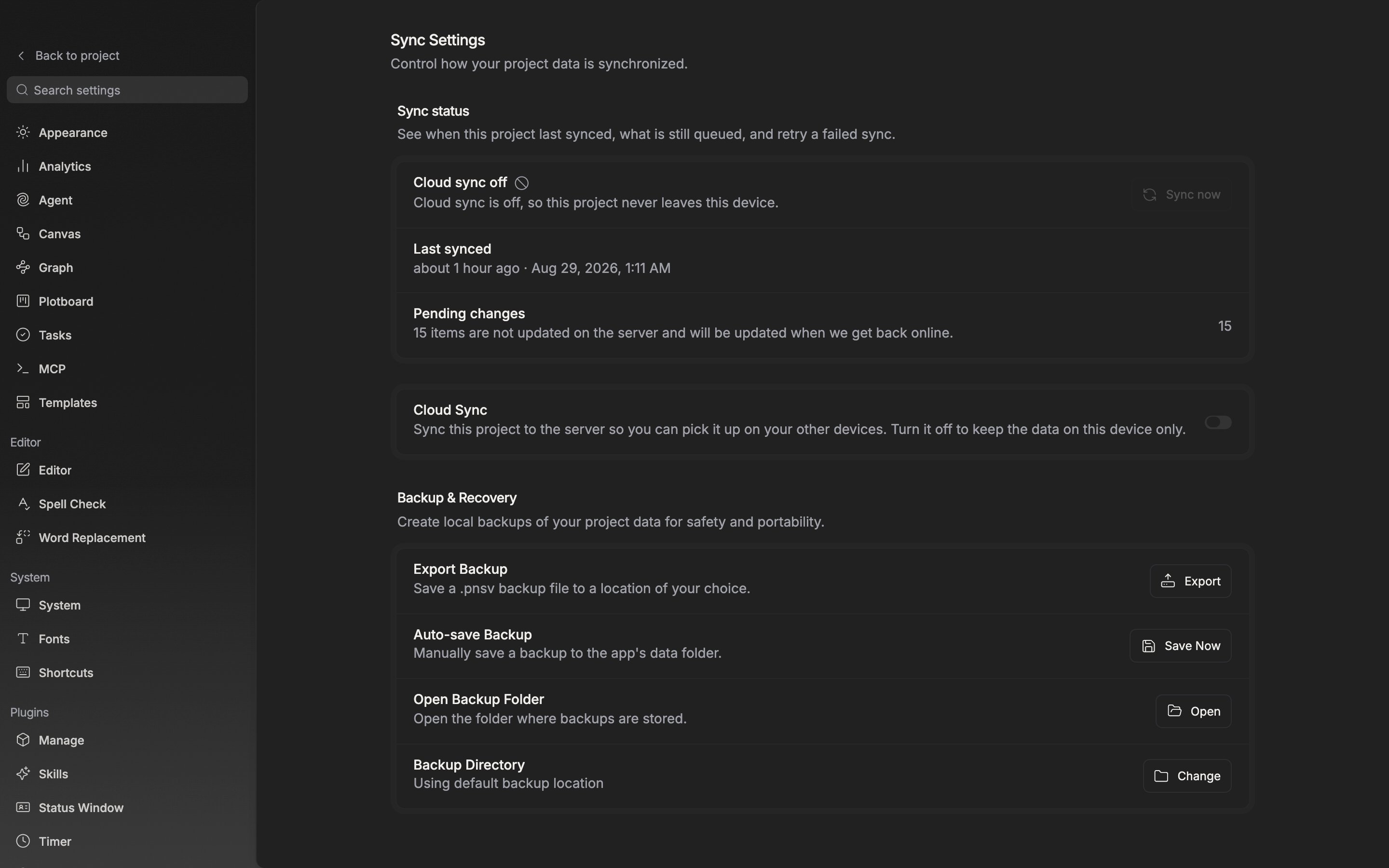
The backup folder can be moved to any location you want.
If Cloud Sync higher up on the same screen is off for a project, its data stays on this device only. For a project like that especially, you will rest easier pressing Export now and then and keeping a backup file aside.