

The manage screen
In the settings sidebar, pick Manage under the Plugins group. Core plugins ship with the app, so you can only turn them on and off. Community ones can be removed as well. Install one by picking a card in Browse community below, or add a plugin you built yourself with Install from file or Install from folder. At the right of each row, the gear is Settings, the trash can is Uninstall, and the switch turns it on and off.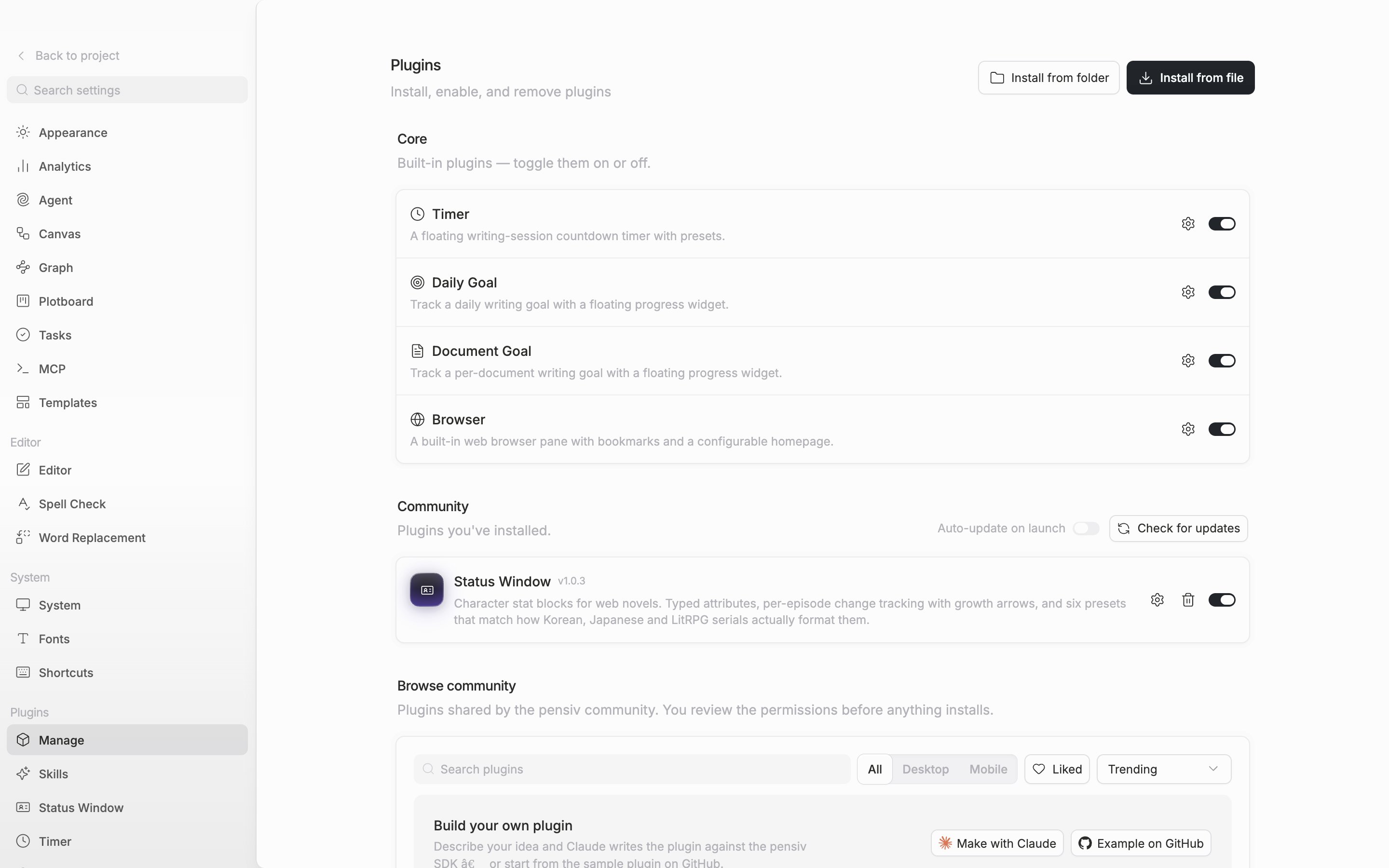
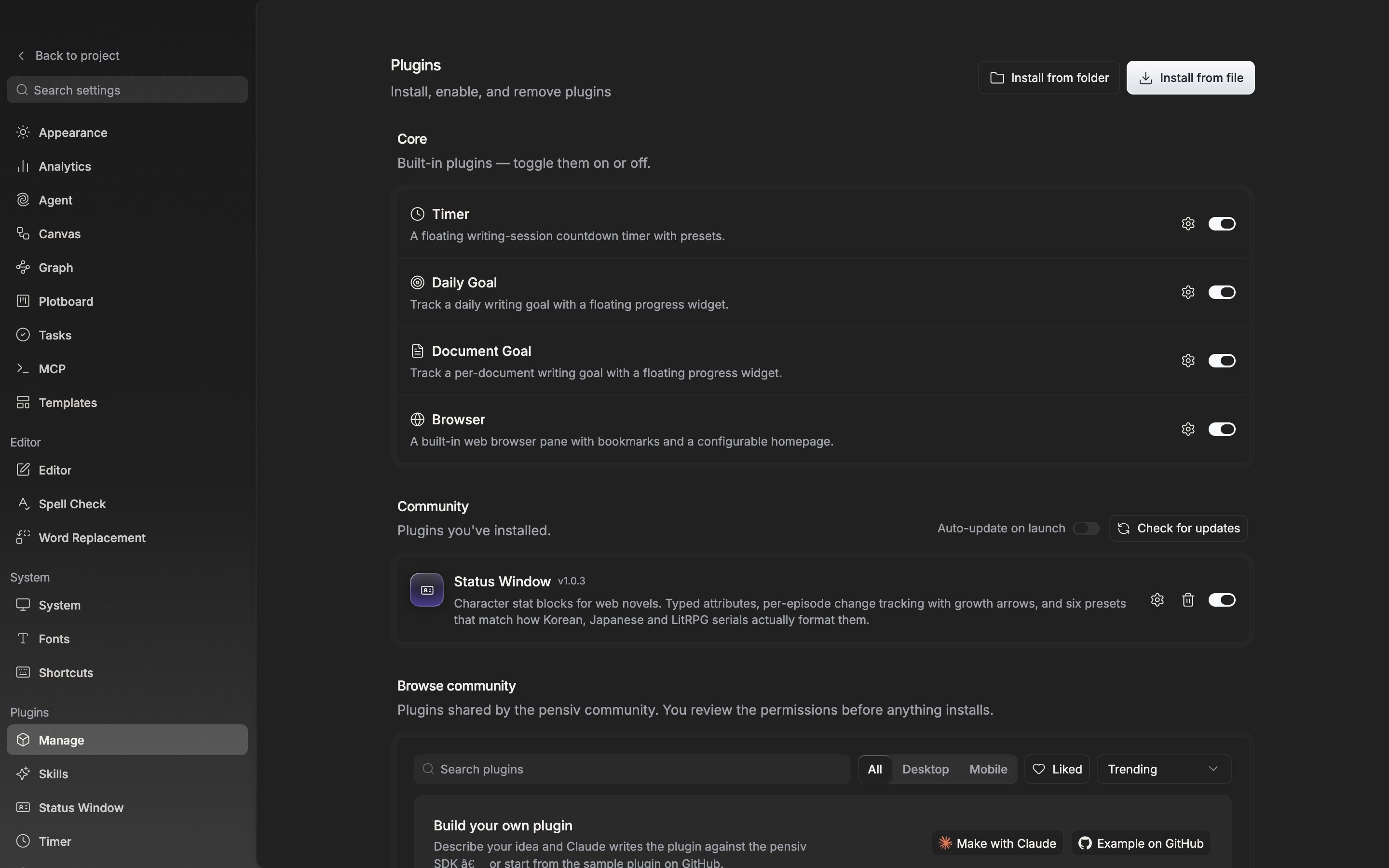
The plugin manage screen. Core plugins can only be turned on and off; community ones can be removed as well.
Permissions
Before you install, the permissions requested come up as a list. They are items like Read manuscript, Edit manuscript, Read project, Clipboard, and Network access. The moment you press Install, all of them are granted. Plugins that have not been reviewed carry a warning. Updates go through the same dialog again. Permissions newly requested are grouped separately under New permissions in this update. With Auto-update on launch turned on, only updates with no new permissions are applied quietly.Opening on another device
For community plugins, the install record and settings follow your account, but the code itself is downloaded separately on each device. When you sign in on a new device, the app fetches any missing plugins from the marketplace again as it starts and turns them on right away. When it is done, a notice reading “Installed on this device” appears with their names. This restore runs even if you turned off Auto-update on launch. Some plugins can’t be restored automatically.- If the new version asks for a permission it did not have before, it is not installed and “These need your review before running on this device” comes up instead. Check it in Settings → Plugins and install it there.
- Plugins you installed directly from a file or folder, plugins taken down from the marketplace, and plugins whose download failed are reported as “Installed on your account but not on this device”. Install them again to use them.