

@ in the body of a document or a sheet and a file list opens. Type nothing after it and the documents and sheets you touched most recently come up. Keep typing and documents, sheets, folders, plotboards, and canvases whose titles contain those characters are matched. The file you currently have open is left out of the list. Move with the up and down arrows and insert with Enter or Tab. When nothing matches, No files found for "@Ella" appears.
If no file with that title exists yet, “Create new” is appended below the list. Pick one of Create "Ella" document, Create "Ella" sheet, Create "Ella" plotboard, or Create "Ella" canvas and the file is created on the spot with the mention inserted. You can stand up a sheet the moment a character occurs to you, without breaking your flow.
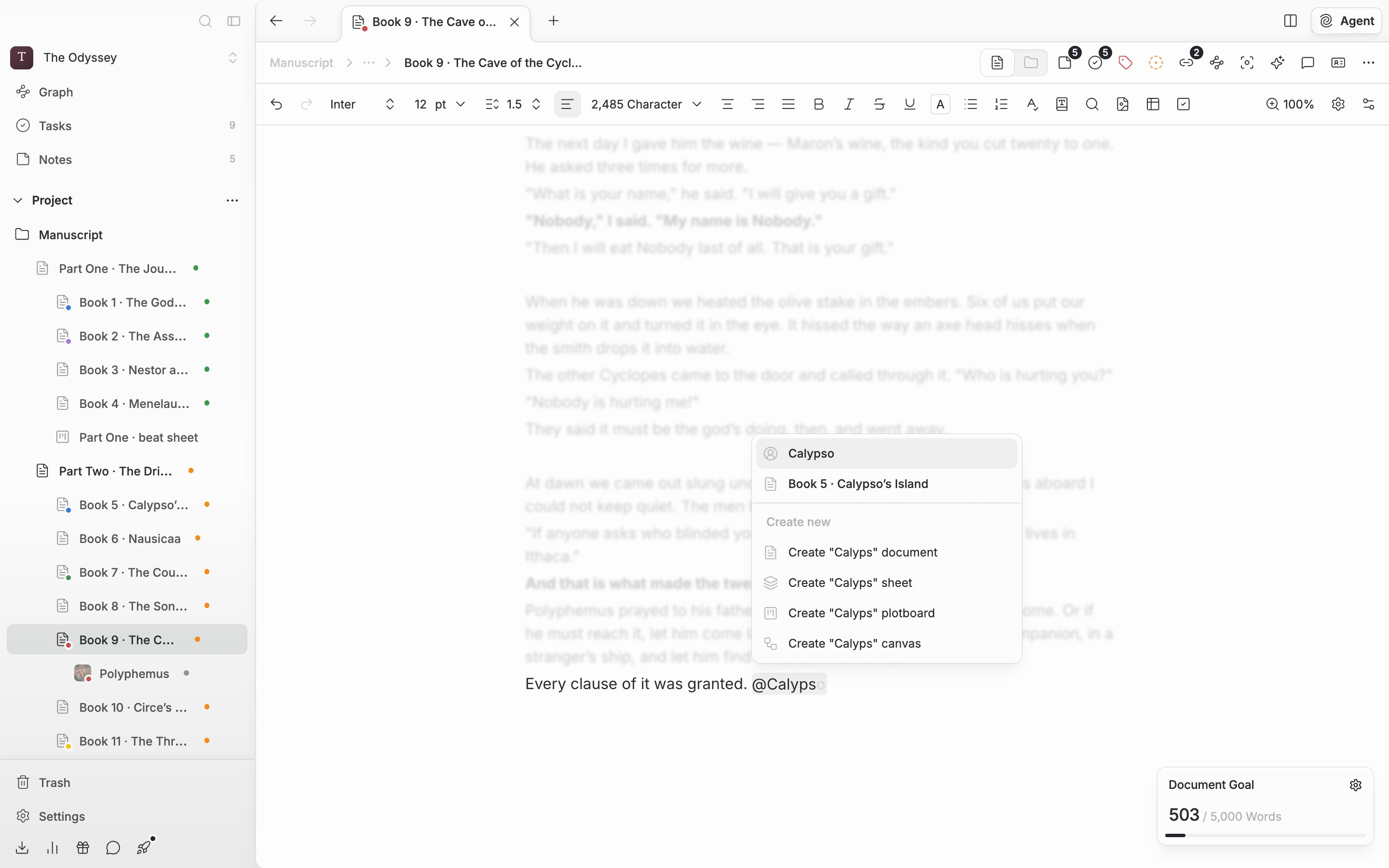
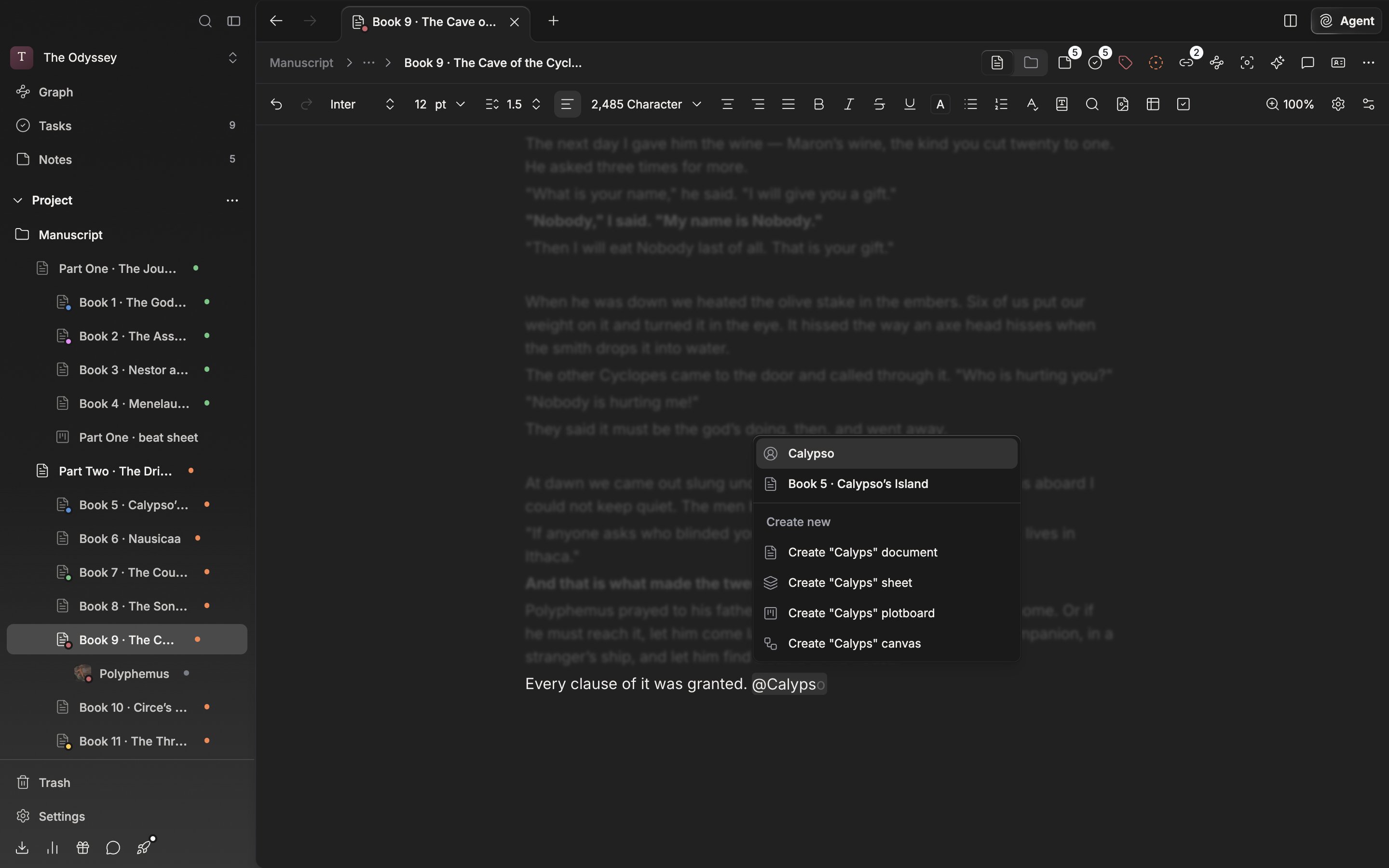
If the name you are looking for is not there, create it on the spot and it is inserted right away.
Working with an inserted mention
Click a mention once and you move to that file. Hold Cmd (Ctrl) while clicking to open it in the side pane. Click it twice and the mention unwraps back into text, so you can retype it for a different file. Rename the target file later and the mention in the body follows the new title. Delete the mention and the relationship between the two files goes with it. If typing@ does not open the list, check whether ”@ mentions” is off in the Editor tab of Settings. Mentions you already inserted keep working even while it is off.