

Blurring when you step away
Turn on Obfuscate screen and the whole screen blurs the moment the window loses focus. In the middle, a padlock appears together withYou can turn off the obfuscation option in Settings > System > Obfuscate screen. Click the window again and it lifts right away. It covers rather than locks, so it only keeps the manuscript from being read over your shoulder while you turn your head for a moment at a cafe.
It works on screens with a project open. It is off to begin with, and the value you turn on stays on this device only.
Translucent window
Turn on Translucent window in the Window section of Appearance and a glass effect that lets the desktop show through takes hold. It works on macOS and Windows 11 and is on from the start. While it is on, an Opacity slider comes along to set how much of the desktop shows through. The glass lands on the sidebar and the title bar, and the body where you read the manuscript stays opaque. Grain and Accent tint below can be adjusted even with translucency off. They lay a film-grain texture over the window background and blend in a faint wash of the accent color. All four values take effect on screen the moment you touch them, and they are stored in your account, so the app opens looking the same on another device.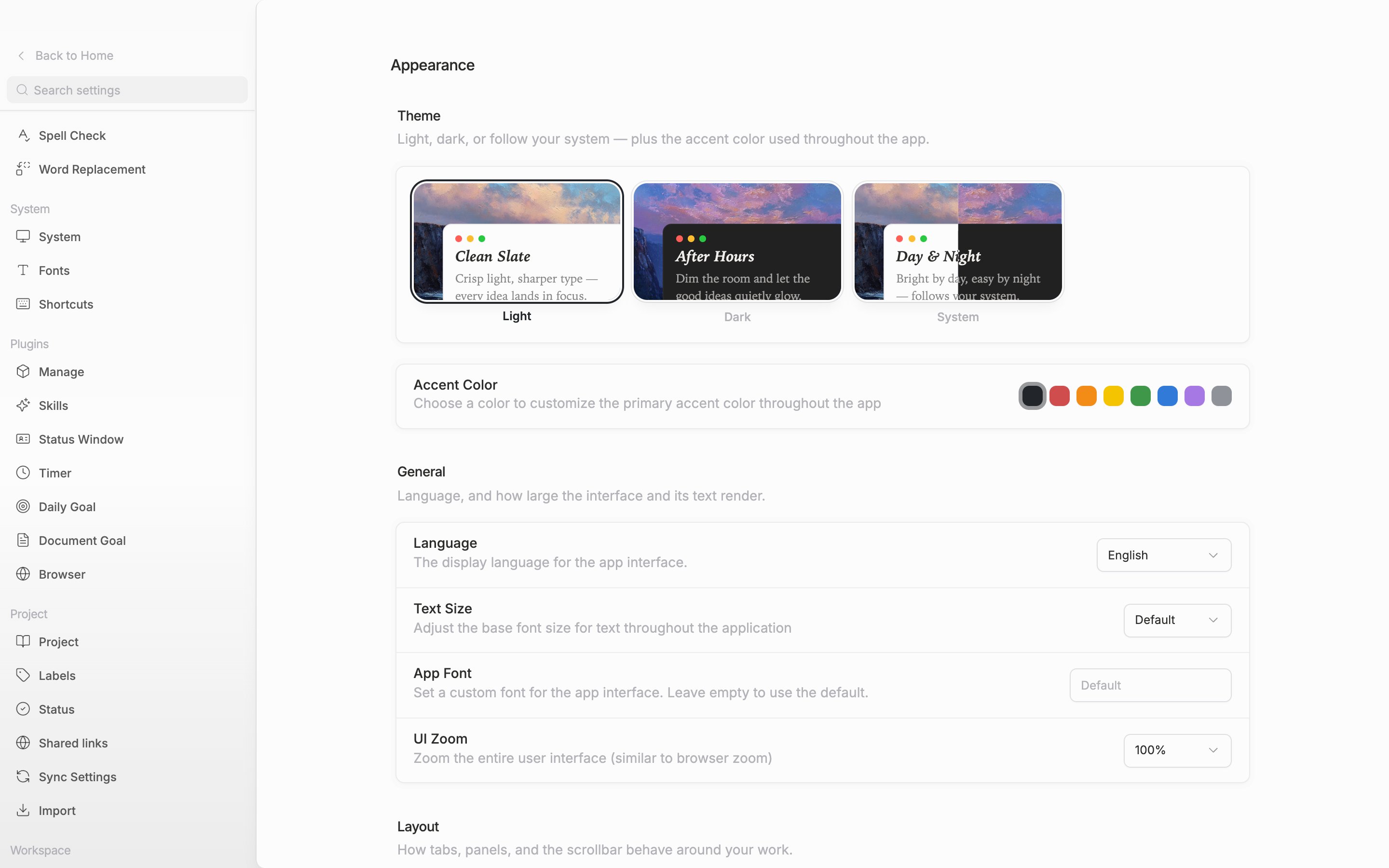
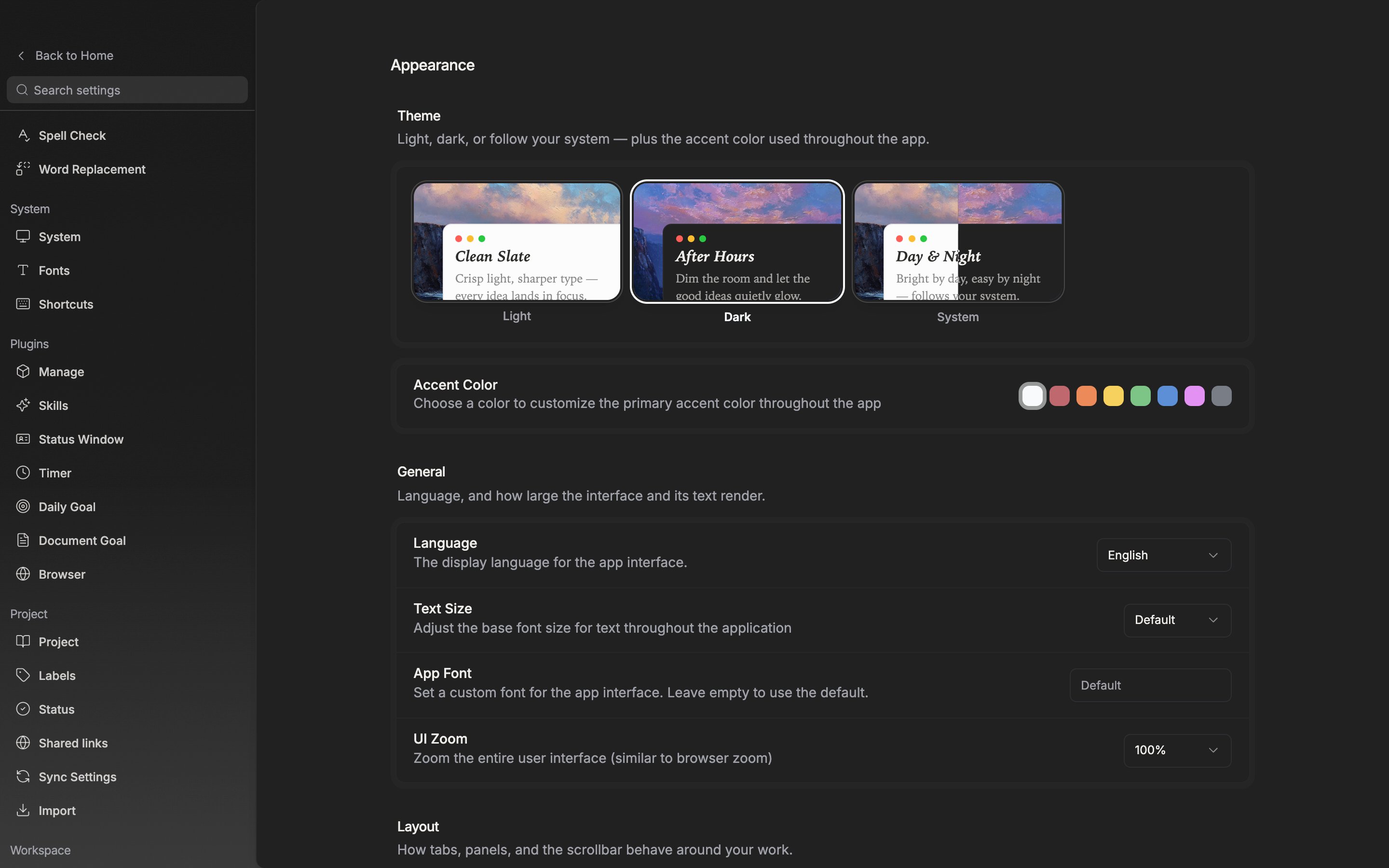
Turning on translucency brings the Opacity slider along with it.