

At startup
Turn on Open in start and pensiv comes up together with your device. Open last visited takes you back to the spot you were looking at just before, when you reopen the app. The only spots it remembers are screens inside a project, so if you closed the app on Home you start at Home again. Both are on to begin with.When you close the window
With Close to tray on, the app stays in the tray or the Mac menu bar even after you close the window. Turn it off and the app quits completely the moment you close the window. Keep window loaded on close goes one step further. It hides the window instead of destroying it, so there is nothing to wait for when you reopen it, at the cost of holding on to that much memory. The default is off.Obfuscate screen
With this on, the whole screen blurs the moment the app loses focus. It keeps your manuscript from sitting in plain view when you step away for a moment at a cafe or the office. The blurred screen also carries a note on how to turn it off.Word break
Choose between Break by word and Break by character. This value applies to input fields throughout the app, such as title fields and sheet inputs. How the manuscript body wraps is set separately in the editor settings, not here.Reset cache
This button clears the local session and project cache built up on this device and makes the app fetch them from the server again. Keep it as a last resort for when what you see on screen no longer matches the actual data. Your sign-in information stays as it is, and the databases of projects with cloud sync off are not deleted, because those projects exist nowhere but this device. Click it and a confirmation dialog appears once. When the cleanup finishes, the app refreshes itself. Any changes that have not made it to the server go with it, so check first in the sync status under project settings that there are no pending changes.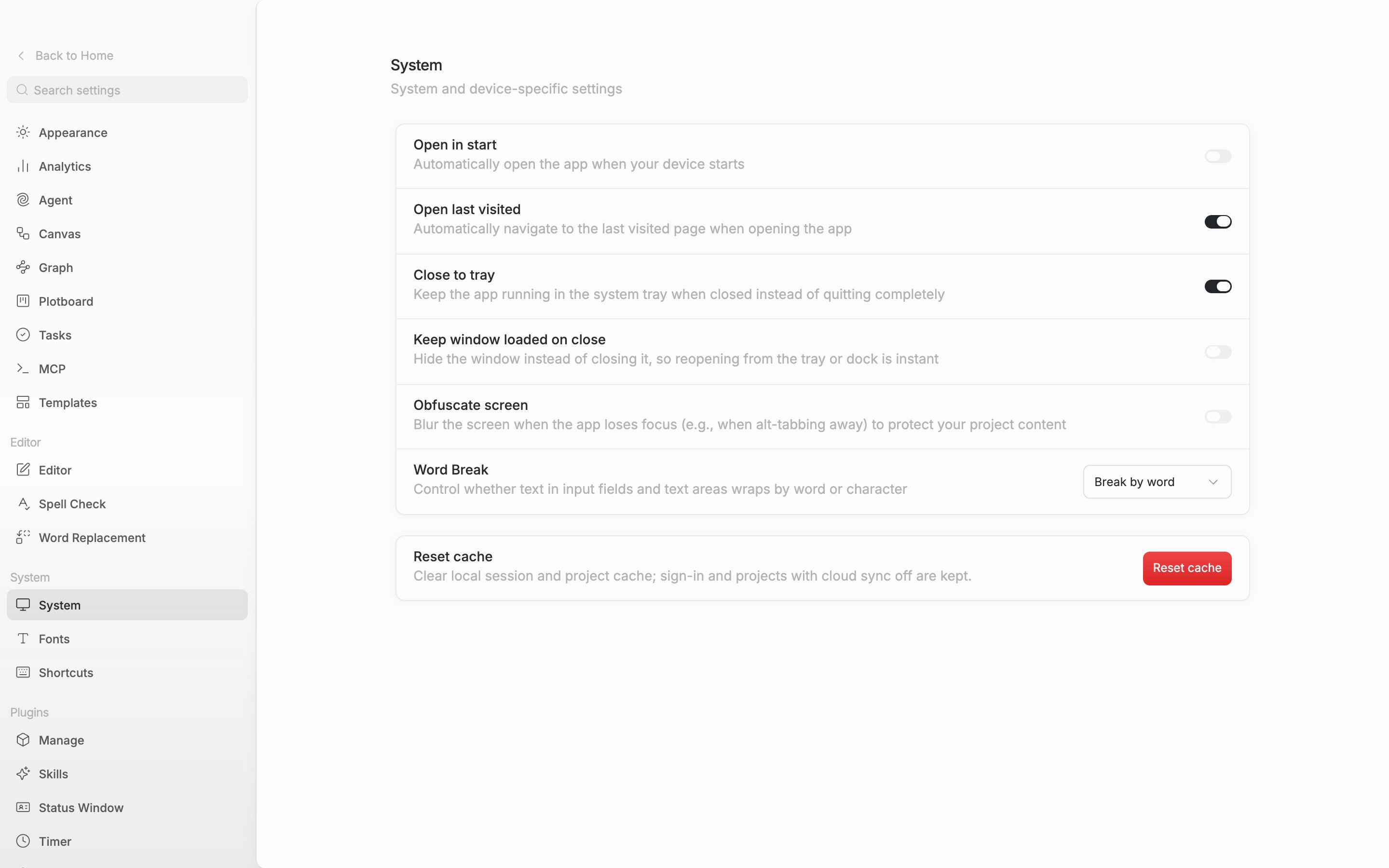
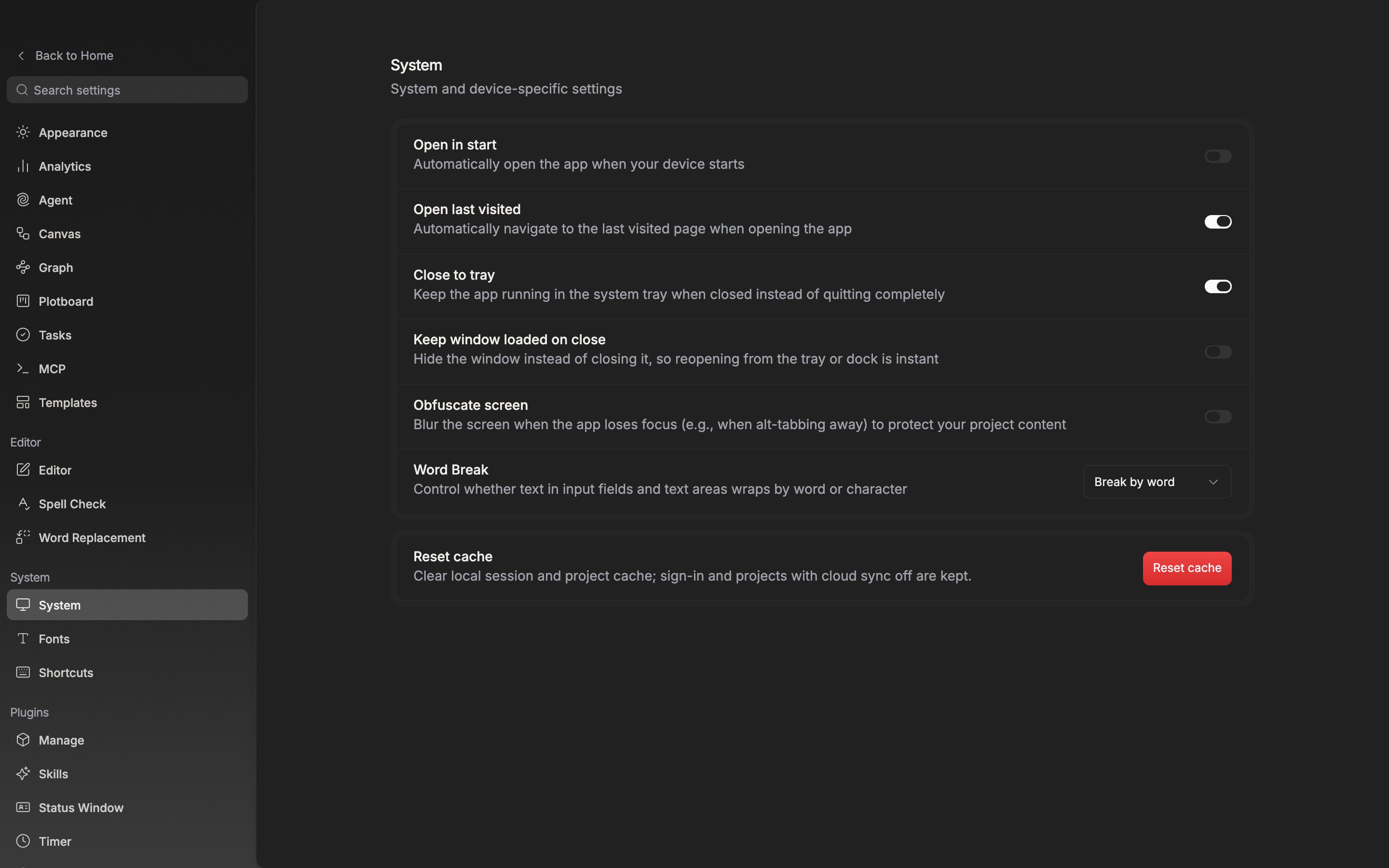
Every setting in the System tab is stored on this device only.