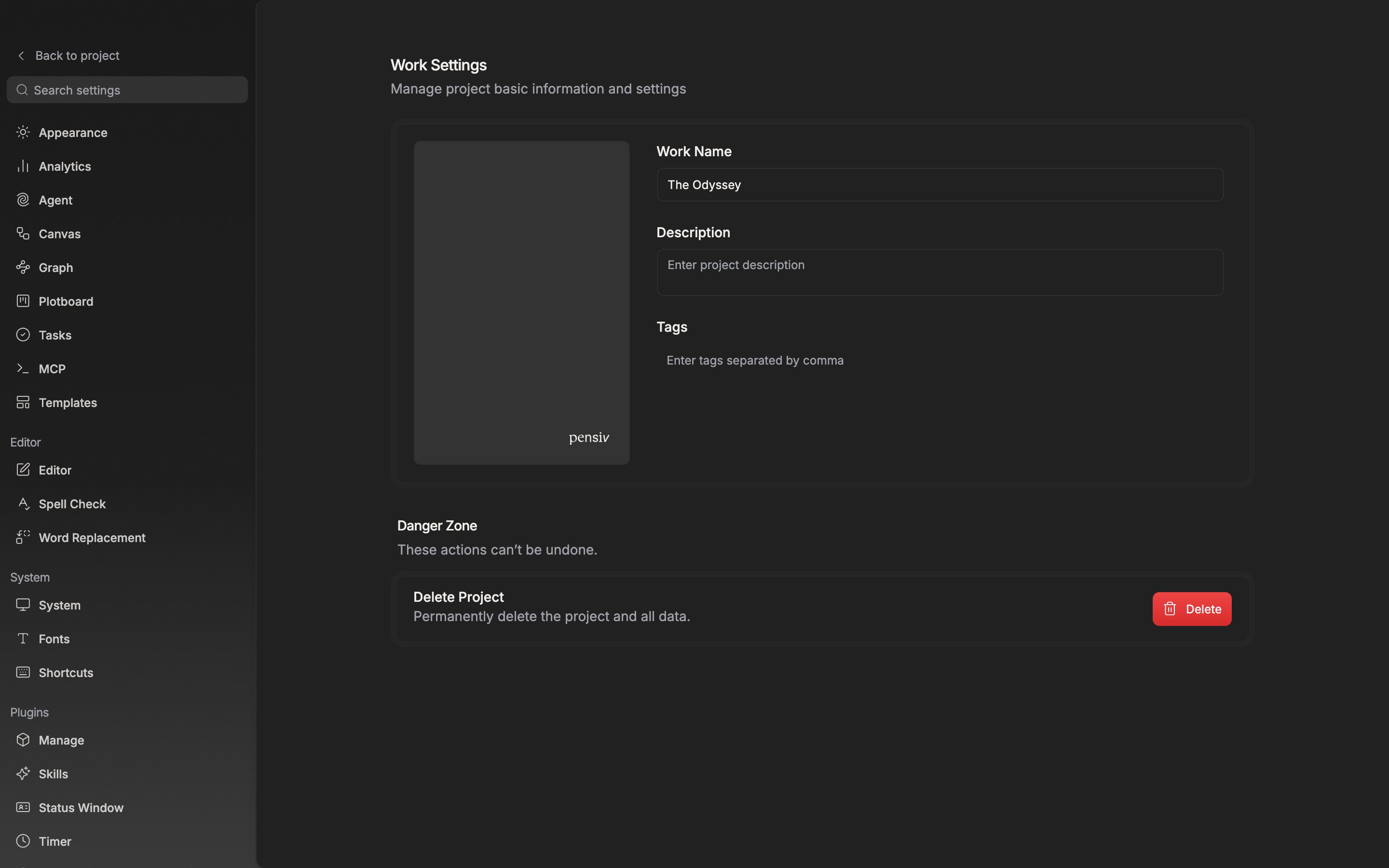
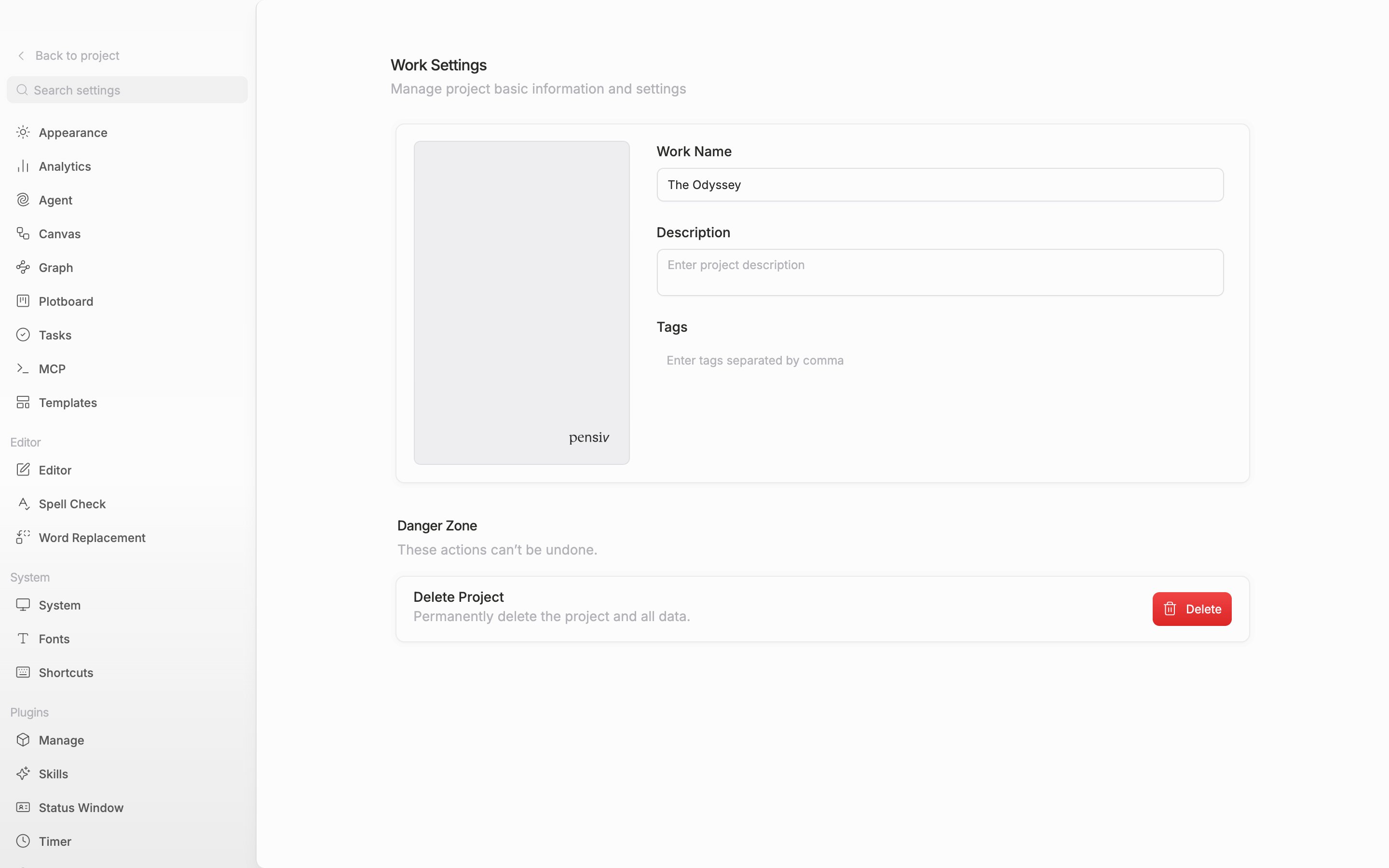
Several places in settings carry a card called Danger Zone. It gathers only the actions that cannot be undone, so its description reads âThese actions canât be undone.â
Deleting a project
There are two doors in. One is the bottom of the Settings dialog that opens from the three-dot button at the bottom right of a project card on Home; the other is the bottom of settings â Project with the project open. Either way, clicking Delete on the Delete Project row brings up a confirmation dialog.
The dialog only lets you through when both fields are filled in.
- Type the project name exactly as it is. The name is written right under the dialog title, so you can copy it from there. If even one character is off, the button stays locked.
- Check I understand this action cannot be reversed.
The warning reaches wide: âThis action cannot be undone and will permanently delete all content (documents, characters, plotboards, etc.) in the project.â It goes at once without passing through the projectâs trash, so if you have any thought of bringing it back, you should not come here in the first place. After the deletion the app returns to Home. If there is a manuscript you want to keep, export it first.
In offline mode the Delete Project button in the confirmation dialog is locked. Reconnect before you go on.
Delete Project sits in the Danger Zone at the bottom of the project settings tab.
Deleting an account
It is placed next to Sign Out in the Danger Zone of settings â Profile. Here the Delete Account button opens only after you type the email address you signed up with and check the checkbox with the same wording. If a paid subscription is still alive, you are sent to the billing screen instead of the deletion, with a notice to cancel the subscription first.
Once it is deleted, the data attached to the account is gone, the project data left on this device is cleared as well, and you are signed out. The procedure is written out in more detail in Security.