

Document and audience
Format has only Web novel for now, and the select box does not respond. Target audience decides whose eyes the review reads with and who it talks to. The six fall into three groups. The two novelist options borrow the voice you would use with the person who wrote the manuscript, the editor and juror borrow the yardstick of someone choosing works, and the two reader options borrow what it feels like to read it. The starting value is Working novelist.
What the target audience changes is the point of view and the voice. The items that get scored are set separately under What to critique below, and the balance of praise and criticism under How direct feedback is. So pairing Newer novelist with No-chaser gives a review that explains in plain words but does not soften the weak spots.
The review does not go looking for other episodes on its own. To have Working novelist speak to the flow before and after, attach the previous episode under Reference docs. Run the same episode two or three times, changing only the target audience, and the difference shows right away.
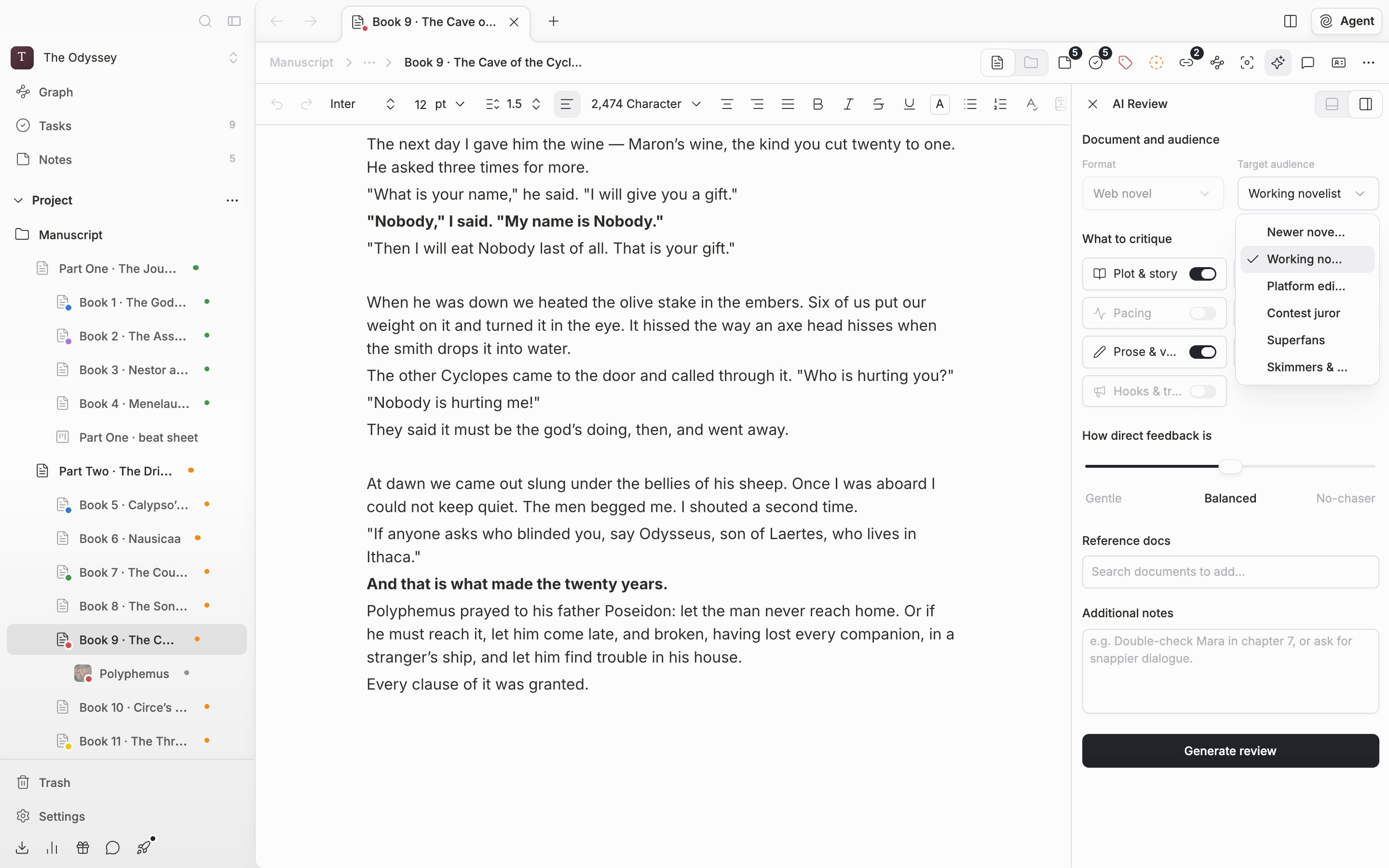
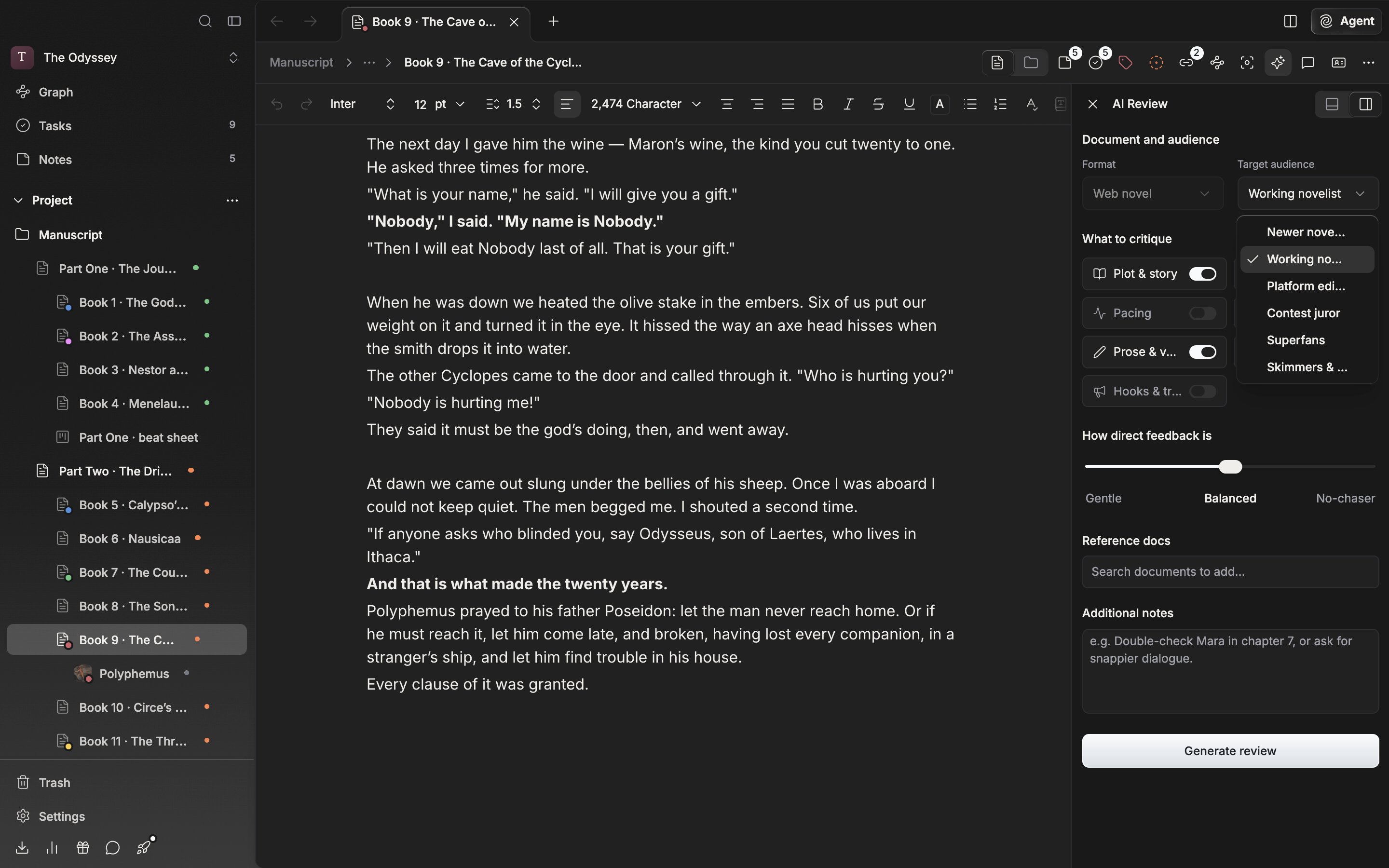
Format is fixed to Web novel; you only choose the reading position.
What to critique
You switch seven axes on and off: Plot & story, Characters, Pacing, Worldbuilding, Prose & voice, Feels, Hooks & traction. Four are on at the start: Plot & story, Characters, Pacing, and Prose & voice. Each axis you leave on gets its own score out of 5. Turn on three or more and the scores are drawn as a radar chart; turn on only one or two and they are drawn as bars. You cannot turn them all off, so the switch on the last one will not go down. For an episode where you are only working on dialogue, leave just Characters and Prose & voice. The comments gather there as well.How direct feedback is
How direct feedback is is a three-stop slider. From the left: Gentle, Balanced, No-chaser. You can drag the handle or press the name below it. The starting value is Balanced. Praise and criticism are weighted about 7:3 for Gentle, half and half for Balanced, and about 3:7 for No-chaser. Gentle brings out the good points first and puts the weak spots gently. No-chaser is closer to an editor’s voice that does not go around the subject. Use one on the day you have just finished a first draft and need some energy, and the other on the day right before a deadline when you want to know only what to fix, fast.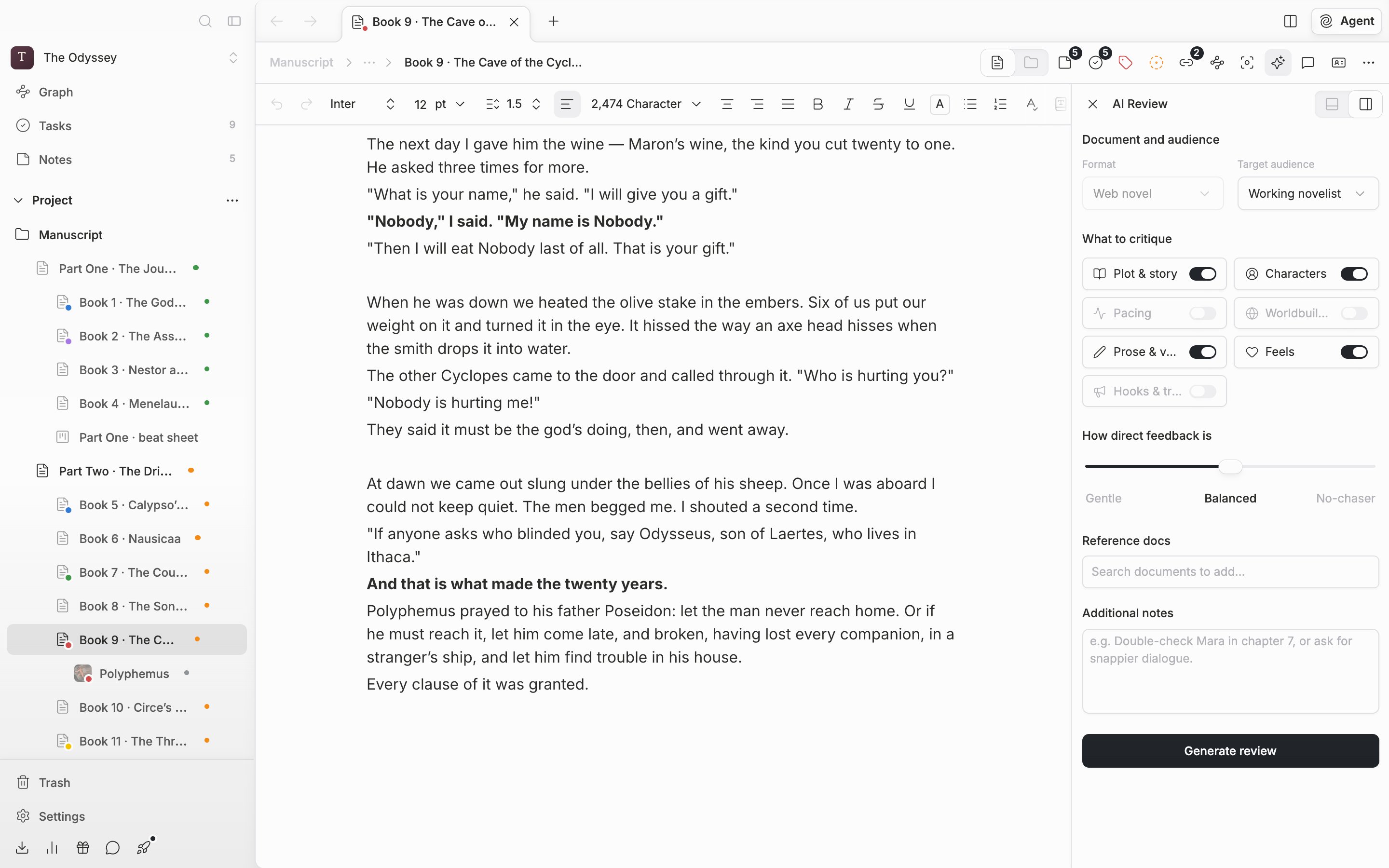
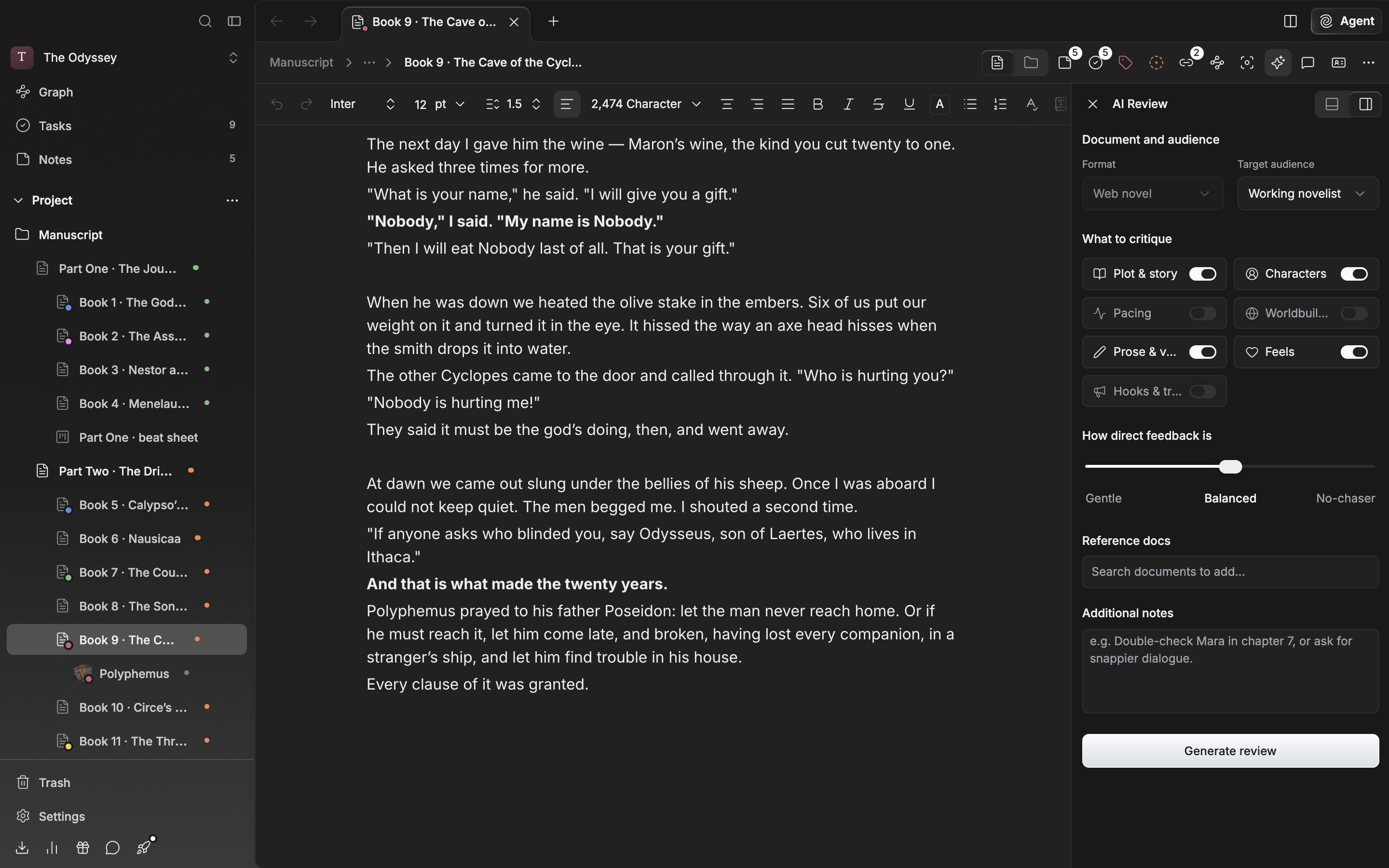
The axes to turn on and the tone are set together here.