

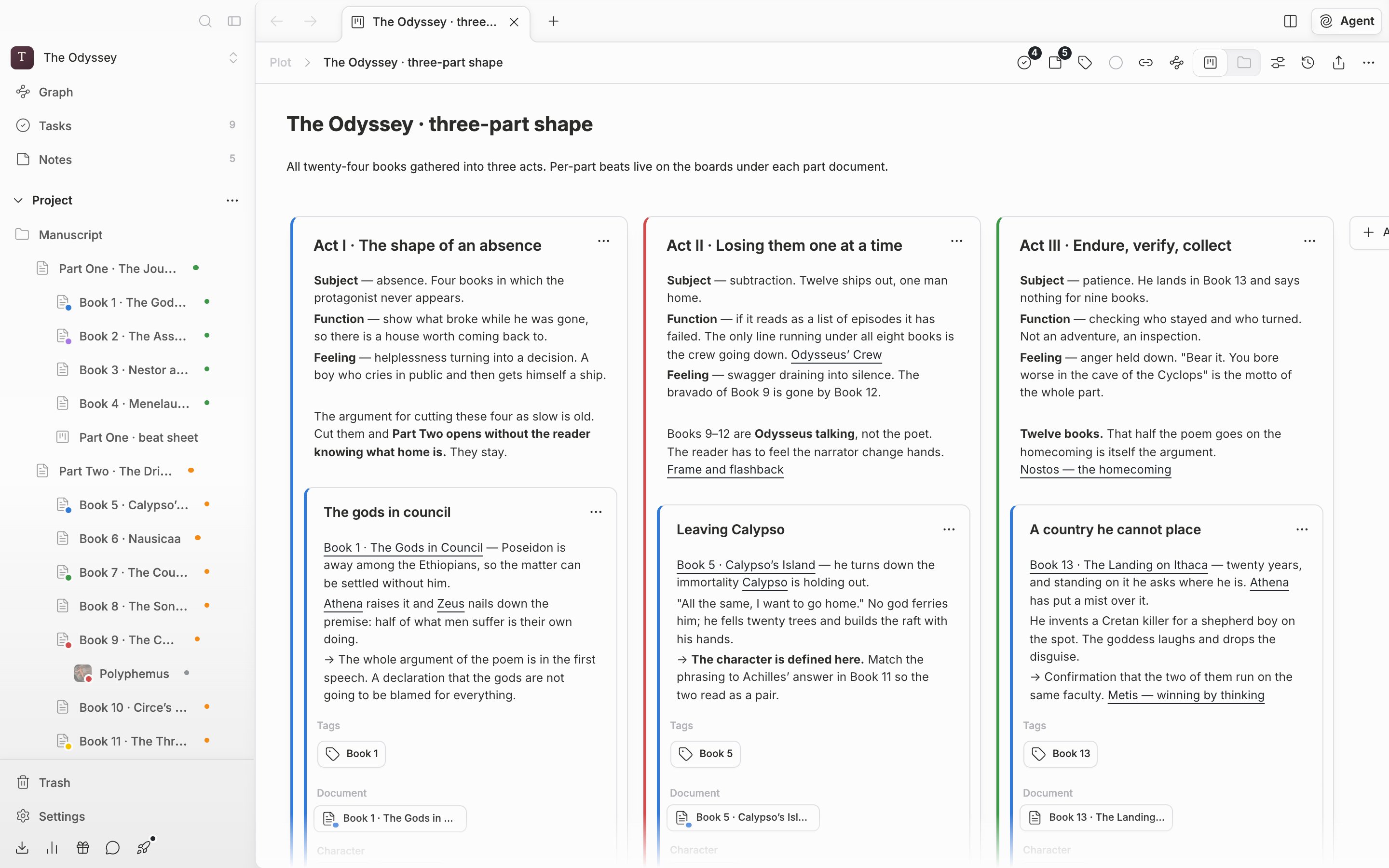
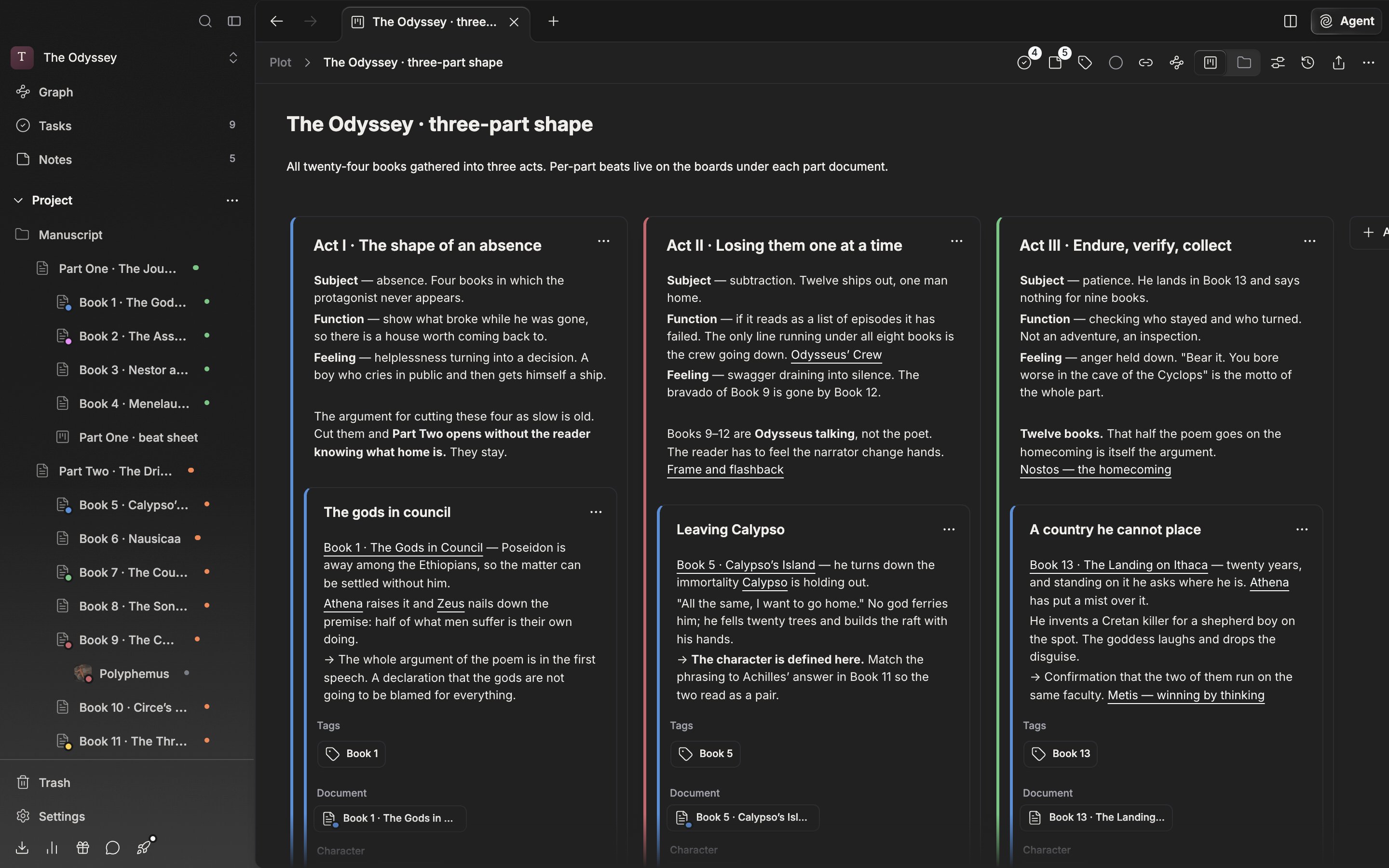
One plotboard. The header, the title and description, and the card board sit top to bottom.
Header
On the left sits the path from the project down to this board. The buttons on the right start out as eight: Notes, Tasks, Label, Status, Backlinks, Relationship Graph, View Toggle, and Orientation. Version history and Share link are hidden, so you have to turn them on under Customize in More. More also holds Export, Lock File, and Move to Trash. Export as image and Export as PDF, under Export, appear only in file view. Lock the file and dragging cards around or creating new ones is blocked.Title and description
Above the card board there is a large title field, with a description field below it. While empty they show “Plotboard Title” and “Add a description” dimmed. Press the down arrow at the end of the title field and you drop into the description field. Press the magic wand button at the top right of the description field and AI reads the titles and descriptions of the plot cards in order and writes the board description in (Filling properties and descriptions with AI).The card board
Plot cards stand like columns with part cards stacked inside them. Add New Card (Cmd/Ctrl + Shift + A) at the end of the row adds a column.
The Orientation button in the header switches between laying the columns out horizontally and stacking them vertically. The choice stays with the board itself, so it holds when you open it again.
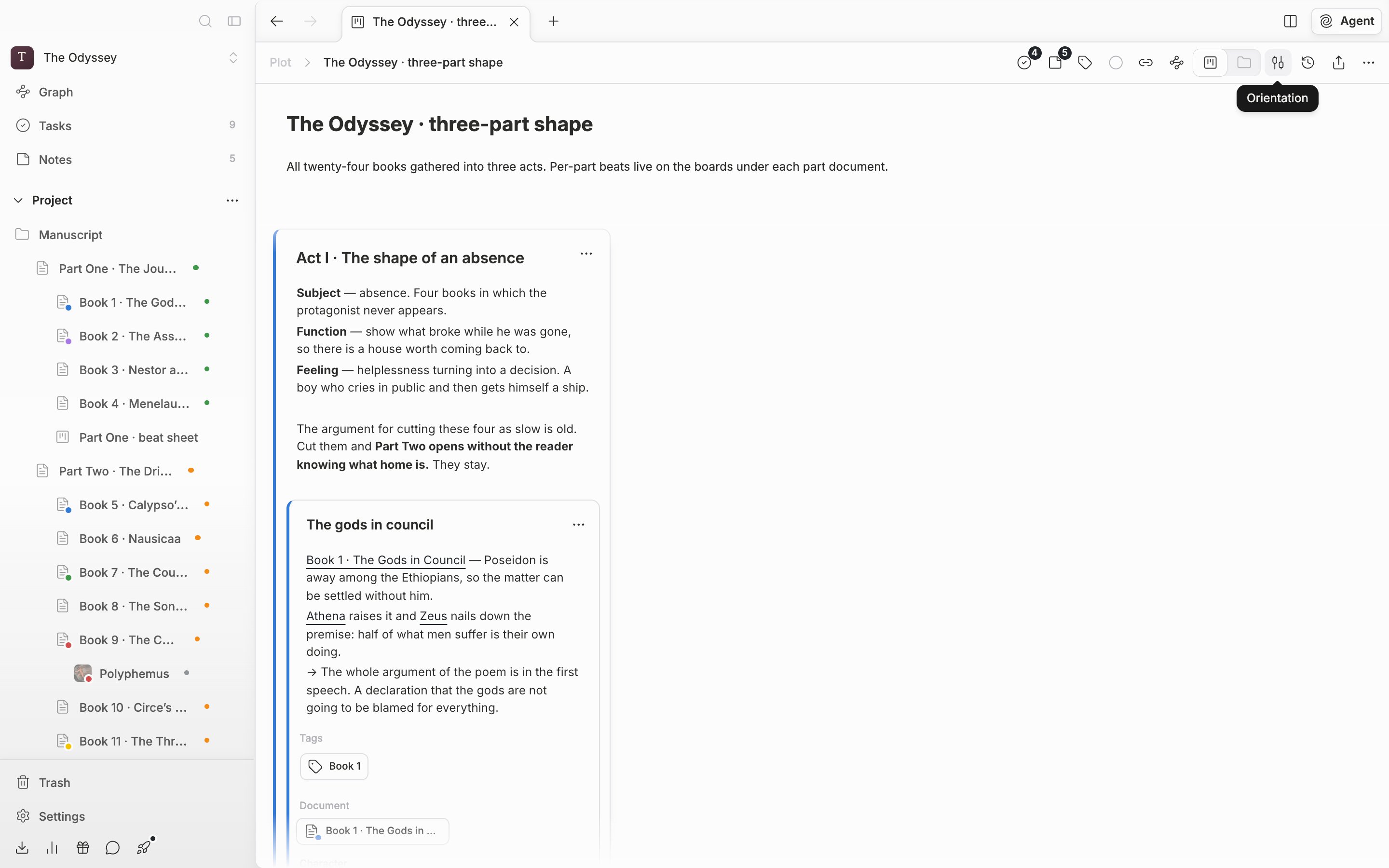
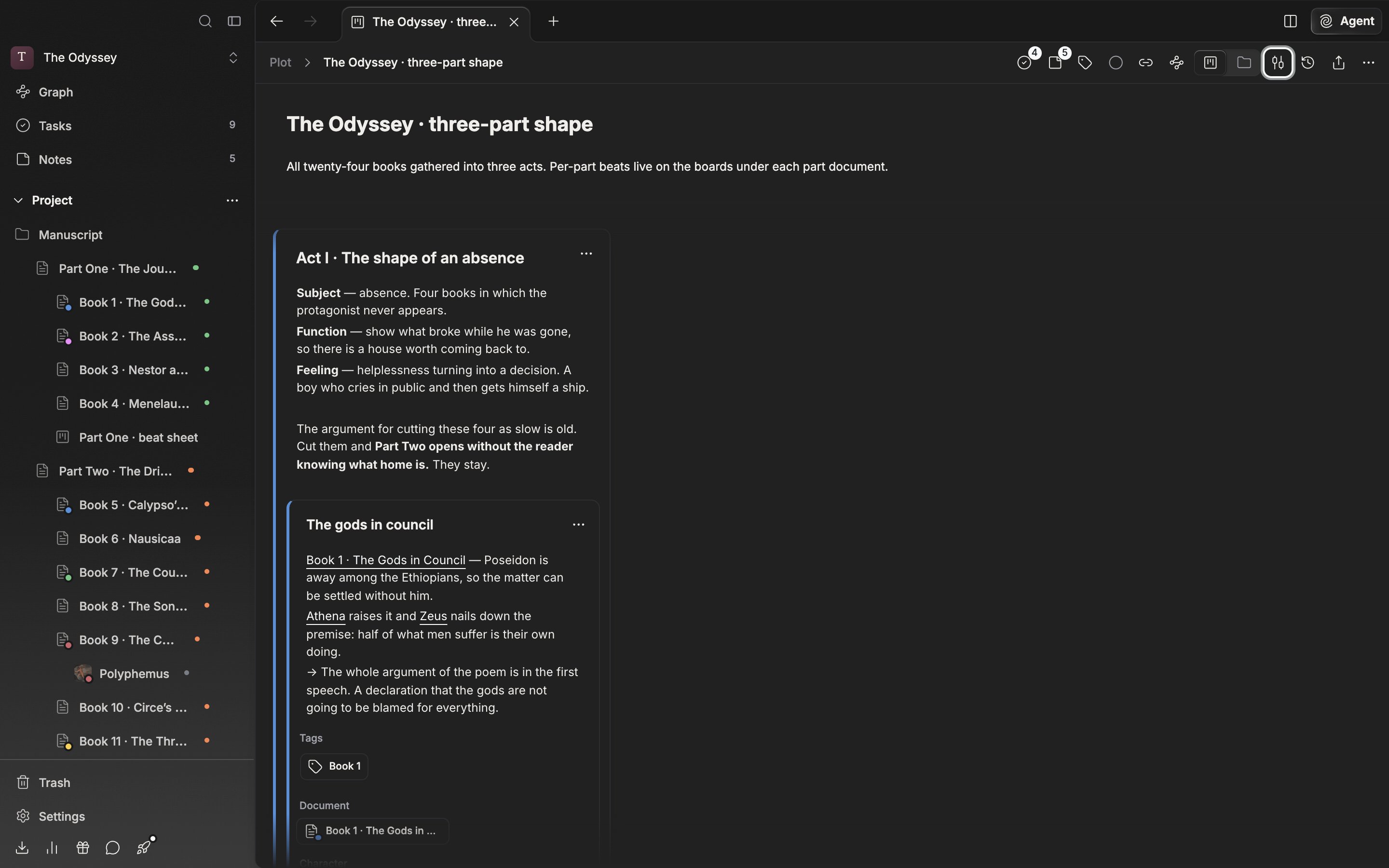
The Orientation button switches between the horizontal and vertical layouts.
Size and zoom
HoldCmd/Ctrl and turn the wheel over the board to zoom between 50% and 200%. Plotboard in the settings window holds Card Width (200–600px) and Zoom Level. Reset to Default returns them to 350px and 100%. These values belong to the account, so they apply to every plotboard at once.
Finding within the board
Cmd/Ctrl + F opens the find field. It scans the titles and descriptions of plot cards and part cards, steps through them one at a time, and can replace as well.
Find works only in file view. Switch to folder view and the results drop to 0, so come back with View Toggle.