

The screen is three parts, top to bottom
The header at the top carries the path from the project down to this document, with tool buttons lined up to the right. Document history, Export, and Share are folded away at first, so you pull them out of More at the end. Below that come the title, then the body. Notes, Spell check, AI Review, and Comments attach as panels to the right of the body. Drag the boundary and the width splits between manuscript and reference. The toggle at the end of the header chooses whether to see this document as a manuscript or as the list of files hung beneath it.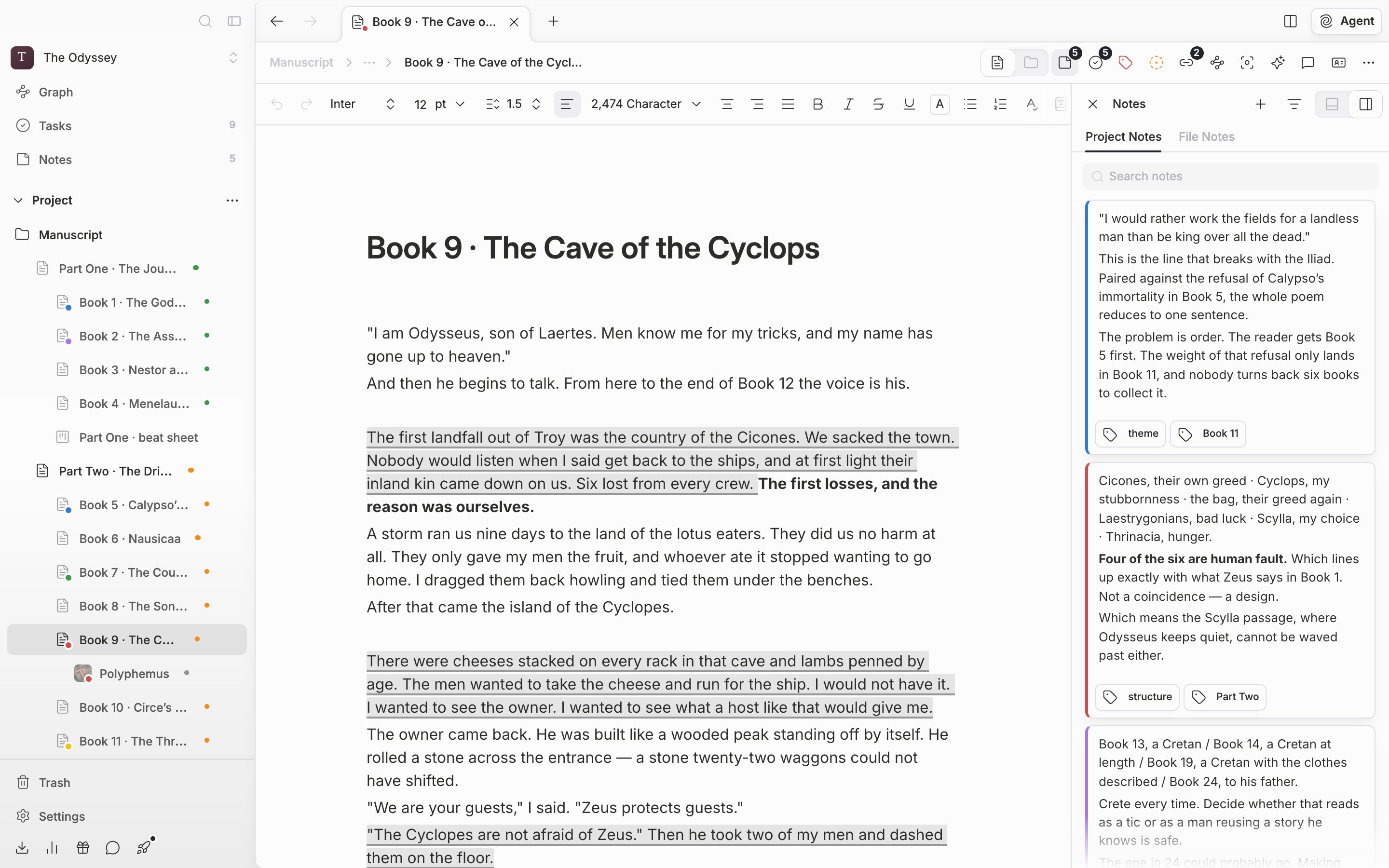
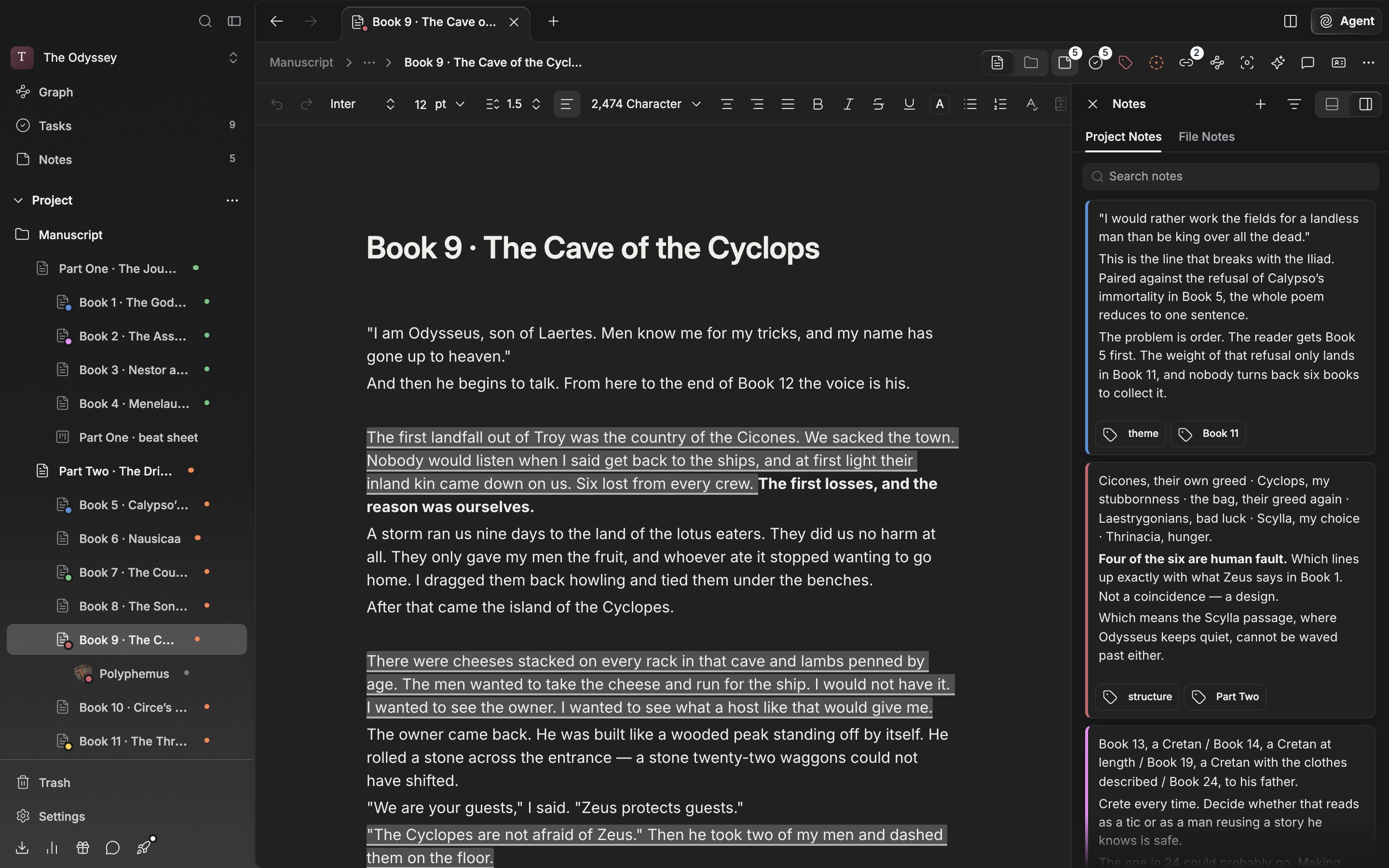
Header, title, body, and the right panel — the writing screen in one shot.
From the title into the body
The top field is the title. When it is empty, “Untitled Document” sits there faintly. The title takes several lines, so Enter only breaks the line. To go down into the body, press the right arrow at the end of the title, or the down arrow on the last line. An empty paragraph in the body reads ”## or ### for headings · / for commands · @ for mentions”. The hint lists only what is turned on. Turn the three off in settings and the line shortens; turn them all off and only “Start writing your document…” remains.Folding what sits under a heading
In a long manuscript, when you want to tuck away the scenes you are not looking at right now, fold a heading. Hover over a heading in the body and a chevron appears in the left margin. Press it and everything from that heading up to the next heading of the same or a higher level folds away. A folded heading stays with its chevron pointing sideways and a faint ”…” at its end. Press the chevron or the ”…” and it unfolds again. From the keyboard, put the cursor anywhere in that stretch and pressCmd + Option + . (Ctrl + Alt + . on Windows). Sheet bodies fold the same way.
A folded part does not drop out of the manuscript. It still counts toward the character count and goes into exports and printouts, and folding does not count as editing the file. If the cursor moves into a folded stretch with the arrow keys or through Find, it unfolds on its own, so you never end up typing somewhere you can’t see.
If you have turned on Show table of contents in Current File Settings, the table of contents lists every heading, including the ones under a folded heading. Click one of those and only the stretch that was hiding it unfolds, and the heading is highlighted for a moment.
Folds are remembered per document, on this device only. They don’t affect the screens of the people writing with you. If you change the text or level of a folded heading, the fold is released the next time you open the document. In page view, folding is turned off and everything shows expanded; turn page view off and your folds come back.
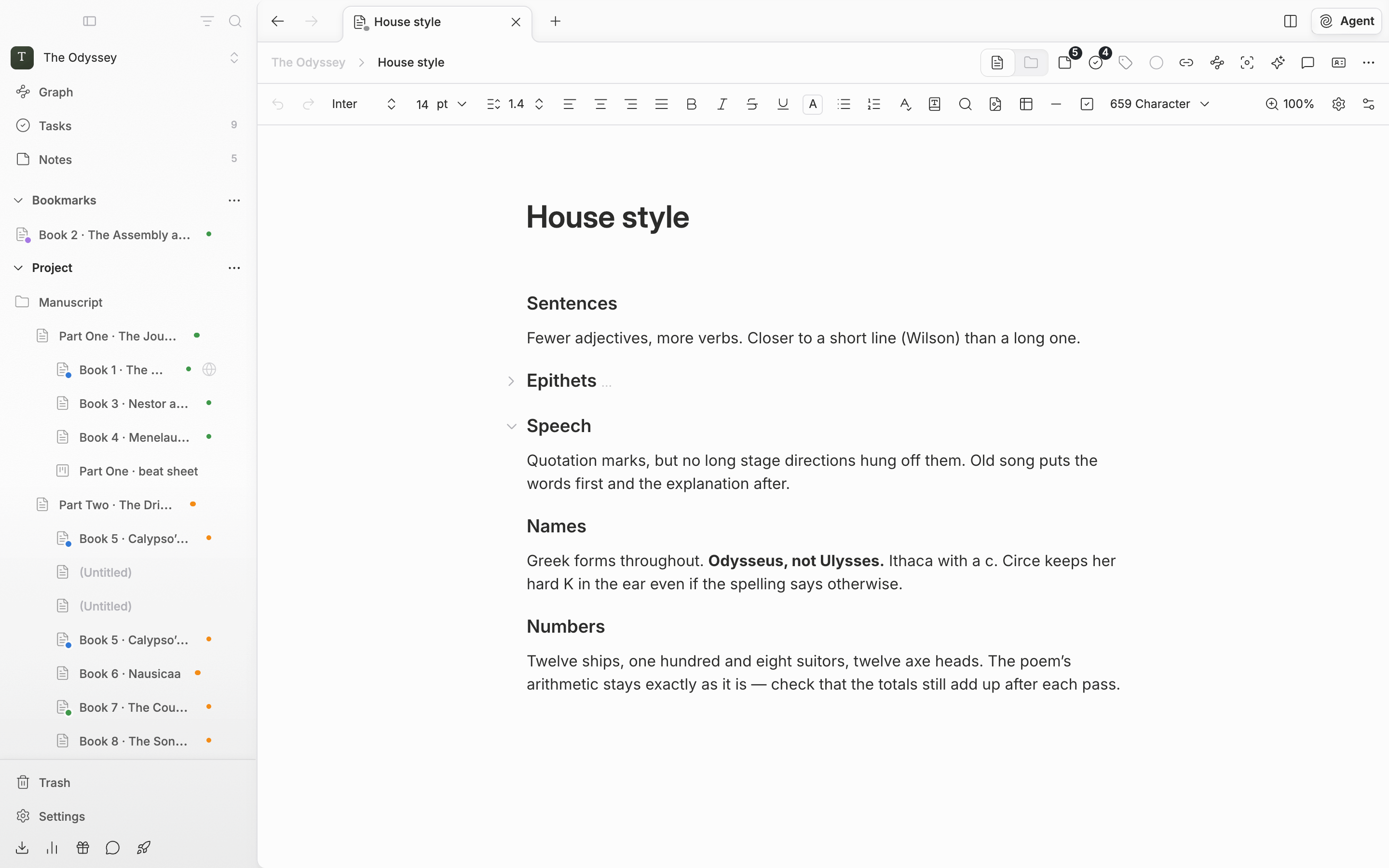
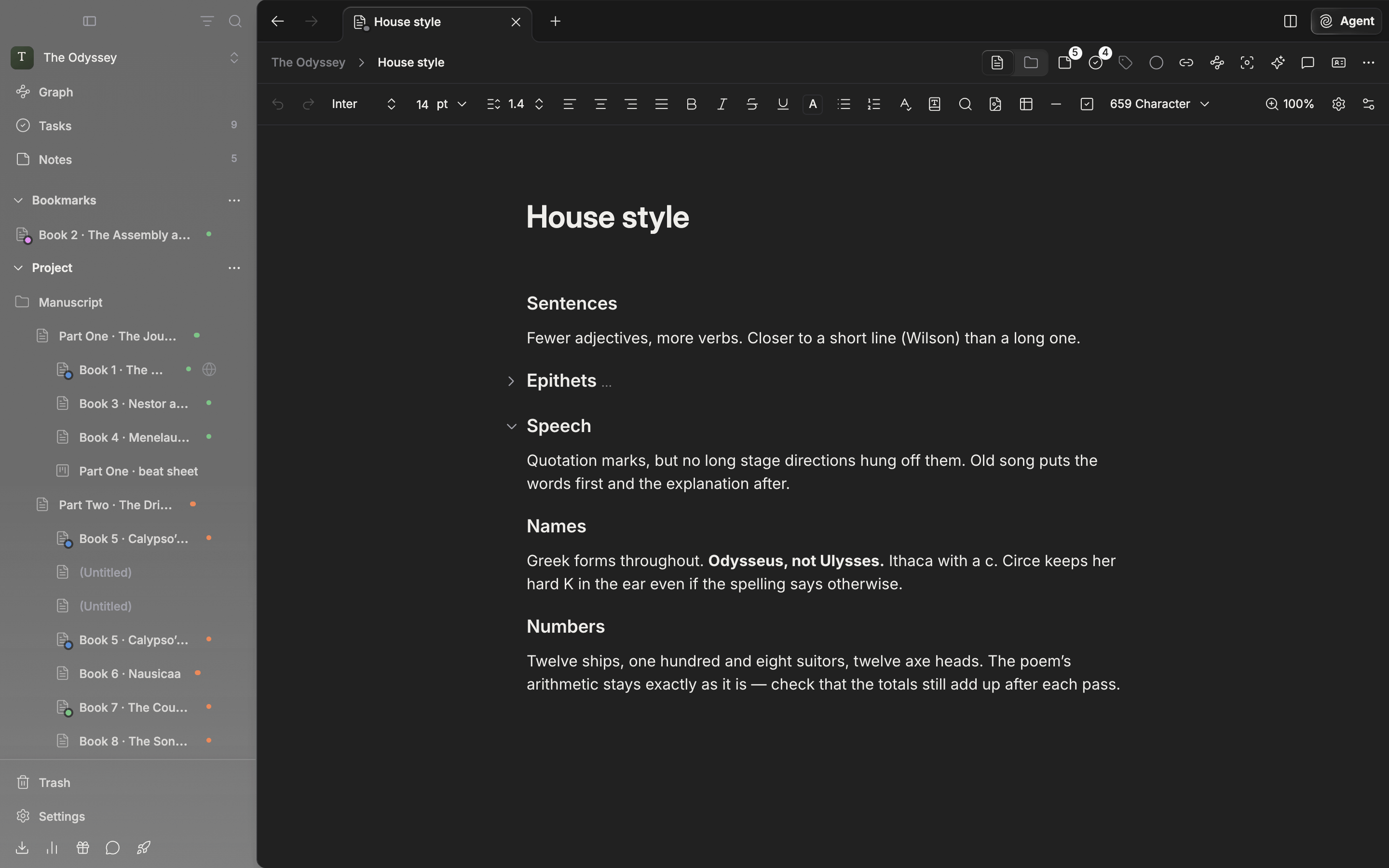
The chevron to the left of a heading folds what is under it. A folded heading ends with ”…”.
There is no save button
Half a second after you stop, both title and body are saved. There is no separate saved indicator. The moment you switch tabs or cross to the panel beside you, the text still waiting goes over first. What needs looking after is not the save but the point you can come back to. Versions that pile up on their own are left once every ten minutes, and only when more than 200 characters have changed. PressCmd/Ctrl + S before you overturn a whole paragraph. This save asks no conditions. It pins that point as a version and shows “Document saved”. If you have several panels open, only the one holding the cursor is saved.