

Selecting
Cmd(Ctrl) click puts the item you press into the selection or takes it out. Shift click grabs everything from the item you picked last to the one you just pressed as a single block. Cmd(Ctrl)+Shift click leaves the current selection as it is and lays that range on top of it. Cmd(Ctrl)+A picks every expanded row in the sidebar, and every item in that folder on the folder screen. In Grid, List, and Freeform on the folder screen, dragging empty space draws a rectangle and everything it touches is grabbed with it. In Timeline, dragging empty space moves the view, so there is no rectangle selection. Clear the selection with Esc or by pressing empty space once.The order is the one on screen
Select two or more in the sidebar and they open gathered into one tab named something like “Multi-select (3)”. The order they are laid out in is the order shown in the file tree, not the order you clicked. Shift range selection and select-all use the same rule. To change the order, drag the items in the tree. Pick a folder and the items under it come along with it. At the top of the screen there is a “3 items selected” badge and a Clear selection button, and next to them you can use Save as template and Export straight away.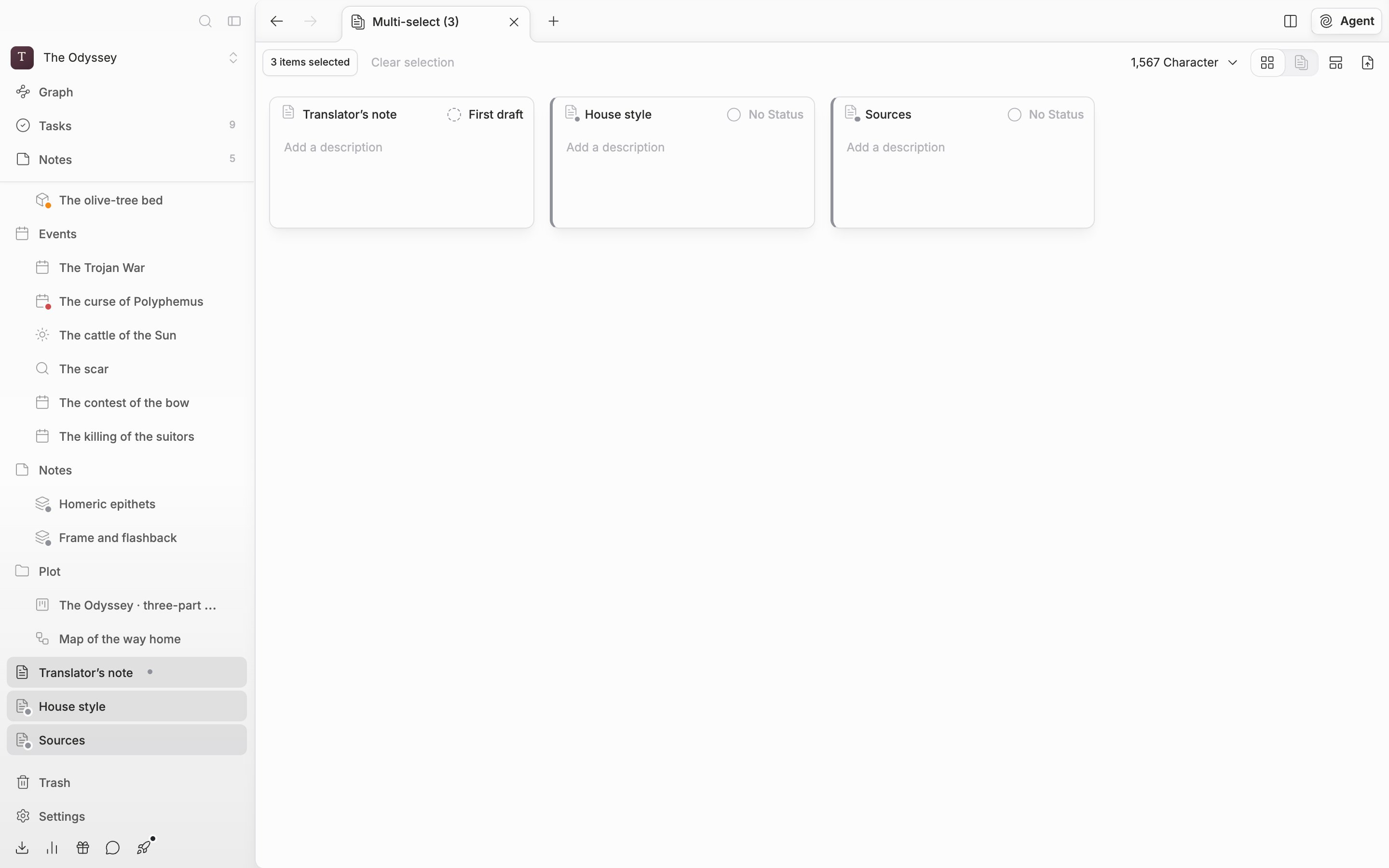
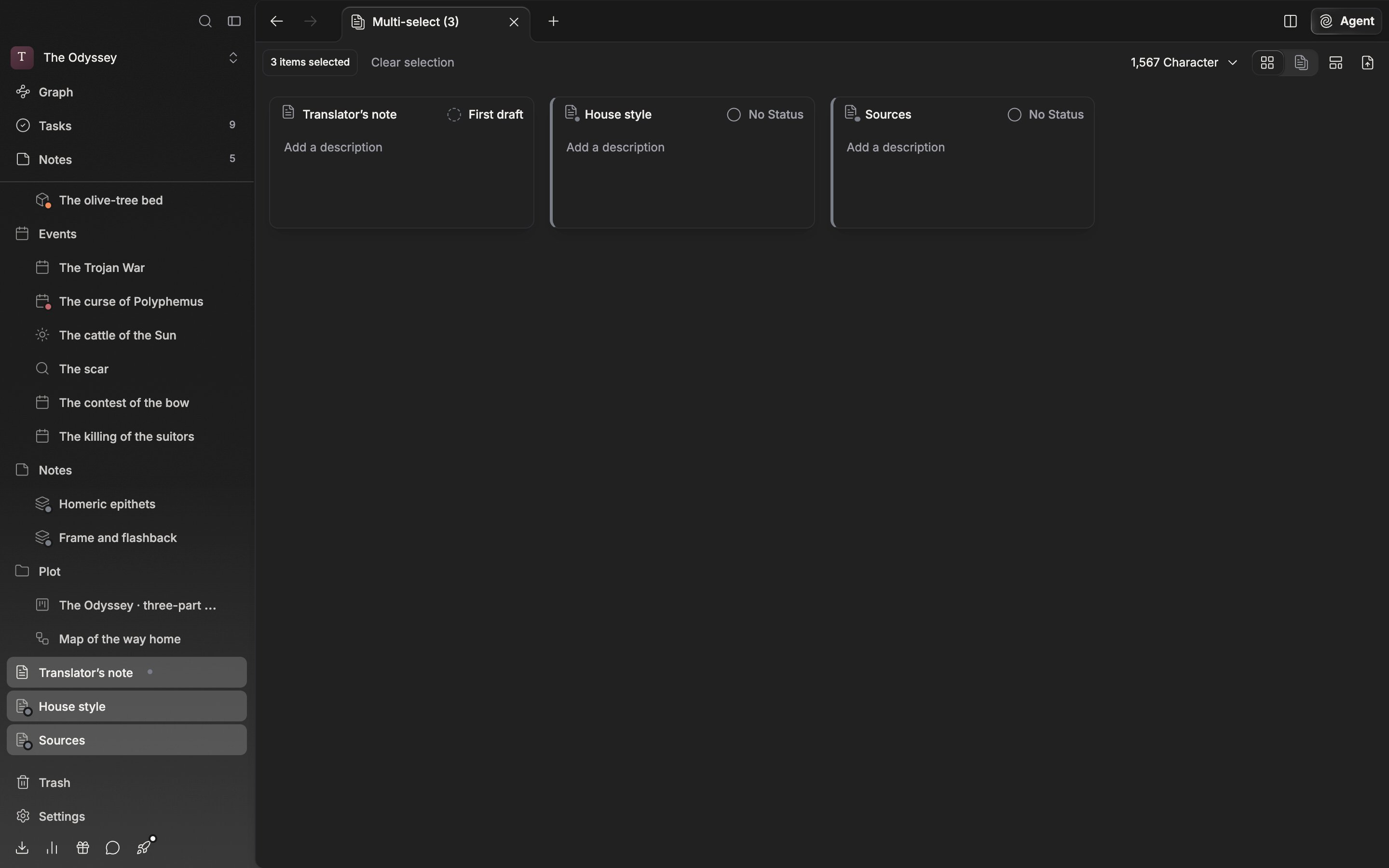
Selected items are laid out in file tree order, not in the order you clicked.
Reading straight through only what you picked
The multi-select screen lays cards out on a grid at first. Move the tab at the top right to the right and only the documents you picked run on in one scroll. A dotted line goes in between one piece and the next so you can see where they break, and you can edit the body right there. The character count next to the badge is the total across every document you picked. It is the same screen as continuous reading, which you get by opening a folder and switching to file view, but the target is different. On the folder side it is every document under it; here it is only what you have just picked. Use it when you want to lay two chapters that sit apart, such as chapter 3 and chapter 7, side by side and compare them. It is not the same as Split View. Split View splits the pane and opens different files side by side, while continuous reading joins documents vertically inside one pane.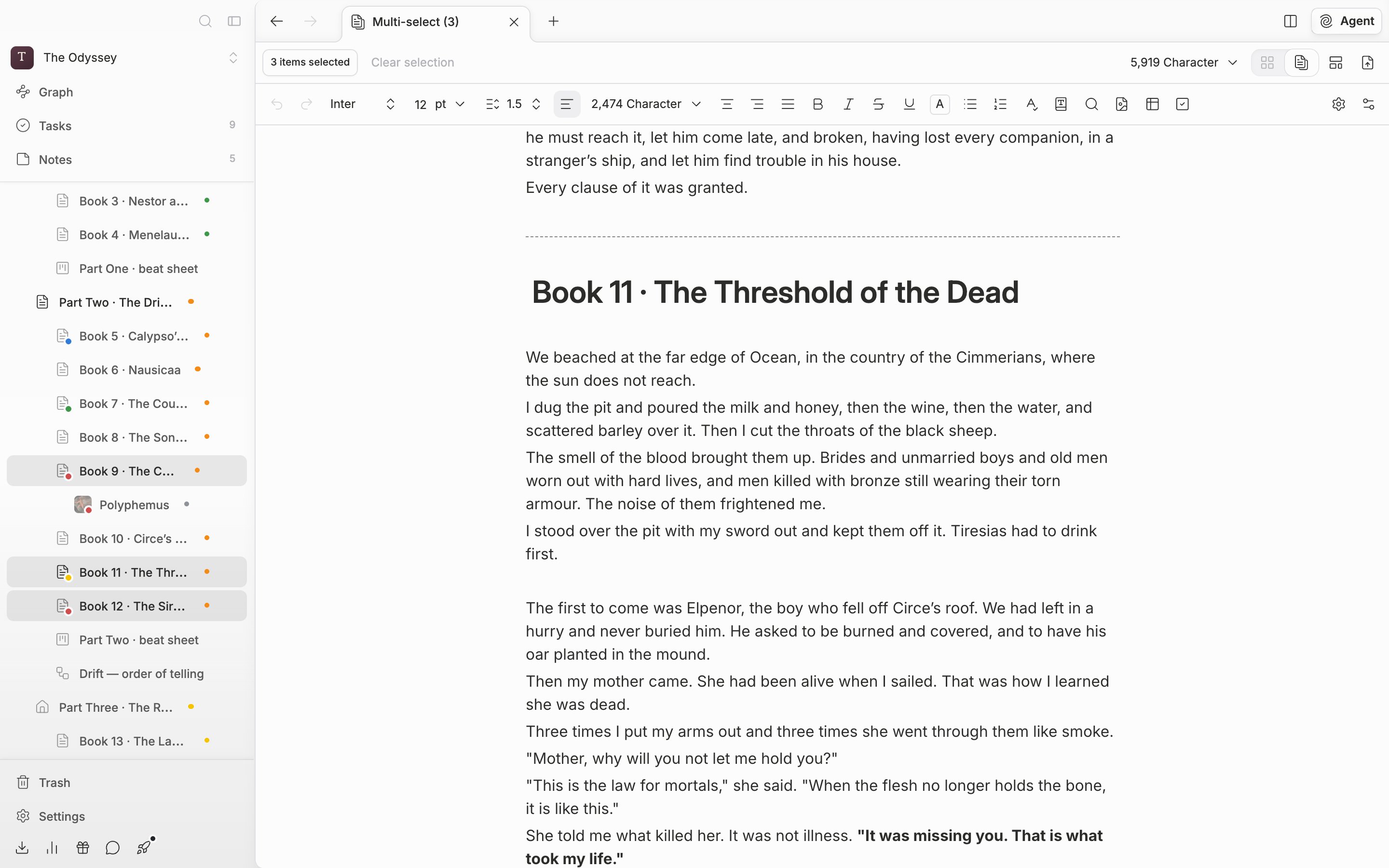
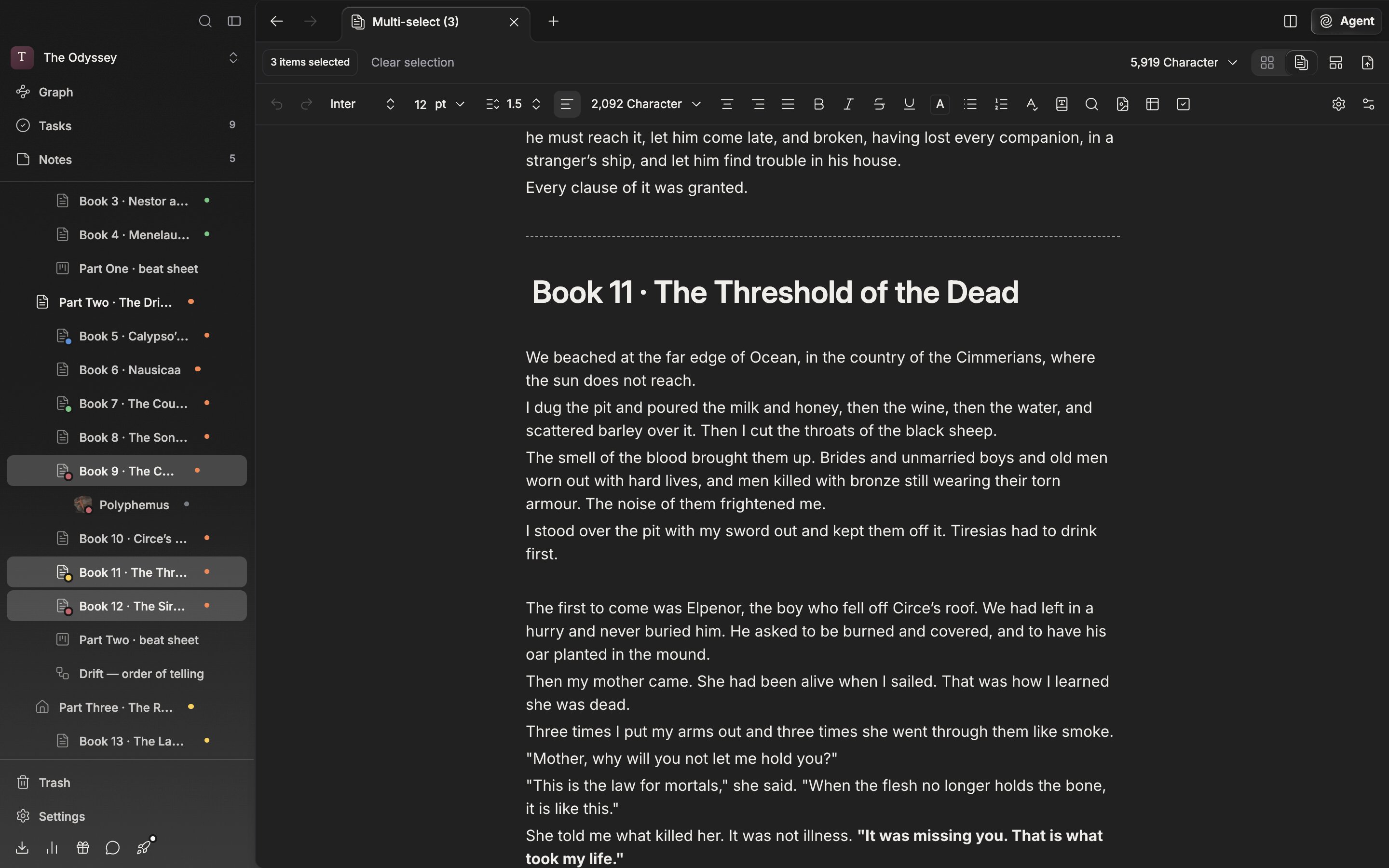
Only the documents you picked run on in one scroll. The dotted line is the boundary between pieces.
Changing them all at once
Right-click an item inside the selection and the menu turns into one for bulk work. Change Icon, Label, and Status set the value across every item you picked in one go. Duplicate (3), Save as template, and Move to Trash follow in the same way. Press Lock File (3) and the items you picked are all locked at once, so they can’t be edited. The item you right-clicked decides the direction. If that item is already locked, the menu changes to Unlock File (3) and unlocks them all. Even when locked and unlocked items are mixed, they all end up the same way. Locking a folder does not lock the files inside it, so pick those too. Right-clicking an item outside the selection collapses the selection down to that one item, so open the menu over a highlighted item.Move to Trash goes through one confirmation dialog: “Move 3 items to trash?”