

Panes that open as tabs
The pane arrives as a tab in the same place a document opens. The plugin decides the tab title and icon. The plugin also decides how it opens, usually by putting one command in the Command Palette. In the palette, commands made by plugins are gathered separately under Plugins. The built-in browser is a pane like this, so it opens with Browser: Open. Because it is a tab, it works with split view. Put the manuscript on the left and the plugin pane on the right. Tabs you leave open stay there after you quit and restart the app. If you turn that plugin off, though, the tab shows only “This plugin pane is unavailable because the plugin is disabled.” Turn it back on and the original view returns.Panes that dock beside the manuscript
A button appears in the document, sheet, plotboard, folder, canvas, and task headers. Press it and the plugin’s view takes the place where Notes or Comments used to open. Press it again to close it. There is only one such slot, so opening Notes pushes the plugin pane out. Where it docks follows Panel position in settings. Drag the border to adjust the width. It can widen to half the screen, and each tab remembers its own width. The X at the top left of the pane is Close, and to the right of the title beside it sit the buttons the plugin added.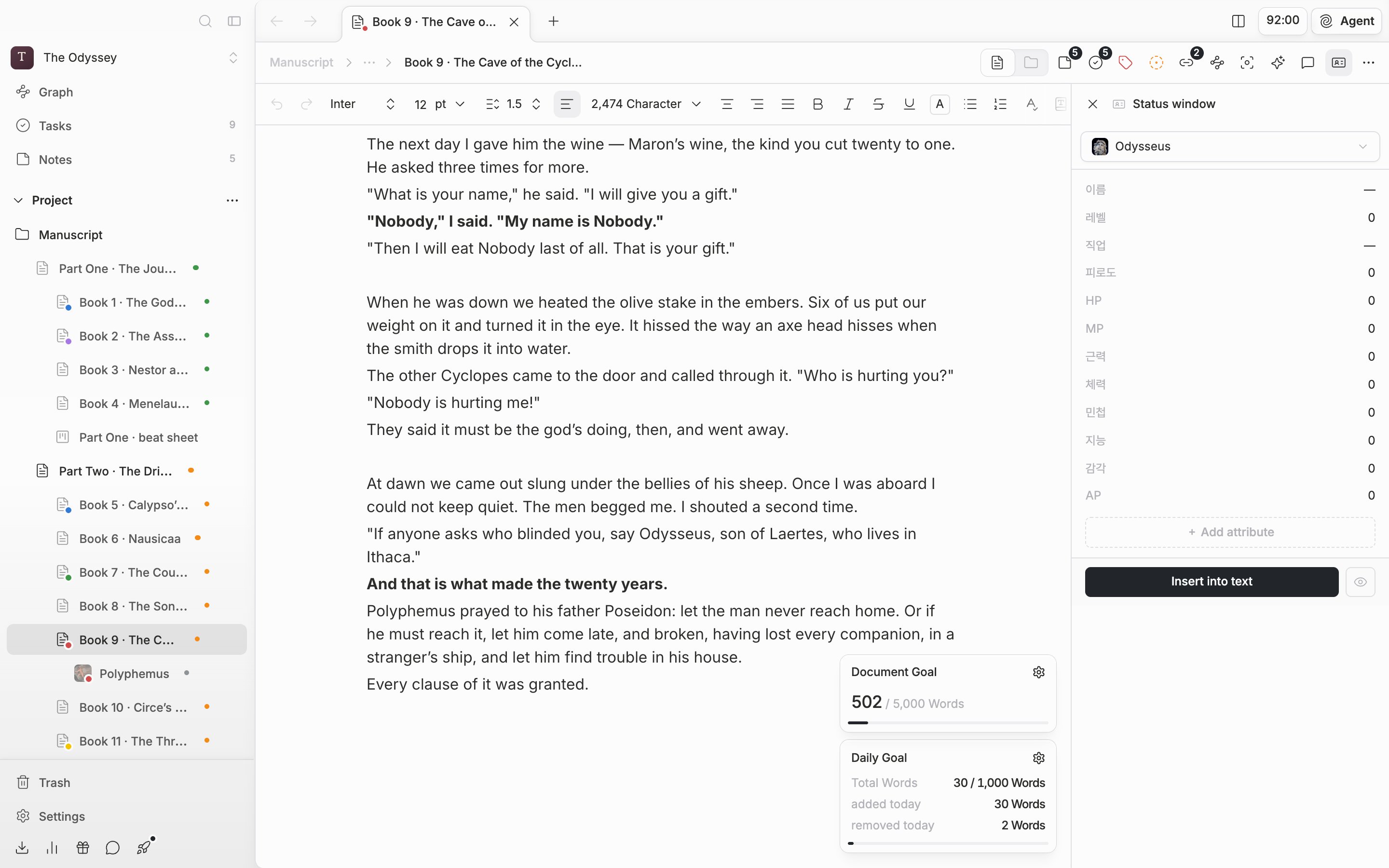
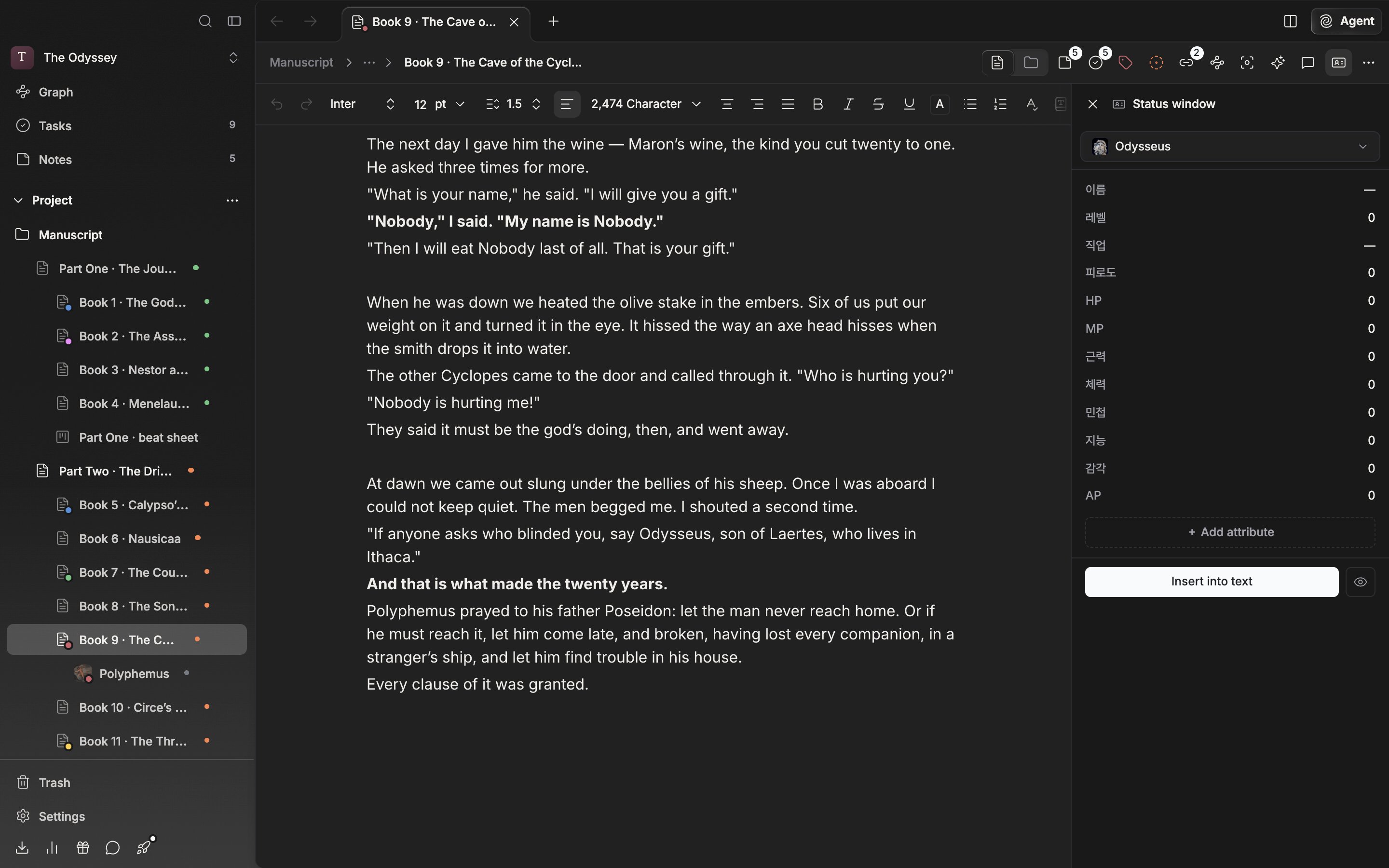
A plugin pane takes the same slot as Notes and Comments.
If the buttons pile up and get in the way, open Customize from More at the far right of the header. Hide buttons with the eye icon and drag the handles to reorder them. Plugin buttons are handled exactly like the built-in ones. If something fails inside a pane, one line is left behind: “Plugin ⋯ failed to render.” The manuscript and the other panes are left as they are; only the pane that failed stops.